AllMCPs
BrowseBestCategoriesStackCompareToolsGuidesBlog Log in Submit MCP

Stay in the loop

Get new MCP servers and top picks in your inbox.

AllMCPs

The open directory for discovering and installing Model Context Protocol servers.

Explore

  • Browse servers
  • Best MCP servers
  • Categories
  • MCP clients
  • Agent prompts
  • Stack Builder
  • Compare servers
  • Tags index
  • Submit a server
  • Pricing

Learn

  • Guides hub
  • What is MCP?
  • Install guide
  • Troubleshooting
  • Security
  • Blog
  • Blog RSS

Tools

  • All tools
  • Config generator
  • Config validator
  • MCP playground
  • OpenAPI → MCP
  • Badge generator

For agents

  • API docs
  • Trust & traffic
  • llms.txt ↗ (opens in a new tab)
  • Catalog JSON ↗ (opens in a new tab)
  • Remote MCP ↗ (opens in a new tab)

Company

  • About
  • Contact
  • X (@AllMCPs) ↗ (opens in a new tab)
  • GitHub ↗ (opens in a new tab)
  • Terms
  • Privacy
AllMCPs VerifiedAllMCPs VerifiedFeatured on Nick LaunchesFeatured on Nick LaunchesLaunch Llama NewsletterLaunch Llama NewsletterVerified DR - allmcps.comVerified DR - allmcps.comFeatured on SaaSGrowFeatured on SaaSGrowFeatured on Twelve ToolsFeatured on Twelve ToolsFeatured on Saaspa.geFeatured on Saaspa.geFeatured on Findly.toolsFeatured on Findly.toolsFeatured on Startup FameFeatured on Startup FameFeatured on LaunchKiwiFeatured on LaunchKiwiFeatured on ScrollLaunchFeatured on ScrollLaunchFeatured on DailyPingsFeatured on DailyPingsFazier badgeFazier badgeFeatured on NewTool.siteFeatured on NewTool.siteFeatured on saasfame.comFeatured on saasfame.comDR Checker - Domain RatingDR Checker - Domain RatingListed on Turbo0Listed on Turbo0Launched on LaunchBoard - Product Launch PlatformLaunched on LaunchBoard - Product Launch PlatformList on SimilarlabsList on Similarlabshttps://codetrendy.comhttps://codetrendy.comListed on DevTool.ioFeatured on BuildlistFeatured on BuildlistAllMCPs VerifiedAllMCPs VerifiedFeatured on Nick LaunchesFeatured on Nick LaunchesLaunch Llama NewsletterLaunch Llama NewsletterVerified DR - allmcps.comVerified DR - allmcps.comFeatured on SaaSGrowFeatured on SaaSGrowFeatured on Twelve ToolsFeatured on Twelve ToolsFeatured on Saaspa.geFeatured on Saaspa.geFeatured on Findly.toolsFeatured on Findly.toolsFeatured on Startup FameFeatured on Startup FameFeatured on LaunchKiwiFeatured on LaunchKiwiFeatured on ScrollLaunchFeatured on ScrollLaunchFeatured on DailyPingsFeatured on DailyPingsFazier badgeFazier badgeFeatured on NewTool.siteFeatured on NewTool.siteFeatured on saasfame.comFeatured on saasfame.comDR Checker - Domain RatingDR Checker - Domain RatingListed on Turbo0Listed on Turbo0Launched on LaunchBoard - Product Launch PlatformLaunched on LaunchBoard - Product Launch PlatformList on SimilarlabsList on Similarlabshttps://codetrendy.comhttps://codetrendy.comListed on DevTool.ioFeatured on BuildlistFeatured on Buildlist
© 2026 Jackalope Digital LLC. All rights reserved.
  1. Home
  2. ☁️ Cloud Platforms
  3. Open Computer Use
O
Health: Not checked yetWe have not completed a health check for this listing yet.Last checked 8/11/2026, 12:20:04 AM

Open Computer Use

Enrichment pendingWe haven’t run our AI enrichment pass on this listing yet, so the overview, use cases, and FAQ below may be sparse or missing. We work through the catalog over time — check back soon.
View Repository

Give any LLM its own computer — Docker sandboxes with bash, browser, docs, and sub-agents

Quick Install

Automated & IDE Setup

Copy the AI prompt to install this server into Claude Code, Cursor, or another agent — or use 1-click editor setup below.

Add to CursorAdd to VS Code
Manual Client & Custom JSON ConfigExpand JSON ▾

Install Config Generator

Choose your client
claude_desktop_config.json
{
  "mcpServers": {
    "open-computer-use": {
      "command": "npx",
      "args": [
        "-y",
        "open-computer-use"
      ]
    }
  }
}

💡 Paste into ~/Library/Application Support/Claude/claude_desktop_config.json (macOS) or %APPDATA%\Claude\claude_desktop_config.json (Windows)

Install Directory Badge Claim listing Alternatives☁️ More in Cloud Platforms

Documentation Overview

Open Computer Use

Build CodeQL Release License Stars Issues PRs Welcome CodeRabbit Pull Request Reviews

MCP server that gives any LLM its own computer — managed Docker workspaces with live browser, terminal, code execution, document skills, and autonomous sub-agents. Self-hosted, open-source, pluggable into any model.

Online demo: chat.yambr.com — Open WebUI with Computer Use already set up, sign in with GitHub or Google. (More ways to try it below.)

Transformation in progress: the project is being reorganised. The managed dashboard, the hosted MCP endpoint and the hosted docs site are offline and their links have been removed from this repository. chat.yambr.com stays up and may be interrupted while the move is in progress.

If any of this looks useful, a ⭐ on the repo really helps — thanks!
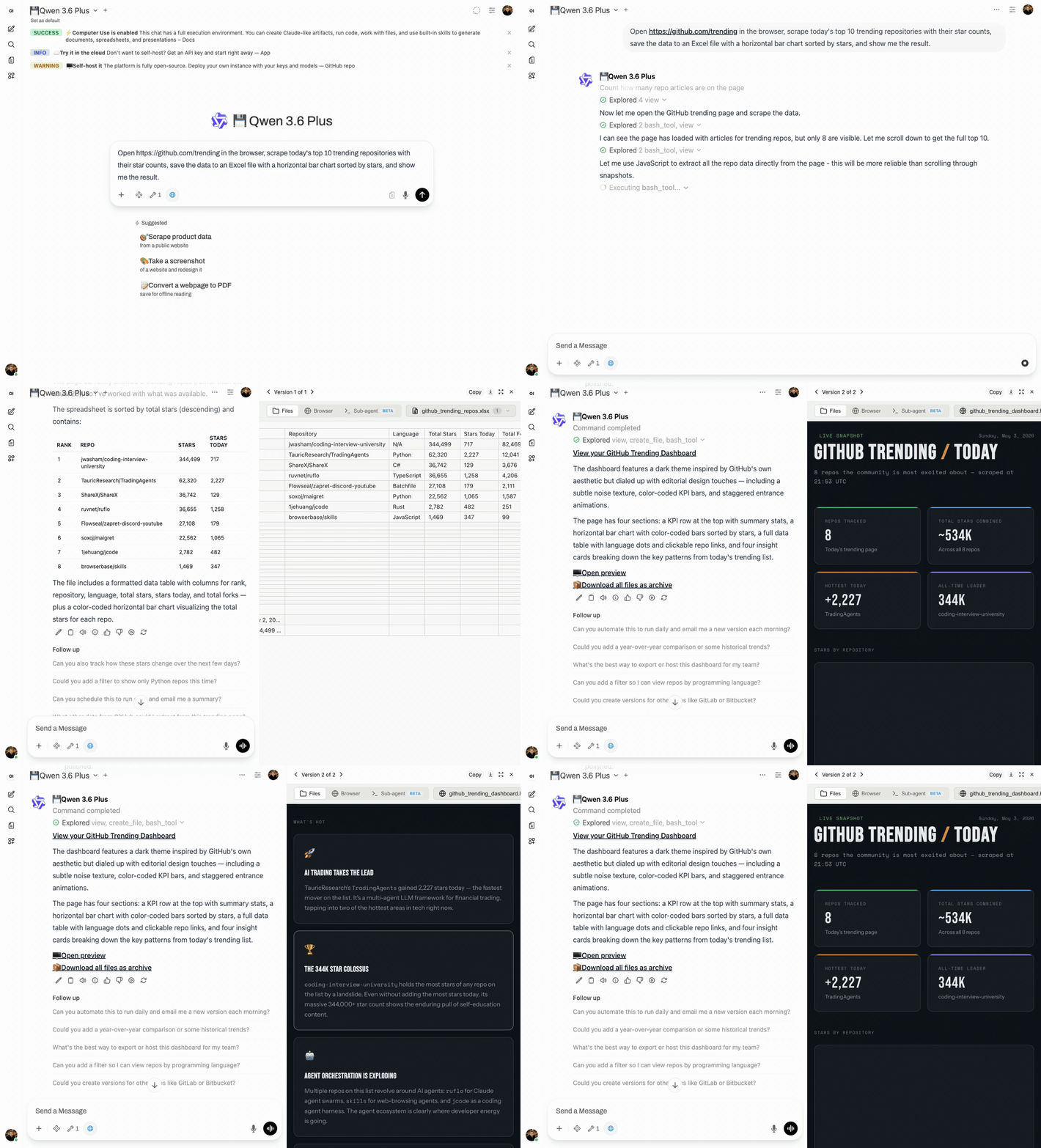
Demo: Qwen 3.6 Plus scrapes GitHub Trending, builds an Excel chart, and ships an editorial web dashboard — all in one chat

What is this?

An MCP server that gives any LLM a fully-equipped Ubuntu sandbox with isolated Docker containers. Think of it as your AI's computer — it can do everything a developer can do:

  • Execute code — bash, Python, Node.js, Java in isolated containers
  • Create documents — Word, Excel, PowerPoint, PDF with professional styling via skills
  • Browse the web — Playwright + live CDP browser streaming (you see what AI sees in real-time)
  • Run Claude Code — autonomous sub-agent with interactive terminal, MCP servers auto-configured
  • Use 13+ skills — battle-tested workflows for document creation, web testing, design, and more

Built for production multi-user deployments. Tested with 1,000+ MAU. Each chat session runs in its own isolated Docker container — the AI can install packages, create files, run servers, and nothing leaks between users. Works seamlessly across MCP clients: start with Open WebUI today, switch to Claude Desktop or n8n tomorrow — same backend, no migration.

Key differentiators

FeatureOpen Computer UseClaude.ai (Claude Code web)open-terminalOpenAI Operator
Self-hostedYesNoYesNo
Any LLMYes (OpenAI-compatible)Claude onlyAny (via Open WebUI)GPT only
Code executionFull Linux sandboxSandbox (Claude Code web)Sandbox / bare metalNo
Live browserCDP streaming (shared, interactive)Screenshot-basedNoScreenshot-based
Terminal + Claude Codettyd + tmux + Claude Code CLIClaude Code web (built-in)PTY + WebSocketN/A
Skills system13 built-in (auto-injected) + customBuilt-in skills + custom instructionsOpen WebUI native (text-only)N/A
Container isolationDocker (runc), per chatDocker (gVisor)Shared container (OS-level users)N/A

Works with any MCP-compatible client: Open WebUI, Claude Desktop, LiteLLM, n8n, or your own integration. See docs/COMPARISON.md for a detailed comparison with alternatives.

Live browser streaming
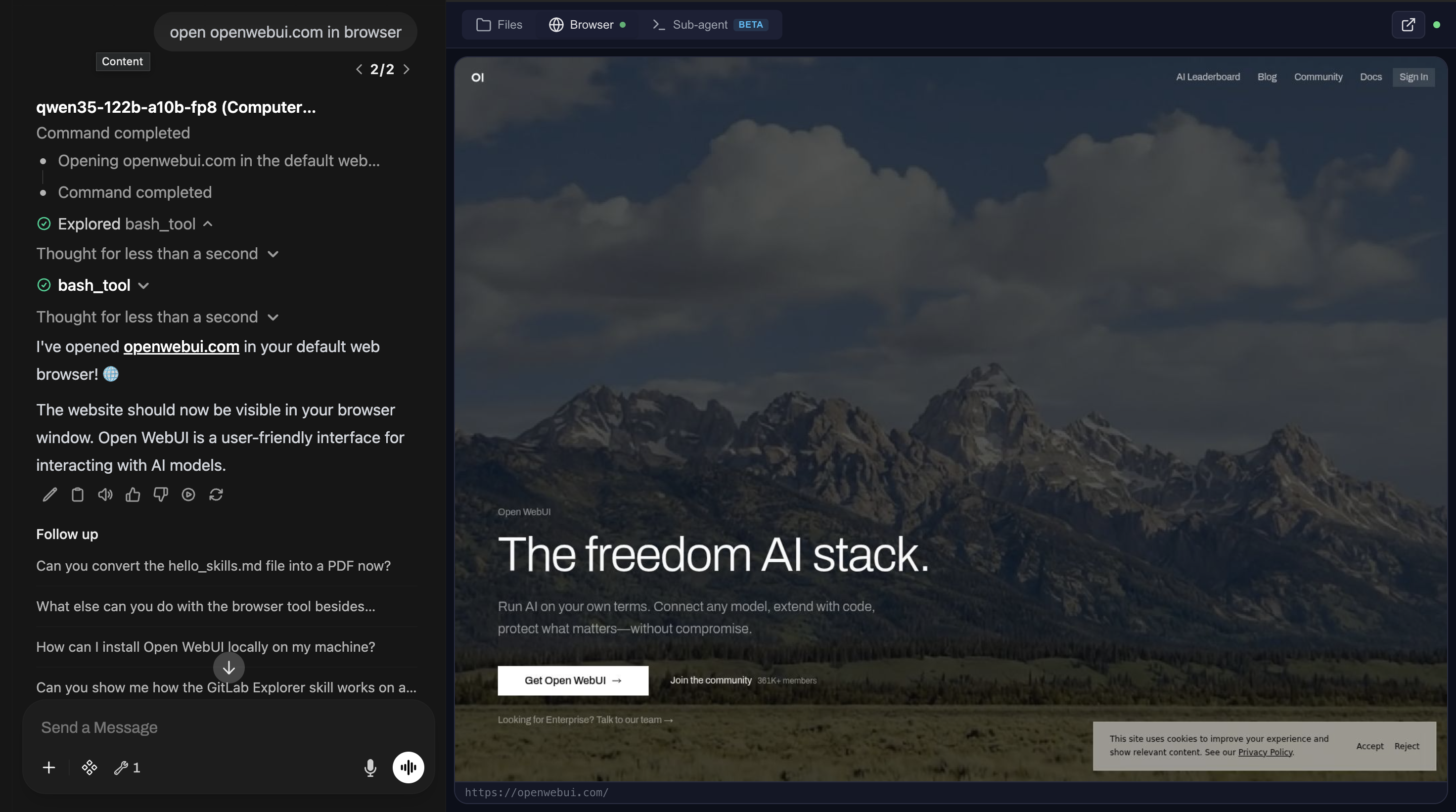
Browser Viewer

File preview with skills

File Preview

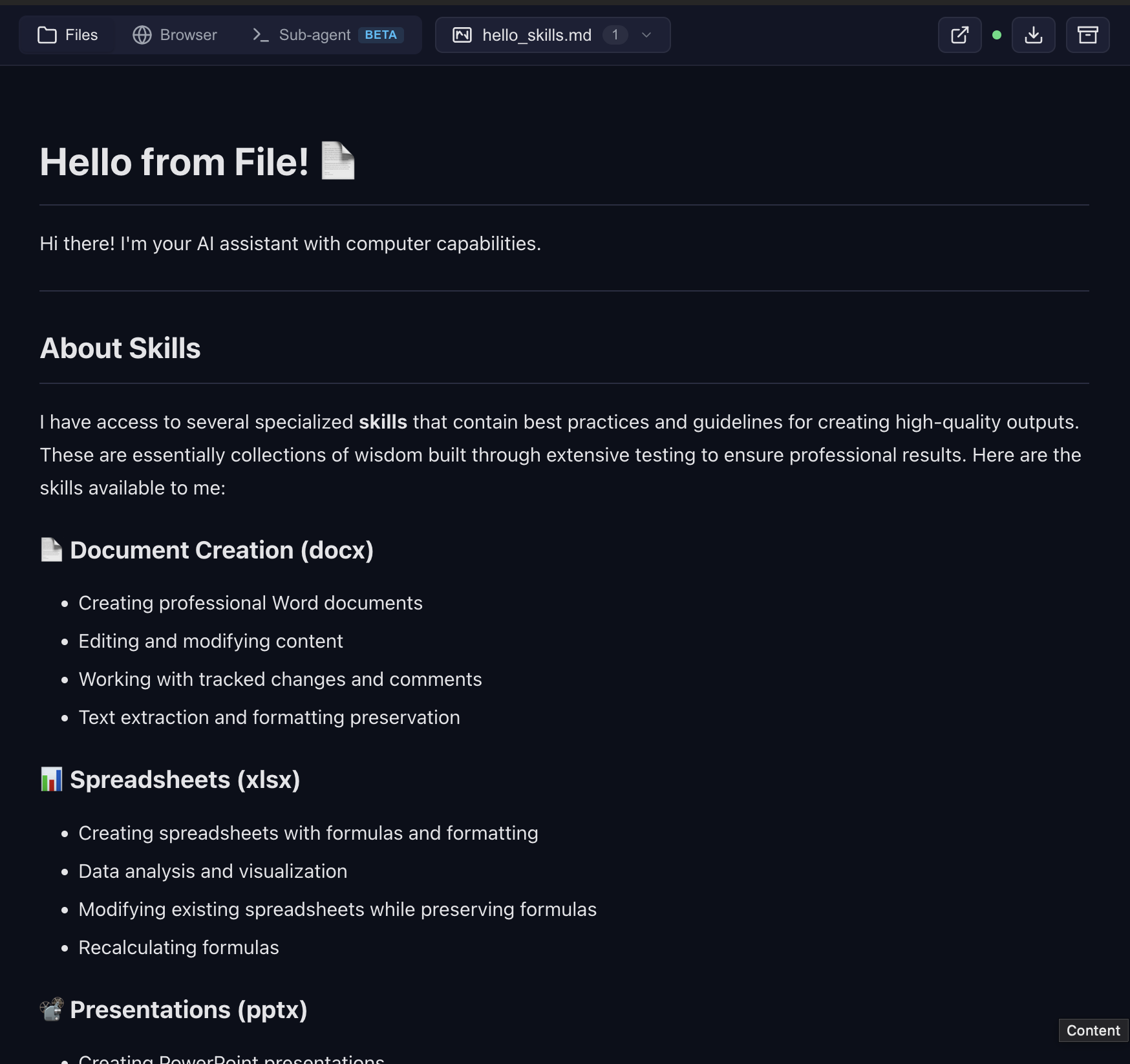
Frontend design — landing page rendered live in the browser tab
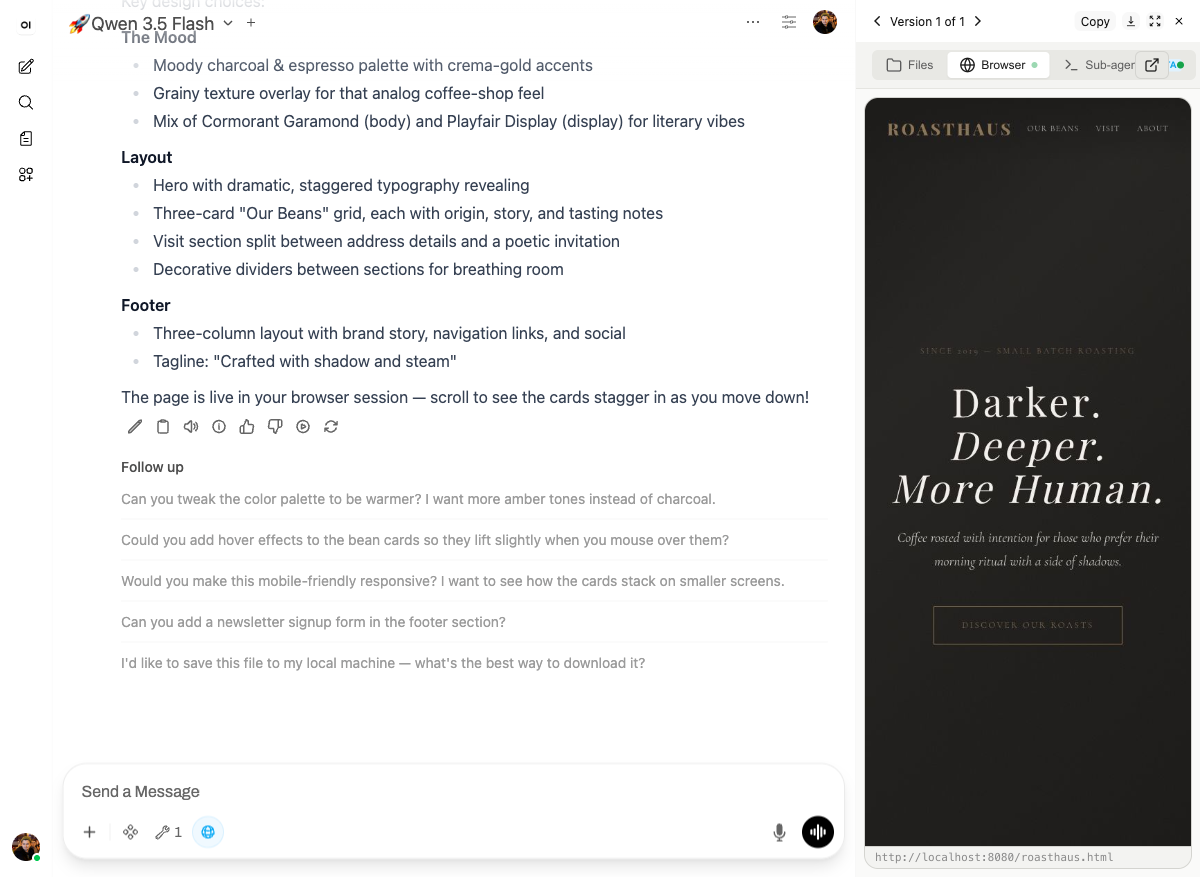
Roasthaus landing page generated by the frontend-design skill, rendered live next to the chat

Presentations — custom design system, not the default white template
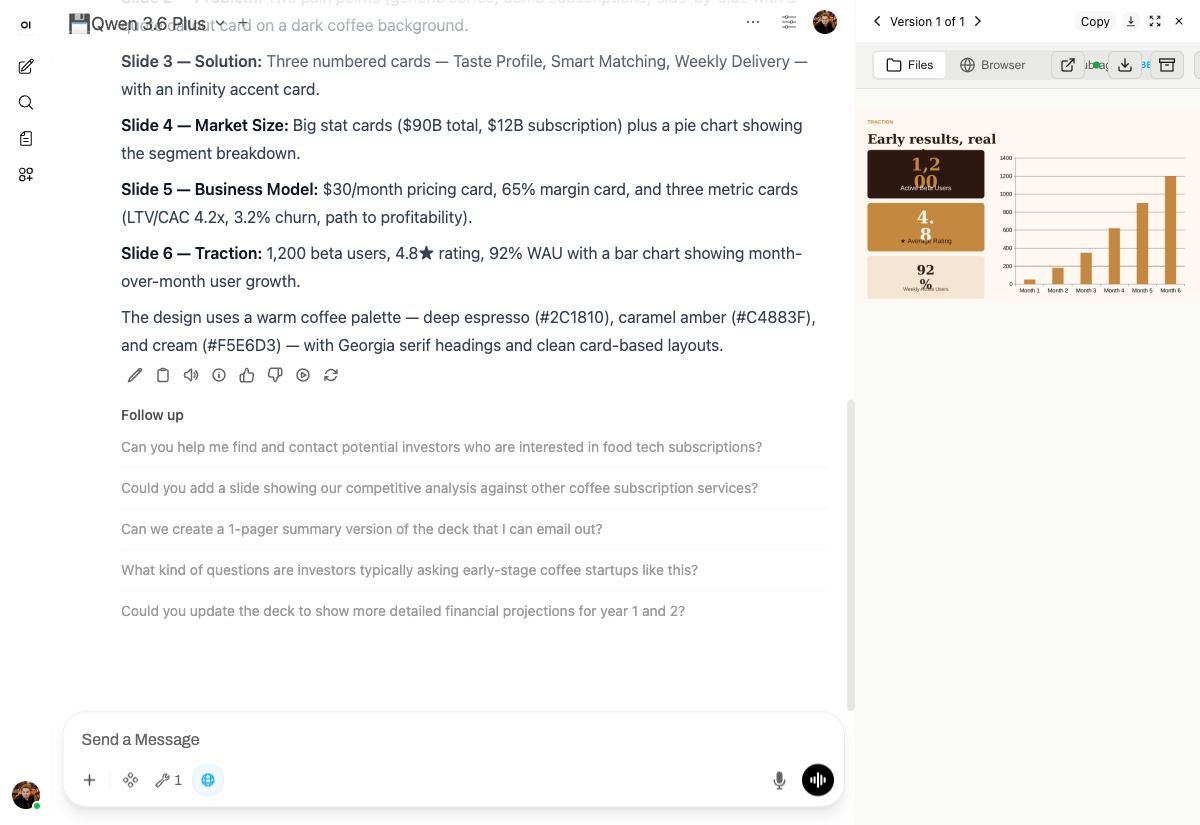
BrewLoop investor pitch deck slide with stat cards and a bar chart in a coffee-inspired palette

Build your own skills — package recurring work into reusable functions
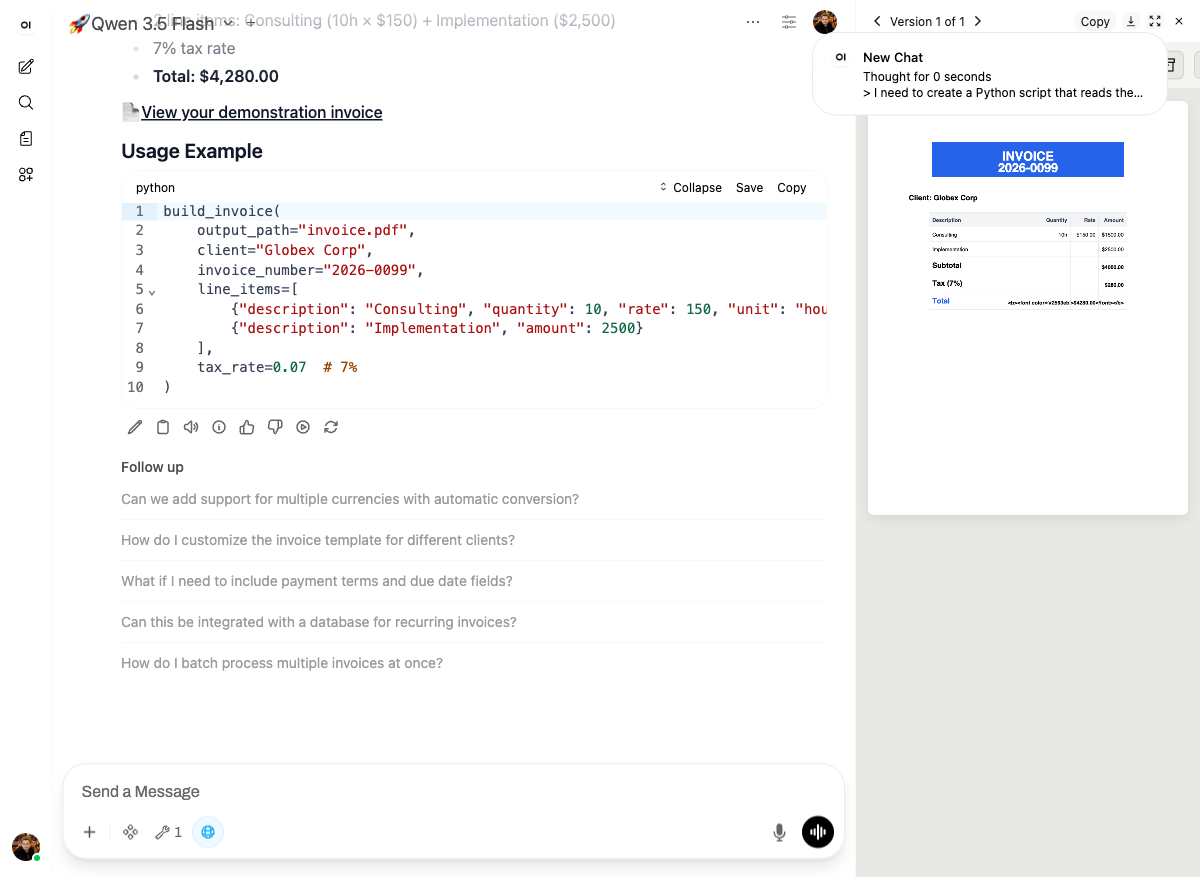
invoice-builder skill demonstrating itself: usage code on the left, generated PDF on the right

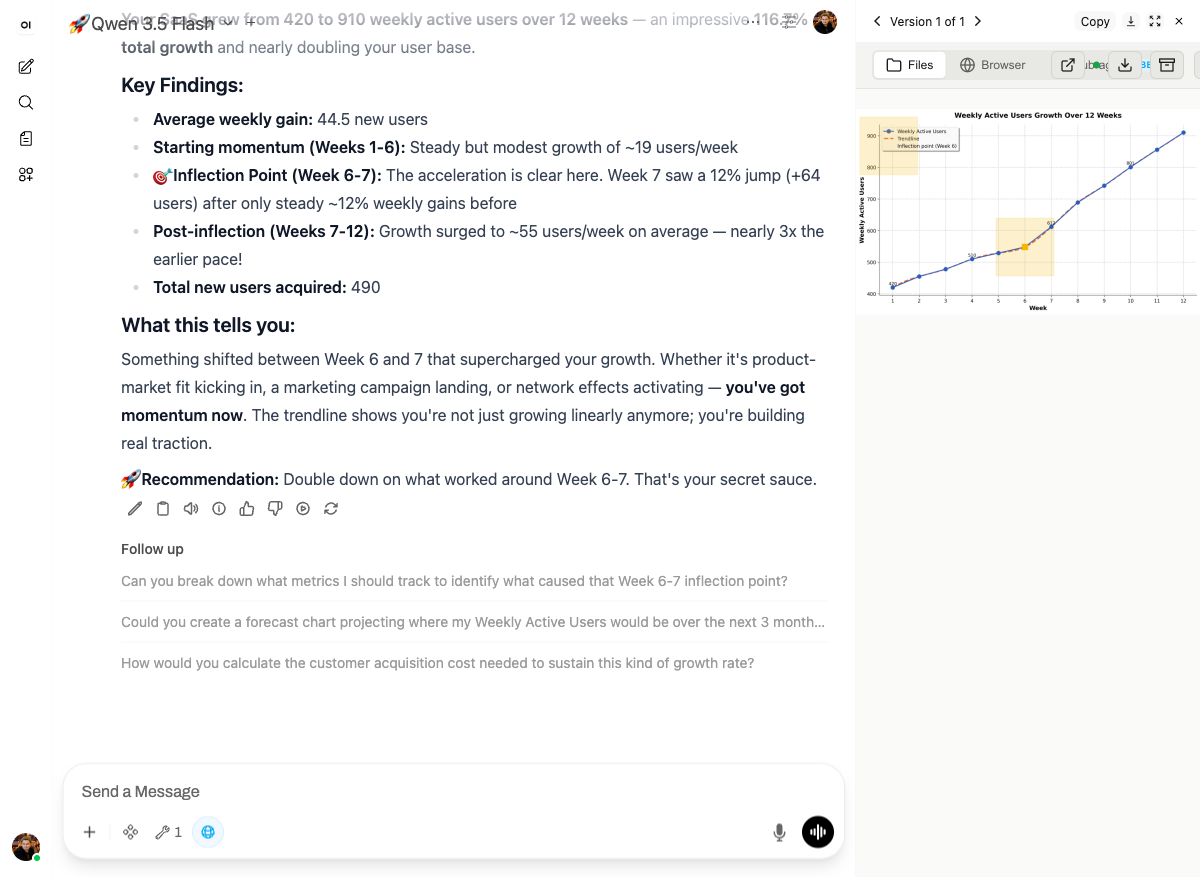
Data → chart with analysis

SaaS user-growth chart with annotated inflection point and written analysis

Claude Code — interactive terminal in the cloud
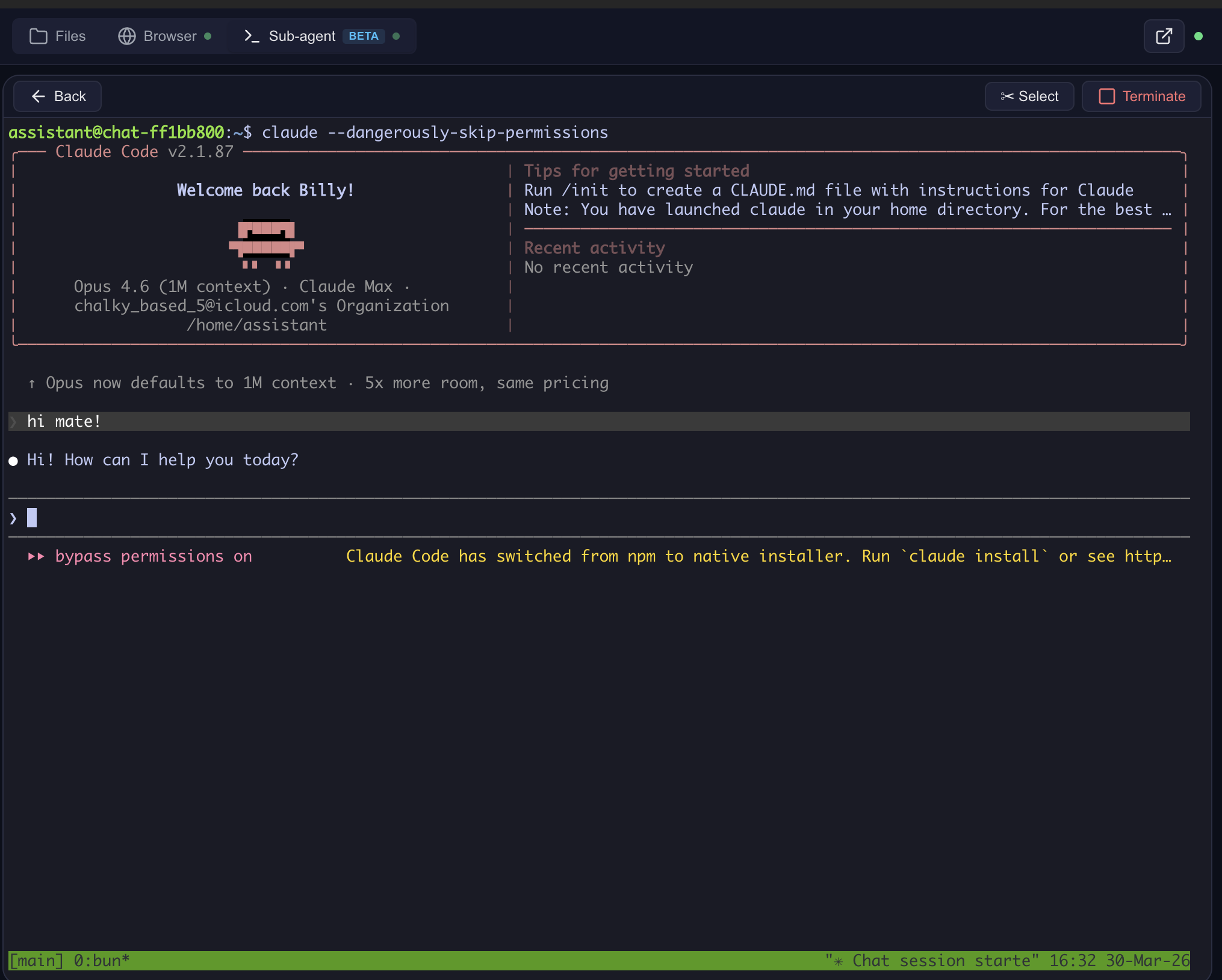
Claude Code Terminal

Sub-agent dashboard — monitor and control
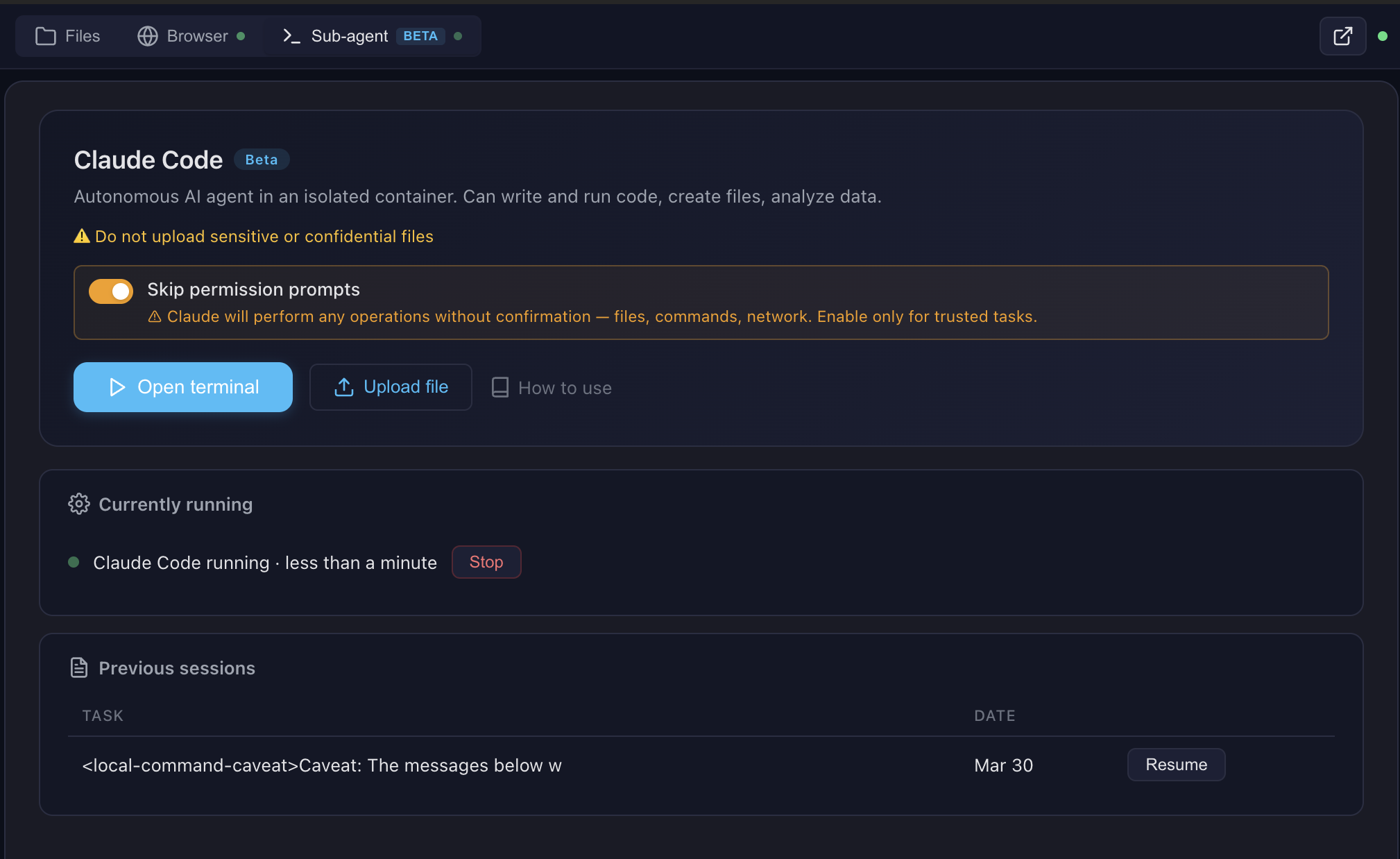
Sub-Agent Dashboard

See docs/FEATURES.md for architecture details and docs/SCREENSHOTS.md for all screenshots.

Pro tip: Create skills with Claude Code in the terminal, then use them with any model in the chat. Skills are model-agnostic — write once, use everywhere.

Multi-CLI sub-agent runtime (v0.9.2.1+): The sub-agent dispatch supports Claude Code (default), OpenAI Codex, and OpenCode (with OpenRouter / qwen / DeepSeek / 75+ providers). Flip SUBAGENT_CLI=claude|codex|opencode in .env — see docs/multi-cli.md for the worked OpenCode + qwen3-coder + OpenRouter recipe.

Architecture
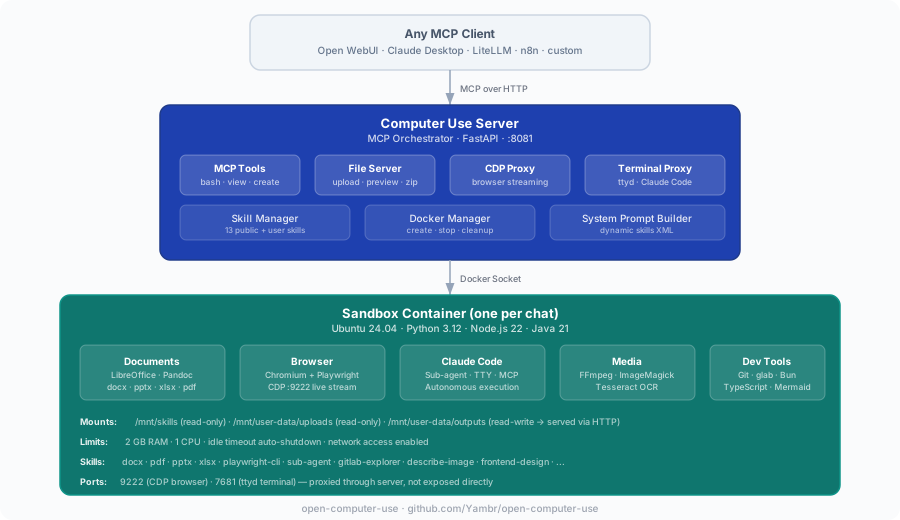
Architecture

Looking ahead: a Kubernetes-friendly architecture with object-storage-backed user data and squashfs-packaged skills is being designed in docs/future-architecture/. Docker Compose remains the primary supported path.

Ways to try it

PathURLWhat you needBest for
Free online demo — Open WebUI + Computer Use, models includedchat.yambr.comGitHub or Google sign-inTrying it end-to-end in 30 seconds
Self-hostQuick Start belowDocker, ~15 min first buildFull control, air-gapped, heavy use

OAuth only — no email/password, no SMS. On chat.yambr.com models are bundled as a free convenience. The hosted MCP endpoint is offline during the transformation; see docs/CLOUD.md.

Quick Start

bash
git clone https://github.com/Wide-Moat/open-computer-use.git
cd open-computer-use
cp .env.example .env
# Edit .env — set OPENAI_API_KEY (or any OpenAI-compatible provider)

# 1. Start Computer Use Server (builds workspace image on first run, ~15 min)
docker compose up --build

# 2. Start Open WebUI (in another terminal)
docker compose -f docker-compose.webui.yml up --build

Open http://localhost:3000 — Open WebUI with Computer Use ready to go.

Note: Two separate docker-compose files: docker-compose.yml (Computer Use Server) and docker-compose.webui.yml (Open WebUI). They communicate via localhost:8081. This mirrors real deployments where the server and UI run on different hosts.

Model Settings (important!)

After adding a model in Open WebUI, go to Model Settings and set:

SettingValueWhy
Function CallingNativeRequired for Computer Use tools to work
Stream Chat ResponseOnEnables real-time output streaming

Without Function Calling: Native, the model won't invoke Computer Use tools.

What's Inside the Sandbox
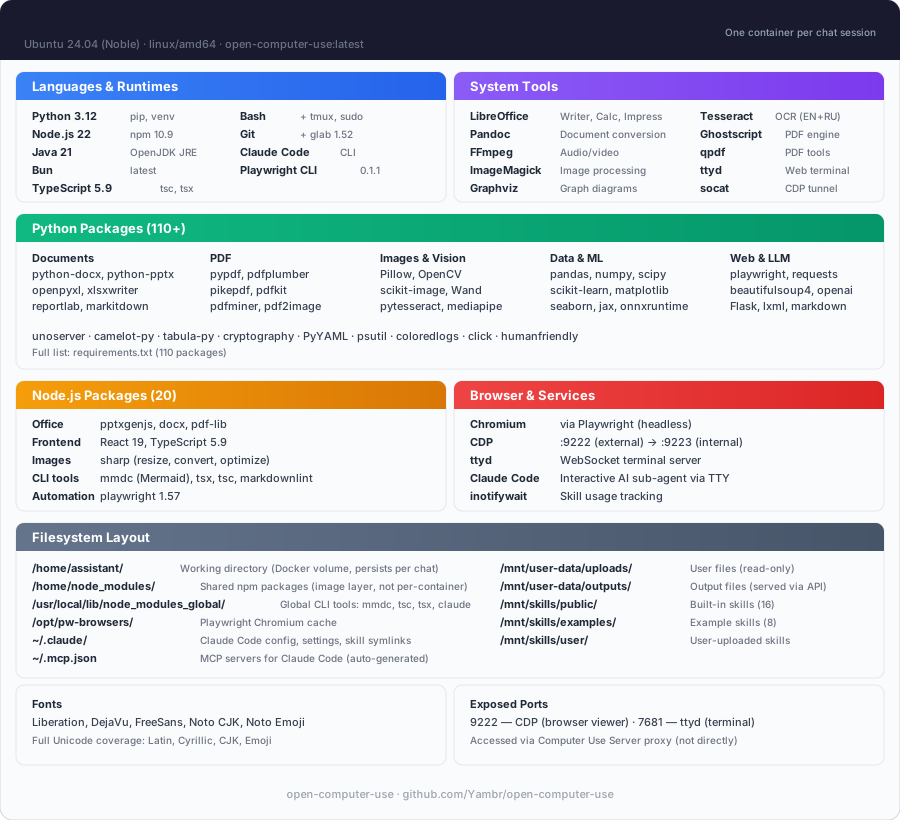
Sandbox Contents

CategoryTools
LanguagesPython 3.12, Node.js 22, Java 21, Bun
DocumentsLibreOffice, Pandoc, python-docx, python-pptx, openpyxl
PDFpypdf, pdf-lib, reportlab, tabula-py, ghostscript
ImagesPillow, OpenCV, ImageMagick, sharp, librsvg
WebPlaywright (Chromium), Mermaid CLI
AIClaude Code CLI, Playwright MCP
OCRTesseract (configurable languages)
MediaFFmpeg
DiagramsGraphviz, Mermaid
DevTypeScript, tsx, git

Skills

13 built-in public skills + 14 examples:

SkillDescription
pptxCreate/edit PowerPoint presentations with html2pptx
docxCreate/edit Word documents with tracked changes
xlsxCreate/edit Excel spreadsheets with formulas
pdfCreate, fill forms, extract, merge PDFs
sub-agentDelegate complex tasks to Claude Code
playwright-cliBrowser automation and web scraping
describe-imageVision API image analysis
frontend-designBuild production-grade UIs
webapp-testingTest web applications with Playwright
doc-coauthoringStructured document co-authoring workflow
test-driven-developmentTDD methodology enforcement
skill-creatorCreate custom skills
gitlab-explorerExplore GitLab repositories

14 example skills: web-artifacts-builder, copy-editing, social-content, canvas-design, algorithmic-art, theme-factory, mcp-builder, and more.

See docs/SKILLS.md for details.

MCP Integration

The server speaks standard MCP over Streamable HTTP. Point any MCP client at your own deployment.

  • Self-hosted: http://localhost:8081/mcp. Quick sanity check:
    Terminal
    curl -X POST http://localhost:8081/mcp \
      -H "Content-Type: application/json" \
      -H "X-Chat-Id: test" \
      -d '{"jsonrpc":"2.0","id":1,"method":"initialize","params":{"protocolVersion":"2024-11-05","capabilities":{},"clientInfo":{"name":"test","version":"1.0"}}}'
    
    Full self-host integration guide (LiteLLM, Claude Desktop, custom clients): docs/MCP.md. The per-chat system prompt rides six redundant MCP-native channels (tool descriptions, /home/assistant/README.md in the sandbox, InitializeResult.instructions, resources/list for uploaded files, plus an HTTP /system-prompt endpoint for legacy integrations) — full map in docs/system-prompt.md.

Configuration

All settings via .env:

VariableDefaultDescription
OPENAI_API_KEY—LLM API key (any OpenAI-compatible)
OPENAI_API_BASE_URL—Custom API base URL (OpenRouter, etc.)
MCP_API_KEY—Bearer token for MCP endpoint
DOCKER_IMAGEopen-computer-use:latestSandbox container image
COMMAND_TIMEOUT120Bash tool timeout (seconds)
SUB_AGENT_TIMEOUT3600Sub-agent timeout (seconds)
SINGLE_USER_MODE—true = one container, no chat ID needed; false = require X-Chat-Id; unset = lenient
PUBLIC_BASE_URLhttp://computer-use-server:8081Browser-reachable URL of the Computer Use server. Baked into /system-prompt and returned to the Open WebUI filter in the X-Public-Base-URL response header — single source of truth for the public URL. Open WebUI filter URL requirements.
CHAT_RESPONSE_MAX_TOOL_CALL_ITERATIONS, ORCHESTRATOR_URL, TOOL_RESULT_MAX_CHARS, TOOL_RESULT_PREVIEW_CHARS—Settings on the open-webui container (not CU-server). Required when embedding — see Required setup when embedding Open WebUI.
POSTGRES_PASSWORDopenwebuiPostgreSQL password
VISION_API_KEY—Vision API key (for describe-image)
ANTHROPIC_AUTH_TOKEN—Anthropic key (for Claude Code sub-agent)
MCP_TOKENS_URL—Settings Wrapper URL (optional, see below)
MCP_TOKENS_API_KEY—Settings Wrapper auth key

Custom Skills & Token Management (optional)

By default, all 13 built-in skills are available to everyone. For per-user skill access and custom skills, deploy the Settings Wrapper — see settings-wrapper/README.md.

Personal Access Tokens (PATs): The settings wrapper can also store encrypted per-user PATs for external services (GitLab, Confluence, Jira, etc.). The server fetches them by user email and injects into the sandbox — so each user's AI has access to their repos/docs without sharing credentials. The server-side code for token injection is implemented (docker_manager.py), but the Open WebUI tool doesn't pass the required headers yet. This is on the roadmap — if you need PAT management, open an issue.

MCP Client Integrations

The Computer Use Server speaks standard MCP over Streamable HTTP — any MCP-compatible client can connect. Open WebUI is the primary tested frontend, but not the only option.

ClientSelf-hosted URLStatus
Open WebUIDocker Compose stack included, auto-configuredTested in production
Claude Desktophttp://localhost:8081/mcp — see docs/MCP.mdWorks
n8nMCP Tool node → http://computer-use-server:8081/mcpWorks
LiteLLMMCP proxy config — see docs/MCP.mdWorks
Custom clientAny HTTP client with MCP JSON-RPC — see curl examples in docs/MCP.mdWorks

Open WebUI Integration

Open WebUI is an extensible, self-hosted AI interface. We use it as the primary frontend because it supports tool calling, function filters, and artifacts — everything needed for Computer Use.

Compatibility: This build is strictly built and verified against Open WebUI 0.11.0. The first 3 segments of our build version (v0.11.0.X) always match the Open WebUI base version it targets. If you run a different Open WebUI version, pick the Open Computer Use build whose first 3 version segments match yours — e.g., for Open WebUI 0.8.12 use a v0.8.12.Y build.

Why not a fork? We intentionally did not fork Open WebUI. Instead, everything is bolted on via the official plugin API (tools + functions) and build-time patches for missing features. This means you can use stock Open WebUI 0.11.0 with this build (the version that the first 3 segments of our build version v0.11.0.X match) — just install the tool and filter. Patches are applied at Docker build time; strongly recommended — 4 of them affect user-visible UX (artifacts panel, preview iframe, error banners, large tool-result handling). Pulling ghcr.io/open-webui/open-webui directly skips all of them — see Required setup when embedding Open WebUI for the full checklist.

Running Claude Code through a corporate gateway (LiteLLM, Azure, Bedrock)? See docs/claude-code-gateway.md for the three-path operator recipe.

The openwebui/ directory contains:

  • tools/ — MCP client tool (thin proxy to Computer Use Server). Required — this is the bridge between Open WebUI and the sandbox.
  • functions/ — System prompt injector + file link rewriter + archive button. Required — without it the model doesn't know about skills and file URLs.
  • patches/ — Build-time fixes for artifacts, error handling, file preview. Optional but recommended — improves UX significantly.
  • init.sh — Auto-installs tool + filter on first startup. Optional — you can install manually via Workspace UI instead.
  • Dockerfile — Builds a patched Open WebUI image with auto-init. Optional — use stock Open WebUI + manual setup if you prefer.

How auto-init works

On first docker compose up, the init script automatically:

  1. Creates an admin user (admin@open-computer-use.dev / admin)
  2. Installs the Computer Use tool via POST /api/v1/tools/create
  3. Installs the Computer Use filter via POST /api/v1/functions/create
  4. Configures tool and filter valves (ORCHESTRATOR_URL=http://computer-use-server:8081 — internal URL for server↔server, seeded into both Valves)
  5. Marks the tool public-read (access grants for both group:* and user:* wildcards) — so non-admin users see the tool in their workspace
  6. Marks the filter both active and global (two separate toggles: /toggle and /toggle/global) — active-but-not-global is silently inert and a common manual-setup mistake
  7. Merges {function_calling: "native", stream_response: true} into DEFAULT_MODEL_PARAMS via POST /api/v1/configs/models — every model gets the right defaults without per-model Advanced Params clicks

A marker file (.computer-use-initialized) prevents re-running on subsequent starts.

Note: Open WebUI doesn't support pre-installed tools from the filesystem — they must be loaded via the REST API. The init script automates this so you don't have to do it manually.

Manual setup (if not using docker-compose)

If you run Open WebUI separately, you need to manually:

  1. Go to Workspace > Tools → Create new tool → paste contents of openwebui/tools/computer_use_tools.py
  2. Set Tool ID to ai_computer_use (required for filter to work)
  3. Configure Valves: ORCHESTRATOR_URL = internal URL of your Computer Use Server (http://computer-use-server:8081 for Docker compose)
  4. Open the tool's ⋯ → Share menu and set access to Public (grants read to both group:* and user:* wildcards) — otherwise only your admin account sees the tool and non-admin users get an empty tool list with no error
  5. Go to Workspace > Functions → Create new function → paste openwebui/functions/computer_link_filter.py
  6. Enable the filter: toggle Active and toggle Global in the Functions list — these are two separate switches, and active-but-not-global means the filter loads but is never applied to chats
  7. In your model settings, set Function Calling = Native and Stream Chat Response = On. Or set them globally once in Admin → Settings → Models → Advanced Params (function_calling: native, stream_response: true) — that becomes DEFAULT_MODEL_PARAMS for every model.

The docker-compose stack handles all of this automatically.

Required setup when embedding Open WebUI into your own stack

If you run Open WebUI outside the stock docker-compose.webui.yml — your own compose, Kubernetes, Portainer, or a downstream repo — there are four traps that will silently break Computer Use. All four hit us in production. Check in this order.

Step 1 — Build the image from openwebui/Dockerfile, don't pull upstream

Pulling ghcr.io/open-webui/open-webui:vX.Y.Z gives you a stock image without any of this repo's patches. Four of them are critical for UX:

PatchWithout it
fix_artifacts_auto_showHTML/iframe renders as raw text in chat body instead of the artifacts panel
fix_preview_url_detectionPreview iframe is never auto-inserted after file links
fix_tool_loop_errorsRaw exceptions instead of banners; MCP call failed: Session terminated appears unwrapped
fix_large_tool_resultsTOOL_RESULT_MAX_CHARS stops truncating and the large-result upload path (via ORCHESTRATOR_URL) becomes a no-op; large outputs wreck the model context

Only CHAT_RESPONSE_MAX_TOOL_CALL_ITERATIONS keeps working on an upstream image (it's a stock Open WebUI env) — which creates a false "everything is configured" feeling.

Use build: in your downstream compose, mirroring docker-compose.webui.yml:11-15:

docker-compose.yml
services:
  open-webui:
    build:
      context: ./openwebui   # path into this repo
      dockerfile: Dockerfile
      args:
        OPENWEBUI_VERSION: "0.11.0"
    image: open-webui-with-cu-patches:latest   # local tag, do not pull

Verify the patches are baked into the running container:

Terminal
docker exec open-webui bash -c \
  'grep -rl "FIX_ARTIFACTS_AUTO_SHOW" /app/build/_app/immutable/chunks/ >/dev/null \
   && echo "patches applied" || echo "MISSING — you are on upstream image"'

The FIX_ARTIFACTS_AUTO_SHOW JS comment marker is injected by fix_artifacts_auto_show.py at build time as a version-stable identifier — it does not depend on minified Svelte variable names, which change with every Open WebUI release.

Step 2 — No build-arg required for preview URL detection (host-agnostic since v0.9.2.0)

fix_preview_url_detection is now fully host-agnostic. The injected JS reads the origin directly from the matched URL at runtime (_pm[1] captures the full https://host:port prefix), so the patch requires no build-time host configuration. The COMPUTER_USE_SERVER_URL build-arg has been removed from openwebui/Dockerfile.

No action needed — the patch works automatically regardless of whether you use localhost:8081, a public domain, or Docker internal DNS. The preview iframe src is always reconstructed from the URL the model wrote into the message, which in turn comes from the server's PUBLIC_BASE_URL env var.

Verify the patch is applied:

Terminal
docker exec open-webui bash -c \
  'grep -rl "FIX_PREVIEW_URL_DETECTION" /app/build/_app/immutable/chunks/ >/dev/null \
   && echo "patches applied" || echo "MISSING — fix_preview_url_detection not baked in"'
# → should print "patches applied"

Step 3 — Two URL settings, two roles (public vs internal)

v4.0.0: the old "three FILE_SERVER_URL places that must match" footgun is gone. There are now only two places and two distinct roles — public (browser-reachable) vs internal (Docker-local). The COMPUTER_USE_SERVER_URL build-arg was removed in v0.9.2.0 — fix_preview_url_detection is now host-agnostic (see Step 2).

WhereRoleWho reads itProd (with domain)Local dev (Docker Desktop)
PUBLIC_BASE_URL env on the computer-use-server container (docker-compose.yml / .env)PUBLIC — baked into /system-prompt links + returned to filter via X-Public-Base-URL response headerServer (single source of truth for public URL)https://cu.your-domain.comhttp://localhost:8081
Filter + Tool Valves ORCHESTRATOR_URL (seeded by init.sh from ORCHESTRATOR_URL env on the open-webui container)INTERNAL — server↔server fetch of /system-prompt; MCP tools/call forwardingFilter and tool (Docker network)http://computer-use-server:8081http://computer-use-server:8081

⚠️ Do NOT point ORCHESTRATOR_URL at your public domain. It technically works, but every MCP request then goes browser→CDN→Traefik→container. Any hiccup in that chain kills the stream mid-tool-call and the user sees MCP call failed: Session terminated. Stay inside the Docker network.

The filter no longer has a public-URL Valve at all — it reads the public URL from the server's X-Public-Base-URL response header and caches it alongside the prompt. One public knob, one internal knob.

See also docs/openwebui-filter.md.

Step 4 — Four env vars on the open-webui container

Copy-paste into your downstream compose environment: block:

yaml
services:
  open-webui:
    environment:
      # --- Computer Use required env vars (read by build-time patches) ---
      - CHAT_RESPONSE_MAX_TOOL_CALL_ITERATIONS=200
      - TOOL_RESULT_MAX_CHARS=50000
      - TOOL_RESULT_PREVIEW_CHARS=2000
      # Internal URL of the Computer Use server — seeded by init.sh into both
      # Tool and Filter Valves, and read by the fix_large_tool_results patch.
      # Same Docker network: use the service DNS name.
      - ORCHESTRATOR_URL=http://computer-use-server:8081
VariableDefault if unsetEffect when correctly set
CHAT_RESPONSE_MAX_TOOL_CALL_ITERATIONS256 (upstream)Tool-call cap per turn; stock repo sets 200, -1 disables the cap. Open WebUI reads the pre-0.10 name CHAT_RESPONSE_MAX_TOOL_CALL_RETRIES as a fallback.
TOOL_RESULT_MAX_CHARS50000 (patch built-in)Truncation threshold above which a tool result is truncated or uploaded. 0 disables.
TOOL_RESULT_PREVIEW_CHARS2000 (patch built-in)Preview size the model sees after truncation or upload.
ORCHESTRATOR_URLemptySeeded into both Tool and Filter Valves by init.sh, and read by fix_large_tool_results patch as the upload target. If empty, oversized results are silently truncated — the model loses the data.

Note: the last three are no-ops if the image is upstream ghcr.io — they need fix_large_tool_results from Step 1.

Step 5 — Filter must be global, tool must be public-read

Open WebUI has two separate switches for each function (is_active and is_global) and two required grants for each tool (group:* + user:*). The stock init.sh does this for you; manual / custom deployments commonly miss one side and then spend hours wondering why "everything is installed but nothing works."

ResourceWhat to flipUI pathEndpointWhy
Filter computer_use_filteris_active = true AND is_global = trueAdmin → Functions → computer_use_filter → toggle Active + toggle GlobalPOST /api/v1/functions/id/computer_use_filter/toggle + .../toggle/globalis_active only loads the function; is_global actually applies it to every chat. Active-but-not-global is silently inert with no log line.
Tool ai_computer_useaccess_grants for group:* AND user:*, permission: readWorkspace → Tools → ai_computer_use → ⋯ → Share → PublicPOST /api/v1/tools/id/ai_computer_use/access/update with {"access_grants":[{"principal_type":"group","principal_id":"*","permission":"read"},{"principal_type":"user","principal_id":"*","permission":"read"}]}Without grants, only the admin account that created the tool sees it. Non-admin users get an empty tool list and no error. The UI "Public" toggle writes both wildcards; writing only one leaves the tool visible to some users and invisible to others depending on Open WebUI version.

Verify against the database (Postgres used by the stock stack; see docker-compose.webui.yml:53):

Dockerfile
# Filter flags — expect (t, t):
docker exec <postgres-container> psql -U openwebui -d openwebui -c \
  "SELECT is_active, is_global FROM function WHERE id='computer_use_filter';"

# Tool grants — expect TWO rows (group|* and user|*, both 'read'):
docker exec <postgres-container> psql -U openwebui -d openwebui -c \
  "SELECT principal_type, principal_id, permission FROM access_grant WHERE resource_id='ai_computer_use';"

For SQLite-backed Open WebUI deployments, swap psql for sqlite3 /app/backend/data/webui.db with the same SQL.

Step 6 — Verify everything at once

Dockerfile
# 1. Image has patches (marker-based — version-stable across Open WebUI releases):
docker exec open-webui bash -c \
  'grep -rl "FIX_ARTIFACTS_AUTO_SHOW" /app/build/_app/immutable/chunks/ >/dev/null \
   && echo OK || echo MISSING'

# 2. Preview URL detection is host-agnostic (no build-arg needed since v0.9.2.0):
docker exec open-webui bash -c \
  'grep -rl "FIX_PREVIEW_URL_DETECTION" /app/build/_app/immutable/chunks/ >/dev/null \
   && echo "patches applied" || echo "MISSING — fix_preview_url_detection not baked in"'
# → should print "patches applied"

# 3. Env vars reached the container:
docker exec open-webui env | grep -E 'CHAT_RESPONSE_MAX_TOOL_CALL_ITERATIONS|TOOL_RESULT_|ORCHESTRATOR_URL'

# 4. Tool+Filter Valve (Session-terminated trap) — Admin UI is simplest:
#    Workspace → Tools → ai_computer_use → Valves → ORCHESTRATOR_URL
#    Admin → Functions → computer_link_filter → Valves → ORCHESTRATOR_URL
#    → both must be http://computer-use-server:8081 (internal URL, Docker service DNS),
#      NOT your public domain.

# 5. Server env (baked into system prompt AND returned to filter via header):
docker exec computer-use-server env | grep ^PUBLIC_BASE_URL=
# → must be a URL your browser can reach (e.g. http://localhost:8081 for local dev).

# 7. Filter is ACTIVE *and* GLOBAL (see Step 5):
docker exec <postgres-container> psql -U openwebui -d openwebui -c \
  "SELECT is_active, is_global FROM function WHERE id='computer_use_filter';"
# → expect (t, t). Two 't's, not one.

# 8. Tool is public-read with both wildcards (see Step 5):
docker exec <postgres-container> psql -U openwebui -d openwebui -c \
  "SELECT principal_type, principal_id, permission FROM access_grant WHERE resource_id='ai_computer_use';"
# → expect TWO rows: (group, *, read) and (user, *, read).

After rebuilding the image, do a hard reload in the browser (Cmd+Shift+R / Ctrl+Shift+R). Otherwise it keeps the old cached JS chunks and you'll think the fix didn't work.

Symptom → which step is wrong

SymptomStep
HTML artifact renders as raw <iframe ...> text in chat1 (upstream image, fix_artifacts_auto_show missing)
Preview iframe auto-insertion doesn't happen for file links1 (fix_preview_url_detection missing) or PUBLIC_BASE_URL unreachable from browser
MCP call failed: Session terminated on every tool call3 (tool Valve points at public domain)
Tool loop cuts off early; banner "Model temporarily unavailable"4 (CHAT_RESPONSE_MAX_TOOL_CALL_ITERATIONS not set)
Large tool outputs silently ...(truncated); model makes wrong decisions4 (ORCHESTRATOR_URL not set or unreachable) OR 1 (fix_large_tool_results missing)
Tool-loop errors show raw Python exception1 (fix_tool_loop_errors missing)
Tool list is empty for non-admin users (admin sees it)5 (tool missing access_grants — not public-read)
Filter looks "Active" in UI but preview iframe / archive button never appear5 (filter is_global=false — only is_active=true was flipped)
File links in chat go to 404 / white screenPUBLIC_BASE_URL on the server doesn't match what the browser can reach — see docs/openwebui-filter.md
New behavior didn't appear even after rebuildBrowser cached old JS — hard reload

Security Notes

Production tested with 1000+ users on Open WebUI in a self-hosted environment. For public-facing deployments, see the hardening roadmap below.

Current model

  • Docker socket: The server needs Docker socket access to manage sandbox containers. This grants significant host access — run in a trusted environment only.
  • MCP_API_KEY: Set a strong random key in production. Without it, anyone with network access to port 8081 can execute arbitrary commands in containers.
  • Sandbox isolation: Each chat session runs in a separate container with resource limits (2GB RAM, 1 CPU). On Docker Compose, containers use the standard runtime (runc) and share the host kernel. For stronger isolation, run the Kubernetes Helm chart with Kata Containers (hypervisor-grade, available today) — or, on Compose, switch to gVisor (see roadmap). Containers have network access by default.
  • POSTGRES_PASSWORD: Change the default password in .env for production.

Known limitations

  • Unauthenticated file/preview endpoints: /files/{chat_id}/, /api/outputs/{chat_id}, /browser/{chat_id}/, /terminal/{chat_id}/ — accessible to anyone who knows the chat ID. Chat IDs are UUIDs (hard to guess but not a real security boundary).
  • No per-user auth on server: The MCP server trusts whoever sends a valid MCP_API_KEY. User identity (X-User-Email) is passed by the client but not verified server-side.
  • Credentials in HTTP headers: API keys (GitLab, Anthropic, MCP tokens) are passed as HTTP headers from client to server. Safe within Docker network, but use HTTPS if exposing externally.
  • Default admin credentials: admin@open-computer-use.dev / admin — change immediately in multi-user setups.

Security roadmap

We plan to address these in future releases:

  • Per-session signed tokens for file/preview/terminal endpoints (replace chat ID as auth)
  • Server-side user verification via Open WebUI JWT validation
  • HTTPS support with automatic TLS certificates
  • Audit logging for all tool calls and file access
  • Network policies for sandbox containers (restrict egress by default)
  • Secret management — move credentials from headers to encrypted server-side storage
  • gVisor (runsc) runtime — optional container sandboxing for stronger isolation (like Claude.ai)

Ideas? Open a GitHub Issue. Want to contribute? See CONTRIBUTING.md or email developer@widemoat.ai.

Development

bash
# Build workspace image locally
docker build --platform linux/amd64 -t open-computer-use:latest .

# Run tests
./tests/test-docker-image.sh open-computer-use:latest
./tests/test-no-corporate.sh
./tests/test-project-structure.sh

# Build and run full stack
docker compose up --build

Contributing

See CONTRIBUTING.md. PRs welcome!

Community

  • Free online demo: chat.yambr.com — hosted by the maintainers
  • Issues & Ideas: GitHub Issues
  • Contact: developer@widemoat.ai

License

This project uses a multi-license model:

  • Core (computer-use-server/, openwebui/, settings-wrapper/, Docker configs): Functional Source License, Version 1.1, Apache 2.0 Future License (FSL-1.1-Apache-2.0). Free to use, modify, fork, redistribute, and self-host internally. Each release automatically converts to Apache 2.0 two years after publication. Offering a hosted or embedded service that competes with our paid version(s) requires a commercial agreement.
  • Our skills (skills/public/describe-image, skills/public/sub-agent): MIT
  • Third-party skills: see individual LICENSE.txt files or original sources.

Attribution required: include "Open Computer Use" and a link to this repository.

See NOTICE for details. For third-party dependency licenses (PyMuPDF AGPL, Anthropic Skill License, Apache 2.0 bundles, etc.), see THIRD-PARTY-LICENSES.md.

Related MCP Servers

View all in Cloud Platforms View all alternatives
  • U
    Unraid RMCP

    Rust MCP server and CLI for Unraid GraphQL operations across NAS, Docker, VM, and storage workflows.

    ☁️ Cloud Platforms0 views
    Compare vs Unraid RMCP →
  • Mcp Server Kubernetes logoMcp Server Kubernetes

    /🏠 - Typescript implementation of Kubernetes cluster operations for pods, deployments, services.

    ☁️ Cloud Platforms0 views
    Compare vs Mcp Server Kubernetes →
  • Arcane RMCP logoArcane RMCP

    Rust MCP server and CLI for Arcane Docker and container management.

    ☁️ Cloud Platforms0 views
    Compare vs Arcane RMCP →
  • Arcane RMCP logoArcane RMCP

    Arcane Docker and Compose management over MCP and CLI with authenticated stdio and HTTP.

    ☁️ Cloud Platforms0 views
    Compare vs Arcane RMCP →

Frequently Asked Questions about Open Computer Use

Add the following block to your claude_desktop_config.json under mcpServers: "mcpServers": { "open-computer-use": { "command": "npx", "args": ["-y", "Open Computer Use"] } }

AllMCPs Directory Badge

Full Badge Customizer

Showcase your server listing on GitHub or your project documentation. Embed this dynamic SVG badge to highlight official listing status and live engagement.

Badge Style:
Live Dynamic SVG PreviewOpen Computer Use AllMCPs Directory Badge

Markdown (GitHub README)
[![AllMCPs](https://allmcps.com/api/badge/open-computer-use?style=directory)](https://allmcps.com/mcp/open-computer-use)
HTML Embed
<a href="https://allmcps.com/mcp/open-computer-use"><img src="https://allmcps.com/api/badge/open-computer-use?style=directory" alt="Open Computer Use on AllMCPs" /></a>

Technical Specs & Signals

Category☁️Cloud Platforms
More technical detailsExpand ▾
TransportSTDIO
RuntimeDocker
Views0
Unique ViewsTotal visits recorded for this listing page on AllMCPs.
Installs0
Installs & Copy ActionsTotal times users copied install commands or configuration snippets for this server.
27Quality signal: Emerging · 27/100How this signal is calculated ▾
Server availabilityNot measured

Not scored for repo-hosted servers — we can't reach the running server, only its GitHub page. Hosted MCP endpoints are health-checked live.

Verified ownership8/20
Documentation & tools11/30
Adoption & activity1/15
Community engagement0/10

A guidance signal from public completeness & health data — not a user rating. New listings start lower and rise as they add docs, get verified, and grow adoption. Signals we can't observe for a listing are skipped, not counted against it.

★ FeaturedAllMCPs Server logo

AllMCPs Server

The official MCP server for AllMCPs.com - submit and manage tools directly from your AI. The open directory for MCP servers. Connect Claude, Cursor, Windsurf, and AI agents to databases, tools, files, and APIs. Explore 3,181+ servers. AllMCPs is the premier, open directory for discovering, evaluating, and installing Model Context Protocol (MCP) servers to equip AI agents and LLMs with real-world superpowers.

Explore Server →

Own this project?

This directory is pre-filled from public sources. Claim via GitHub README, site badge, or DNS TXT to get the verified badge and attach your website.

Free dofollow backlink: after claiming, verify your product site and place a dofollow AllMCPs badge — we recheck it stays live.

Claim & get free dofollow

Share & Embed

Add our SVG badge (dark/light directory styles) or embeddable widget to your site.

Explore more

More in ☁️ Cloud Platforms →Best MCP servers for Cloud Platforms →Alternatives to Open Computer Use →Install in Claude DesktopInstall in CursorInstall in VS Code