🔬 LogoLab
Drop in a logo → preview it in real-world contexts → clean it up, vectorize it, and export a production-ready icon set.
100% in your browser. No uploads, no backend, no sign-up.
▶ Try it live · GitHub repo · Report an issue
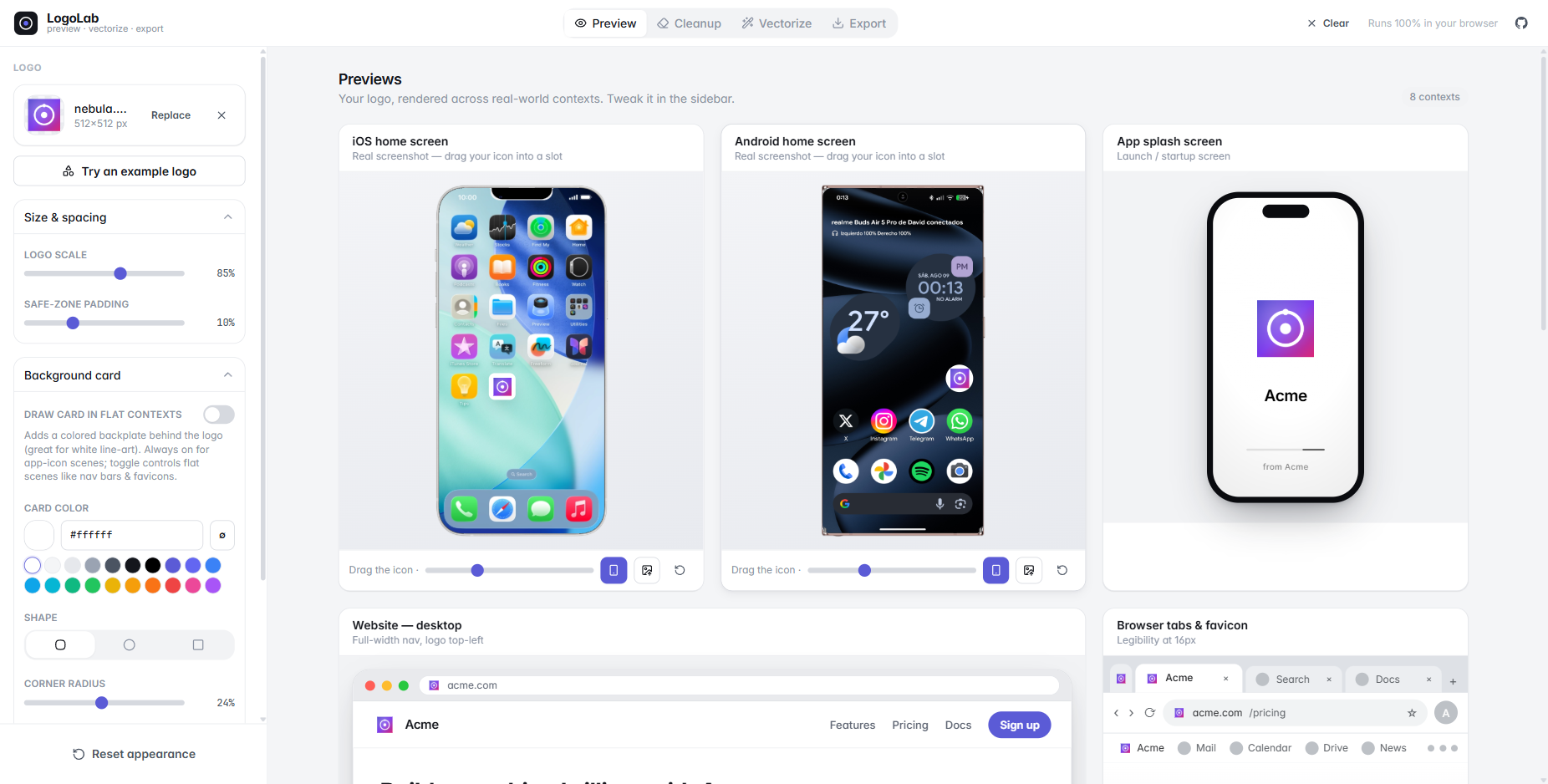
You just generated an app icon / logo with Midjourney, Gemini, DAL·E, or your favourite vector tool — but does it actually work? Is it legible at 16px? Does that white line-art mark disappear on a light nav bar? How does it look as an iOS app icon, or cropped into a circular avatar?
LogoLab answers all of that in one place, then helps you ship the asset: remove the junk background, trace it to a clean SVG, and export every favicon / PWA icon you need.
No logo handy? Hit Try an example logo in the sidebar to load one of the built-in samples and play with every tool right away. The Icon sheet tab has its own examples — real image-model output, so you can try the splitter without generating a sheet first.
✨ Features
🖼️ Preview in real contexts
See your logo composited into real device screenshots (drag it into any app slot), plus a desktop website nav, browser tabs & favicons, an app splash screen, an App Store listing, a circular social avatar, and a size-&-contrast matrix (16 → 128px on light and dark).
- Background card — give a white / line-art logo a colored backplate (color, shape, radius, shadow). The classic "my logo vanishes on white" fix.
- Recolor (tint) — repaint a monochrome mark in any brand color via its alpha, plus one-click invert.
- Light / dark context toggle and a custom page background.
- 🎯 Live favicon — the logo you're working on becomes this tab's favicon in real time.
🧽 Cleanup — background remover
A magic-wand / flood-fill eraser plus hand brushes and an AI cutout for AI-generated icons that ship with a baked background.
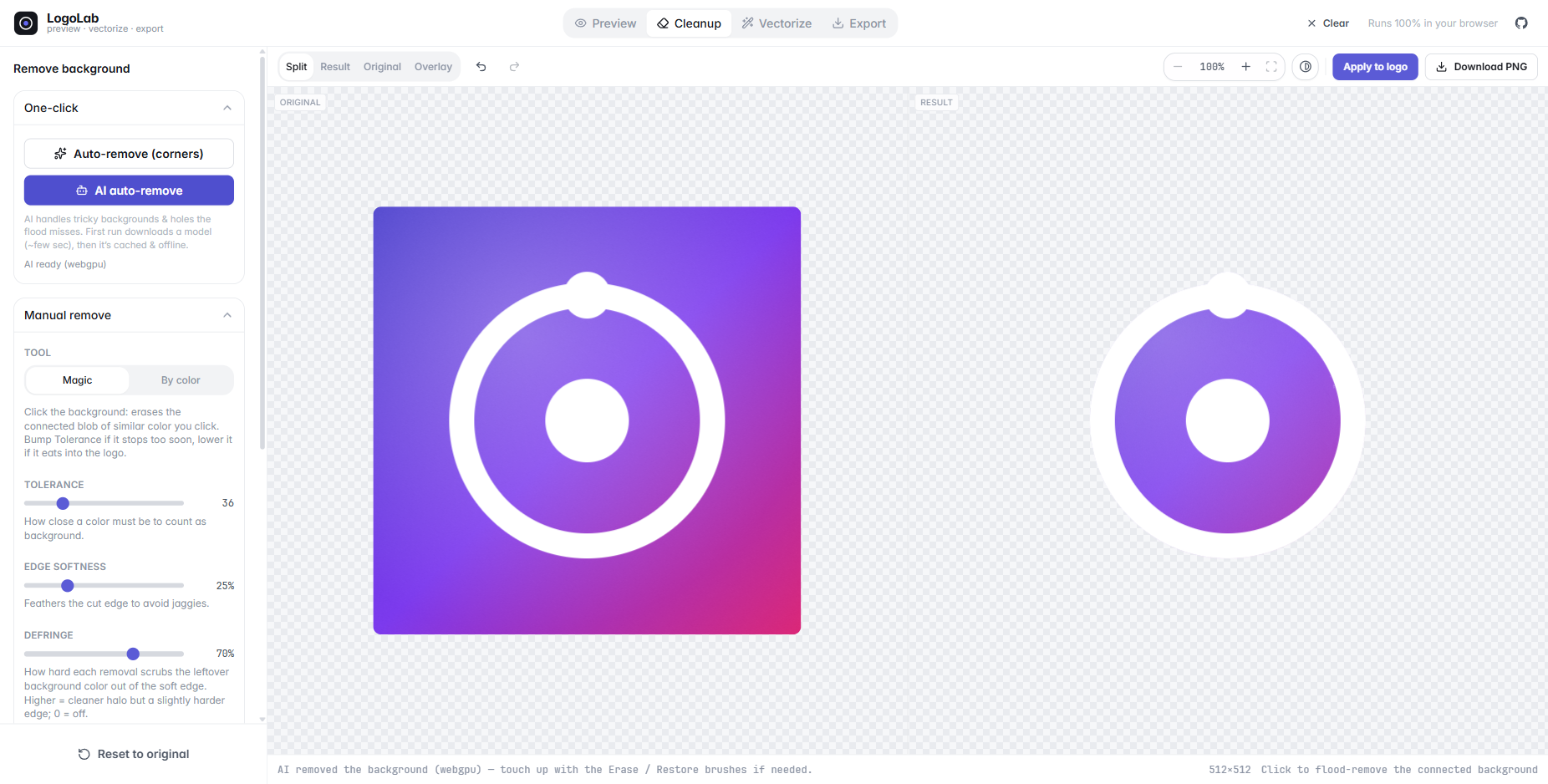
- One-click removers: Auto-remove (floods the four corners) and 🤖 AI auto-remove —
a Hugging Face segmentation model (
briaai/RMBG-1.4) that runs entirely in your browser and handles tricky backgrounds and the enclosed holes the corner flood can't reach. The model (~tens of MB) downloads on first use, then is cached & offline — nothing is ever uploaded. - Manual tools: Magic (flood-fill a connected region), By color (key out one color everywhere), and Erase / Restore brushes — drag to rub out leftovers by hand or paint the original back where you went too far, with an adjustable brush size.
- Tolerance + edge-softness (anti-aliased cuts) + defringe, full undo / redo
(incl.
Ctrl/⌘+Z·Ctrl/⌘+Shift+Z) and reset. - Flip background toggles the canvas between a light and dark transparency checkerboard, so white / light line-art logos stay visible while you work.
- Apply feeds the clean transparent PNG straight into preview, vectorize, and export.
✏️ Vectorize — a small in-browser vector studio
A structure-first tracer that segments the image by smoothness, fits a paint model (flat, gradient or layered glow) to each region, then traces clean curves — or, for line art, traces the middle of every line as a real stroke — plus a full node editor, all client-side. The research behind each stage is in 🔬 Algorithms & papers below.
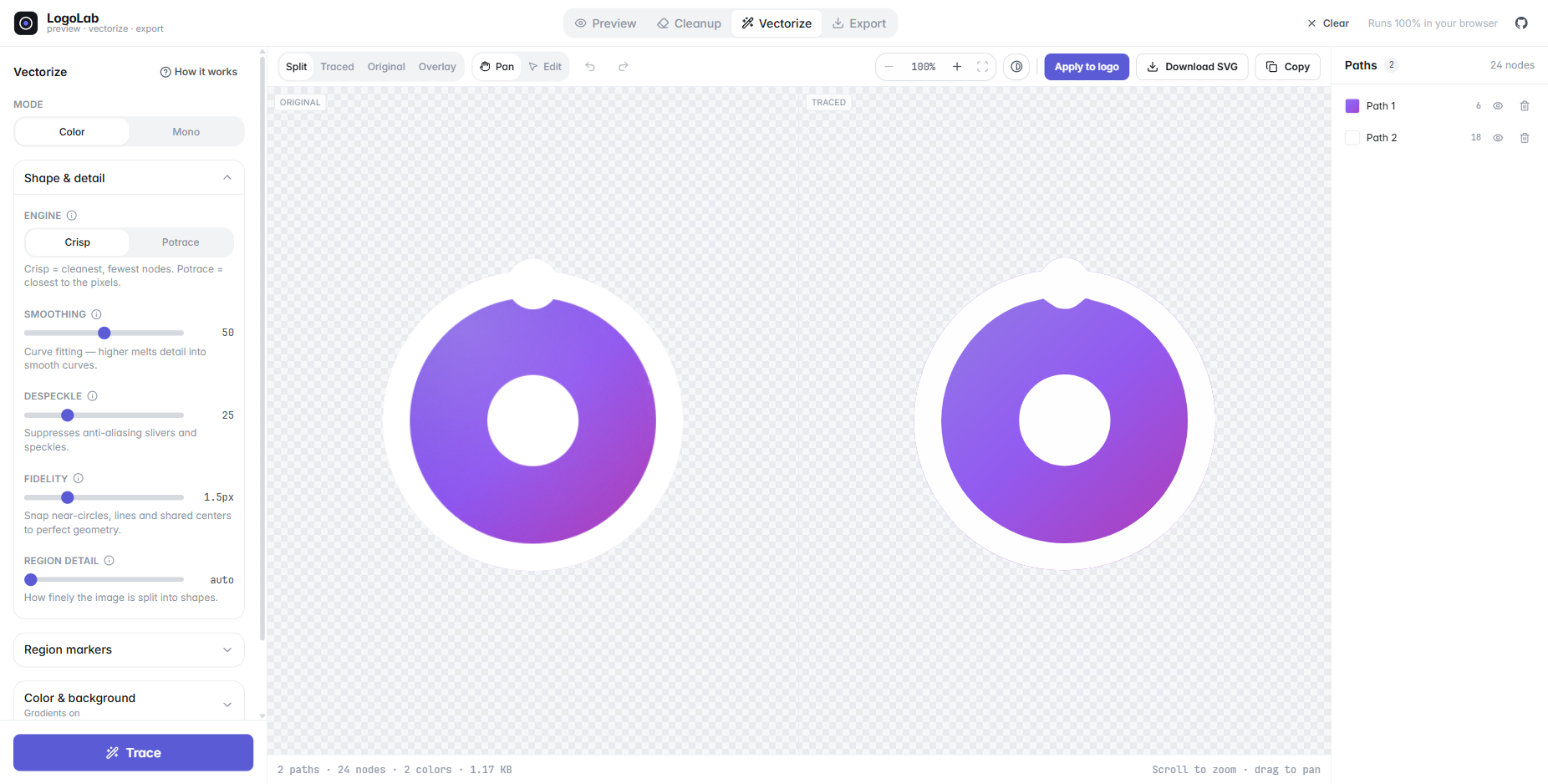
- Clean curves, not staircases: the whole image is traced as one planar map, so every boundary two colours share is drawn exactly once — neighbouring shapes meet exactly, with no gaps, overlaps or hairline seams. Edges are placed with sub-pixel accuracy from the anti-aliasing, and corners stay sharp where the pixels show a corner. One-colour art goes through the same tracer as an ink / paper map.
- Gradients: detects linear / radial gradients and rebuilds soft "glow" backgrounds as a base paint under translucent radial layers — real, editable gradients, not flat posterized bands.
- Mode: Auto / Color / Mono. Auto counts the inks: one-ink art traces as a single clean mono shape with a measured cut (and Invert for light ink on a dark ground), painted in the ink's own colour; anything with more inks traces in colour.
- Line art as strokes: turn on Strokes and a monoline icon, a diagram or a page of sheet music comes back as the lines it was drawn with — open and closed stroked paths with a measured width you can re-weight — instead of the filled outline of every line. Ink no stroke explains (a dot, a note head) stays a fill. In Colour mode every line keeps its own ink, and lines of different colours that cross stay whole.
- Find best settings: one button traces five candidate setups (mono, strokes, flat, flat on a gradient backdrop, full gradients) on a small copy of your image, scores each against the original, applies the winner and lists the runners-up one click away. It only runs when you press it.
- Smoothing, despeckle and fidelity (shape-snapping) dials, optional remove background, region markers to protect spots the auto-merge would otherwise fuse, and Reset back to the settings a fresh upload of this image gets.
- Studio layout: full-height workspace with Split / Traced / Original / Overlay (ghost) / Difference views, synced pan & zoom, a paths panel (select, recolor, hide, delete) and a "How it works" explainer that walks your image through every stage live.
- See how close it is: the status bar carries a ΔE readout — the mean colour difference between the result and your image, the same metric the tracer's own benchmarks are scored in — and clicking it opens Difference, a per-pixel heat map of where the trace and the original disagree. "It looks about right" becomes a number and a picture.
- Node editing, Affinity-style: drag anchors & Bézier handles (smooth nodes mirror, breaks symmetry), double-click a segment to add a node, double-click an anchor to toggle corner ↔ smooth, to remove, full .
🖊️ Editor — draw and edit SVG
A small vector editor for the logo itself: open an SVG (or your traced result), start from a blank artboard, or pick an example drawing.
- Move / Node / Pen tools plus rectangle, ellipse, line, polygon and star, each on a
single-key shortcut; hold
Spaceto pan with any tool. - Layers with groups, rename, reorder by drag, hide and duplicate; a properties rail for fill, stroke, size and alignment; snapping and a grid.
- Path operations: join, split at a node, break apart, combine, reverse — with full undo / redo.
- Edits become the working logo as you make them, so Preview and Export always show your latest drawing; just opening a file changes nothing.
📦 Export — favicons & PWA icons
Generate a complete, production-ready icon set as a single .zip.
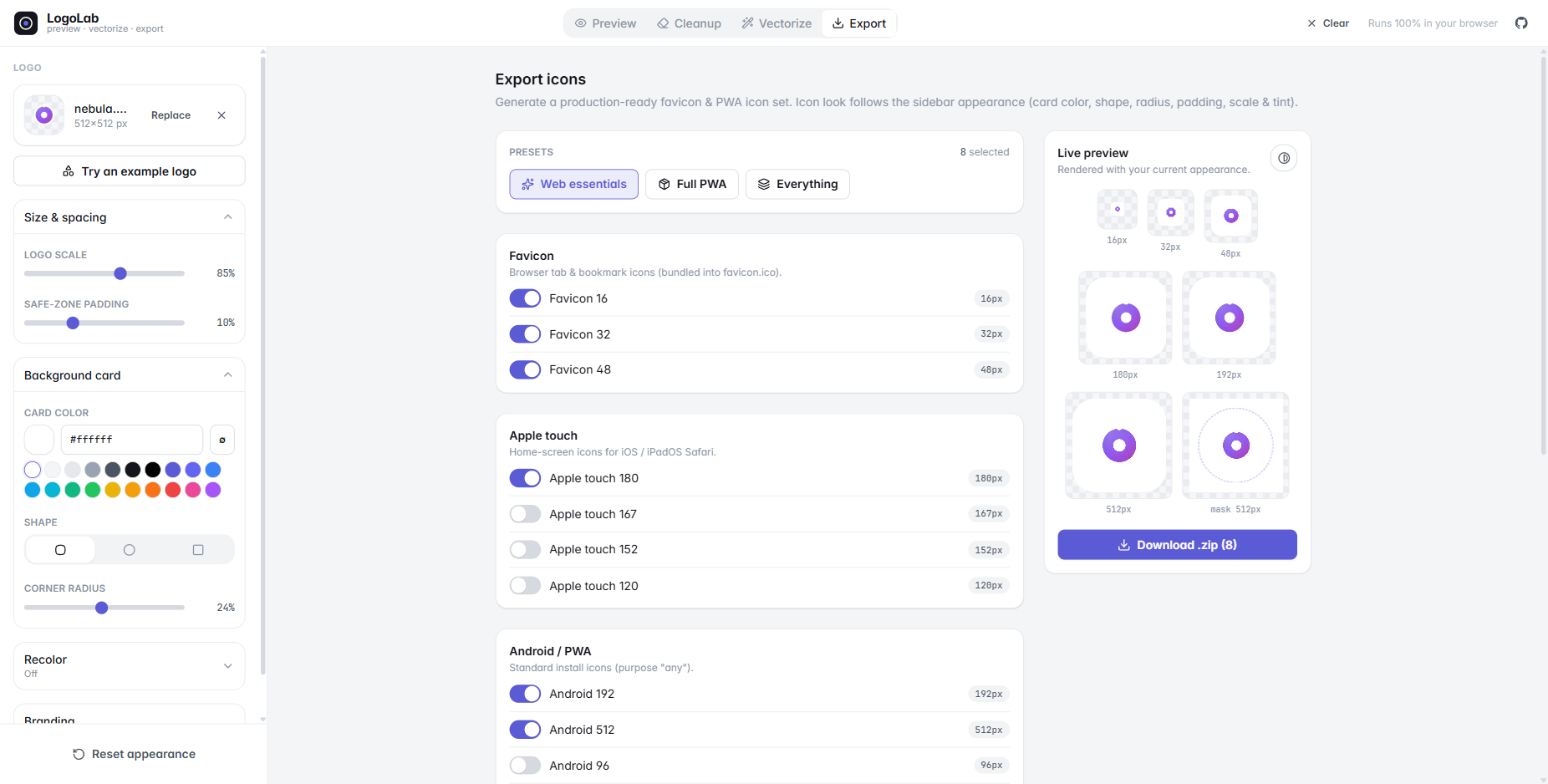
- Favicons (incl. a real multi-size
favicon.ico), Apple touch, Android / Chrome, maskable icons (with safe-zone), and Windows tiles. - A
manifest.webmanifestand a copy-paste<head>snippet. - Presets (Web essentials / Full PWA / Everything) and a live preview that follows your sidebar appearance (card color, shape, radius, padding, scale, tint).
🧩 Icon sheet — one image, a whole set
Drop the sheet an image model hands you ("a set of 16 weather icons, captioned") and get every icon back as its own clean SVG.
- The icons are found on the paper — captions and titles are recognised and set aside — or the sheet is split by an even grid you specify. Boxes can be dragged, resized and drawn by hand.
- Every icon goes through the same vectorizer, a few at a time; open any one for the full editor.
- Names from captions — each icon is named after the text under it (
security-camera.svg), read in the browser by Tesseract.js (engine fetched the first time a sheet has captions, ~5 MB, then cached; switch it off under Names). Add a prefix / suffix to every name for the export. - One zip: traced SVGs, cropped PNGs (paper knocked out), or both.
💾 Installable, offline, and it remembers where you were
LogoLab is a PWA. Install it from the address bar (or the Install app button in the header) and it runs as its own window, with no network at all.
- Offline — the app shell, every tab, the tracer and its Web Worker, the bundled examples
and the device mockups are stored on install (~4 MB). What is not stored: the
/labsresearch harnesses and the optional AI models, which are 27 MB of the build and are cached only if you actually open them. Seesrc/pwa/. - Nothing is lost on reload. The upload, the appearance, every trace setting and region
marker, the traced document with your hand edits, an un-applied cleanup cutout, the whole
icon sheet with all of its traces, the editor's drawing and the export selection all come
back. Settings ride in
localStorage(read synchronously, so they are right in the first painted frame); the bytes and the documents ride in IndexedDB, read once before the first render. A Saved just now chip in the title bar says when it last happened — or says Not saved when the browser won't store anything (a private window, a full quota), rather than claiming your work is safe when it isn't. Start fresh lives in that chip. - Updates ask first. A new version installs in the background and waits — it never swaps the code out from under a running trace.
Everything stays in the browser either way: no upload, no account, nothing leaves the tab.
🤖 MCP server — LogoLab from your AI agent
The tracer and the icon exporter, exposed to your coding agent over
MCP. "Trace icon.png and put a PWA icon set in public/"
becomes one tool call — locally, nothing uploaded.
Published to npm as logolab — no clone needed:
claude mcp add logolab -- npx -y logolab   # Claude Code
npx -y logolab install --client cursor     # or Cursor / VS Code / --client print
Or as a skill (no server; the agent runs npx -y logolab call … itself):
/plugin install logolab --marketplace Blaxzter/LogoLab   # Claude Code plugin
npx -y logolab install --skill                           # .claude/skills/, or --skills-dir <dir> for other agents
make_app_icons(trace + export in one call),trace_icon,export_icons,split_icon_sheet,inspect_icon.- Collections for PWA / favicon / web, Tauri, Electron, Android, iOS and
browser extensions — with the real
favicon.icoand.icnscontainers, the manifest, the<head>snippet,Contents.jsonand the adaptive-icon XML. - The same decisions the studio makes (colour vs mono, gradients, trace resolution), reported
back so the agent can overrule one without hand-tuning the rest — plus
strokesto trace line art as centreline strokes.
The app has a button for it: Export → Do this from your editor. Full reference:
docs/mcp.md; the package that ships is packages/mcp, which
compiles the server and the tracer straight out of src/ so the two cannot drift.
🚀 Getting started
pnpm install
pnpm dev        # http://localhost:5173
pnpm build      # type-check + production build → ./dist
pnpm preview    # preview the production build
pnpm mcp        # run the MCP server on stdio (what an agent client launches)
pnpm mcp:try public/examples/petals.png ./out    # trace + export once, no client needed
pnpm mcp:build  # compile packages/mcp → the publishable `logolab` package
Uses pnpm, but
npm/yarnwork too.
☁️ Deploy (Cloudflare Workers)
It's a static SPA — the build output is dist/ — served by an assets-only Worker
(wrangler.jsonc, name logo-lab). Workers Builds is connected to the repo and deploys
main on every push (build command pnpm build). To deploy by hand:
pnpm build
pnpm dlx wrangler deploy
No server routes. The Impressum / Datenschutz pages read the operator's details from
VITE_LEGAL_* build variables (see .env.example); without them they show placeholders.
🛠️ Tech
- React 19 + TypeScript (strict) + Vite 8
- Tailwind CSS v4 (CSS-first
@themedesign tokens) - Zustand for state
- JSZip (export) · lucide-react (icons)
- @huggingface/transformers (Transformers.js) for the in-browser AI background remover —
lazily
import()-ed so it never weighs down the initial bundle. - tesseract.js to read the captions on an icon sheet — also lazily
import()-ed; the WASM engine and English model come from its CDN on first use and are cached by the browser. - onnxruntime-web for the opt-in AI upscaler in front of the tracer (waifu2x swin_unet weights from the Hugging Face Hub, MIT) — not even bundled: script and WASM are loaded from the CDN on first use, so nothing is fetched until you switch it on.
- A hand-written service worker (
src/pwa/sw.js) rather than Workbox: the precache list is decided from the chunk graph at build time (scripts/swPlugin.ts), because a glob would make installing the app a 31 MB download of research harness and optional AI runtime. - Everything runs client-side via the Canvas & DOM APIs.
🔬 Algorithms & papers
The Cleanup and Vectorize views are small, self-contained reimplementations of published computer-graphics research — all running client-side in pure TypeScript (plus WASM for the optional AI and OCR runtimes). The full design rationale and per-stage implementation log lives in docs/vectorization-plan.md.
✏️ Vectorize — structure-first tracing
The tracer follows a structure-first order — segment by smoothness → fit a paint model per region → trace geometry once → beautify — instead of the classic posterize-then-trace pipeline. It's a logo-scale reimplementation of Adobe's 2025 gradient-aware Image Trace.
| Stage / technique | What it does here | Introduced by |
|---|---|---|
| Structure-first gradient reconstruction | the overall segment → fit → trace architecture | Chakraborty et al., Image Vectorization via Gradient Reconstruction, Eurographics / CGF 2025 |
| Piecewise-smooth Mumford–Shah | denoise into smooth colour fields + extract the edge / discontinuity map | Mumford & Shah 1989 (the functional); real-time discrete solver: Strekalovskiy & Cremers, ECCV 2014 (code) |
| CIELAB & Oklab colour difference | perceptually-uniform thresholds for region merging and gradient-stop placement | CIELAB ΔE76; Ottosson, Oklab 2020 |
| Paint-model ladder (MDL selection) | pick the cheapest paint that still fits — solid → linear → radial → glow | Minimum Description Length — Rissanen 1978 |
| Glow-stack decomposition | rebuild a soft "glow" background as a base paint under translucent radial layers | ARDECO (Lecot & Lévy, EGSR ); (Favreau et al., SIGGRAPH Asia ); (Du et al., SIGGRAPH ) |
🧽 Cleanup — background removal & matting
| Technique | What it does here | Introduced by |
|---|---|---|
| Flood-fill magic wand + global colour key | erase the connected background blob, or key one colour out everywhere — with green-weighted colour distance and feathered (anti-aliased) edges | classic flood fill / chroma-keying |
| AI cutout — RMBG-1.4 | in-browser saliency segmentation for tricky backgrounds and the enclosed holes the flood can't reach, via Transformers.js (WebGPU → WASM) | BRIA RMBG-1.4, built on the IS-Net architecture — Qin et al., Highly Accurate Dichotomous Image Segmentation, ECCV 2022; runtime: Transformers.js |
| Mathematical morphology | grow / shrink the alpha matte (separable dilate & erode) in Edge refine | Serra, Image Analysis & Mathematical Morphology, 1982 |
| Three-pass box blur ≈ Gaussian | feather the matte edge (three box passes ≈ a Gaussian, by the central-limit theorem) | Kovesi, Fast Almost-Gaussian Filtering, 2010 |
| Defringe / colour decontamination | bleed the solid foreground colour across the soft edge to kill the leftover background halo | matte foreground-colour estimation |
| Straight alpha-over compositing | flatten the cutout onto a background colour and blend translucent layers | Porter & Duff, , SIGGRAPH |
📁 Project structure
src/
  components/
    shell/         # app chrome: header menu, sidebar, saved chip, toasts, popovers, install prompts
    intake/        # upload dropzone, examples dialog, the empty-panel state
    report/        # error boundary + issue reporting UI
    panels/        # one per route: PreviewGrid, CleanupPanel, VectorizePanel, ExportPanel, …
    scenes/        # preview mockups (DeviceMock, DesktopBrowser, AppStoreListing, …) + LogoMark,
                   #   the single source of truth for rendering a logo (card/shape/tint)
    vectorize/     # the vectorize studio (EditorCanvas node editor, paths panel, controls)
    editor/ sheet/ cleanup/   # the other studios
    labs/          # research views over the tracer (/labs/*) — never precached
    ui/            # Button + form controls
  lib/
    trace/         # the planar vectorizer (segmentation → shared-edge graph → fit → beautify)
    traceInput/    # what the tracer is fed: ink/mono decision, stroke probe, raster caps, AI upscaler
    path/          # editable vector model: SVG/path-d parser, serializer, Bézier node ops
    render/        # document rasterizer + the ΔE fidelity score
    cleanup/       # flood-fill / color-key removal, lazy in-browser AI cutout (RMBG-1.4)
    export/        # icon geometry + manifest/.ico (shared with the MCP server), canvas export, SVG cleanup
    report/        # error log, failure toasts, GitHub issue reports
    persist/       # the working session: IndexedDB for bytes & documents, localStorage for settings
    png/           # dependency-free PNG decode/encode (used by the MCP server)
    image.ts       # loading, SVG rasterization, render sources
  state/           # Zustand stores (logo, appearance, environment, device placements; the icon sheet)
  mcp/             # the MCP server: trace + export for a coding agent (docs/mcp.md)
  pwa/
    sw.js          # the service worker (offline shell + runtime cache) — emitted by scripts/swPlugin.ts
    register.ts    # registration, the update prompt, the install prompt
  hooks/
bench/             # research harness: corpora, diagnostics, scoring, A/B + golden snapshot writers
test/              # node --test suites (truth gate, regression, unit tests)
public/mockups/    # device frames + screenshots used by the device previews
public/examples/   # built-in sample logos for the "Try an example" gallery
public/examples/sheets/  # example icon sheets for the Icon sheet tab (Gemini output, re-encoded as WebP)
How the device mockups work
Real device-frame PNGs have an opaque black screen, so LogoLab detects the screen region
(flood-fill from the center), knocks it out so the screenshot shows through, renders the
bezel on top, and draws a synthetic notch / punch-hole. Your logo is overlaid as a
draggable, resizable app icon. Drop in any frame + screenshot and it adapts — tune the
default icon placement in defaultMockups (src/state/store.ts).
📄 License
MIT — see LICENSE.