Unity Biome MCP README
The full upstream README, mirrored here for reference. Install config, tool schemas, adoption signals, and an original overview live on the Unity Biome MCP listing page.
Unity Biome MCP
Control the Unity Editor from MCP-compatible AI clients or from chat inside Unity.
Inspect scenes, edit GameObjects, run playtests, and capture results through structured tools.





Quick Start · Documentation · Comparison · Changelog
Quick Start
Requirements: Unity 6 (6000.0 or newer), Git 2.14+ on PATH, and
uv. The MCP server does not need a separate Python
installation when it runs through uvx; optional Codex skill synchronization
requires Python 3.14 or newer on PATH. See the full
Getting Started prerequisites.
1. Install uv
macOS and Linux:
Windows:
2. Add the Unity package
- In Unity, open Window > Package Manager.
- Select + > Add package from git URL.
- Enter:
3. Configure your client
Open MCP > Setup Wizard, choose a client, and follow the result shown by the Wizard.
Configuration depends on the client. The Wizard may write a project configuration, run the configuration helper, copy a client-specific snippet, or defer configuration until In-Unity Chat starts. Restart the selected client when prompted. The Wizard configures the integration; it does not perform an end-to-end connection test.
Manual client setup guides
Use the matching guide:
Claude Code | Claude Desktop | Codex | Cursor | Junie | Kimi | OpenCode | Rider AI Assistant | VS Code | Windsurf
For external OpenCode setup, do not use the Wizard's standard clipboard JSON: OpenCode has a different configuration shape. Follow the OpenCode guide.
4. Verify the first connection
For an external MCP client, keep the Unity project open, restart the client if the Wizard asked you to, and send:
Read the active Unity scene hierarchy at depth 2 and summarize its root objects.
The client should call:
A successful response contains the active scene hierarchy. If the call fails, open MCP > Status > Diagnose in Unity. For Chat-only verification, use the Chat quick check. For command-line diagnostics, run:
See Getting Started for recovery steps and platform details.
Local development installation
Requirements for a source checkout: Git and Python 3.14 or newer.
Upgrading from older Python: Install Python 3.14 via
brew install python@3.14(macOS), your system package manager (Linux), or python.org (Windows). Then runpython install.py updateto recreate the virtual environment.
The configuration helper supports claude-code, claude-desktop, cursor,
windsurf, vscode, codex, kimi, junie, and opencode.
Documentation
| Goal | Guide |
|---|---|
| Install and connect | Getting Started |
| Choose and configure an MCP client | Client guides |
| Install project-local AI guidance | AI Skills and Agents |
| Find a tool for a task | Tool Guide |
| Use batch safely | Batch Operations |
| Build Play Mode workflows | PlayTest DSL |
| Configure In-Unity Chat | Chat Backends |
| Extend Unity Biome MCP | Plugin Quick Start |
| Diagnose failures | Diagnostics |
What You Can Do
- Scene and object editing: inspect and modify GameObjects, components, assets, materials, shaders, and UI.
- Playtesting and verification: run PlayTest DSL workflows, compile checks, console checks, runtime diagnostics, and visual comparisons.
- Animation and VFX: work with clips, Animator controllers, Timeline, particles, materials, shaders, and Shader Graph.
- Efficient tool use: group compatible operations with
batch, request deferred schemas, and enable capability categories only when needed. - Extensibility: add project-specific server tools, Unity commands, Chat context chips, and plugin hooks.
Prompt and batch examples
Example prompts:
Create a player object, add a Rigidbody, and place it at the scene origin.
Find enemies without colliders and add a BoxCollider to each.
Run a playtest that moves the player to the door and verifies that the score increases.
Capture the Game View and compare it with the saved baseline.
Summarize scene changes since the last checkpoint.
Batch example
Use batch for two or more compatible operations:
Some typed tools are direct-only and cannot be placed in a batch. See the Batch guide for validation, Undo-backed rollback, and error handling.
Ways to Work
External MCP client
An MCP client launches the Python server over stdio. The server discovers the active Unity project and sends framed commands to the editor plugin over localhost TCP.
In-Unity Chat
Open MCP > Chat to work inside the editor. Select a supported CLI backend and use Ask or Agent mode. Authentication is handled by the selected CLI. Context chips can attach scene objects, scripts, and assets to a turn, while each completed AI turn is grouped for Unity undo.
See Chat backends for setup and behavior.
Architecture
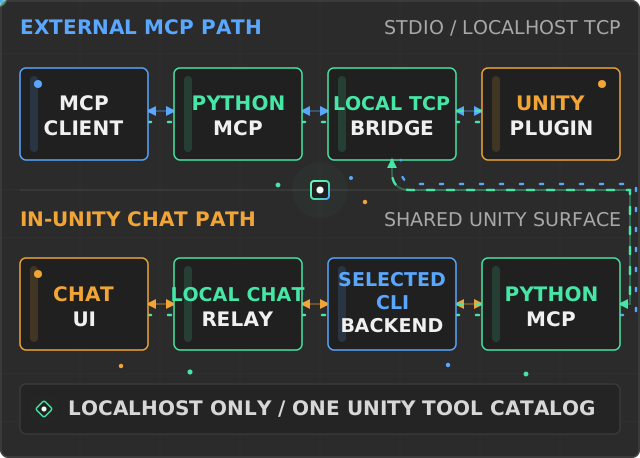
The external path is MCP client -> Python MCP server -> localhost TCP -> Unity Editor plugin. In-Unity Chat invokes the selected CLI through the local chat relay; that CLI connects to the same Python MCP server and rejoins the shared TCP-to-plugin path.
AI Skills
The Unity package includes 12 reusable domain skills and 4 focused agents for Claude Code and Codex. They cover efficient MCP tool selection, batching, Unity authoring, playtesting, diagnostics, and evidence-based verification.
Open MCP > Install AI Skills to install them into the current project. Existing and generated files are ownership-checked before replacement. See AI Skills and Agents for paths, safe updates, and Codex synchronization.
Project Inventory
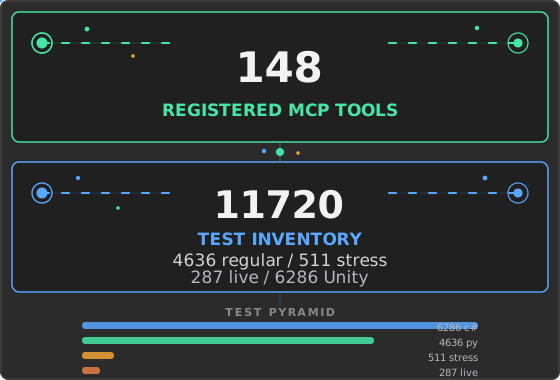
The values below are generated from registrations, pytest collection, Unity test discovery or source scanning, and package metadata. They are discovery counts, not a claim that every test was executed in the current checkout.
Unity MCP Product Comparison
Verified August 16, 2026:
- Unity Biome MCP: 160 registered tools, deterministic PlayTest DSL, and visual baseline/diff workflows.
- Unity MCP Server 2.17: first-party local bridge, connection approval, and multi-client support.
- MCP for Unity 10.1.2: Unity 2021.3 compatibility, 47 tool entrypoints, and authenticated remote hosting.
- AI Game Developer 0.87.0: compiled-player runtime plus local, HTTP, cloud, and Docker deployment.
- MCP Unity: 33 listed tools, optional Undo rollback for batches, and an MCP App dashboard.
The detailed matrix cites exact source commits or versioned official documentation and records constraints as well as strengths.
Open the full source-backed comparison
Recent Changes
Current release: v2.0.0 (2026-09-08). Read the full changelog.
Contributing
Read CONTRIBUTING.md before opening a pull request. New contributors can start with good first issues.
Report security issues through SECURITY.md.