MCP server enabling natural language management of Kubernetes clusters via Open-WebUI with kubectl and helm support.
Quick Install
Automated & IDE SetupCopy the AI prompt to install this server into Claude Code, Cursor, or another agent — or use 1-click editor setup below.
One-click editor setup isn’t available for this listing yet — we don’t have a confirmed install command, and we’d rather show nothing than point your editor at the wrong package or host. Follow the project’s own setup instructions, linked above.
Manual Client & Custom JSON ConfigExpand JSON ▾
No confirmed setup config for this listing yet. We only publish a config block when the install details come from the project itself — its README, its docs, or a verified owner. We haven’t found those for elevy99927/devops-mcp-webui, and we’d rather show nothing than a guess you’d paste into your client. Follow the project’s own setup instructions for the current steps.
Overview
Use cases
Query running pods and services in namespaces
Scale or create Kubernetes resources using natural language
Install Helm charts through conversational commands
Describe Kubernetes resources interactively
Manage namespaces and deployments via chat
Key features
Natural language interface for kubectl commands
Helm chart installation and management
Integration with Open-WebUI chat interface
Local Kubernetes cluster setup with Kind
Support for Ollama AI model server
MCP bridge tool server for Kubernetes operations
Capabilities & Tool Schemas
Inspect callable tools, capabilities, and parameters exposed to AI agents by Devops MCP Webui.
Extracted Tool Capabilities
Natural language interface for kubectl commands
Helm chart installation and management
Integration with Open-WebUI chat interface
Local Kubernetes cluster setup with Kind
Support for Ollama AI model server
MCP bridge tool server for Kubernetes operations
Documentation Overview
Open WebUI Kubernetes Integration









TL;DR
Chat with your Kubernetes cluster using natural language!
This project connects OpenWebUI to Kubernetes, letting you manage your cluster through conversational AI. Ask questions like "What pods are running?" or "Scale my deployment to 5 replicas" and get instant results.
Table of Contents
- TL;DR
- Configure Open-WebUI
- Troubleshooting Configuration
- Architecture Overview
- Repository Structure
- Components
- Usage
Quick Start
One-command setup:
Componentes installed:
- Kind (Kubernetes in Docker)
- Open Web UI
- Ollama
- MCP bridge
After successful installation, you'll see: ✅ Docker Compose startup complete!
Services available at:
- Open WebUI: http://localhost:3000
- MCP Bridge: http://localhost:9000
- Ollama API: http://localhost:11434
Configure Open WebUI to use the MCP tools
Configure Open-WebUI
After running the installation script, you need to configure Open-WebUI to use the Kubernetes tools:
Step 1: Access Open-WebUI
- Open your browser and go to http://localhost:3000
- Create an admin account on first visit
- Sign in with your new account
Step 2: Add the MCP Bridge Tool Server
- Click on your profile icon (top right)
- Go to Settings
- Navigate to Admin Panel → Tools
- Click "+ Add Tool Server"
- Enter the following details:
- Name:
Kubernetes Tools - URL:
http://mcpo:9000 - Description:
Kubernetes management via kubectl and helm
- Name:
- Click "Add"
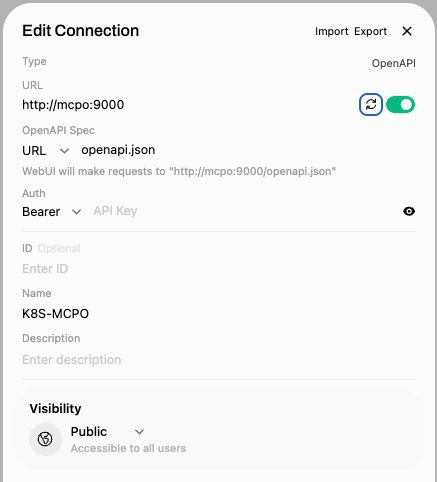
Step 3: Add Connections to Models
Configure your AI model connections - use the local Ollama or add remote connections:
- In Settings, go to Admin Panel → Connections
- For Local Ollama (recommended):
- The local Ollama server should be automatically detected
- Verify connection to
http://ollama:11434
- For Remote Connections (optional):
- Add OpenAI, Anthropic, or other model providers
- Configure API keys and endpoints as needed
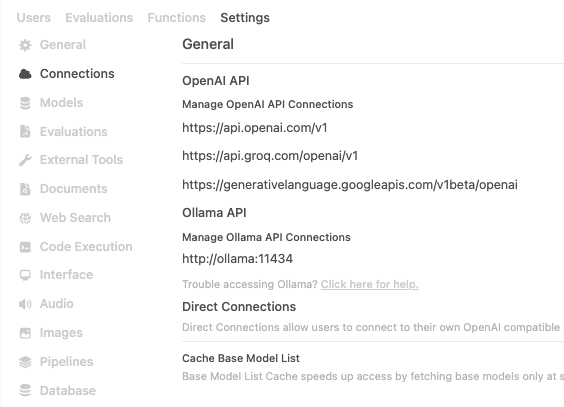
Step 4: Verify Tool Integration
- Go back to the chat interface
- Look for the tools icon (🔧) in the chat input area
- You should see available tools like:
kubectl_get- List Kubernetes resourceskubectl_apply- Apply manifestskubectl_describe- Describe resourceshelm_install- Install Helm charts- And more...
Step 5: Test the Integration
Try asking these questions to verify everything works (copy and paste into the chat):
Copy & Paste these queries:
Troubleshooting Configuration
If tools don't appear:
- Check that the MCP Bridge is running:
curl http://localhost:9000/health - Verify the tool server URL is exactly:
http://mcpo:9000 - Restart Open-WebUI:
docker-compose restart open-webui
If you get connection errors:
- Ensure all containers are running:
docker-compose ps - Check container logs:
docker-compose logs mcpo - Verify network connectivity between containers
Then open http://localhost:3000 and start chatting with your cluster!
Example queries:
- "What pods are running in kube-system?"
- "Show me all services in default namespace"
- "Create a new namespace called production"
- "Install Jenkins using Helm in the jenkins namespace"
Architecture Overview
This project integrates Open WebUI with Kubernetes management capabilities through a bridge architecture that connects multiple components to provide AI-powered Kubernetes operations.
Architecture Diagram
Data Flow
- User Query: User asks a Kubernetes-related question in Open WebUI
- AI Processing: Ollama processes the query and determines if tools are needed
- Tool Selection: Open WebUI identifies the appropriate kubectl_get tool
- API Call: Open WebUI makes REST API call to MCPO bridge
- Protocol Translation: MCPO translates REST call to MCP protocol
- Response Chain: Results flow back through the same chain to the user
Network Architecture
📂 Repository Structure
Components
1. Open WebUI
- Purpose: Web-based chat interface for AI interactions
- Port: 3000
- Role: Provides the user interface and orchestrates AI conversations with tool calling capabilities
- Key Features:
- Chat interface for natural language Kubernetes queries
- Tool server integration for external API calls
- Model management and conversation history
2. Ollama
- Purpose: Local LLM server
- Port: 11434
- Role: Provides the AI language model (llama3.2:latest) for understanding user queries and generating responses
- Key Features:
- Local model hosting
- Function calling capabilities
- Integration with Open WebUI
3. MCP Bridge
- Purpose: Protocol bridge between OpenAPI and MCP
- Port: 9000
- Role: Translates REST API calls from Open WebUI into MCP protocol calls
- Key Features:
- OpenAPI specification generation for Open WebUI
- REST to MCP protocol translation
- Tool parameter validation and formatting
4 Kubernetes Cluster
- Purpose: Target infrastructure for management operations
- Role: The actual Kubernetes cluster being managed
- Access: Through kubeconfig mounted as volume
Usage
Related MCP Servers
Adoption & maintenance
Factual signals from GitHub, npm, and our automated checks — not a rating.
GitHub stars
4
Stargazers on the source repository.
Last commit
10mo ago
Most recent push to the default branch.
Directory activity
1 views
Config copies, upvotes, and views on AllMCPs.
Reviews
No reviews yet — be the first to share how this listing worked for you.
Frequently Asked Questions about Devops MCP Webui
AllMCPs Directory Badge
Showcase your server listing on GitHub or your project documentation. Embed this dynamic SVG badge to highlight official listing status and live engagement.
Badge Style:
Live Dynamic SVG Preview
Markdown (GitHub README)
[](https://allmcps.com/mcp/elevy99927-devops-mcp-webui)HTML Embed
<a href="https://allmcps.com/mcp/elevy99927-devops-mcp-webui"><img src="https://allmcps.com/api/badge/elevy99927-devops-mcp-webui?style=directory" alt="Devops MCP Webui on AllMCPs" /></a>Technical Specs & Signals
CategoryCloud Platforms
11/11 checks healthy over the last 33d
39Quality signal: Fair · 39/100How this signal is calculated ▾
Server availabilityNot measured
Not scored for repo-hosted servers — we can't reach the running server, only its GitHub page. Hosted MCP endpoints are health-checked live.
Verified ownership10/20
Documentation & tools18/30
Adoption & activity1/15
Community engagement0/10
A guidance signal from public completeness & health data — not a user rating. New listings start lower and rise as they add docs, get verified, and grow adoption. Signals we can't observe for a listing are skipped, not counted against it.
Own this project?
This directory is pre-filled from public sources. Claim via GitHub README, site badge, or DNS TXT to unlock edit access and the Official badge — proof is checked automatically, then reviewed by our team.
Free dofollow backlink: add your website and place the AllMCPs badge on it — no claim needed. We detect it automatically and keep it verified as long as the badge stays live.
Claim & get free dofollowShare & Embed
Add our SVG badge (dark/light directory styles) or embeddable widget to your site.