
Photopea MCP Server
Design posters, edit photos, and transform images directly from your terminal. Powered by Photopea -- a free, browser-based alternative to Photoshop -- connected to your AI agent via MCP.



Demo
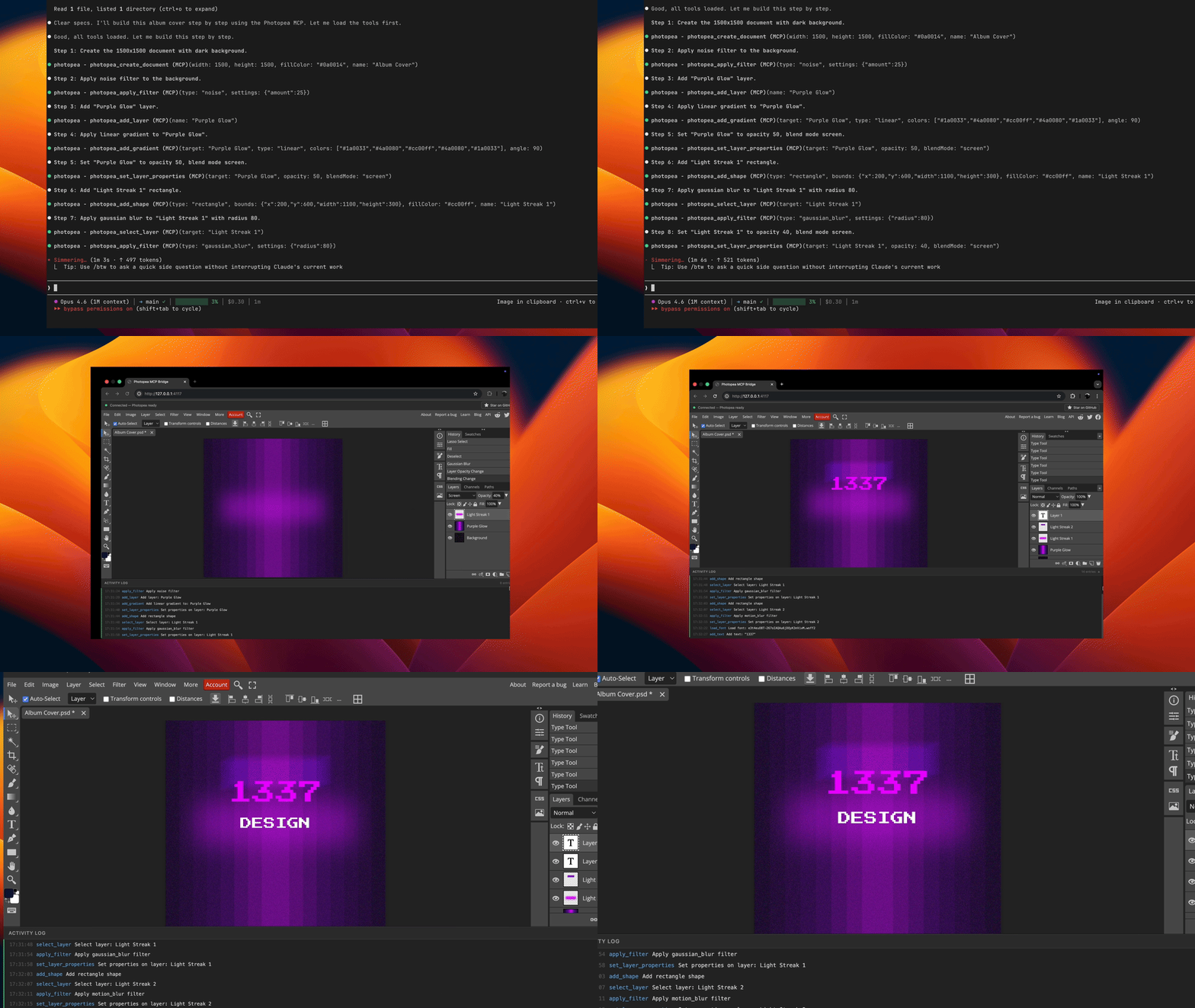
Prompt used in this demo: examples/album-cover-demo.md
How It Works
graph LR
    A[Agent] <-->|stdio| B[MCP Server]
    B <-->|WebSocket| C[Browser]
    C <-->|postMessage| D[Photopea]
Your agent sends editing commands through the MCP protocol. The server translates these into Photopea JavaScript API calls and executes them via a WebSocket bridge to the browser.
Note: A browser window will open automatically on the first tool call. This is expected -- Photopea runs entirely in the browser and the server needs it to perform image editing operations.
Quick Start
claude mcp add -s user photopea -- npx -y photopea-mcp-server
Then start a new Claude Code session and ask it to edit images. The Photopea editor will open in your browser automatically on the first tool call.
Installation
Claude Code
npx (recommended):
claude mcp add -s user photopea -- npx -y photopea-mcp-server
Global install:
npm install -g photopea-mcp-server
claude mcp add -s user photopea -- photopea-mcp-server
Claude Desktop
Add to your Claude Desktop config file (~/Library/Application Support/Claude/claude_desktop_config.json on macOS):
{
  "mcpServers": {
    "photopea": {
      "command": "npx",
      "args": ["-y", "photopea-mcp-server"]
    }
  }
}
Cursor
Add to Cursor MCP settings (.cursor/mcp.json in your project or ~/.cursor/mcp.json globally):
{
  "mcpServers": {
    "photopea": {
      "command": "npx",
      "args": ["-y", "photopea-mcp-server"]
    }
  }
}
VS Code (Copilot)
Add to .vscode/mcp.json in your project:
{
  "servers": {
    "photopea": {
      "command": "npx",
      "args": ["-y", "photopea-mcp-server"]
    }
  }
}
Windsurf
Add to Windsurf MCP settings (~/.windsurf/mcp.json):
{
  "mcpServers": {
    "photopea": {
      "command": "npx",
      "args": ["-y", "photopea-mcp-server"]
    }
  }
}
Available Tools
Document (5 tools)
| Tool | Description |
|---|---|
photopea_create_document | Create a new document with specified dimensions and settings |
photopea_open_file | Open an image from a URL or local file path |
photopea_get_document_info | Get active document info (name, dimensions, resolution, color mode) |
photopea_resize_document | Resize the active document (resamples content to fit) |
photopea_close_document | Close the active document |
Layer (11 tools)
| Tool | Description |
|---|---|
photopea_add_layer | Add a new empty art layer |
photopea_add_fill_layer | Add a solid color fill layer |
photopea_delete_layer | Delete a layer by name or index |
photopea_select_layer | Make a layer active by name or index |
photopea_set_layer_properties | Set opacity, blend mode, visibility, name, or lock state |
photopea_move_layer | Translate a layer by x/y offset |
photopea_duplicate_layer | Duplicate a layer with optional new name |
photopea_reorder_layer | Move a layer in the stack (above, below, top, bottom) |
photopea_group_layers | Group named layers into a layer group |
photopea_ungroup_layers | Ungroup a layer group |
photopea_get_layers | Get the full layer tree as JSON |
Text & Shape (3 tools)
| Tool | Description |
|---|---|
photopea_add_text | Add a text layer at specified coordinates |
photopea_edit_text | Edit content or style of an existing text layer |
photopea_add_shape | Add a shape (rectangle or ellipse) |
Image & Effects (9 tools)
| Tool | Description |
|---|---|
photopea_place_image | Place an image from URL or local path |
photopea_apply_adjustment | Apply brightness/contrast, hue/saturation, levels, or curves |
photopea_apply_filter | Apply gaussian blur, sharpen, unsharp mask, noise, or motion blur |
photopea_transform_layer | Scale, rotate, or flip a layer |
photopea_add_gradient | Apply a linear gradient fill |
photopea_make_selection | Create a rectangular, elliptical, or full selection |
photopea_modify_selection | Expand, contract, feather, or invert a selection |
photopea_fill_selection | Fill the current selection with a color |
photopea_clear_selection | Deselect the current selection |
Export & Utility (6 tools)
| Tool | Description |
|---|---|
photopea_export_image | Export to PNG, JPG, WebP, PSD, or SVG |
photopea_load_font | Load a custom font from a URL (TTF, OTF, WOFF2) |
photopea_list_fonts | List available fonts, with optional search filter |
photopea_run_script | Execute arbitrary Photopea JavaScript |
photopea_undo | Undo one or more actions |
photopea_redo | Redo one or more actions |
Usage Examples
Once installed, ask your agent to perform image editing tasks:
Create a poster:
"Create a 1920x1080 document with a dark blue background, add the title 'Hello World' in white 72px Arial, and export it as a PNG to ~/Desktop/poster.png"
Edit a photo:
"Open ~/photos/portrait.jpg, increase the brightness by 30, apply a slight gaussian blur of 2px, and export as JPG to ~/Desktop/edited.jpg"
Composite images:
"Create a 1200x630 document, place ~/assets/background.png as the base layer, then place ~/assets/logo.png and move it to the top-right corner"
Batch adjustments:
"Open ~/photos/sunset.jpg, apply hue/saturation with +20 saturation, apply an unsharp mask with amount 50 and radius 2, then export as PNG"
Development
git clone https://github.com/attalla1/photopea-mcp-server.git
cd photopea-mcp-server
npm install
npm run build
Commands
| Command | Description |
|---|---|
npm run build | Compile TypeScript to dist/ |
npm run dev | Watch mode with auto-reload |
npm test | Run unit and integration tests |
npm start | Start the server |
Architecture
The server has four main components:
MCP Server (src/server.ts) -- Registers all 34 tools with the MCP SDK and connects via stdio transport.
WebSocket Bridge (src/bridge/websocket-server.ts) -- Manages the connection between the MCP server and the browser. Queues script execution requests and handles responses with timeouts.
Script Builder (src/bridge/script-builder.ts) -- Pure functions that translate tool parameters into Photopea JavaScript API calls. Each builder function generates a script string that Photopea can execute.
Browser Frontend (src/frontend/index.html) -- A single-page app that loads Photopea in an iframe, connects to the WebSocket bridge, and relays scripts to Photopea via postMessage. Returns results back through the WebSocket.
src/
  index.ts              # Entry point: HTTP server, browser launch, MCP startup
  server.ts             # MCP server initialization and tool registration
  bridge/
    websocket-server.ts # WebSocket bridge with request queue
    script-builder.ts   # Photopea JS code generators
    types.ts            # Protocol message types
  tools/
    document.ts         # Document operations (5 tools)
    layer.ts            # Layer operations (11 tools)
    text.ts             # Text and shape operations (3 tools)
    image.ts            # Image, adjustment, filter operations (9 tools)
    export.ts           # Export and utility operations (6 tools)
  utils/
    file-io.ts          # Local file read/write, URL fetching
    platform.ts         # Port discovery, browser launch
  frontend/
    index.html          # Browser UI with Photopea iframe
Security
- The MCP server binds to
127.0.0.1(localhost only) and is not accessible from the network. - The
photopea_run_scripttool executes arbitrary JavaScript inside Photopea's sandboxed iframe. It is marked as destructive and requires user approval in MCP clients that support tool annotations. - File operations (
open_file,export_image,place_image) read and write files with the same permissions as the user running the server.
Known Limitations
- Heavy scripts (e.g., gradients with many color steps) may cause the Photopea browser UI to become unresponsive. The operations still complete successfully in the background and exports will work as expected.
- Refreshing the browser page will discard all unsaved work. Export your documents before refreshing.
- Only one browser tab should be open at a time. Multiple tabs will conflict over the WebSocket connection.
- The
reorder_layertool may cause the Photopea UI to become unresponsive. To avoid this, create layers in the desired order rather than reordering after creation.
Requirements
- Node.js >= 18
- A modern web browser (Chrome, Firefox, Edge, Safari)
License
MIT