Local videos or YouTube/Bilibili URLs -> timestamped transcript, keyframes, contact sheets. Offline.
Quick Install
Automated & IDE SetupCopy the AI prompt to install this server into Claude Code, Cursor, or another agent — or use 1-click editor setup below.
One-click editor setup isn’t available for this listing yet — we don’t have a confirmed install command, and we’d rather show nothing than point your editor at the wrong package or host. Follow the project’s own setup instructions, linked above.
Manual Client & Custom JSON ConfigExpand JSON ▾
No confirmed setup config for this listing yet. We only publish a config block when the install details come from the project itself — its README, its docs, or a verified owner. We haven’t found those for Yueying – Let AI watch videos, and we’d rather show nothing than a guess you’d paste into your client. Follow the project’s own setup instructions for the current steps.
Documentation Overview
yueying — let AI watch videos
Point Claude, Cursor or any MCP client at a video and get back a timestamped transcript plus keyframe contact sheets — offline, no API key. Local files first; URLs (YouTube, Bilibili, Douyin, Xiaohongshu, TikTok, Vimeo, …) are videos you are entitled to process, fetched via yt-dlp at ≤720p and deleted after processing by default.





Yueying (阅影) means "read video". One package gives you an MCP server, a CLI and an agent skill.
What you get
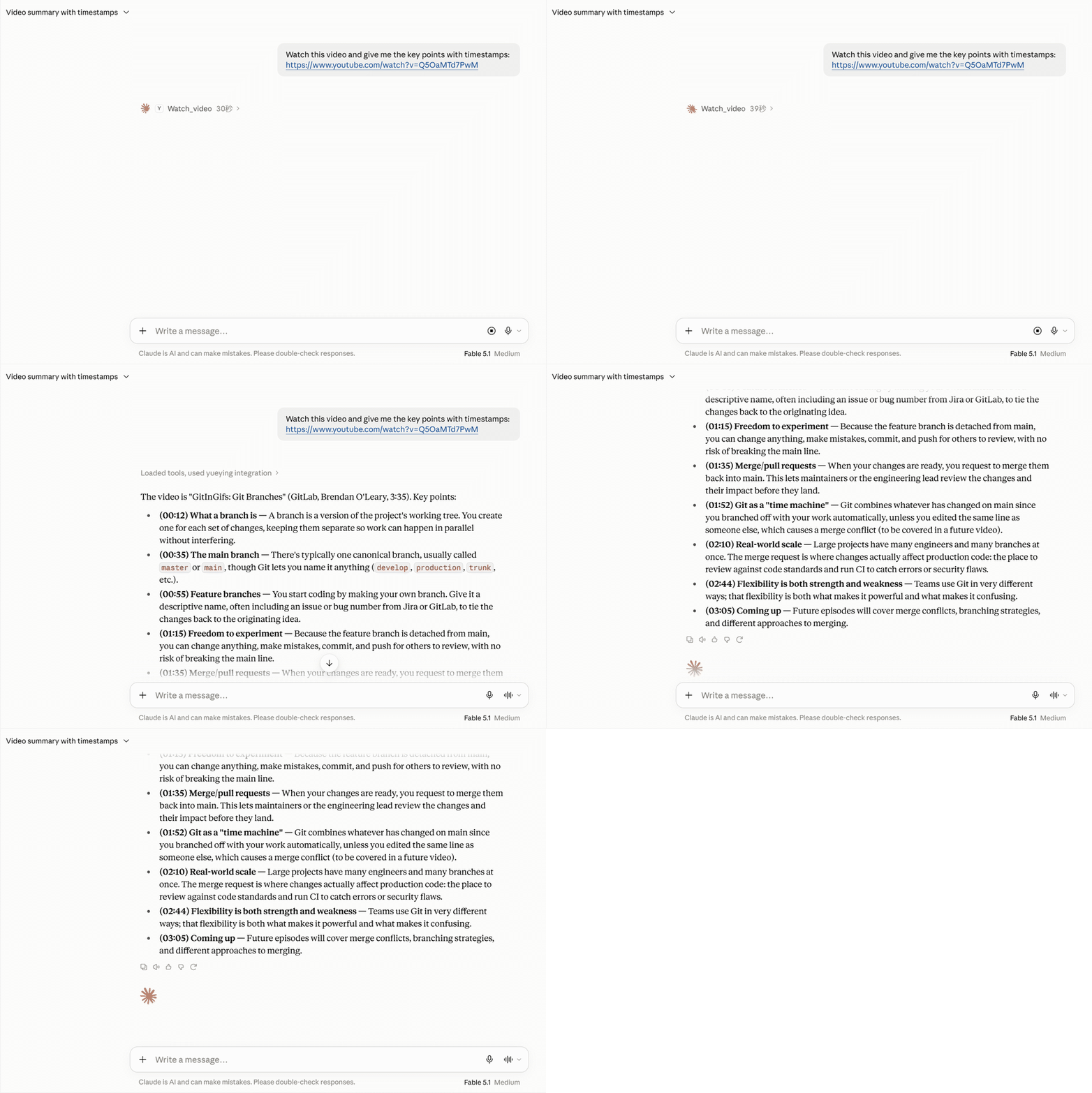
Claude Desktop with yueying connected: paste a link, wait about forty seconds, get the video back as
timestamped notes. This video ships captions, so speech recognition never ran, and the model asked for
the transcript only. Keyframes and contact sheets come back through get_frames when it needs to see
the screen. Demo video: GitInGifs: Git Branches by GitLab, CC BY.

Contact sheet from a 24-second demo clip (four app screenshots with Chinese narration). The yellow label on every tile is the keyframe number and timestamp; the model cites them back to you.
The transcript of the same clip — local speech recognition, language auto-detected as Chinese:
(The app is called 月读; ASR heard the homophone 阅读. Speech recognition does that to names — the model corrects it from the on-screen text in the frames.)
Every video becomes one folder:
Why yueying
- Captions first, Whisper only when needed. Platform subtitles are used when they exist. Otherwise local faster-whisper:
large-v3-turboon an NVIDIA GPU,smallon CPU, automatic CPU fallback — nothing is uploaded, no key. - ffmpeg bundled. Works on Windows 11 out of the box (imageio-ffmpeg); no PATH fiddling.
- Token-efficient. Keyframes are taken at scene changes, near-duplicates dropped, then packed into 3x3 contact sheets with burned-in timestamps. One sheet ≈ 1–2K tokens for nine moments; one transcript with
[mm:ss]paragraphs. - Chinese platforms and the rest. Bilibili (multi-part, collections, member videos with your browser login), Douyin, Xiaohongshu — and YouTube, TikTok, Vimeo, X and every other yt-dlp site.
- Zero API keys, zero telemetry. The only network traffic is the video site you name and one Whisper model download. See the privacy policy.
Benchmark: a 6-minute Bilibili video → report in ~90 s on an RTX 5060 laptop; on CPU with model=small expect ~1–2 min per 10 min of speech.
Quick start
- Install uv (Python is not required):
- Warm up and check everything once (installs the package, probes the GPU, downloads the speech model, runs a 2-second smoke test, prints config to paste):
- Add the server to your client (below), then ask: "Watch C:\videos\lecture3.mp4 and turn the steps into notes" or "What does this video say about docker compose: https://www.bilibili.com/video/BV…".
Claude Desktop
%APPDATA%\Claude\claude_desktop_config.json (Windows) · ~/Library/Application Support/Claude/claude_desktop_config.json (macOS). Fully quit and reopen Claude afterwards.
Windows note: Claude Desktop does not always see your PATH — if the server fails to start ("spawn uvx ENOENT"), use the absolute path, e.g. "command": "C:\\Users\\<you>\\.local\\bin\\uvx.exe" (where uvx prints it). Logs: %APPDATA%\Claude\logs\mcp-server-yueying.log (~/Library/Logs/Claude/ on macOS). Keep wait_seconds at its default there; see the RUNNING rule.
Claude Code
Or drop this repo's .mcp.json into a project (it ships with "timeout": 1800000 so one watch_video call can wait for a long video). To raise Claude Code's tool timeout globally, set MCP_TOOL_TIMEOUT=1800000 (ms) in your environment. The repo is also a Claude Code plugin (.claude-plugin/plugin.json: server + skill).
Cursor
Click the Add to Cursor badge above, or put the same JSON in ~/.cursor/mcp.json (global) or .cursor/mcp.json (project):
Cline
MCP Servers → Configure (cline_mcp_settings.json). timeout is in seconds; the five read-only tools are safe to auto-approve. Step-by-step agent instructions: llms-install.md.
Windsurf
~/.codeium/windsurf/mcp_config.json:
VS Code (Copilot agent mode)
Click the Install in VS Code badge above, or create .vscode/mcp.json (note the root key servers):
Direct links for hosts that accept custom URL schemes: cursor://anysphere.cursor-deeplink/mcp/install?name=yueying&config=eyJjb21tYW5kIjoidXZ4IiwiYXJncyI6WyJ5dWV5aW5nIiwibWNwIl0sImVudiI6eyJQWVRIT05VVEY4IjoiMSJ9fQ== and vscode:mcp/install?%7B%22name%22%3A%22yueying%22%2C%22command%22%3A%22uvx%22%2C%22args%22%3A%5B%22yueying%22%2C%22mcp%22%5D%2C%22env%22%3A%7B%22PYTHONUTF8%22%3A%221%22%7D%7D.
Without uv (pip / pipx) and Windows one-click
Use that absolute path as "command" with no args (Windows: ...\Scripts\yueying-mcp.exe; also works as python -m yueying mcp). Windows users without Python tooling can double-click install.cmd from a checkout: it creates %LOCALAPPDATA%\yueying\venv, installs the Claude Code skill, runs yueying mcp --setup and prints the JSON block with the right path.
GPU
Device and model are chosen automatically (model=auto: large-v3-turbo on CUDA, small on CPU); if the GPU trial fails, recognition falls back to CPU by itself.
Docker
The image is CPU-only (containers get no GPU by default), so it defaults to the small model.
Mount your videos read-only and give the tools container paths (/videos/lesson.mp4); results and
the downloaded Whisper weights live in the /data volume. In a client config the command is
docker and args are ["run", "--rm", "-i", "-v", "yueying-data:/data", "-v", "/your/videos:/videos:ro", "yueying"].
Tools
Related MCP Servers
Reviews
No reviews yet — be the first to share how this listing worked for you.
Frequently Asked Questions about Yueying – Let AI watch videos
AllMCPs Directory Badge
Showcase your server listing on GitHub or your project documentation. Embed this dynamic SVG badge to highlight official listing status and live engagement.
Badge Style:
Live Dynamic SVG Preview
Markdown (GitHub README)
[](https://allmcps.com/mcp/yueying-let-ai-watch-videos)HTML Embed
<a href="https://allmcps.com/mcp/yueying-let-ai-watch-videos"><img src="https://allmcps.com/api/badge/yueying-let-ai-watch-videos?style=directory" alt="Yueying – Let AI watch videos on AllMCPs" /></a>