SVG Lab README
The full upstream README, mirrored here for reference. Install config, tool schemas, adoption signals, and an original overview live on the SVG Lab listing page.
SVG Lab MCP
SVG Lab MCP is the remote MCP server of SVG Lab (svglab.app). It gives Claude, ChatGPT, Codex, Cursor and any other MCP client a design engine that builds app screens, icons, illustrations and charts as clean SVG, saved to your SVG Lab projects and ready to export as SVG, PNG or PDF.
The AI brings the idea (content, palette, direction); SVG Lab guarantees the structure (spacing, alignment, sizing, type, valid vector geometry). It runs on SVG Lab's servers, so there is nothing to install and no browser tab needs to stay open.
Streamable HTTP, OAuth sign-in, no key needed.
This repository holds documentation, ready-made client configs and an agent skill. It contains no server code. The full, always current setup guide is at svglab.app/mcp-setup.
Contents
- For AI agents
- Before you start
- Quick setup: Claude · Claude Code · ChatGPT · Codex · Cursor · VS Code · OpenCode · Windsurf · Gemini CLI · Any MCP client
- Check it works
- Examples
- Access
- FAQ
- Links
- Files in this repository
For AI agents
You are probably setting this up for a user. Facts:
Procedure:
- Find the app. Work out which app the user is in (Claude Code, OpenCode, Codex, Cursor, VS Code, Gemini CLI, Windsurf, Claude, ChatGPT). If you cannot tell, ask once. If the user is not sure their account has access, ask them to open https://svglab.app/billing while signed in: it shows the current plan, the free requests left and any top-up balance. Every account gets 100 free requests; after that the SVG Lab MCP needs Plus, Max or a top-up.
- Add the server. Use that app's block below exactly as written, with the name
svglab. Prefer the user level config (every project) unless the user asks for one project. When editing a config file, merge the entry into the existing file and keep every other server and setting. Never put a key in a project file that could be committed to git; use the environment variable form. - Start the sign-in. Run the app's sign-in step (for example
opencode mcp auth svglab, or/mcpin Claude Code). It opens the browser and waits until the user signs in to SVG Lab and presses Approve, so either run it and wait, or ask the user to run it in their own terminal. You cannot approve for them; tell them what to expect. - Reload. Restart the app or start a new session so it loads the SVG Lab tools. If you are running inside the app you are configuring, a restart ends your own session: finish the steps above first, then ask the user to restart and paste the test prompt from Check it works into a new session.
- Verify. In the new session, check your own tool list for tools from svglab. With access there are dozens of design tools. If there is only one tool, an account status tool, the connection works but the account cannot design yet (its 100 free requests are used up and it has no Plus or Max plan and no top-up, the account is suspended, or a key was replaced): call it and pass its message to the user. With sign-in, an account without access usually stops earlier: the SVG Lab sign-in page says the free trial is used up and does not let the user approve.
- Test. Run the test prompt from Check it works and give the user the project link it returns. The first design step can take 10 to 30 seconds; that is not a failure.
- If access is not granted, tell the user: "SVG Lab is set up, but your SVG Lab account has no SVG Lab MCP requests left: its 100 free requests are used up. Choose Plus or Max, or buy a top-up, at https://svglab.app/billing with the same account, and then it works with no more setup."
Before you start
- An SVG Lab account. Sign in at https://svglab.app/ with Google or an email link.
- Nothing to buy to try it: every account gets 100 free SVG Lab MCP requests, once, with no form. After that, choose Plus or Max, or buy a top-up (150 requests per US dollar, from 10 dollars, never expire, all purchases final), at https://svglab.app/billing . Accounts granted early access have it too.
Sign in with the same account every time: when the AI app opens the SVG Lab sign-in page, use the account that has Plus, Max or early access. Designs are saved to that account's My Projects.
Every app signs in the same way: add the address, the app opens a "Sign in to SVG Lab" page, sign in, check which app is asking, press Approve.
Quick setup
Short versions below. Ready config files are in configs/. The full guide, with key-based setups and troubleshooting, is at https://svglab.app/mcp-setup .
Claude (claude.ai and Claude Desktop)
Custom connectors are available on the Free, Pro, Max, Team and Enterprise plans; a Free account can add one custom connector.
- In Claude, open Customize, then Connectors (on the web: https://claude.ai/customize/connectors).
- Press +, then Add custom connector.
- Name it
SVG Laband pastehttps://svglab.app/mcpas the remote MCP server URL. Leave Advanced settings (OAuth Client ID and Secret) empty. - Press Add, then Connect next to SVG Lab. Sign in to SVG Lab and press Approve.
- In a chat, press + at the lower left, open Connectors and make sure SVG Lab is switched on.
Team or Enterprise: an owner adds the connector once under Organization settings, then Connectors; each person presses Connect and signs in with their own SVG Lab account.
Claude Code
--scope user makes SVG Lab available in every project. Leave it out to add it to the current project only. Then start Claude Code, type /mcp, choose svglab and pick Authenticate. The browser opens the SVG Lab sign-in page; press Approve. /mcp should show svglab as connected.
ChatGPT
Needs developer mode, available on the web for ChatGPT Plus, Pro, Business, Enterprise and Education (in a Business, Enterprise or Education workspace an admin has to allow it first).
- Settings, then Security and login: turn on Developer mode.
- Open Plugins and press + to create a developer mode app.
- Name:
SVG Lab. Description:Design engine: app screens, icons, illustrations and charts as finished SVG. MCP server URL:https://svglab.app/mcp. Authentication: OAuth. - Create it. When ChatGPT asks you to sign in, sign in to SVG Lab and press Approve.
- In a chat, open the + menu, choose Developer mode and select SVG Lab.
ChatGPT renames these menus from time to time. If Plugins is missing, look for Apps or Connectors in Settings; the fields are the same.
Codex
Everything happens in the Codex app; no terminal needed. The app, the IDE extension and the CLI share ~/.codex/config.toml, so add SVG Lab once.
- In the Codex app, open Settings, then Plugins, then the MCPs tab.
- Press Add, then Connect to a custom MCP.
- Name it
SVG Lab, set the type to Streamable HTTP, and paste the URLhttps://svglab.app/mcp. Leave the bearer token and headers empty, then press Save. - In the Servers list, press Authenticate on the SVG Lab row (next to the gear icon, before the switch). The browser opens the SVG Lab sign-in page; press Approve. When the browser says the sign-in is complete, go back to Codex.
- Start a new Codex thread so it loads the SVG Lab tools.
From the terminal instead (developers):
Or add to ~/.codex/config.toml by hand:
Then sign in with the app's Authenticate button as in step 4.
Cursor
Add to ~/.cursor/mcp.json (every project) or .cursor/mcp.json (this project only), merging into an existing mcpServers:
Open Cursor Settings and find svglab in the MCP list. When Cursor asks you to sign in, press Approve on the SVG Lab sign-in page. Then use it from a chat in Agent mode.
VS Code (GitHub Copilot agent mode)
Create .vscode/mcp.json in the project (or run "MCP: Open User Configuration" for every project). The top key is servers, not mcpServers:
Or run "MCP: Add Server", choose HTTP and paste https://svglab.app/mcp. Start the server; VS Code opens the browser for the SVG Lab sign-in on the first connection. Then open Copilot Chat in Agent mode.
OpenCode
Add the svglab entry inside mcp in ~/.config/opencode/opencode.json (every project; on Windows C:\Users\YOU\.config\opencode\opencode.json) or opencode.json in the project folder. It may be named opencode.jsonc; edit the one that exists.
Then sign in from a terminal and press Approve in the browser:
Restart OpenCode (or start a new session) and run opencode mcp list to see svglab connected.
Windsurf (Devin Desktop)
In the Cascade panel, open the ... menu and choose Open MCP config file (~/.config/devin/mcp_config.json on macOS and Linux, %APPDATA%\devin\mcp_config.json on Windows; older Windsurf versions use ~/.codeium/windsurf/mcp_config.json). Add:
Save, refresh the MCP list in Cascade, then sign in to SVG Lab and press Approve when asked.
Gemini CLI
Or add to ~/.gemini/settings.json. Use httpUrl, not url: in Gemini CLI, url means the older SSE transport.
Start Gemini CLI; it opens the browser for the sign-in. To start it yourself, type /mcp auth svglab. Type /mcp to check that svglab is connected.
Any other MCP client
- Server URL:
https://svglab.app/mcp - Transport: streamable HTTP (sometimes shown as "HTTP" or "remote"). Not SSE, and not a local command.
- Authentication: OAuth. SVG Lab supports automatic app registration and PKCE, so leave any client ID and secret fields empty.
- Or a header:
Authorization: Bearer svl_YOUR_KEYif the app has no sign-in support. Create the key in SVG Lab: account menu, SVG Lab MCP, Use a key instead of signing in, Generate key.
Check it works
Start a new chat in the AI app and paste this prompt:
Expected: the assistant says it is connected to SVG Lab and names the account; it designs the icon (the first design step can take 10 to 30 seconds while SVG Lab starts the design engine; later steps are quick); it gives a link, and the new project is in My Projects, ready to edit or export as SVG, PNG or PDF.
Examples
App screens made through the SVG Lab MCP, as shown on svglab.app/mcp-server.
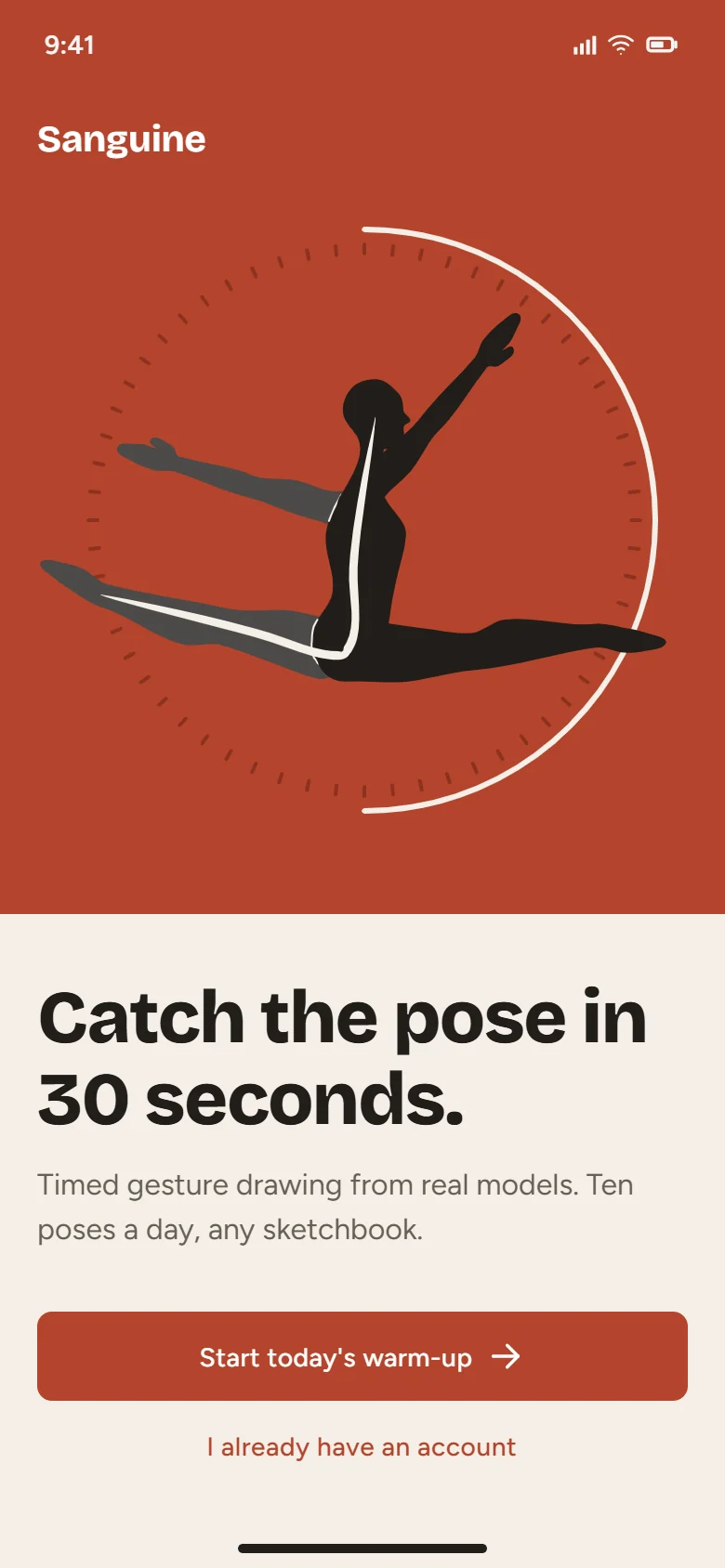 | 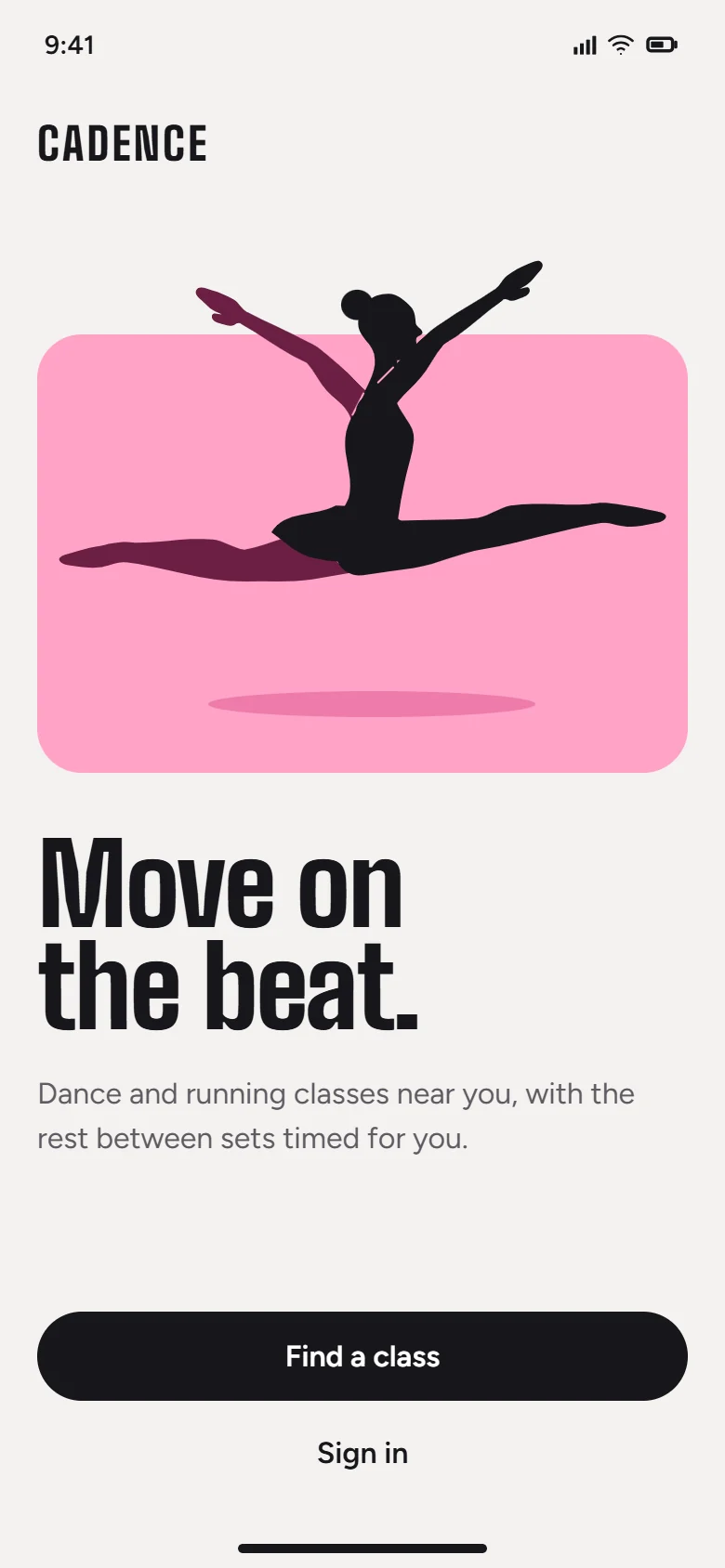 | 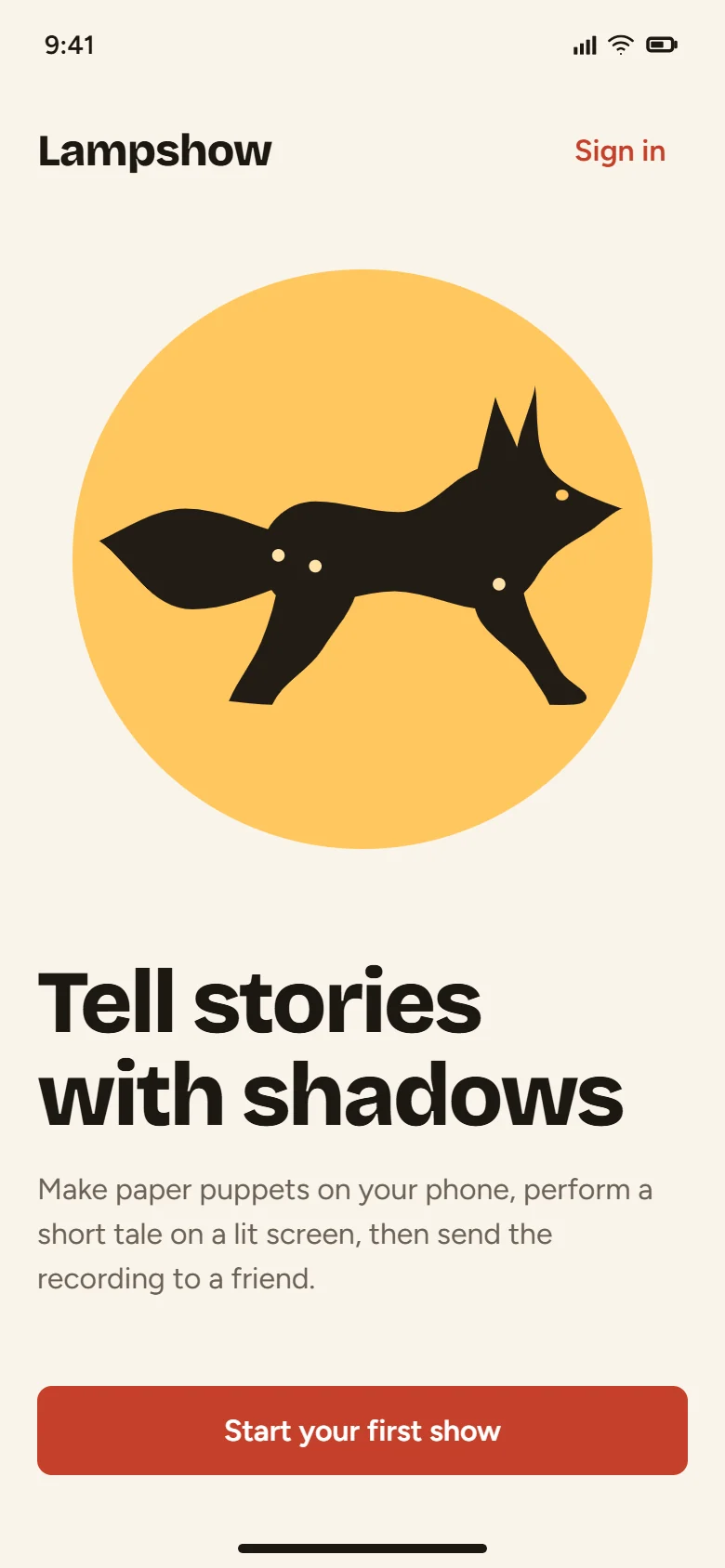 |
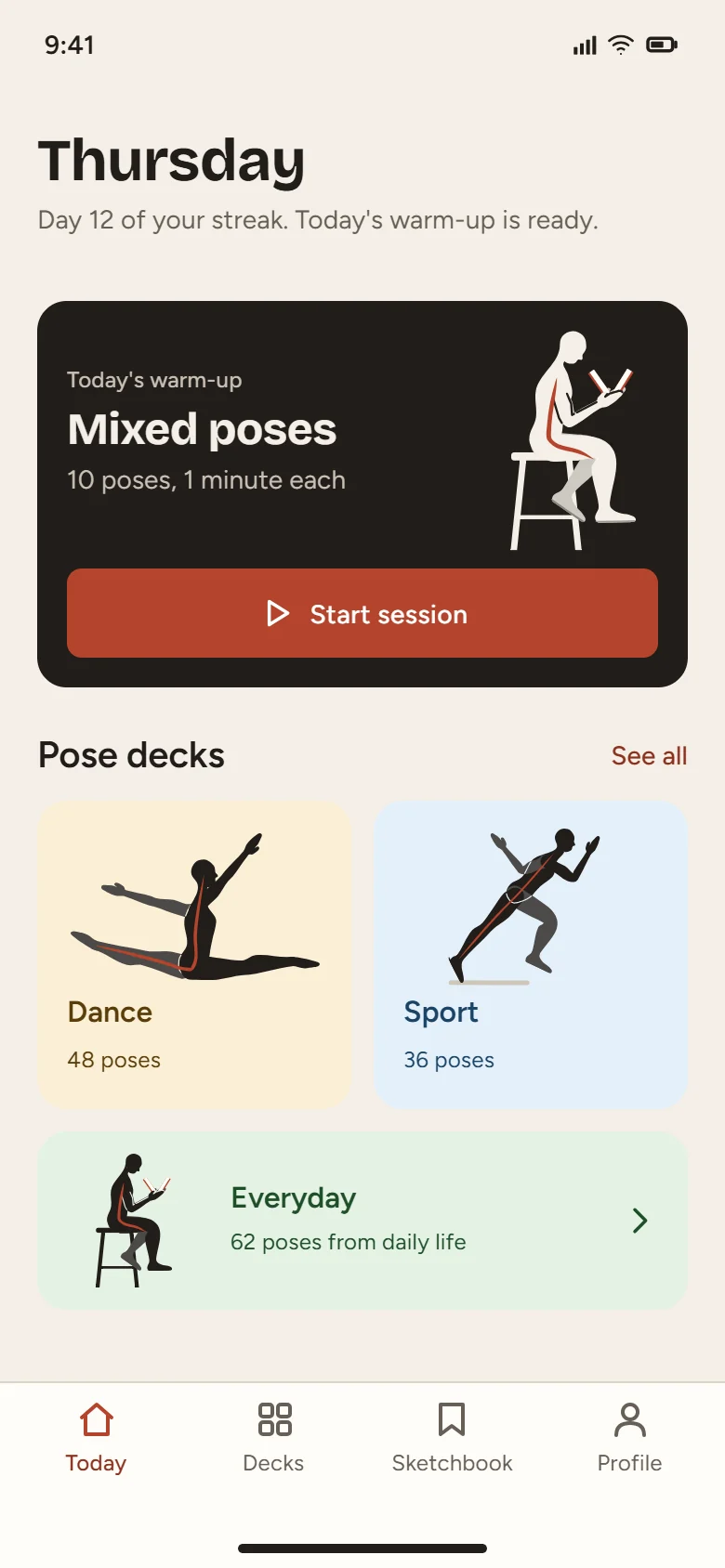 | 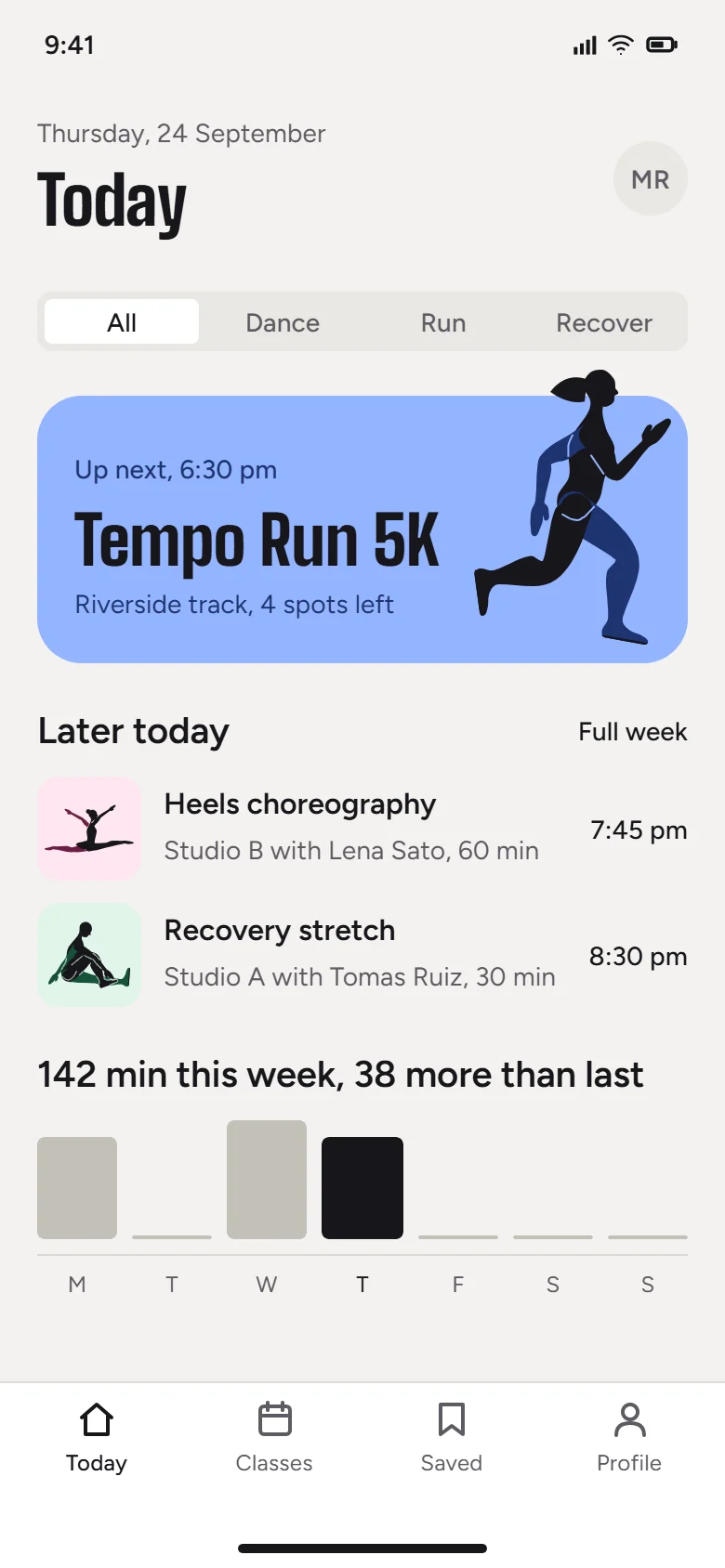 | 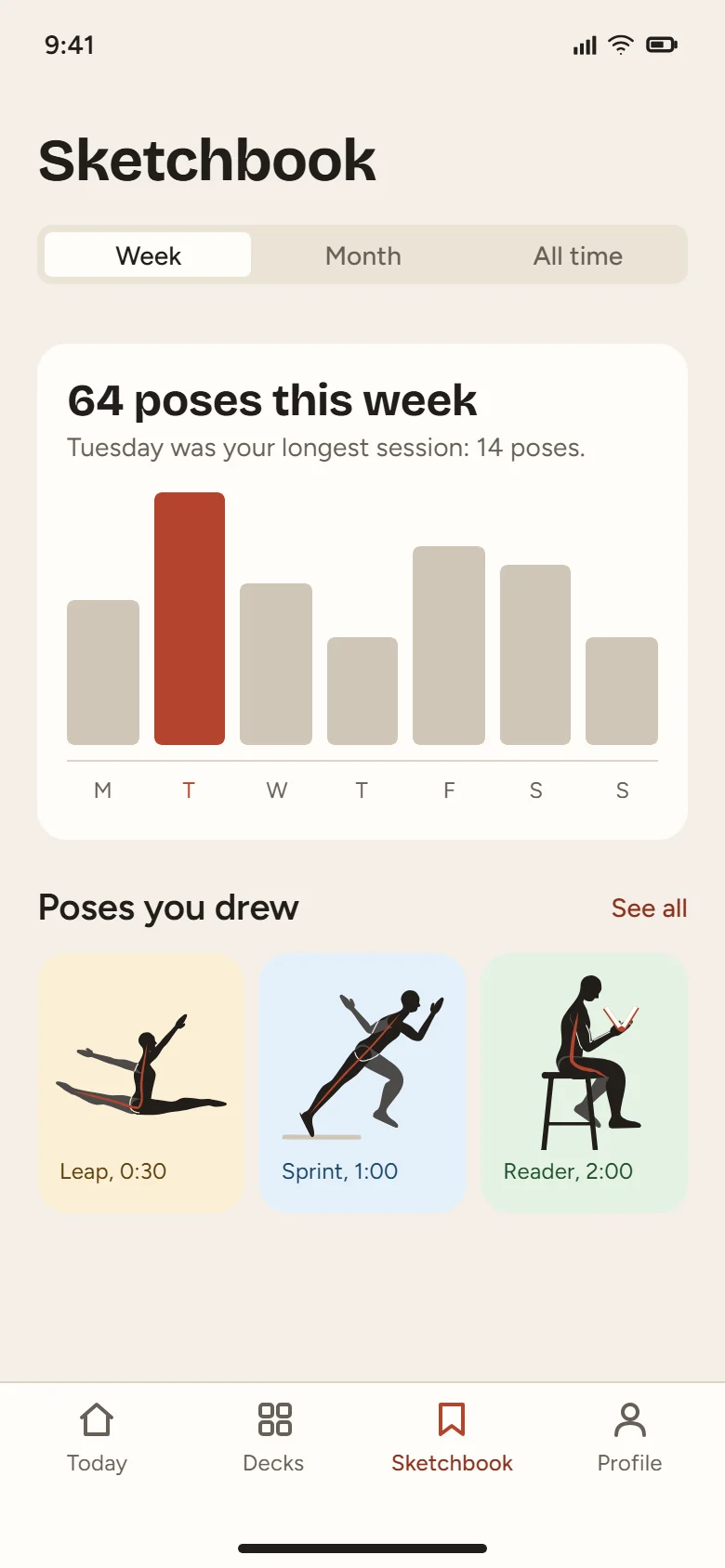 |
Access
Every SVG Lab account gets 100 free requests to try the SVG Lab MCP, once, with no form to fill in. After that, the Plus and Max plans include a monthly allowance of requests, and top-ups add requests that never expire (150 requests per US dollar, from 10 dollars; all purchases are final). One tool call is one request, and calls that fail are not counted. Plans and top-ups: https://svglab.app/billing . You can see your usage at https://svglab.app/usage .
FAQ
Do I need an API key? No. Every app above can sign in: it opens SVG Lab's sign-in page, you press Approve, and you are connected. A key is only an alternative for command line apps or machines with no browser.
Do I need to keep SVG Lab open in a tab? No. Nothing needs to be open in SVG Lab, and there is no code to type in. SVG Lab runs the design engine on its own servers, and everything your assistant makes is saved to My Projects, ready when you open SVG Lab.
What does it cost? Every SVG Lab account gets 100 free requests to try the SVG Lab MCP, once, with no form to fill in. After that, the Plus and Max plans each include a monthly allowance of requests, and top-ups add requests that never expire (150 requests per US dollar, from 10 dollars; all purchases are final). One tool call is one request, and calls that fail are not counted. See the plans and top-ups at https://svglab.app/billing .
Which account does my work go to? The SVG Lab account you signed in with when you pressed Approve. Use the same account that has Plus, Max or early access.
Can I connect more than one app? Yes. Connect as many apps as you like. Up to two AI sessions can design on one SVG Lab account at the same time, each in its own group of artboards, and you can keep working on the rest of the project while they do.
How do I disconnect an app? Open SVG Lab, open the account menu (your email, top right) and choose SVG Lab MCP. Under Connected apps, press Disconnect next to the app. It stops working straight away.
Is there a package to install or a separate MCP subdomain? No. There is nothing to install and no mcp.svglab.app. The one and only server address is https://svglab.app/mcp.
The first request is slow. Normal. The first design step starts the design engine and can take 10 to 30 seconds.
More answers and troubleshooting: https://svglab.app/mcp-setup . Still stuck? Email support@svglab.app with the app and the exact message.
Links
- Website: https://svglab.app/mcp-server
- Setup guide: https://svglab.app/mcp-setup
- Plans and top-ups: https://svglab.app/billing
- Your usage: https://svglab.app/usage
- llms.txt: https://svglab.app/llms.txt
- MCP server card: https://svglab.app/.well-known/mcp/server-card.json
- Official MCP Registry entry
app.svglab/svglab: https://registry.modelcontextprotocol.io/v0.1/servers?search=app.svglab
Files in this repository
| Path | What it is |
|---|---|
| configs/ | One ready config file per client |
| skills/svglab-mcp/SKILL.md | Agent skill: add, sign in to and verify the SVG Lab MCP. Install with npx skills add ottoman9/svglab-mcp |
| server.json | Copy of the official MCP Registry manifest, for reference |
| LICENSE | Creative Commons Attribution 4.0 International |
License
The documentation, configs and skill in this repository are licensed under CC BY 4.0. The example images are hosted on svglab.app and are not part of this repository. SVG Lab itself is a hosted service; no server code is published here.