Android phone camera, sensors & files for any MCP client — local, no cloud, no ADB.
Quick Install
Automated & IDE SetupCopy the AI prompt to install this server into Claude Code, Cursor, or another agent — or use 1-click editor setup below.
Not yet automatically verified
We haven't yet run this listing's install command through our automated sandbox check. This isn't a red flag — we're steadily working through the catalog.
Manual Client & Custom JSON ConfigExpand JSON ▾
Client Config & Setup
Choose your client or environment
Target File:
💡 Paste the JSON block into your client's configuration file under mcpServers, then restart the application.
Documentation Overview
onsense — Phone Camera, Sensors & Files for PC AI Agents
Don't describe it. Let your AI see it. onsense is the PC-side MCP broker for the onSense Android app: run uvx onsense pair on your PC, and any MCP-capable AI — Claude Code, Claude Desktop, Codex, or your own agent — can see through your phone's camera, read its sensors, and move files & clipboard both ways. No cloud relay. No ADB.
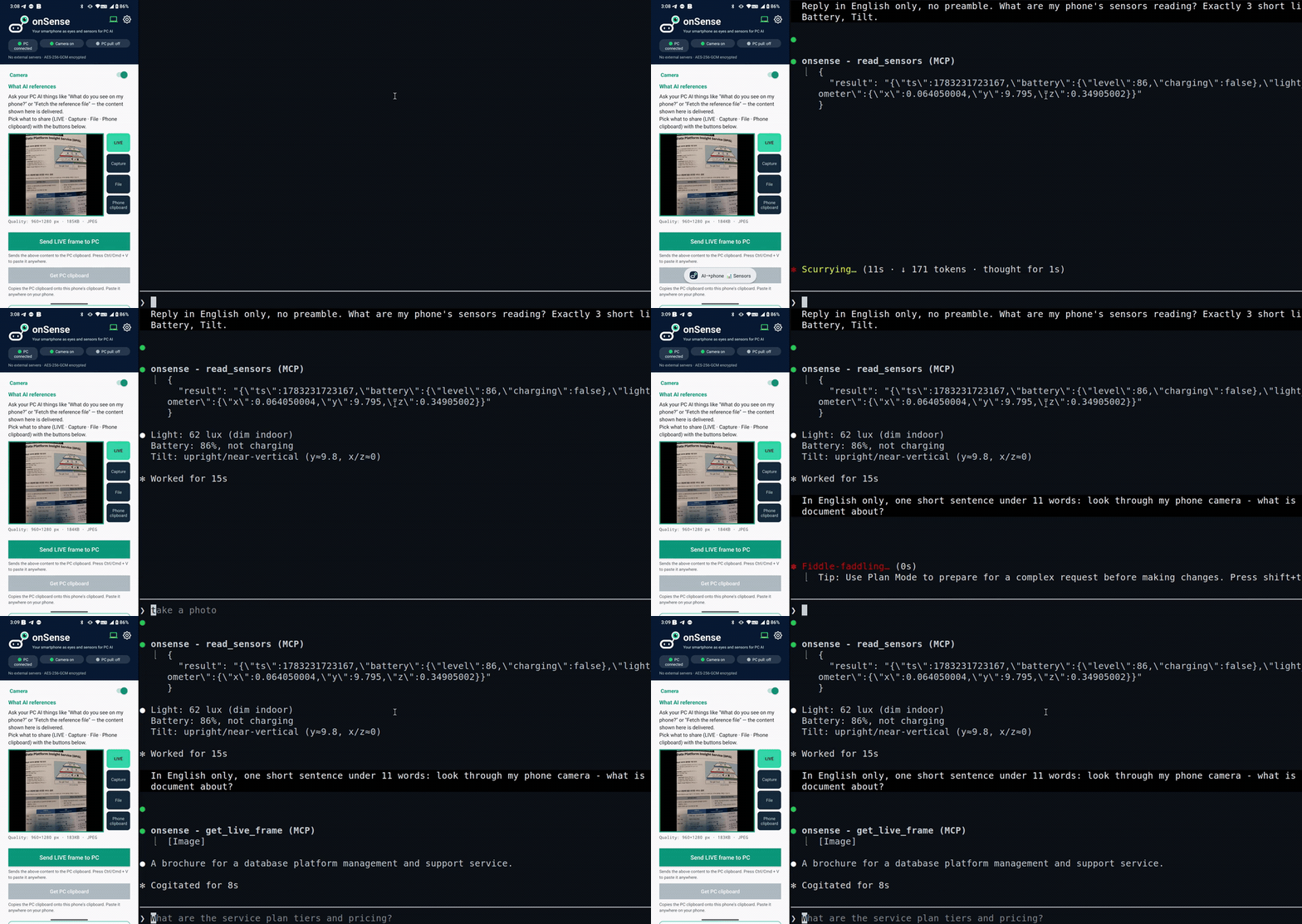
Claude Code, running on the PC, reads the phone's sensors and looks through its camera to answer — live, over local Wi-Fi.
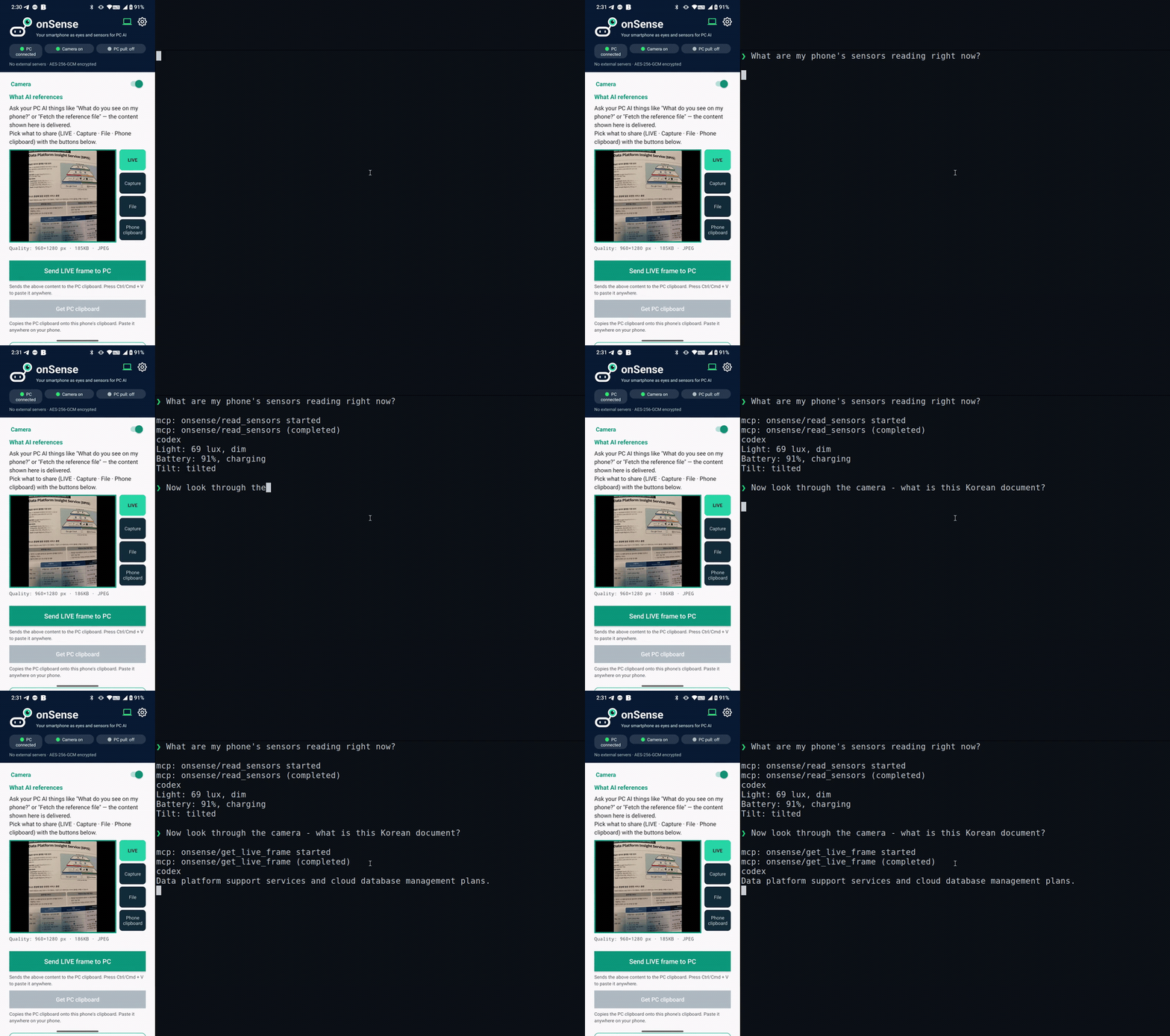
…and the same with Codex. onSense is a standard MCP server, so any MCP client works.
Architecture
- The phone runs an HTTP provider on port 8080. It exposes camera frames, recent photos, and sensor readings, all gated by a pairing token.
- The PC package (
onsense) is a stdio MCP broker. It translates MCP tool calls from your AI client into HTTP requests to the phone. - Discovery uses mDNS (
_onsense._tcp.local.). If the phone's IP changes, the broker rediscovers it automatically — no manual reconfiguration needed. - An optional clip bridge daemon on port 8770 lets the phone push camera frames, files, and clipboard content to the PC (and, if enabled, lets the phone pull from the PC clipboard).
Requirements
- uv (provides
uvx; downloads a managed Python automatically — no separate Python install needed) - The onSense Android app installed on a phone on the same local Wi-Fi network as your PC
- An MCP-compatible AI client such as Claude Code, Codex, or any stdio MCP client
Quick Start
0. Fresh PC without uv? Use the app's setup helper (recommended)
On a clean PC, uvx doesn't exist yet and the command below will fail with "'uvx' is not recognized". The easiest fix: install the onSense app first, tap "Start PC setup helper", and open the shown address on your PC. It gives you a one-line command that installs uv, pairs, and registers the MCP server in one go — and because the PC connects out to the phone, it also sidesteps the Windows firewall entirely.
Prefer installing uv yourself? One line:
1. Pair your phone
Run this once. The PC prints a QR code; scan it from the onSense app ("Scan PC QR"). The phone pushes its address and token to the PC, which registers the MCP server automatically.
After pairing, restart your AI client once so it picks up the new onsense MCP server.
2. Use it
Ask your AI client naturally:
"Take a photo of what's in front of my phone." "What are the current sensor readings?" "Show me the last 5 photos on my phone."
The MCP tools are called automatically. In Claude Code you can also use the bundled /onsense slash command (installed during pairing).
3. Diagnose problems
Windows: QR scan times out?
The #1 cause is the Windows firewall dropping the phone's inbound connection:
-
If your Wi-Fi network profile is Public, inbound traffic is blocked hard. Switch it to Private (Settings → Network → your Wi-Fi → Network profile), or just use the app's PC setup helper, which needs no inbound port at all.
-
On a Private network, add a durable allow rule once (run as administrator):
The first-run firewall popup is program-path-scoped and uvx's ephemeral paths silently invalidate it — the port-scoped rule above (TCP 8765–8774, Private) is what actually sticks.
-
If port 8765 is taken,
pairautomatically falls back to the next free port (up to 8774) and the QR reflects the real port — no action needed.
Subcommands
| Command | What it does |
|---|---|
uvx onsense pair | Display a QR code on the PC; phone scans it and pushes {base, token}; registers MCP automatically |
uvx onsense pair "onsense://pair?base=...&token=..." | Parse a pairing URI directly (phone-displayed QR → manual copy) |
uvx onsense pair --img screenshot.png | Decode a pairing QR from a screenshot file (requires opencv) |
uvx onsense serve | Run the MCP server (stdio). Also starts the clip daemon automatically unless --no-clip is passed |
uvx onsense serve --no-clip | Run the MCP server only, without starting the clip daemon |
uvx onsense clip | Run the clip bridge daemon standalone (port 8770) |
uvx onsense clip --allow-pull | Enable phone→pull: phone can GET /clip to retrieve the PC clipboard |
uvx onsense clip --set-clipboard | Auto-inject received content into the PC OS clipboard (off by default) |
uvx onsense pair --fix-firewall | (Windows, admin) Add the durable port-scoped firewall rule, then pair as usual |
uvx onsense doctor | Diagnose installation, connectivity, and phone reachability |
uvx onsense stats | Show local-only activation stats (--json, --reset). Nothing is uploaded automatically |
Other MCP clients (Claude Desktop, Codex, …)
uvx onsense pair auto-registers the server with Claude Code (via claude mcp add) — this one-line auto-setup is Claude Code-specific. The MCP server itself is standard stdio MCP, so any MCP-compatible client works once you add it manually. Run uvx onsense pair once first: it saves your phone's address and token to ~/.onsense/pair.json, which the server reads at request time — so you don't put the token in each client's config, and the phone's IP is auto-tracked via mDNS.
Claude Desktop — add to claude_desktop_config.json:
Codex — register via the CLI (verified with Codex CLI 0.142.5):
Codex sandbox note: Codex's default sandbox blocks network access, so the MCP server can't reach your phone and tool calls fail silently. Run Codex with network access enabled (e.g.
--sandbox danger-full-access, or a sandbox policy that permits network) so onsense can talk to the phone on your LAN.
or add to ~/.codex/config.toml:
Restart the client once after adding the server. Any other stdio MCP client works the same way — point it at uvx onsense serve.
MCP Tools
These tools are exposed to your AI client after pairing:
| Tool | Description |
|---|---|
get_live_frame() | Capture the current camera frame from the phone (returns JPEG image) |
read_sensors() | Return phone sensor readings as JSON: battery level/charging state, ambient light (lux), accelerometer (x/y/z) |
recent_photos(limit=10) | List recent photos on the phone: id, name, date_added, size, width, height |
get_photo(id, max_width=1024, save_original=False) | Fetch a specific photo by id (downscaled to max_width); use ids from recent_photos. Also saves it to the same Downloads folder as get_reference and returns the path, so the image survives the conversation. save_original=True archives full resolution instead of the downscaled copy |
rename_photo(path, name) | Rename a fetched file to describe what the image actually shows (photo_1000024531.jpg → whiteboard_sprint_plan.jpg). The AI calls this right after viewing, so it costs no extra tokens |
get_reference() | Fetch whatever the phone has designated as its reference source — a live camera frame, a captured photo, or an arbitrary file (incl. non-images) — saved to disk with path + metadata. The core of the file/capture bridge |
get_cam_fps() | Read the phone's current camera FPS setting (15 = high-performance, 2 = balanced, 0 = on-demand) |
set_cam_fps(fps) | Set the phone's camera FPS: 15 (high-performance), 2 (balanced, recommended), or 0 (power-saving / on-demand) |
If the phone's IP changes, the broker retries using mDNS autodiscovery before surfacing an error.
Clip Bridge (Phone ↔ PC File & Clipboard)
onsense serve automatically starts a clip daemon on port 8770. You can also run it standalone with onsense clip.
Phone → PC push (POST /clip)
The onSense Android app can push content to the PC:
- Images are saved to disk as
latest.jpg(inONSENSE_CLIP_DIR, default<tempdir>/onsense/). - Text files are saved to disk.
- Other files (video, PDF, etc.) are saved to disk by filename.
- If
--set-clipboardis active, images and text are also injected into the PC OS clipboard so you can paste with Ctrl+V immediately.
By default, --set-clipboard is off — files are saved to disk but the clipboard is not touched.
PC → Phone pull (GET /clip)
Off by default. Enable with:
Related MCP Servers
Reviews
No reviews yet — be the first to share how this listing worked for you.
Frequently Asked Questions about Onsense
AllMCPs Directory Badge
Showcase your server listing on GitHub or your project documentation. Embed this dynamic SVG badge to highlight official listing status and live engagement.
Badge Style:
Live Dynamic SVG Preview
Markdown (GitHub README)
[](https://allmcps.com/mcp/onsense)HTML Embed
<a href="https://allmcps.com/mcp/onsense"><img src="https://allmcps.com/api/badge/onsense?style=directory" alt="Onsense on AllMCPs" /></a>Technical Specs & Signals
CategoryDeveloper Tools
37Quality signal: Fair · 37/100How this signal is calculated ▾
Server availabilityNot measured
Not scored for repo-hosted servers — we can't reach the running server, only its GitHub page. Hosted MCP endpoints are health-checked live.
Verified ownership10/20
Documentation & tools16/30
Adoption & activity2/15
Community engagement0/10
A guidance signal from public completeness & health data — not a user rating. New listings start lower and rise as they add docs, get verified, and grow adoption. Signals we can't observe for a listing are skipped, not counted against it.
Own this project?
This directory is pre-filled from public sources. Claim via GitHub README, site badge, or DNS TXT to unlock edit access and the Official badge — proof is checked automatically, then reviewed by our team.
Free dofollow backlink: add your website and place the AllMCPs badge on it — no claim needed. We detect it automatically and keep it verified as long as the badge stays live.
Claim & get free dofollowShare & Embed
Add our SVG badge (dark/light directory styles) or embeddable widget to your site.