Nelson MCP — LibreOffice README
The full upstream README, mirrored here for reference. Install config, tool schemas, adoption signals, and an original overview live on the Nelson MCP — LibreOffice listing page.
Nelson MCP

A LibreOffice extension that turns your documents into an MCP server. External AI clients connect over HTTP and get full access to document tools — reading, editing, navigating, formatting, and more.
Works with any MCP-compatible client: Claude Code, OpenCode, Goose, ollmcp, etc.
How it works
Nelson MCP runs an HTTP server inside LibreOffice and speaks the Model Context Protocol. AI agents connect to it and use tools to interact with your open document — no copy-paste, no file export.
What it looks like
An agent writes a quarterly report into an empty Writer document, one tool call at a time:
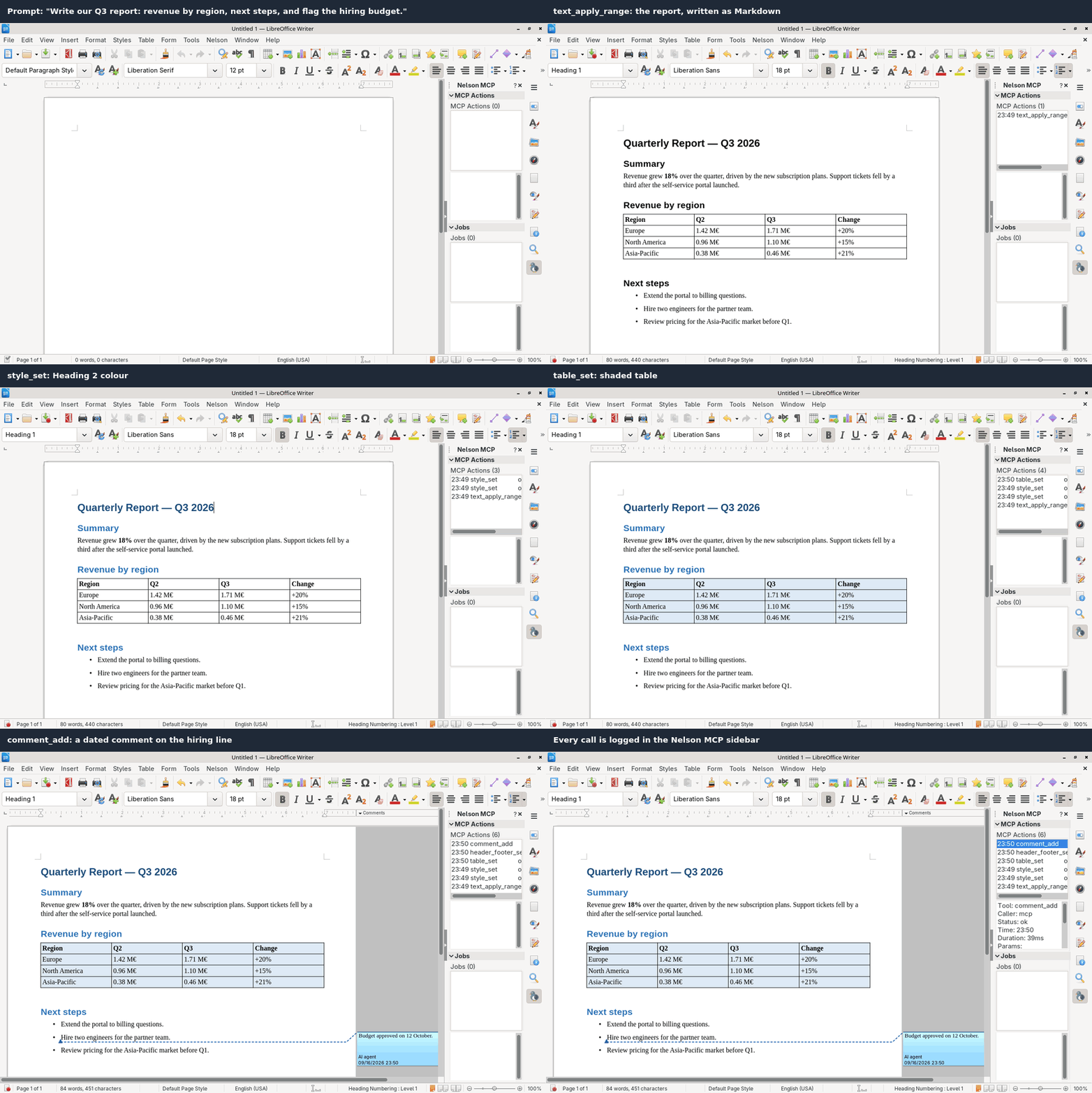
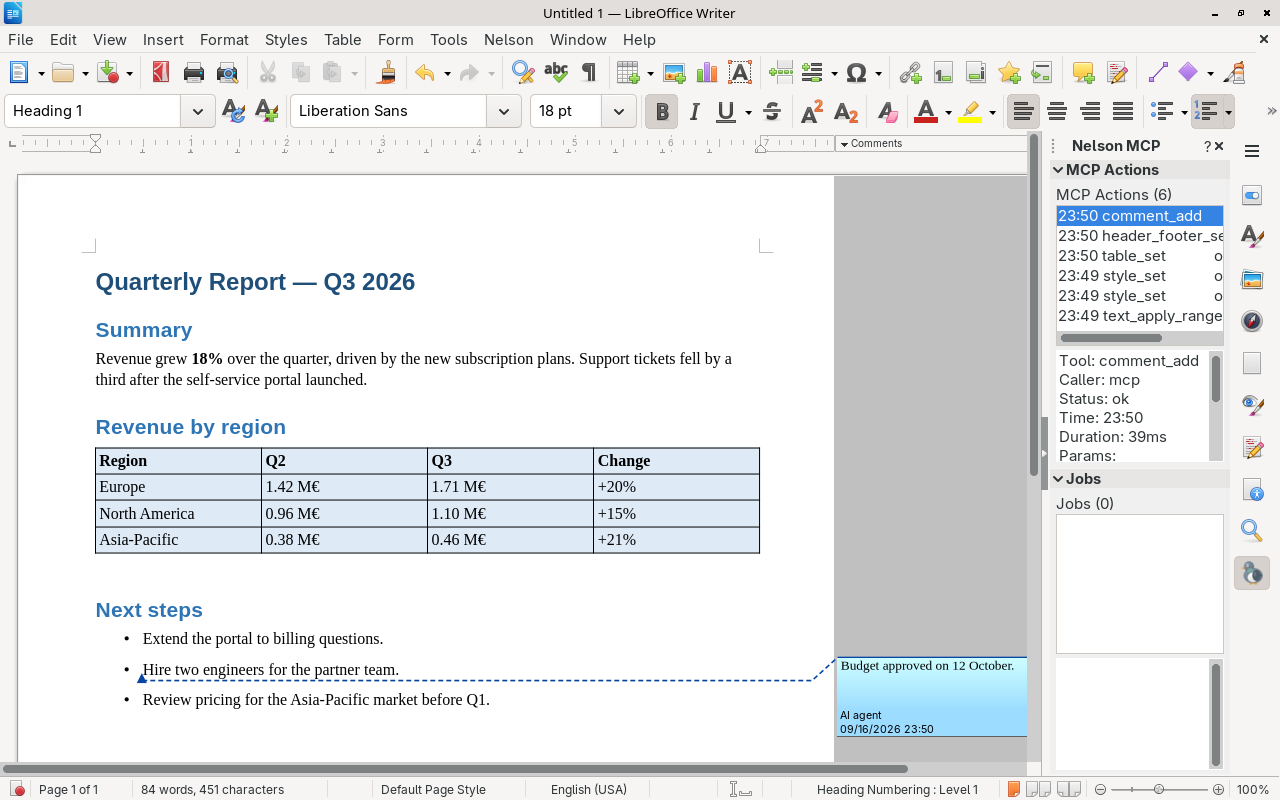
The finished report: the content as Markdown, heading colours with style_set, a shaded table, a Page {page} of {pages} footer, and a comment on the hiring line. The Nelson MCP sidebar logs every call. Select a call to see its caller, status, duration and parameters.
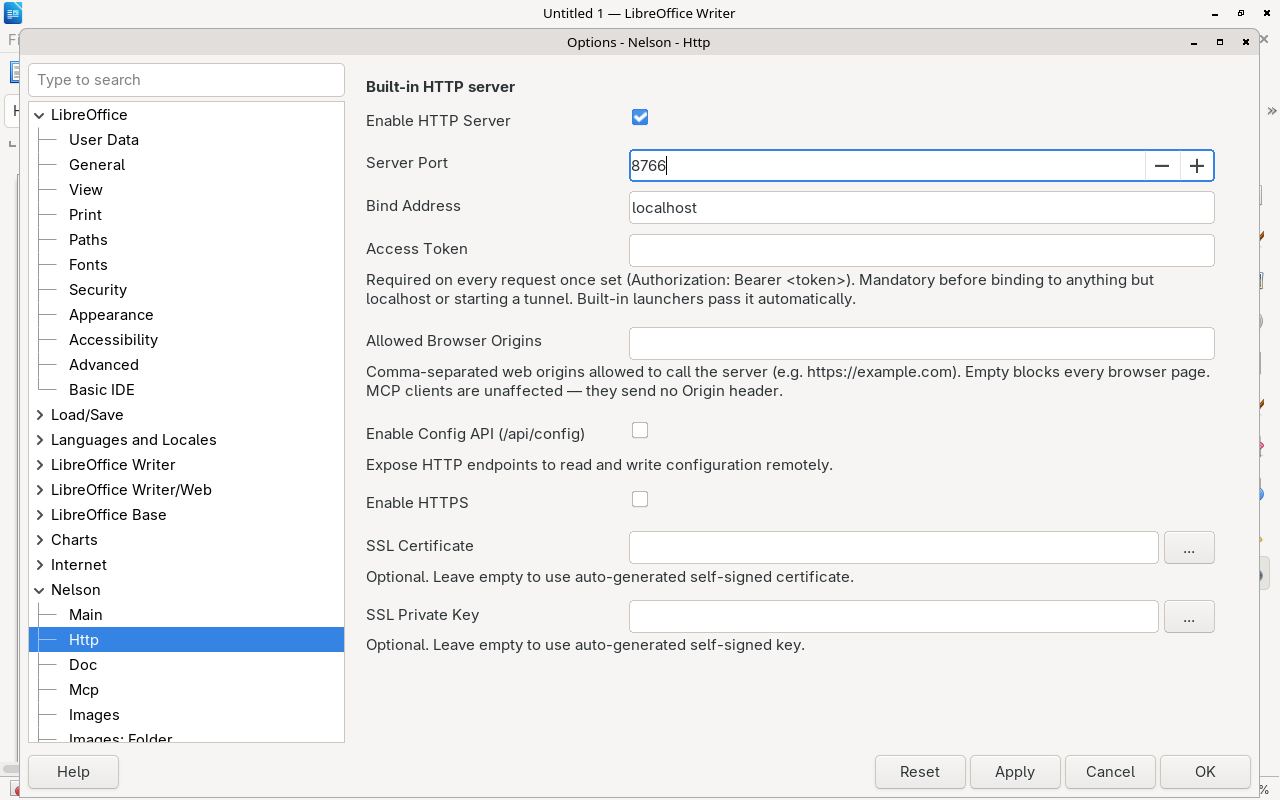
Everything is set in Tools > Options > Nelson. For example, the HTTP page sets the port, the bind address and the access token:
Features
- 145 document tools — read content, edit text, manage styles, insert images, handle tables, charts, conditional formatting, hyperlinks, track changes, page headers/footers, navigate headings, search, and more. The list is filtered by the active document type, so a client sees only what applies (97 with a Writer document, 50 with Calc)
- Self-configuring agents — with the config API on, an agent reads and changes Nelson's settings itself (read limits, exchange format, the name on its changes), while the settings that protect you stay reserved to Options. See Let the agent configure Nelson
- Custom MCP endpoints — expose only the tools your agent needs. Built-in presets (minimal, writer-edit, writer-read, calc, gallery) or create your own filtered endpoints
- Writer, Calc, Draw, Impress — tools adapt to the active document type
- Calc
=PROMPT()— call an LLM directly from a spreadsheet cell - Built-in launchers — launch Claude Code, Gemini CLI, or OpenCode directly from LibreOffice with one click. Nelson handles MCP config, prompt injection, and working directory setup automatically
- AI image generation — generate and edit images from text prompts using Stable Diffusion (A1111/Forge), OpenAI, or AI Horde. One-click detect/install/launch for Automatic1111
- Beginner-friendly setup — all tools come with install buttons, auto-detection of existing installations, and guided configuration. No manual config files to edit
- Tunnels — expose the MCP server externally via ngrok, Cloudflare, bore, or Tailscale, behind an access token
- SSL — optional HTTPS with auto-generated certificates
- Modular — each feature is a self-contained module with its own config, services, and tools
Install
- Download the latest
.oxtfrom the releases page - In LibreOffice: Tools > Extension Manager > Add
- Restart LibreOffice
- The MCP server starts automatically (default:
http://localhost:8766/mcp)
Quick start
Once installed, point your MCP client at the server:
Open a document in LibreOffice, then ask your AI client to read or edit it.
For AI agents: see QUICKSTART.md — a step-by-step guide for LLM agents on how to discover documents, navigate structure, and use tools effectively.
Let the agent configure Nelson
An agent doesn't have to stop and ask you to open Options. With the config API switched on, it reads and changes Nelson's settings itself, over the same HTTP server, and changes apply at once. For example, it can:
- raise the read limit before a long document;
- switch to HTML to rewrite a formatted one;
- sign its tracked changes with its own name.
Switch it on in Tools > Options > Nelson > Http > Enable Config API, then:
Add -H 'Authorization: Bearer <token>' once an access token is set.
The API tunes how Nelson behaves. It can't undo what protects you. These settings are reserved to Options, and a request that touches one is refused with 403 and changes nothing:
http.*: the token, the address, allowed origins, SSL, and the config API switch itself;tunnel.*anddebug.*;launcher.*: the commands Nelson runs;*.instances: the folders tools can reach, and the AI providers' endpoints and keys;core.force_track_changes.
Secrets such as the token and API keys read back as ***.
Security
Whoever can talk to Nelson can read and edit every document open in LibreOffice, and open any file your account can read. What stands between that and other people:
| Situation | Protection |
|---|---|
| Default: local only | The server binds to localhost. MCP clients on your machine need nothing. |
| Web pages in your browser | Refused. A page you visit cannot call localhost:8766: browser origins are rejected unless you list them in Allowed Browser Origins. |
| An access token is set | Every request must carry it — Authorization: Bearer <token>, or ?token=<token> for clients that cannot set a header. The built-in launchers pass it for you. |
| Reachable from the network, or through a tunnel | Nelson refuses to bind anywhere but localhost, and refuses to start a tunnel, until a token is set. |
Set the token in Options > Nelson MCP > HTTP > Access Token; it applies without a restart. The config API can't change it or any other protective setting (see above), but it still reads and changes the rest: keep it and the debug API off on any machine that is reachable from elsewhere.
Before exposing Nelson through a tunnel, read the warning at the top of
docs/howto/connect-chatgpt-tailscale.md.
Modules
Around 30 modules; the main ones:
| Module | Description |
|---|---|
core | Document access, config, events, formatting |
doc | Tools common to every document type — open, save, close, export, print, undo/redo, hyperlinks |
writer | Content editing, comments, styles, tables, images, headers/footers, change tracking |
writer.nav | Heading tree, bookmarks, proximity navigation |
writer.index | Full-text search with Snowball stemming |
calc | Cells, sheets, formulas, charts, conditional formatting, comments |
draw | Shapes, pages, slides, placeholders, master slides, transitions (Draw and Impress) |
images / documents | Image and document gallery providers (browse and reuse existing assets) |
ai_images | AI image generation and editing (Stable Diffusion, OpenAI, AI Horde) |
ai | AI text providers, behind the Calc =PROMPT() function |
launcher | Launch Claude Code, Gemini CLI or OpenCode from LibreOffice |
panel | Sidebar panels — MCP action log, running jobs |
batch | Multi-tool execution with variable chaining |
http | Shared HTTP server with optional SSL |
mcp | MCP JSON-RPC protocol handler |
tunnel | Tunnel manager (ngrok, Cloudflare, bore, Tailscale) |
Turning off what you do not use
Nelson ships a lot of tools, but a client never sees all of them, and most of the narrowing happens on its own. In order of how much they cut:
| Lever | What it does | Where |
|---|---|---|
| Document type | The tool list follows the active document — about 97 tools for Writer, 50 for Calc, out of 145. Automatic, and clients are notified when it changes | nothing to configure |
| Unconfigured features hide themselves | Gallery and AI-image tools disappear entirely until you configure a gallery or an image provider. Launchers and tunnels expose no tools at all | nothing to configure |
| Custom endpoints | Expose exactly the tools you choose on their own URL, e.g. 8 tools on /mcp/minimal. The surest way to keep a small model on the rails | Options > Nelson MCP > MCP |
| Presets | Ready-made endpoint tool lists: minimal, writer-edit, writer-read, calc, gallery | Options > Nelson MCP > MCP |
| Feature switches | Turn off the MCP server, the HTTP config API, or the debug API outright | Options, per module |
| Provider selection | Pick which tunnel, launcher or AI provider is used | Options, per module |
| Startup scanning | Stop the image and document folder indexes rescanning at startup | Options > gallery modules |
So a Calc user is already down to 48 tools without touching anything, and a custom endpoint takes that to whatever you like.
What Nelson deliberately does not have is a switch to stop a module loading. It would be a seventh overlapping control, and it would buy very little: a full startup is ~370 ms for 31 modules, and the optional families are already invisible in the tool list. See #29 for the measurements.
Development
See DEVEL.md for the complete developer guide and docs/modules.md for the module framework reference.
Developing with an AI agent
This project is developed with AI coding agents, using wbox-mcp to make that practical.
Nelson lives inside LibreOffice, so an agent cannot verify a change without actually running LibreOffice — and a headless process cannot show whether a logo really landed in the page header. wbox-mcp is an MCP server that hands the agent a sandboxed LibreOffice in a nested Wayland compositor: it can kill, deploy and relaunch the extension, drive the UI, read the Nelson log, and take screenshots of the result.
That closes the loop. The agent edits the code, redeploys, calls the tool through MCP, and looks at the rendered document to confirm the change — instead of assuming it worked.
Documentation
QUICKSTART.md— agent guide: discovery, workflows, tool patternsAGENTS.md— developer cheatsheet: project structure, build pipeline, critical rulesdocs/howto/— user guides: Tailscale + ChatGPT, Forge, Ollama indexation, image galleriesdocs/roadmap.md— what's planned nextCHANGELOG.md— version history
Acknowledgments
Nelson MCP is the result of merging and reworking two other projects:
-
LocalWriter — a LibreOffice extension that embedded a chatbot sidebar with AI providers (OpenAI-compatible APIs, Ollama, AI Horde). Originally created as LibreCalc AI Assistant by Umut Çelik, then forked and expanded by @balisujohn and significantly developed by @KeithCu (Keith Curtis) who added AI Horde support, multi-provider management, the chatbot sidebar, and Calc
=PROMPT()integration. The module framework, the tool system, and the per-module config architecture were developed by @quazardous. -
mcp-libre — a standalone LibreOffice MCP server that exposed Writer tools to external AI clients via MCP. It demonstrated that the MCP approach (external AI + document tools) was more flexible than an embedded chatbot. Nelson MCP adopts this MCP-first architecture: the chatbot and AI provider modules have been removed, and the extension focuses entirely on being a tool server for external clients.
License
MPL 2.0 — see extension/registration/license.txt.