One searchable memory of your Claude.ai chats and Claude Code sessions, served over MCP.
Quick Install
Automated & IDE SetupCopy the AI prompt to install this server into Claude Code, Cursor, or another agent — or use 1-click editor setup below.
Manual Client & Custom JSON ConfigExpand JSON ▾
Client Config & Setup
Choose your client or environment
Target File:
💡 Paste the JSON block into your client's configuration file under mcpServers, then restart the application.
Documentation Overview
Memex


Your Claude.ai chats and your Claude Code sessions live in two worlds that never talk. Memex makes them one memory you can search from both.
Local-first MCP server that indexes your Claude.ai chat history and your local Claude Code / terminal sessions, and exposes them to Claude Code (stdio) and Claude.ai (remote MCP connector).
Status: alpha, 0.3.1 on PyPI. Phases 0 to 7 closed, security-audited (plus four adversarial red-team rounds). Shipped: hybrid search, live capture, auto-summaries, chat ↔ repo association, the Claude.ai remote connector (GitHub OAuth), Claude Code / terminal ingestion with secret redaction, one-command setup, cross-platform autostart, and one-click claude.ai history backfill.
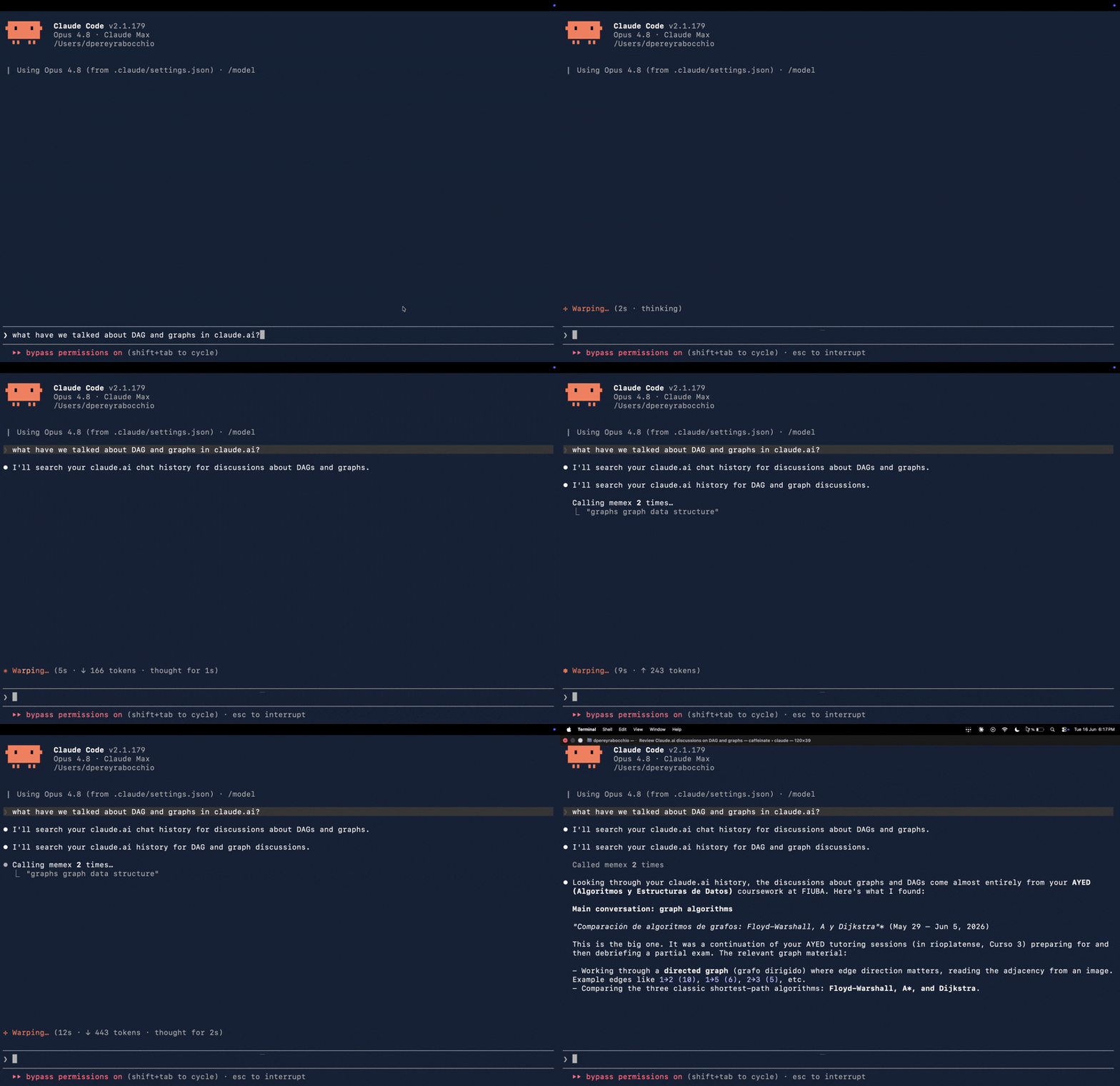
End-to-end demo: from Claude Code, you ask about something you discussed on claude.ai. Memex searches your chat history (search_chats) and Claude answers from the real conversation. No copy-paste, no manual context handoff.
Install
One command installs uv + Memex and runs memex setup (registers the MCP server, installs the always-on capture service, indexes your local sessions, prints the pairing token):
Then the one browser step a terminal cannot do: install the Chrome extension, paste the token it printed, and click "Backfill claude.ai history". Other paths (pipx, uv tool install, from source) are under Installation.
The problem
Brainstorming and planning happen in Claude.ai. Execution happens in Claude Code. The two worlds do not talk to each other: Claude Code cannot read a chat of yours from Claude.ai, not even the one that originated the task it is currently working on. The memory Anthropic shipped on Claude.ai (March 2026) is curated, not full history, and lives isolated inside Claude.ai.
Memex fills that gap: runs locally, indexes the entire corpus of your chats, and exposes them as MCP tools so Claude can search and pull past context whenever it needs to.
How it works
Design: pure core (storage, ingest, embeddings, retrieval) decoupled from transport. The same engine serves both stdio and remote MCP without a rewrite.
Installation
Quick install (one command)
Installs uv if needed (it brings the right
Python), installs Memex from PyPI, and runs memex setup to wire it into Claude
Code (MCP server + always-on capture service + local session indexing + the
pairing token). No git clone required.
The only step a terminal cannot do is the browser one: install the Chrome extension, paste the token the installer prints, and click "Backfill claude.ai history" to import your history. Embeddings work out of the box (a quantized 130 MB fastembed model downloads on first ingest; no Ollama, no API key).
A plain
pipx install memex-chats(oruv tool install memex-chats) followed bymemex setupdoes the same thing in two steps. The autostart service is generated for the wheel install too (launchd / systemd / a logon Scheduled Task), so no clone is needed for it.
From source (for development)
Clone the repo to get an editable install plus the extension source and service templates. You need git; the script installs uv and the pinned Python for you.
macOS / Linux
install.sh installs uv if you do not have it, runs uv sync, and verifies
the install with memex doctor. That is the whole setup.
Windows (PowerShell)
Same three steps as the macOS script (install uv, sync, verify). If git is not installed, get it from git-scm.com first.
Manual (any OS, if you prefer explicit steps)
Upgrading (already have memex)
Upgrade with the same tool that installed it, or the new version will not land
on your PATH. A previous install owns the memex executable, so installing again
with a different manager fails with "Executables already exist" and memex keeps
running the old version. (This is the usual reason memex sync seems to "not
exist" after an upgrade: an old pipx-owned memex shadowed a newer uv tool
install.)
If you want to switch managers, uninstall the old one first (pipx uninstall memex-chats or uv tool uninstall memex-chats), then reinstall. After upgrading,
memex --version shows the new version and memex doctor should pass.
Multi-device (optional)
To make Claude one memory across several machines, install Tailscale first (so each device has a stable private address), then opt in once per device:
It prints the single memex sync connect ... line to run on your other devices.
The choice is saved, so the service stays sync-reachable across reboots without
re-running anything. Full flow, security model, and the manual one-shot
alternative are in Syncing across your devices.
For a dual-boot machine (Linux and Windows that are never on at the same time),
use file-based sync instead: memex setup --sync-dir <shared-folder> on each OS,
pointed at the same folder. No Tailscale, no two devices online at once. See
Dual-boot or never-online-together.
First run
The fast path is one command:
memex setup wires everything end to end and is safe to re-run: it registers
the MCP server with Claude Code (claude mcp add), installs the always-on
live-capture service (launchd on macOS, systemd on Linux, a Scheduled Task on
Windows), indexes your local Claude Code sessions, and prints the access token
to paste into the Chrome extension. Each step degrades to a warning instead of
aborting the rest. Flags: --no-mcp, --no-autostart, --no-ingest,
--remote (also install the claude.ai connector agent), -y (no prompt).
After that, the only manual step left is installing the Chrome extension and pasting the token, so new chats are captured as you go.
Manual steps (if you prefer to run them yourself)
(If you installed with a script, the commands above work as written. If you
installed the published PyPI package instead, drop the uv run prefix.)
Where your data lives. From a cloned repo, the database and exports stay in
<repo>/data. From auvx/pipinstall, they go to your OS data directory (~/Library/Application Support/memexon macOS,%LOCALAPPDATA%\memexon Windows,~/.local/share/memexelsewhere). Override withMEMEX_DB_PATH/MEMEX_EXPORTS_DIR.memex doctorprints the resolved path.
Using Memex (after setup)
Once memex setup finishes, nothing else needs launching: the capture server and
the indexers run in the background. You use Memex three ways.
1. From Claude Code (the main way). Setup registers the MCP server, so Claude Code can search your whole history and keep it fresh through these tools:
Related MCP Servers
Reviews
No reviews yet — be the first to share how this listing worked for you.
Frequently Asked Questions about Memex
AllMCPs Directory Badge
Showcase your server listing on GitHub or your project documentation. Embed this dynamic SVG badge to highlight official listing status and live engagement.
Badge Style:
Live Dynamic SVG Preview
Markdown (GitHub README)
[](https://allmcps.com/mcp/memex)HTML Embed
<a href="https://allmcps.com/mcp/memex"><img src="https://allmcps.com/api/badge/memex?style=directory" alt="Memex on AllMCPs" /></a>Technical Specs & Signals
CategoryKnowledge & Memory
31Quality signal: Emerging · 31/100How this signal is calculated ▾
Server availabilityNot measured
Not scored for repo-hosted servers — we can't reach the running server, only its GitHub page. Hosted MCP endpoints are health-checked live.
Verified ownership10/20
Documentation & tools11/30
Adoption & activity2/15
Community engagement0/10
A guidance signal from public completeness & health data — not a user rating. New listings start lower and rise as they add docs, get verified, and grow adoption. Signals we can't observe for a listing are skipped, not counted against it.
Own this project?
This directory is pre-filled from public sources. Claim via GitHub README, site badge, or DNS TXT to unlock edit access and the Official badge — proof is checked automatically, then reviewed by our team.
Free dofollow backlink: add your website and place the AllMCPs badge on it — no claim needed. We detect it automatically and keep it verified as long as the badge stays live.
Claim & get free dofollowShare & Embed
Add our SVG badge (dark/light directory styles) or embeddable widget to your site.