MCP Sap Gui README
The full upstream README, mirrored here for reference. Install config, tool schemas, adoption signals, and an original overview live on the MCP Sap Gui listing page.
MCP SAP GUI Server
An MCP (Model Context Protocol) server that enables AI assistants to interact with SAP GUI for Windows through the SAP GUI Scripting API.
It is client-agnostic: if your MCP client can launch a local stdio server, it can use this project. Examples in this README use Claude because the setup is easy to demonstrate, but the same server can be used from Codex, GitHub Copilot, Gemini CLI, and similar MCP-capable tools.
Current release: 0.3.0 for local Windows use over MCP stdio.


Status
- GitHub workflows are included for
CI,Docs,Dependency Audit, and tag-basedRelease. - Primary repository: GitHub (
kts982/mcp-sap-gui).
What's New
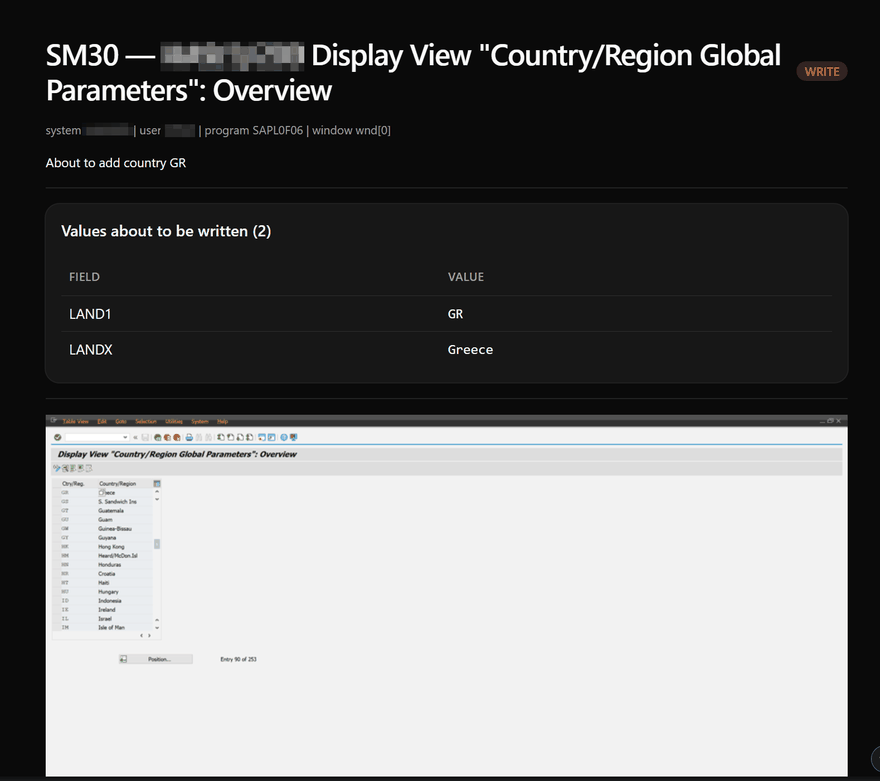
sap_preview — see it before it happens. The agent can now show you an approval card at any checkpoint: before a batch write, before saving, or whenever you ask ("before adding country GR, show me the values"). It carries the current screenshot, session context, and the exact values about to be written — password-shaped values masked. On MCP Apps hosts (VS Code Copilot Chat) it renders as a rich inline card; everywhere else you get the same summary as text plus the screenshot. Saving still goes through the confirmation gate. Details: Rendered Preview Cards.
Confirmation points — nothing is written without you. Tell the agent once ("ask me before every field write") and the server enforces it: sap_set_confirmation_points activates categories of write operations that pause for your explicit approval before anything reaches SAP. Enforced server-side by middleware — declining blocks the call no matter what the agent does, removing a gate asks you first, and admins can pin gates for every session with --confirm. Details: Security Considerations.
What This Does
This server allows AI assistants to:
- Connect to SAP systems (like double-clicking in SAP Logon Pad)
- Execute transactions (MM03, VA01, /SCWM/MON, etc.)
- Read and write screen fields, checkboxes, radio buttons, comboboxes, and tabs
- Select menu items from the menu bar (Table View, Edit, Selection, etc.)
- Navigate through SAP screens using keyboard keys and buttons
- Extract data from ALV grids (GuiGridView) and classic table controls (GuiTableControl)
- Interact with ALV toolbar buttons and context menus
- Read and interact with tree controls (TableTree, ColumnTree, SimpleTree)
- Take screenshots of SAP windows
- Discover screen elements for automation
- Show you previews before writing, and pause for your approval at confirmation points you choose
Example Conversation
Quick Start
- Install uv (it ships with
uvx), if not already installed:
-
Start SAP Logon Pad and open an SAP GUI session, or at least have SAP Logon running.
-
Configure your MCP client to launch this server. No clone or manual install needed —
uvxfetches the released package from PyPI and runs it in an isolated environment:
(Working from a source checkout instead? See Installation.)
- Try one of these prompts:
sap_connect intentionally does not accept a password parameter. The safer pattern is to log in through SAP GUI first and then attach with sap_connect_existing.
Requirements
- Windows (SAP GUI only runs on Windows)
- SAP GUI for Windows installed
- Live compatibility verified with SAP GUI for Windows 8.10 64-bit Patch 0
- SAP Logon Pad running (for COM connections)
- SAP GUI Scripting enabled on your SAP systems
- Python 3.10+
- uv (recommended Python package manager)
Supported Scope
Supported:
- SAP GUI for Windows via the SAP GUI Scripting COM API
- MCP
stdio(default) andstreamable HTTPtransports - Per-client session isolation (multiple MCP clients can hold independent SAP sessions)
- Interactive use from MCP-compatible clients
- Read and write SAP GUI automation within the permissions of the logged-in SAP user
Not yet available:
- SAP GUI for Java or SAP GUI for HTML
- Browser-based Fiori automation
- Unattended multi-user production orchestration
Enabling SAP GUI Scripting
SAP GUI Scripting must be enabled both client-side and server-side:
Client-side (SAP GUI Options):
- Open SAP GUI → Options → Accessibility & Scripting → Scripting
- Check "Enable scripting"
- Optionally uncheck "Notify when a script..." for smoother automation
Server-side (SAP System):
- Transaction
RZ11→ Parametersapgui/user_scripting→ Set toTRUE - Requires SAP Basis administrator access
Deploying Where Scripting Is Restricted
Many organizations disable SAP GUI Scripting globally as a hardening default. Enabling it does not have to be all-or-nothing: SAP ships graduated server-side controls that let a Basis team enable scripting narrowly — typically for named users on a development system — while keeping it off for everyone else.
Profile parameter (RZ11/RZ10) | Effect |
|---|---|
sapgui/user_scripting = TRUE | Master switch; required for any scripting |
sapgui/user_scripting_per_user = TRUE | Scripting works only for users holding authorization object S_SCR (class BC_A, activity 16); all other users stay blocked (SAP Note 983990) |
sapgui/user_scripting_set_readonly = TRUE | Scripts may read screen state but cannot send anything that changes server state (SAP Note 692245) |
sapgui/user_scripting_force_notification = TRUE | Users always see a notification/consent dialog when a script attaches; cannot be suppressed in local SAP GUI options (SAP Note 3591984) |
sapgui/user_scripting_disable_recording = TRUE | Blocks recording of new scripts; playback still works |
Useful facts when proposing this to a Basis/security team:
- Per-user and read-only modes are combinable since SAP GUI 7.40 PL17 / 7.50 PL4: full API for
S_SCRholders, read-only for everyone else (SAP Note 2565390). - A dynamic
RZ11change tosapgui/user_scriptingis not persistent — it reverts at the next application server restart, which suits a time-boxed evaluation on a development system. - Server-side, scripted actions run under the SAP user's normal authorizations and appear in logs as ordinary user activity. The user's authorization profile is the effective security boundary — pair a dedicated minimal-authorization account with this server's
--allowed-transactions,--profile, and--audit-logoptions for defense in depth. - Authoritative reference: SAP GUI Scripting Security Guide (help.sap.com).
Why the Scripting API is required at all: SAP GUI for Windows draws dynpro screens on a custom canvas that exposes no usable structure to Windows UI Automation or other accessibility APIs — the Scripting API is the only structured way to read and drive SAP GUI screens. Commercial RPA products have the same dependency and fall back to screenshot/OCR-based automation when scripting is disabled; this project deliberately avoids that approach because it is imprecise and brittle.
Installation
From PyPI (recommended for users)
Nothing to clone. uvx downloads the latest release and runs it in an isolated environment:
The [screenshots] extra adds screenshot optimization (reduces screenshot size by 70-90%) and is recommended. Point your MCP client at uvx with argument mcp-sap-gui[screenshots] — see MCP Setup below.
From source (for development)
Windows note for source checkouts: while an MCP server launched from this checkout is running, its process holds locks on native DLLs in .venv (pywin32, watchfiles). Running uv sync or upgrading dependencies during that time can fail with "Access is denied" or leave .venv half-updated — stop or restart the MCP client first, then sync. If two MCP clients (e.g. Claude Code and VS Code) launch the server from the same checkout, point the second one at an isolated environment instead of the shared .venv:
(uvx mcp-sap-gui users are unaffected — every uvx launch uses its own cached environment.)
Usage
Connection recommendation: prefer sap_connect_existing for already authenticated sessions. Use sap_connect mainly for SSO flows or to open the SAP login screen before the user completes manual login.
Running the MCP Server Directly
MCP Setup
This server communicates over stdio (stdin/stdout JSON-RPC), which is the standard MCP transport. You don't need to configure ports or URLs — the MCP client starts the server process and talks to it directly.
For any client, the core launch configuration is the same:
Running from a source checkout instead of PyPI? Use
uv run --directory <path-to-mcp-sap-gui> python -m mcp_sap_gui.server
as the command.
Client Setup Links
- Claude Code / Claude Desktop: setup examples are included below
- Codex: configure an MCP server in Codex and point it at the command above. Official MCP docs: https://developers.openai.com/learn/docs-mcp
- GitHub Copilot: configure a local MCP server in Copilot Chat / agent mode. Official docs: https://docs.github.com/en/copilot/how-tos/provide-context/use-mcp
- Gemini CLI: add the server under
mcpServersin your Gemini CLI settings. Official docs: https://github.com/google-gemini/gemini-cli/blob/main/docs/tools/mcp-server.md
Below are full examples for the most common local SAP GUI setup paths.
For a client-by-client setup guide, see docs/CLIENTS.md.
Option 1: Claude Code (Recommended for development)
The repository includes a .mcp.json at the project root. When you open this project in Claude Code, the MCP server is automatically discovered — no manual configuration needed.
To use it:
Claude Code will detect .mcp.json and start the SAP GUI MCP server automatically.
If you want to configure it globally for Claude Code (available in any project), add it to your user settings at ~/.claude/.mcp.json:
Option 2: Claude Desktop
Add to your Claude Desktop config file:
- Windows:
%APPDATA%\Claude\claude_desktop_config.json - macOS:
~/Library/Application Support/Claude/claude_desktop_config.json
Standard mode:
Note: Running from a source checkout instead of PyPI? Use
"command": "uv"with"args": ["run", "--directory", "<path-to-mcp-sap-gui>", "python", "-m", "mcp_sap_gui.server"]— the--directoryflag is required souvfinds the project's virtual environment regardless of the working directory Claude Desktop uses.
Read-only mode (recommended when exploring/querying data):
With transaction whitelist (only allow specific transactions):
After editing the config, restart Claude Desktop for changes to take effect.
Option 3: Any MCP-compatible client
The server uses stdio transport. Point any MCP client at:
For a source checkout, use uv run --directory <path-to-mcp-sap-gui> python -m mcp_sap_gui.server instead.
Verifying the Setup
Once configured, you can verify the MCP server is working by asking Claude:
Claude should respond with the full list of sap_* tools. If SAP GUI is running, try:
Then try:
Built-in Agent Guidance
The server includes built-in navigation knowledge that helps any MCP client (Claude Code, Copilot, Cursor, Cline, etc.) use SAP GUI effectively:
- MCP Instructions — Injected into every client's system prompt during initialization. Covers screen discovery workflow, popup handling, table pagination, SPRO tree navigation, key reference, and common mistakes to avoid.
docs://sap-gui-guideResource — Detailed reference guide available on-demand viaresources/read. Covers element types, ID naming conventions, transaction code formats, table type comparison, status bar messages, and step-by-step patterns for SPRO and table maintenance views.
These prevent common agent mistakes like guessing element IDs, ignoring popups, pressing F5 (="New Entries") when meaning to refresh, or using double_click_tree_node in SPRO (which opens docs instead of executing the activity).
Available Tools
The server currently exposes 59 MCP tools.
| Category | Count | What it covers |
|---|---|---|
| Connection & Policy | 7 | Connect to SAP, attach to open sessions, inspect sessions, disconnect, set policy profile, set confirmation points |
| Navigation | 3 | Execute transactions, send keys, inspect current screen |
| Fields & UI | 13 | Read/write fields, buttons, tabs, comboboxes, textedit, focus |
| Tables & Grids | 17 | ALV grids, TableControls, row selection, column info, cell ops |
| Popup / Toolbar / Shell | 4 | Popup inspection and handling, toolbar discovery, shell content |
| Trees | 10 | Read/search/expand/select/click SAP tree controls |
| Discovery | 2 | Screen element discovery and screenshots |
| Preview | 1 | Show the user the current screen plus the values the agent is about to write |
| Workflow Guidance | 1 | Return step-by-step guidance for known multi-tool SAP workflows |
| Transaction Guidance | 1 | Return a generic, read-first guide for supported SAP transactions |
The most important patterns:
sap_get_screen_elementsto discover IDs instead of guessingsap_read_tableto start with any SAP table/gridsap_get_popup_windowwhenactive_windowreports a popup; it now classifies the dialog and suggests a safe next stepsap_handle_popup(action="auto")when you want the server to dismiss only clearly safe informational popups and otherwise leave the dialog untouchedsap_previewbefore significant writes (batch field fills,F11/ Save) so the user sees the screen and the pending values firstsap_set_confirmation_pointsto make categories of writes ask the user for approval before they runsap_get_workflow_guidewhen you want the proven sequence for a known workflowsap_get_transaction_guidewhen you want a generic guide for a supported transaction such as/SCWM/MON,SCWM/MON, orwarehouse monitorsap_read_treeplus search/expand helpers for SPRO-style navigation
For the full tool catalog, grouped by category with short descriptions, see docs/TOOLS.md.
Rendered Preview Cards
sap_preview is read-only and always returns a written summary plus the screenshot as an image, so it works in every MCP client. Clients that support the MCP Apps UI extension (for example VS Code Copilot) instead get a rendered card with the screenshot and a pending-values table. Install the optional extra to enable the card:
Restricted or offline networks: by default the card renderer is loaded from the jsDelivr CDN, so the card silently fails to render on workstations without outbound internet access. Set PREFAB_BUNDLED_RENDERER=1 in the server's environment to make the renderer self-contained (a ~6.3 MB inline resource, no third-party domains):
Security Considerations
This server provides powerful automation capabilities. Use responsibly.
Built-in Safeguards
-
Transaction Blocklist - Sensitive transactions blocked by default:
SU01,SU10,SU01D(User administration)PFCG(Role administration)SE16N,SE38,SA38,SE80(Direct table/program access)STMS,SCC4,RZ10,RZ11,SM36,SM49,SM59,SM69(high-risk admin/system actions)- Case-insensitive matching; handles
/n,/o,/*prefixes and whitespace
-
OK-Code Bypass Prevention - Setting likely SAP command fields such as
tbar[0]/okcd,txtOK_CODE, or similar command-code aliases to a blocked transaction is also blocked, preventing circumvention of the transaction policy -
Read-Only Mode -
--read-onlyflag disables all mutating operations (field writes, button presses, transaction execution, key sends, tree/table interactions) -
Transaction Whitelist -
--allowed-transactionslimits execution to specific approved t-codes. This is the recommended production mode. -
Policy Profiles -
--profilecontrols which tools are visible:exploration(read-only),operator(read + write),full(all, default). Profiles can also be switched per-session viasap_set_policy_profile— but the server--profileis a floor: a session can restrict itself further, never grant itself more than the server allows -
Tool Tags - Every tool is tagged
readorwritefor policy profile filtering. All tools carry MCPreadOnlyHint/destructiveHintannotations so clients can display appropriate UI hints -
Save Confirmation -
sap_send_key("F11")andsap_send_key("Save")now require explicit user confirmation via MCP elicitation. If the client does not support elicitation, the save is blocked instead of proceeding silently. -
Confirmation Points - Named categories of write operations that require blocking user approval before the server executes them.
save(theF11/Savekey and thewnd[0]/tbar[0]/btn[11]Save toolbar button) is always on.transactions,batch_fields,field_writesandall_writescan be activated per session withsap_set_confirmation_points, or for every session with--confirm POINT [POINT ...].The gate is enforced server-side by middleware, so it applies no matter what the agent does — including inside the experimental
--code-modesandbox. Adding a point is silent; removing a session point asks the user first, and points set by--confirmcannot be removed at all. Declining returns an error and nothing is executed, and clients without elicitation support fail closed (the gated call errors instead of running unconfirmed). Every confirmation is written to the audit log with its outcome (accepted,declined,unsupported_client).On a client without elicitation support, removal fails closed too: a point activated there cannot be turned off again, so it blocks that whole category for the rest of the session. Points survive
sap_disconnect— their lifetime is the MCP session, not the SAP connection.all_writescovers every write-tagged tool, including selection, scrolling and navigation helpers that change no business data — it is deliberately strict and noisy, and under itsap_send_key("F11")prompts twice (once for the category, once for the unchanged save gate). -
Audit Logging -
--audit-log FILEwrites every tool call (name, arguments, timing, outcome) as JSON lines. Secrets in arguments are masked automatically -
Secure Credential Resolution -
sap_connectresolves credentials from a.envfile (SAP_USER,SAP_PASSWORD,SAP_CLIENT,SAP_LANGUAGE). Passwords are never accepted as MCP tool parameters and never appear in client logs, tool-call history, or audit logs. Copy.env.exampleto.envto get started -
ID Validation And Normalization - User-supplied SAP window and element IDs are validated before
findById()is called. Standard IDs likewnd[0]/usr/...are accepted, and full session paths like/app/con[0]/ses[0]/wnd[0]/usr/...are normalized to the short form automatically.
Recommendations for Production Use
- Never expose to untrusted users
- Use read-only mode for exploration/queries
- Implement transaction whitelists for automation
- Enable audit logging on SAP side
- Use dedicated service accounts with minimal authorizations
- Enable scripting per-user, not globally —
sapgui/user_scripting_per_userwith theS_SCRauthorization limits scripting to named users (see Deploying Where Scripting Is Restricted) - Run on isolated systems (test/sandbox, not production)
SAP Licensing
Consult your SAP licensing agreement regarding:
- Automated access and scripting
- Indirect access considerations
- Named vs. concurrent user licensing
Example Workflows
Display Material Master
Extract Purchase Order List
Navigate Sales Order
Filter Customizing Table (GuiTableControl)
Batch Fill And Validate A Form
Show The User What Is About To Change
"Before adding country GR, show me the values."
Project Structure
Troubleshooting
"Cannot connect to SAP GUI"
- Ensure SAP Logon Pad is running
- Check that SAP GUI Scripting is enabled in SAP GUI options
"Scripting disabled" error
- Enable scripting server-side:
RZ11→sapgui/user_scripting=TRUE - Requires SAP Basis administrator
- Organization won't enable scripting globally? See Deploying Where Scripting Is Restricted for per-user and read-only enablement options
"Element not found"
- Use
sap_get_screen_elements()to discover available field IDs - Field IDs vary between SAP systems due to customization
COM errors on startup
- Ensure dependencies are installed:
uv sync - Run
uv run python -m win32com.client.makepyif COM registration issues occur
"No SAP tools appear in my MCP client"
- Confirm the client is launching the server from the project root
- Restart the MCP client after changing its MCP configuration
- Run
uv syncfirst so the environment and dependencies exist
"The tool is available, but the action is blocked"
- Check whether the server is running with
--read-only - Check whether the transaction is blocked by the default blocklist
- Check whether you started the server with
--allowed-transactions
Development
Related
- SAP GUI Scripting API Documentation
- MCP Specification
- Contributing Guide
- Security Policy
- Client Setup Guide
- Tool Catalog
- Project Overview
License
MIT. See LICENSE.
Disclaimer
This project is not affiliated with, endorsed by, or sponsored by SAP SE. SAP, SAP GUI, and other SAP products mentioned are trademarks of SAP SE.
Use of this software with SAP systems should comply with your SAP licensing agreement and your organization's security policies.