MCP Browser Dev Tools
Browser MCP server for AI agents: batch actions, waits, and checks into one call on Chrome, Edge, or Firefox (CDP and WebDriver BiDi)
Install MCP Browser Dev Tools
Pick your client, then add it in one click or paste the config.
~/Library/Application Support/Claude/claude_desktop_config.json{
"mcpServers": {
"mcp-browser-dev-tools": {
"command": "npx",
"args": [
"-y",
"mcp-browser-dev-tools"
]
}
}
}
Settings → Developer → Edit Config, merge this into mcpServers, then fully quit and reopen Claude Desktop.
We couldn’t confirm it starts correctly
We ran the install command but it didn't respond within our test window — this can mean a slow first-time install rather than a real problem.
npx -y mcp-browser-dev-toolsProcess exited before answering initialize.
This is an experimental automated check and can have false negatives — missing environment variables, a slow cold install, etc. It doesn’t necessarily mean something’s wrong. Last checked Today.
Overview
Tools45
What MCP Browser Dev Tools lets your agent do. Expand a tool for its parameters.
Security & health
What it can reach and how reliably it runs — from our own checks, not the maintainer’s claims.
Recent health check succeeded.
Supply-chain signal
No high-severity advisories surfaced by our automated scan.
Scanned 14h ago via OSV.dev · mcp-browser-dev-tools (npm)
Adoption & maintenance
Factual signals from GitHub, npm, and our automated checks — not a rating.
From the project README
mcp-browser-dev-tools


Let an AI agent work in a real browser with fewer back-and-forths. It sends a whole sequence of clicks, typing, waits, and checks in one tool call and gets every result back together, in your Chrome, Edge, or Firefox.
Quick Start
You need Node.js 24 or later. Register the server with your MCP client:
# Claude Code
claude mcp add browser-devtools --scope user -- npx -y mcp-browser-dev-tools serve

# Codex
codex mcp add browser-devtools -- npx -y mcp-browser-dev-tools serve
Cursor and other clients that use an mcpServers config:
{
  "mcpServers": {
    "browser-devtools": {
      "command": "npx",
      "args": ["-y", "mcp-browser-dev-tools", "serve"]
    }
  }
}
Then ask the agent for browser work, for example "open example.com and check the console for errors" or "attach to my open tab and find out why the form won't submit". The agent starts with ensure_browser, which reuses a browser that is already running with a debugging port, or launches one. To make launches use a particular profile, set MCP_BROWSER_USER_DATA_DIR; see Configuration for this, native Windows, WSL, and Firefox.
What It Does
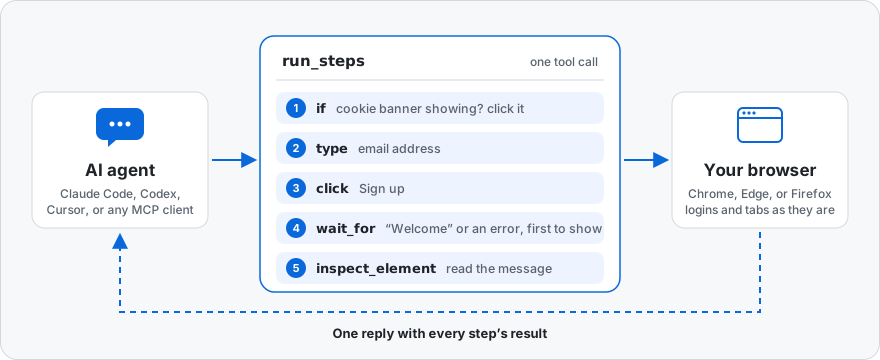
Your agent gets 45 browser tools over MCP: open or attach to tabs, click, type, drag, upload files, and navigate, read the console and network, block or mock requests, take screenshots, and save and restore sessions. At the center is run_steps: the agent sends a whole task, with branches and waits in it, and the server carries it out in the browser and replies once. run_tabs does the same in several tabs at the same time.
Why This One
- Fewer round trips. Every model turn costs thinking time and tokens, so the agent does more with each call. In our benchmark, batching halved the turns Sonnet 5.5 needed to sign up through a form.
- Actions say what they did. A click, a typed value, or a whole batch comes back with what changed on the page once it settles: controls that appeared, disappeared, or changed, new text such as an error or a toast, console errors, and after a navigation the new page's controls. The agent can confirm the result without another look at the page.
- Many pages at once. Research over several pages happens side by side:
run_tabsopens them together andread_textbrings back what they say. In our benchmark, reading five slow pages took Sonnet 5.5 8.5 s and 4 turns instead of 28 s and 6. - Calm on real pages. Waits end on whichever outcome shows up, actions wait out a covering banner or a button that isn't enabled yet, and if a step fails the reply lists the page's controls, so the next try is an informed one.
- Right where you work. It attaches to the browser you already use, with its logins, tabs, and extensions, and speaks to Chrome, Edge, and Firefox with the same tools.
- A debugger at hand. Console messages with stack traces, network requests and HAR export, cookies and storage, and a one-call debug report.
One Call, Start To Finish
A run_steps call that dismisses a cookie banner if one is showing, fills in and submits a form, waits for either the success or the error message, and reads it:
{
  "sessionId": "chromium:1f0c…",
  "steps": [
    {
      "tool": "if",
      "arguments": {
        "condition": { "selector": "text=Accept cookies" },
        "then": [
          {
            "tool": "click",
            "arguments": { "selector": "text=Accept cookies" }
          }
        ]
      }
    },
    {
      "tool": "type",
      "arguments": {
        "selector": "role=textbox[name=\"Email\"]",
        "text": "ada@example.com"
      }
    },
    {
      "tool": "click",
      "arguments": { "selector": "role=button[name=\"Sign up\"]" }
    },
    {
      "tool": "wait_for",
      "arguments": {
        "anyOf": [
          { "selector": "#message", "textIncludes": "Welcome" },
          { "selector": "#message", "textIncludes": "error" }
        ]
      }
    },
    { "tool": "inspect_element", "arguments": { "selector": "#message" } }
  ]
}
The result has each step's outcome: which branch the if took, which anyOf alternative matched, and the message element with its text. Because the batch has actions, the result also has changes: what the batch changed on the page, as described in Tools. Locators can be CSS, text=, role= with an accessible name, or name=. The full semantics of run_steps, if, repeat, and conditions are in Tools.
Many Pages At Once
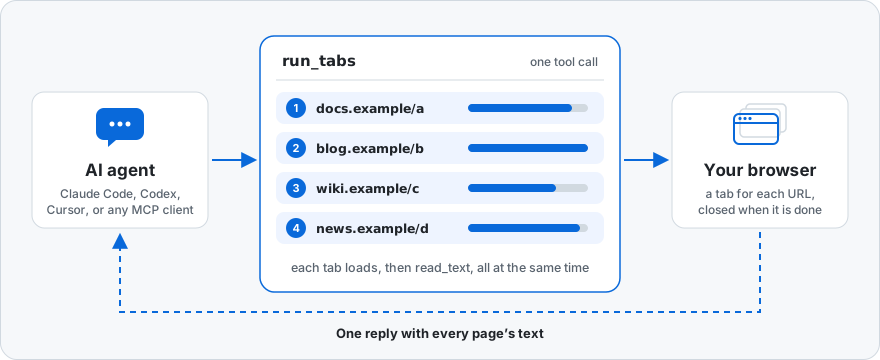
A research step usually means opening several pages and reading each one. read_text with links: true collects the result links from a search page; then one run_tabs call opens them all and reads them side by side:
{
  "browserFamily": "chromium",
  "tabs": [
    {
      "url": "https://docs.example.com/a",
      "steps": [{ "tool": "read_text", "arguments": { "maxChars": 4000 } }]
    },
    {
      "url": "https://blog.example.com/b",
      "steps": [{ "tool": "read_text", "arguments": { "maxChars": 4000 } }]
    },
    {
      "url": "https://news.example.com/d",
      "steps": [
        { "tool": "wait_for", "arguments": { "selector": "article" } },
        {
          "tool": "read_text",
          "arguments": { "selector": "article", "maxChars": 4000 }
        }
      ]
    }
  ]
}
The result lists every tab in the order given, each with its steps' results: here, each page's main text, cut to maxChars. Each tab opens a new tab, loads its URL, and runs its steps at the same time as the others, so the call takes about as long as the slowest page; the tabs close afterwards. Steps are the same as in run_steps, including if and repeat, and a tab that fails or runs past its timeoutMs does not stop the others. browserFamily picks the browser for the new tabs when the server runs in its default auto mode. The details are in Tools.
Record A Demo
record_video records what a Chromium tab shows while the agent drives it, as an MP4. For a 1920x1080 recording, set the viewport first, then start, act, and stop:
{ "name": "set_viewport", "arguments": { "sessionId": "s1", "width": 1920, "height": 1080 } }
{ "name": "record_video", "arguments": { "sessionId": "s1", "action": "start" } }
{ "name": "click", "arguments": { "sessionId": "s1", "selector": "text=Open dashboard" } }
{ "name": "record_video", "arguments": { "sessionId": "s1", "action": "stop", "path": "/home/me/demo.mp4" } }
stop returns the file's path, durationMs, frames, width, and height. Chrome streams a frame on each repaint, and stop encodes them with ffmpeg (found on PATH, or named by MCP_BROWSER_FFMPEG) at a constant frame rate, each frame lasting as long as it was on screen. Without ffmpeg, stop keeps the frames and returns the command that encodes them. record_video is in the performance group, reached through more_tools or as a run_steps step. The details, including fps, quality, maxWidth and maxHeight, and maxDurationMs, are in Tools.
Measured
Median of 3 runs on the current build, from the benchmark in PERFORMANCE.md. "One action per call" disallows run_steps and run_tabs.
| Task | Sonnet 5.5, one action per call | Sonnet 5.5 with batching | Opus 5.5 with batching |
|---|---|---|---|
| Sign up through a form | 15.0 s · 9 turns | 10.2 s · 4 turns | 11.5 s · 4 turns |
| Pay, retrying declined attempts | 20.6 s · 8 turns | 19.1 s · 8 turns | 18.9 s · 9 turns |
| Sign in, then change settings | 16.2 s · 11 turns | 17.5 s · 7 turns | 18.2 s · 8 turns |
| Read five pages from a results list | 27.7 s · 6 turns | 8.5 s · 4 turns | 11.8 s · 5 turns |
Every form run started with get_snapshot and acted by ref, without being told to. Each payment click waits for the page to settle and reports the decline or the receipt, so the agents could retry from each reply. The last row uses run_tabs. Eight models (Claude Fable 5.1, Opus 5.5, Sonnet 5.5, Haiku 5.5, and Haiku 4.5; GPT-6-Astra, GPT-6.1 Sol, and GPT-6-Luna) ran the same four tasks with the default tool set: 95 of those 96 runs passed, and PERFORMANCE.md has the time, cost, and turns for each, the charts, and how the runs were set up.
Tools
45 tools, described in docs/tools.md. The server lists the core set by default, since every model turn pays for each tool listed, and more_tools lists, describes, and calls the rest; MCP_BROWSER_TOOLS=all, or a list of groups such as network,state, lists them too (Tool Sets).
Reviews
No reviews yet — be the first to share how it worked for you.
Frequently Asked Questions about MCP Browser Dev Tools
Related MCP servers

Add a badge to your READMEShow it’s listed — live SVG, Markdown or HTML.
AllMCPs Directory Badge
Showcase your server listing on GitHub or your project documentation. Embed this dynamic SVG badge to highlight official listing status and live engagement.
[](https://allmcps.com/mcp/mcp-browser-dev-tools)<a href="https://allmcps.com/mcp/mcp-browser-dev-tools"><img src="https://allmcps.com/api/badge/mcp-browser-dev-tools?style=directory" alt="MCP Browser Dev Tools on AllMCPs" /></a>