Markdown Formatter vs Markdown Notes MCP
A side-by-side look at the Markdown Formatter and Markdown Notes MCP MCP servers: transport, auth, tools, quality signals, and the config to install either one in Claude, Cursor, Windsurf or VS Code.
Verdict: choose Markdown Formatter for workplace & productivity work as a local process; choose Markdown Notes MCP for workplace & productivity as a local process. You can also run both side by side in one mcpServers block.
Which MCP server should you choose?
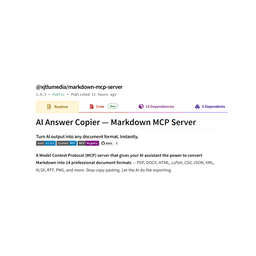 Choose Markdown Formatter when
- You need dedicated capabilities in the Workplace & Productivity domain.
- You prefer a local stdio subprocess transport.
- Its auth model fits you: No auth required.
- You want tools like
harmonize_markdown, convert_to_txt, convert_to_rtf.
 Choose Markdown Notes MCP when
- You need dedicated capabilities in the Workplace & Productivity domain.
- You prefer a local stdio subprocess transport.
- You want tools like
convert_to_markdown, convert_folder_to_markdown, save_summary.
Feature & specification comparison
Rows where the two servers differ are marked.
| Spec | ||
|---|---|---|
| Category | Workplace & Productivity | Workplace & Productivity |
| Quality signal | 59/100 · Good | 59/100 · Good |
| Install command | Confirmed | Confirmed |
| Transport | Local subprocess (stdio) | Local subprocess (stdio) |
| Auth | No auth required | Not declared |
| Pricing | Free | Not declared |
| Required env vars | None listed | None listed |
| Verified owner | Community listing | Community listing |
| GitHub stars | 2 | 0 |
| Directory activity | 5 views 0 installs 0 upvotes | 3 views 0 installs 0 upvotes |
| Tools | 34 | 4 |
| Full listing | View Markdown Formatter | View Markdown Notes MCP |
Tools & capabilities
Markdown Formatter tools 34
harmonize_markdownStandardize and normalize Markdown syntax without changing the document's meaning. Re-formats headers (ATX-style), normalizes list markers to '-', enforces fenced code blocks with backticks, and applies consistent indentation. Side effects: when output_path is provided, writes the harmonized Markdown to disk (creates parent directories as needed, overwrites existing files). When output_path is omitted, returns the harmonized text as a string with no file I/O. Returns: harmonized Markdown string (if no output_path), or JSON with { success, file_path, file_size_bytes, format } (if output_path set). Use this tool when you need to clean up inconsistent Markdown formatting before further processing. Prefer convert_to_md with harmonize=true if you also need to save the result, as it combines both steps. Not suitable for converting Markdown to other formats — use the convert_to_* tools instead.convert_to_txtConvert Markdown to plain text by stripping all formatting — removes headers, bold/italic markers, links, images, code fences, and HTML tags. The result is a human-readable plain-text string with no markup. This is a destructive conversion: formatting information is permanently lost. Side effects: when output_path is provided, writes the plain text to disk (creates parent directories, overwrites existing files). When output_path is omitted, returns the plain text string directly. Returns: plain text string (if no output_path), or JSON { success, file_path, file_size_bytes, format } (if output_path set). Use this instead of convert_to_md when you need formatting-free content (e.g. for indexing, search, or clipboard). Use convert_to_html or convert_to_pdf if you need to preserve the document's visual structure.convert_to_rtfConvert Markdown to Rich Text Format (RTF). Produces an RTF document string preserving basic formatting: bold, italic, headers (as styled paragraphs), lists, and code blocks. Side effects: when output_path is provided, writes the RTF file to disk (creates parent directories, overwrites existing files). When output_path is omitted, returns the raw RTF markup as a string. Returns: RTF markup string (if no output_path), or JSON { success, file_path, file_size_bytes, format } (if output_path set). Use this when the target application requires RTF (e.g. legacy word processors, email clients). Prefer convert_to_docx for modern Word documents, or convert_to_html for web display.convert_to_latexConvert Markdown to LaTeX source code. Produces a LaTeX document fragment with \section, \textbf, \textit, \begin{itemize}/\begin{enumerate} list environments, verbatim code blocks, and table environments. KaTeX math expressions in the Markdown are passed through as native LaTeX math. Side effects: when output_path is provided, writes the .tex file to disk (creates parent directories, overwrites existing files). When output_path is omitted, returns the LaTeX source as a string. Returns: LaTeX source string (if no output_path), or JSON { success, file_path, file_size_bytes, format } (if output_path set). Use this when you need to embed content in a LaTeX workflow or compile to PDF via pdflatex/xelatex externally. For direct PDF output without a LaTeX toolchain, use convert_to_pdf instead.convert_to_docxConvert Markdown to a Microsoft Word DOCX file. Produces a binary .docx document with styled headings, bold/italic text, numbered and bulleted lists, and code formatting. This is a binary format — output_path should almost always be provided. Side effects: when output_path is provided, writes the DOCX binary to disk (creates parent directories, overwrites existing files). When output_path is omitted, returns a JSON object with { format: 'docx', file_size_bytes, hint, base64_preview } — the hint will tell you to re-call with output_path to save the file. Returns: JSON write-confirmation (if output_path set), or JSON binary-guidance object (if omitted). Use this for Word-compatible documents. Prefer convert_to_rtf for legacy word processors, convert_to_pdf for read-only distribution, or convert_to_html for web.convert_to_pdfConvert Markdown to a PDF document. Renders the Markdown as styled HTML (GFM tables, KaTeX math) and then prints it to PDF via a headless Chromium browser (Puppeteer). Requires a locally installed Chrome, Edge, or Chromium — set PUPPETEER_EXECUTABLE_PATH env var to override auto-detection. This is a binary format — output_path should almost always be provided. Side effects: launches a transient headless browser process for rendering (no network requests are made for the conversion itself, though the HTML references a CDN KaTeX stylesheet which may be fetched). When output_path is provided, writes the PDF to disk (creates parent directories, overwrites existing files). When output_path is omitted, returns JSON { format: 'pdf', file_size_bytes, hint, base64_preview }. Returns: JSON write-confirmation (if output_path set), or JSON binary-guidance object (if omitted). Use this for high-fidelity, print-ready document output. Prefer convert_to_html for web-viewable output, convert_to_docx for editable documents, or convert_to_latex for LaTeX toolchains.convert_to_imageConvert Markdown to a PNG image. Renders the Markdown as styled HTML (GFM tables, KaTeX math) and takes a full-page screenshot via a headless Chromium browser (Puppeteer). Requires a locally installed Chrome, Edge, or Chromium — set PUPPETEER_EXECUTABLE_PATH env var to override auto-detection. This is a binary format — output_path should almost always be provided. Side effects: launches a transient headless browser process (no persistent state; may fetch KaTeX CDN stylesheet). When output_path is provided, writes the PNG to disk (creates parent directories, overwrites existing files). When output_path is omitted, returns JSON { format: 'png', file_size_bytes, hint, base64_preview }. Returns: JSON write-confirmation (if output_path set), or JSON binary-guidance object (if omitted). Use this when you need a visual snapshot of the rendered Markdown (e.g. for embedding in chat, previews, social cards). Prefer convert_to_pdf for paginated print output, or convert_to_html for interactive web content.convert_to_csvExtract tables from Markdown and convert them to CSV format. Parses GFM pipe-tables from the input and outputs comma-separated values. If the Markdown contains multiple tables, they are concatenated with a blank line separator. Non-table content is ignored. If the Markdown contains no tables, returns an empty string. Side effects: when output_path is provided, writes the CSV to disk (creates parent directories, overwrites existing files). When output_path is omitted, returns the CSV text directly as a string. Returns: CSV text string (if no output_path), or JSON { success, file_path, file_size_bytes, format } (if output_path set). Use this for lightweight tabular export or when downstream tools expect CSV. Prefer convert_to_xlsx for Excel-compatible spreadsheets with multiple sheets, or convert_to_json for structured data.convert_to_jsonConvert Markdown to a structured JSON representation. Parses the document into a JSON object with the document title as the root key, containing arrays of section objects with headings, paragraphs, lists, code blocks, and tables. Useful for programmatic analysis or feeding structured content into other systems. Side effects: when output_path is provided, writes the JSON to disk (creates parent directories, overwrites existing files). When output_path is omitted, returns the JSON string directly. Returns: JSON string (if no output_path), or JSON { success, file_path, file_size_bytes, format } (if output_path set). Use this when you need a machine-readable AST-like representation of the Markdown content. Prefer convert_to_xml for XML-based interchange, or convert_to_csv/convert_to_xlsx for tabular data extraction.convert_to_xmlConvert Markdown to an XML document. Parses the Markdown into a structured XML tree with a root element named after the title parameter, containing <section>, <heading>, <paragraph>, <list>, <code>, and <table> elements. Produces well-formed XML with an <?xml?> declaration. Side effects: when output_path is provided, writes the XML to disk (creates parent directories, overwrites existing files). When output_path is omitted, returns the XML string directly. Returns: XML string (if no output_path), or JSON { success, file_path, file_size_bytes, format } (if output_path set). Use this for XML-based data interchange or when downstream systems require XML input. Prefer convert_to_json for JSON APIs, convert_to_html for XHTML/web content, or convert_to_csv for flat tabular data.convert_to_xlsxConvert Markdown tables to a Microsoft Excel XLSX spreadsheet. Parses GFM pipe-tables from the input and creates an Excel workbook. Each table becomes a sheet in the workbook. Non-table content is ignored. If the Markdown contains no tables, produces an empty workbook. This is a binary format — output_path should almost always be provided. Side effects: when output_path is provided, writes the XLSX binary to disk (creates parent directories, overwrites existing files). When output_path is omitted, returns JSON { format: 'xlsx', file_size_bytes, hint, base64_preview }. Returns: JSON write-confirmation (if output_path set), or JSON binary-guidance object (if omitted). Use this when you need a full Excel file with formatting. Prefer convert_to_csv for lightweight plain-text tabular export, or convert_to_json for structured programmatic access.convert_to_htmlConvert Markdown to a complete, styled HTML document. Renders GFM (tables, task lists, strikethrough) and KaTeX math into semantic HTML with an embedded stylesheet for clean presentation. The output is a full <!DOCTYPE html> document with <head> (charset, KaTeX CSS CDN link, inline styles) and <body>. Side effects: when output_path is provided, writes the HTML file to disk (creates parent directories, overwrites existing files). When output_path is omitted, returns the full HTML string directly. Returns: HTML document string (if no output_path), or JSON { success, file_path, file_size_bytes, format } (if output_path set). Use this when you need a file saved to disk or when you need the full document. Prefer generate_html if you only need the HTML string returned directly (no file I/O) and want inline styles without a CDN link. Prefer convert_to_pdf for print-ready output, or convert_to_image for a visual snapshot.- +22 more on the listing page
Markdown Notes MCP tools 4
convert_to_markdownConvert a document on this machine to clean Markdown. Handles PDF, Word (.docx), Excel (.xlsx/.xls/.xlsm), PowerPoint (.pptx), OpenDocument text and spreadsheets (.odt/.ods), EPUB, CSV/TSV and plain text. Images are read with OCR, and audio is transcribed. Conversion happens locally and the file is not uploaded, except for the image and audio cases noted in ocr_mode. Prefer this over reading a binary file directly. The Markdown is SAVED AUTOMATICALLY beside the original, keeping the full original filename plus .md — report.pdf becomes report.pdf.md — so it is always clear which file it came from. The user does not need to ask for this. Short documents are also returned in full; long ones come back as a preview plus the saved path, to avoid filling the conversation with tens of thousands of words. If you need more of a long document than the preview shows, call this again with return_content "full".convert_folder_to_markdownConvert several documents at once and return a summary of what succeeded. Use when the user points at a set of files rather than one.save_summarySave a summary you have written about a document, as a .md file beside it. Call this WITHOUT being asked whenever you summarise, outline or answer a broad question about a document you converted — the user wants the summary kept, not just shown once in the chat. Do not call it for narrow factual lookups, and never invent a summary in order to save one: pass the text you actually produced.list_supported_formatsList the file extensions this server can convert, and report which optional cloud features are configured. Call this if a conversion fails as unsupported.
Ready-to-paste client configs
Paste either block (or both) into your client config, e.g. claude_desktop_config.json or ~/.cursor/mcp.json. We only show a config when the install command is confirmed.
Markdown Formatter
{
  "mcpServers": {
    "markdown-formatter": {
      "command": "npx",
      "args": [
        "-y",
        "@xjtlumedia/markdown-mcp-server"
      ]
    }
  }
}
Markdown Notes MCP
{
  "mcpServers": {
    "markdown-notes-mcp": {
      "command": "npx",
      "args": [
        "-y",
        "suprasuta-markdown-mcp"
      ]
    }
  }
}
Frequently asked questions
Markdown Formatter is categorized under Workplace & Productivity and uses a local stdio subprocess. Markdown Notes MCP belongs to Workplace & Productivity and uses a local stdio subprocess. Pick Markdown Formatter for workplace & productivity work and Markdown Notes MCP for workplace & productivity.
Copy the mcpServers block from the config section on this page into your client's config (for example claude_desktop_config.json or ~/.cursor/mcp.json), then fully restart the client.
Markdown Formatter is listed as free. Auth: no auth required. Markdown Notes MCP has no declared pricing — check the project's own site. If a server needs environment variables such as API keys, define them under the env key in your client's MCP config.
Yes. MCP clients support multiple servers: add markdown-formatter and markdown-notes-mcp as separate keys in the same mcpServers object, and your assistant will call tools from either one.
On AllMCPs, Markdown Formatter has a quality signal of 59/100 (Good) with 5 views, 0 installs and 2 GitHub stars. Markdown Notes MCP has 59/100 (Good) with 3 views, 0 installs and 0 GitHub stars.