Zero-dependency macOS desktop automation for AI agents. 18 tools via MCP. macOS 13+.
Quick Install
Automated & IDE SetupCopy the AI prompt to install this server into Claude Code, Cursor, or another agent — or use 1-click editor setup below.
Not yet automatically verified
We haven't yet run this listing's install command through our automated sandbox check. This isn't a red flag — we're steadily working through the catalog.
Manual Client & Custom JSON ConfigExpand JSON ▾
Client Config & Setup
Choose your client or environment
Target File:
💡 Paste the JSON block into your client's configuration file under mcpServers, then restart the application.
Capabilities & Tool Schemas (18)
Inspect callable tools, capabilities, and parameters exposed to AI agents by Mac Use MCP.
screenshotCapture the screen, a region, or a window by title (PNG or JPEG)
get_screen_infoGet display count, resolution, origin, and scale factor for each display
get_cursor_positionGet current cursor coordinates
clickClick at screen coordinates with button, click count, and modifier options
move_mouseMove the cursor to a position
scrollScroll up, down, left, or right at a position
Documentation Overview
mac-use-mcp
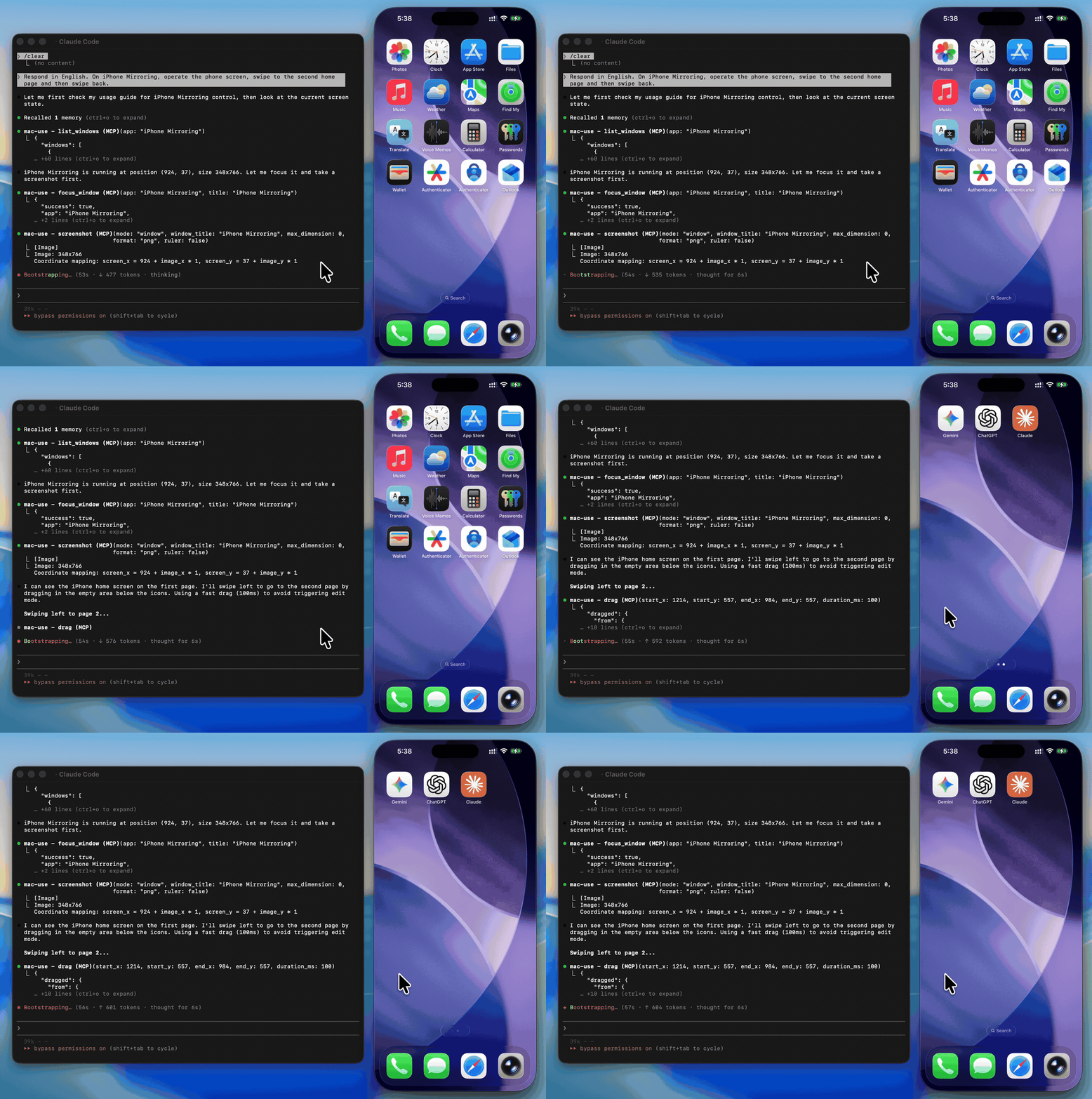
[!WARNING] This tool has full control over mouse, keyboard, and screen. Please use in a sandboxed environment to protect your privacy and avoid accidental data loss by your agents. You are responsible for any actions performed through this tool.
Zero-native-dependency macOS desktop automation via MCP.
Give AI agents eyes and hands on macOS — click, type, screenshot, and inspect any application.







Use Cases
- Automated UI testing — click buttons, verify element states with
get_ui_elements, validate screen content viascreenshot - Desktop workflow automation — launch apps with
open_application, fill forms withtype_text, navigate menus viaclick_menu - Screenshot-based monitoring — capture screen regions periodically with
screenshotfor visual diffing or alerting - Accessibility inspection — query UI element trees with
get_ui_elementsfor QA and compliance checks - AI agent computer use — give LLMs eyes and hands on macOS via
screenshot,click,type_text, and more
Why mac-use-mcp?
- Just works —
npx mac-use-mcpand grant two macOS permissions. No node-gyp, no Xcode tools, no build step. - 18 tools, one server — screenshots, clicks, keystrokes, window management, accessibility inspection, and clipboard.
- macOS 13+ on Intel and Apple Silicon — no native addons, no architecture headaches.
Install
Requirements: macOS 13+ and Node.js 22+. The server communicates over stdio transport.
This package only works on macOS. It will refuse to install on other operating systems.
No build steps. No native dependencies. Just run:
npxwill prompt to install the package on first run. Usenpx -y mac-use-mcpto skip the confirmation.
[!TIP] Model selection matters. Desktop automation involves screenshot–action loops that add up in token usage. A fast model with solid reasoning, good vision, and reliable tool calling is recommended:
Model Provider Gemini 3 Flash Claude Sonnet 4.6 Anthropic GPT-5 mini OpenAI MiniMax-M2.5 MiniMax Kimi K2.5 Moonshot AI Qwen3.5 Alibaba GLM-4.7 Zhipu AI
Permission Setup
mac-use-mcp requires two macOS permissions to function. Grant them once and you're set.
Accessibility
Required for mouse and keyboard control.
- Open System Settings > Privacy & Security > Accessibility
- Click the + button
- Add your MCP client application (e.g., Claude Desktop, your terminal emulator)
- Ensure the toggle is enabled
Screen Recording
Required for screenshots.
- Open System Settings > Privacy & Security > Screen Recording
- Click the + button
- Add your MCP client application
- Ensure the toggle is enabled
- Restart the application if prompted
Verify permissions
After granting both permissions and configuring your MCP client (see next section), use the check_permissions tool to confirm everything is working:
MCP Client Configuration
Claude Code
Claude Desktop
Add to ~/Library/Application Support/Claude/claude_desktop_config.json:
OpenAI Codex
Add to ~/.codex/config.toml:
Or via CLI:
Google Antigravity
Add to ~/.gemini/antigravity/mcp_config.json:
Gemini CLI
Add to ~/.gemini/settings.json:
VS Code / Copilot
Add to .vscode/mcp.json in your workspace (or open the Command Palette and run MCP: Open User Configuration for global setup):
Cursor
Add to ~/.cursor/mcp.json (global) or .cursor/mcp.json (project-level):
Windsurf
Add to ~/.codeium/windsurf/mcp_config.json:
Cline
Open Cline's MCP settings (in the Cline extension panel, click the MCP servers icon), then add:
Kiro
Add to ~/.aws/amazonq/mcp.json:
Tools
This Node.js MCP server exposes 18 tools for mouse, keyboard, and screen control to any MCP-compatible client.
Screen
| Tool | Description |
|---|---|
screenshot | Capture the screen, a region, or a window by title (PNG or JPEG) |
get_screen_info | Get display count, resolution, origin, and scale factor for each display |
get_cursor_position | Get current cursor coordinates |
Input
| Tool | Description |
|---|---|
click | Click at screen coordinates with button, click count, and modifier options |
move_mouse | Move the cursor to a position |
scroll | Scroll up, down, left, or right at a position |
drag | Drag from one point to another over a configurable duration |
type_text | Type text at the cursor position (supports Unicode, CJK, and emoji) |
press_key | Press a key or key combination (e.g., "cmd+c", "Return") |
Window & App
| Tool | Description |
|---|---|
list_windows | List all visible windows with positions and sizes |
focus_window | Activate an app and bring a specific window to the front |
open_application | Launch an application by name |
click_menu | Click a menu bar item by path (e.g., "File > Save As...") |
App names support fuzzy matching — "chrome" resolves to "Google Chrome", "code" to "Code", etc.
Accessibility
| Tool | Description |
|---|---|
get_ui_elements | Query UI elements via Accessibility API — find buttons, text fields, and other controls by role or title |
Clipboard
| Tool | Description |
|---|---|
clipboard_read | Read the current system clipboard as plain text |
clipboard_write | Write text to the system clipboard |
Utility
| Tool | Description |
|---|---|
wait | Pause for a specified duration (in milliseconds, 0–10 000, default 500) |
check_permissions | Verify Accessibility and Screen Recording access |
Examples
Common workflow patterns using mac-use-mcp tools:
Screenshot a specific window
Click a button in a dialog
Automate a menu action
Copy text between apps
How It Works
- Swift binary handles mouse input (CGEvent), screen capture (CGWindowListCreateImage), window enumeration (CGWindowListCopyWindowInfo), and UI element queries (Accessibility API)
- AppleScript handles keyboard input (System Events
key code), window focus, and menu clicks - Node.js MCP server orchestrates everything over stdio, translating MCP tool calls into system operations
- No native Node.js addons — the Swift binary is pre-compiled and ships with the npm package
- Serial execution queue prevents race conditions between system operations
Known Limitations
Related MCP Servers
Adoption & maintenance
Factual signals from GitHub, npm, and our automated checks — not a rating.
GitHub stars
6
Stargazers on the source repository.
Last commit
4mo ago
Most recent push to the default branch.
Tools exposed
18
Callable tools this server registers over MCP.
Reviews
No reviews yet — be the first to share how this listing worked for you.
Frequently Asked Questions about Mac Use MCP
AllMCPs Directory Badge
Showcase your server listing on GitHub or your project documentation. Embed this dynamic SVG badge to highlight official listing status and live engagement.
Badge Style:
Live Dynamic SVG Preview
Markdown (GitHub README)
[](https://allmcps.com/mcp/mac-use-mcp)HTML Embed
<a href="https://allmcps.com/mcp/mac-use-mcp"><img src="https://allmcps.com/api/badge/mac-use-mcp?style=directory" alt="Mac Use MCP on AllMCPs" /></a>