
Browser
by lightpanda-io
Headless browser for AI and web automation with a built-in MCP server.
Install Browser
Pick your client, then add it in one click or paste the config.
No confirmed install command yet
We only publish a config when the install details come from the project itself — its README, its docs, or a verified owner. We haven’t found those for lightpanda-io/browser, and we’d rather show nothing than a guess you’d paste into your client.
Open setup steps on GitHubOverview
From the project README

Lightpanda Browser
The headless browser built from scratch for AI agents and automation.
Not a Chromium fork. Not a WebKit patch. A new browser, written in Zig.
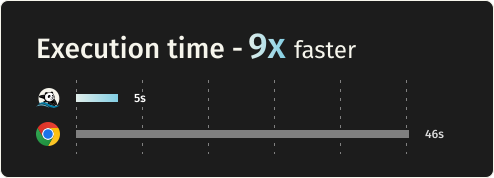
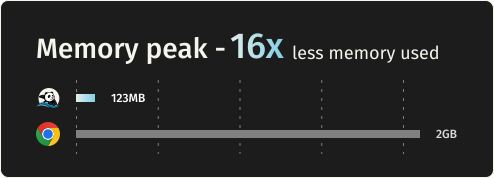
16x lighter and 9x faster than Chromium.




Benchmarks
Requesting 933 real web pages over the network on a AWS EC2 m5.large instance. See benchmark details.
| Metric | Lightpanda | Headless Chrome | Difference |
|---|---|---|---|
| Memory (peak, 100 pages) | 123MB | 2GB | ~16x less |
| Execution time (100 pages) | 5s | 46s | ~9x faster |
Quick start
Install
Package Managers
Latest nightly from Homebrew:
brew install lightpanda-io/browser/lightpanda
Latest nightly from Arch Linux User Repository:
yay -S lightpanda-nightly-bin
Download from the nightly builds
You can download the last binary from the nightly builds for Linux and MacOS for both x86_64 and aarch64.
For Linux
curl -L -o lightpanda https://github.com/lightpanda-io/browser/releases/download/nightly/lightpanda-x86_64-linux && \
chmod a+x ./lightpanda
Verify the binary before running anything:
./lightpanda version
Linux aarch64 is also available
Note: The Linux release binaries are linked against glibc. On musl-based Linux distributions (Alpine, etc.) the binary fails with
cannot execute: required file not foundbecause the glibc dynamic linker is missing. Use a glibc-based base image (e.g.,FROM debian:bookworm-slimorFROM ubuntu:24.04) or build from sources.Android / Termux: there is no native Android build. The Linux aarch64 binary needs the glibc loader (
/lib/ld-linux-aarch64.so.1), which Android's Bionic libc does not provide, so it fails with the samecannot execute: required file not founderror.
For MacOS
curl -L -o lightpanda https://github.com/lightpanda-io/browser/releases/download/nightly/lightpanda-aarch64-macos && \
chmod a+x ./lightpanda
MacOS x86_64 is also available
For Windows + WSL2
Lightpanda has no native Windows binary. Install it inside WSL following the Linux steps above.
WSL not installed? Run wsl --install from an administrator shell, restart, then open wsl.
See Microsoft's WSL install guide for details.
Your automation client (Puppeteer, Playwright, etc.) can run either inside WSL or on the Windows host. WSL forwards localhost:9222 automatically.
Install from Docker
Lightpanda provides official Docker
images for both Linux amd64 and
arm64 architectures.
The following command fetches the Docker image and starts a new container exposing Lightpanda's CDP server on port 9222.
docker run -d --name lightpanda -p 127.0.0.1:9222:9222 lightpanda/browser:latest
Dump a URL
./lightpanda fetch --obey-robots --dump html --log-format pretty --log-level info https://demo-browser.lightpanda.io/campfire-commerce/
You can use --dump markdown to convert directly into markdown, or
--dump png > page.png or --dump pdf > page.pdf for a text-only rendering
of the page. --dump structured_data prints the page's JSON-LD, OpenGraph,
Twitter card, meta and link tags as JSON, like the MCP structuredData tool.
--wait-until, --wait-ms, --wait-selector and --wait-script are
available to adjust waiting time before dump.
Start a CDP server
./lightpanda serve --obey-robots --log-format pretty --log-level info --host 127.0.0.1 --port 9222
Once the CDP server started, you can run a Puppeteer script by configuring the
browserWSEndpoint.
Example Puppeteer script
import puppeteer from 'puppeteer-core';

// use browserWSEndpoint to pass the Lightpanda's CDP server address.
const browser = await puppeteer.connect({
  browserWSEndpoint: "ws://127.0.0.1:9222",
});

// The rest of your script remains the same.
const context = await browser.createBrowserContext();
const frame = await context.newPage();

// Dump all the links from the frame.
await frame.goto('https://demo-browser.lightpanda.io/amiibo/', {waitUntil: "networkidle0"});

const links = await frame.evaluate(() => {
  return Array.from(document.querySelectorAll('a')).map(row => {
    return row.getAttribute('href');
  });
});

console.log(links);

await frame.close();
await context.close();
await browser.disconnect();
Start a webdriver Bidi server
Use --protocol webdriver to enable Bidi support.
You can start both, CDP and Bidi, with --protocol webdriver --protocol cdp
./lightpanda serve --obey-robots --log-format pretty --log-level info --host 127.0.0.1 --port 9222 --protocol webdriver
Agent mode
lightpanda agent lets you drive the browser with a native agent. Describe what
you want in plain English or with slash commands, and it controls the browser:
navigating pages, clicking through flows, filling forms, extracting structured
data. Think of it as a robot you're directing to use the web, more than a
chatbot you're having a conversation with.
Because the agent runs inside the same process as the browser, every tool call is a direct operation and you retain Lightpanda's speed and memory advantage.
The output of an agent session is a
PandaScript: vanilla JavaScript
with a small set of native browser primitives built directly into Lightpanda.
Run /save to export one from your current session, then replay it with
lightpanda run <script>.js. Scripts are deterministic and token-free, so
you can prototype with the LLM and ship the output to production without a
model at runtime.
It supports Anthropic, OpenAI, Gemini, Google Vertex AI, Mistral, Hugging
Face, the multi-lab gateways Vercel AI Gateway
and OpenRouter (one key for hundreds of models), any OpenAI-compatible endpoint via
OPENAI_BASE_URL, and local models via Ollama or llama.cpp. You can also run
without an LLM using --no-llm, which drops you into the REPL. See the
agent documentation for the full
reference.
./lightpanda agent                                    # auto-detects API key from env
./lightpanda agent --task "top story on news.ycombinator.com?"
./lightpanda agent --no-llm                           # basic REPL, no LLM
./lightpanda run session.js                           # run a recorded script
cat session.js | ./lightpanda run -                   # ...or pipe one in via stdin
./lightpanda agent --provider gemini --task "..."     # force a specific provider
./lightpanda agent --list-models                      # models available for the detected provider
VERTEX_API_KEY=... ./lightpanda agent --provider vertex             # Vertex AI, express mode
GOOGLE_CLOUD_PROJECT=my-proj ./lightpanda agent --provider vertex   # Vertex AI, token via gcloud auth
AI_GATEWAY_API_KEY=... ./lightpanda agent --provider vercel --model moonshotai/kimi-k2   # any model behind Vercel AI Gateway
OPENROUTER_API_KEY=... ./lightpanda agent --provider openrouter --model anthropic/claude-sonnet-5   # any model behind OpenRouter
OPENAI_BASE_URL=https://my-gateway/v1 OPENAI_API_KEY=... ./lightpanda agent            # any OpenAI-compatible server
Native MCP and skill
The MCP server communicates via MCP JSON-RPC 2.0 over stdio.
Add to your MCP configuration:
{
  "mcpServers": {
    "lightpanda": {
      "command": "/path/to/lightpanda",
      "args": ["mcp"]
    }
  }
}
HTTP transport and independent sessions
For serving several agents from one process, start the MCP server over HTTP
instead of stdio by giving it a port (add --host x.x.x.x to specify the
interface to listen on):
lightpanda mcp --port 9223
Clients POST JSON-RPC to http://host:9223/mcp. Each connection is routed to
its own browsing session — its own page, cookies and memory — so agents no
longer clobber each other's page:
- A client that
initializes without anMcp-Session-Idheader is assigned a fresh session; the id comes back in the response'sMcp-Session-Idheader. Send it on subsequent requests to stay on that session (isolation). - Two agents that send the same
Mcp-Session-Idshare one browsing context (sharing — e.g. a workflow where several agents work the same page). - The
session_new,session_listandsession_closetools manage sessions explicitly. SendingDELETE /mcpwith anMcp-Session-Idcloses that session.
Security & health
What it can reach and how reliably it runs — from our own checks, not the maintainer’s claims.
ActiveLast checked Today
Recent health check succeeded.
Adoption & maintenance
Factual signals from GitHub, npm, and our automated checks — not a rating.
GitHub stars36kStargazers on the source repository.
Last commitTodayMost recent push to the default branch.
Reviews
No reviews yet — be the first to share how it worked for you.
Frequently Asked Questions about Browser
lightpanda-io/browser is an MCP server that provides a headless browser for AI agents and web automation. It is built into Lightpanda Browser, a browser written from scratch in Zig rather than a Chromium fork or WebKit patch. The project describes it as 16x lighter and 9x faster than Chromium.
You can install Lightpanda through Homebrew, the Arch User Repository, nightly Linux and macOS binaries, or official Docker images. The README provides commands for Homebrew and Arch, download links for x86_64 and aarch64 releases, and Docker images for Linux amd64 and arm64.
Lightpanda runs on Windows through WSL2 rather than a native Windows binary. Install it inside WSL using the Linux instructions; automation clients such as Puppeteer or Playwright can run inside WSL or on the Windows host, with WSL forwarding localhost:9222 automatically.
Lightpanda provides nightly binaries for Linux and macOS on x86_64 and aarch64 architectures. Official Docker images are available for Linux amd64 and arm64. Linux release binaries require glibc, so musl-based distributions such as Alpine need a glibc-based image or a source build.
In the README’s benchmark of requesting 933 real web pages on an AWS EC2 m5.large instance, Lightpanda used 123MB peak memory for 100 pages versus Chromium’s 2GB, and completed in 5 seconds versus 46 seconds. The project reports these results as approximately 16x less memory and 9x faster execution.
Related MCP servers

Add a badge to your READMEShow it’s listed — live SVG, Markdown or HTML.
AllMCPs Directory Badge
Showcase your server listing on GitHub or your project documentation. Embed this dynamic SVG badge to highlight official listing status and live engagement.
Badge Style:
Live Dynamic SVG Preview
Markdown (GitHub README)
[](https://allmcps.com/mcp/lightpanda-io-browser)HTML Embed
<a href="https://allmcps.com/mcp/lightpanda-io-browser"><img src="https://allmcps.com/api/badge/lightpanda-io-browser?style=directory" alt="Browser on AllMCPs" /></a>