Jw MCP
MCP server for JW.org content: Bible scripture lookup with study content, workbook materials, Watchtower articles, and video captions
Install Jw MCP
Pick your client, then add it in one click or paste the config.
~/Library/Application Support/Claude/claude_desktop_config.json{
"mcpServers": {
"jw-mcp": {
"command": "npx",
"args": [
"-y",
"jw-mcp"
]
}
}
}
Settings → Developer → Edit Config, merge this into mcpServers, then fully quit and reopen Claude Desktop.
Automated check passed— started and listed 9 tools correctly (14d ago).
Overview
Tools9
What Jw MCP lets your agent do. Expand a tool for its parameters.
Security & health
What it can reach and how reliably it runs — from our own checks, not the maintainer’s claims.
Recent health check succeeded.
What it can do
From the 9 tools this server returned when we ran it.
Observed 2026-10-21 in an isolated sandbox. A description of reach, not a security audit.
Supply-chain signal
No high-severity advisories surfaced by our automated scan.
Scanned 16d ago via OSV.dev · jw-mcp (npm)
Adoption & maintenance
Factual signals from GitHub, npm, and our automated checks — not a rating.
From the project README
JW MCP Server


An MCP server for working with JW.org content — Bible scripture lookup with study notes, workbook materials, Watchtower articles, and video captions.
Quick Start
Claude Code (Recommended)
claude mcp add jw-mcp -- npx -y jw-mcp
Claude Desktop
Download the latest jw-mcp.mcpb from Releases and open it — Claude Desktop will install it automatically.
Or add manually to your config (~/Library/Application Support/Claude/claude_desktop_config.json on macOS, %APPDATA%\Claude\claude_desktop_config.json on Windows):
{
  "mcpServers": {
    "jw-mcp": {
      "command": "npx",
      "args": ["-y", "jw-mcp"]
    }
  }
}
Other MCP Clients (Cursor, Windsurf, etc.)
npx -y jw-mcp
Docker (self-hosted)
Run this server on a machine with a public HTTPS URL, then paste that URL into Grok, Claude.ai, or ChatGPT as a custom connector.
Compose binds the container to loopback only (127.0.0.1:8080). Do not publish port 8080 on the public internet. Put a reverse proxy on the host, terminate TLS there, and proxy to 127.0.0.1:8080.
Use port 443. Claude.ai never connects to a custom connector on any other port. It only says "Couldn't reach the MCP server". Grok accepts other ports, so a URL like
https://host:18443/mcpcan work in Grok and still fail in Claude. The server logs a warning at startup whenMCP_BASE_URLhas a port.
- Copy
.env.exampleto.env. - Set
MCP_BASE_URLto your public origin, with no path and no port. Example:https://jw-mcp.example.com. - Set
MCP_AUTH_SECRETto a long access key (at least 16 characters). - Keep
MCP_AUTH=true. HTTP mode with auth off is loopback-only. Do not disable auth in Docker. - Set
MCP_TRUST_PROXY=trueonly when exactly one proxy sits in front of the server and sets or appends the real client IP inX-Forwarded-For(Caddy, nginx, or a Cloudflare Tunnel). Leave it unset otherwise. - Start it:
docker compose up --build -d
The connector URL is:
https://your-host/mcp
When you add the connector, the AI site opens a login page. Type the same access key you put in MCP_AUTH_SECRET.
| Client | Where to add it |
|---|---|
| Grok | grok.com/connectors → New Connector → Custom |
| Claude.ai | Customize → Connectors → Add custom connector |
| ChatGPT | Settings → enable Developer mode → add the server URL |
Local HTTP (http://localhost:8080) is fine for testing because compose binds loopback. Claude, ChatGPT, and Grok must reach a public HTTPS URL. A tunnel such as ngrok or Cloudflare Tunnel can expose that loopback port for a live click-test. Do not publish 8080 on 0.0.0.0.
Auth codes, clients, and tokens are stored in the jw-mcp-auth Docker volume so a container restart does not drop every connection.
Home hosting with Cloudflare Tunnel
Use this when the server runs on a home or office network. The tunnel makes an outbound-only connection to Cloudflare, so you open no router ports and your home IP stays out of DNS. Requests to jw.org still leave from your own network. Your domain's DNS must be on Cloudflare.
-
In Cloudflare, go to Zero Trust → Networks → Tunnels and create a tunnel (type Cloudflared). Copy its token.
-
In the tunnel's Public hostname tab, add your hostname (for example
jw-mcp.example.com) with servicehttp://jw-mcp:8080. If a DNS record for that name already exists, delete it first. -
In
.env, set:MCP_BASE_URL=https://jw-mcp.example.com MCP_TRUST_PROXY=true CLOUDFLARE_TUNNEL_TOKEN=<token from step 1> -
Start both containers:
docker compose --profile tunnel up --build -d -
Remove any old router port forward or reverse-proxy site for this server. Nothing needs to reach it from the internet directly.
If the tunnel doesn't come up, run docker compose logs cloudflared. A missing or wrong CLOUDFLARE_TUNNEL_TOKEN makes it restart over and over.
Cloudflare settings that can block AI connectors. Check them for this hostname:
- Security → Bots: keep Bot Fight Mode off. On the free plan it can't be skipped for one hostname, and it can challenge server-to-server calls from Claude and Grok.
- AI Crawl Control / Block AI bots: don't block Claude or Grok user agents on this hostname.
- Cloudflare Access: don't put an Access login in front of this hostname. Claude's servers can't pass it. The server's own access key already protects it.
- If you use WAF rules, allow Anthropic's outbound range
160.79.104.0/21.
Tools
All tools support multiple languages via the langwritten parameter (E = English, S = Spanish, F = French, etc.).
Bible Scripture Tools
search_bible_books
Search for Bible books by name, abbreviation, or number.
{ "query": "matthew" }
get_bible_verse
Get plain verse text from wol.jw.org. Books are numbered 1-66 (1-39 OT, 40-66 NT).
{ "book": 43, "chapter": 3, "verse": 16 }
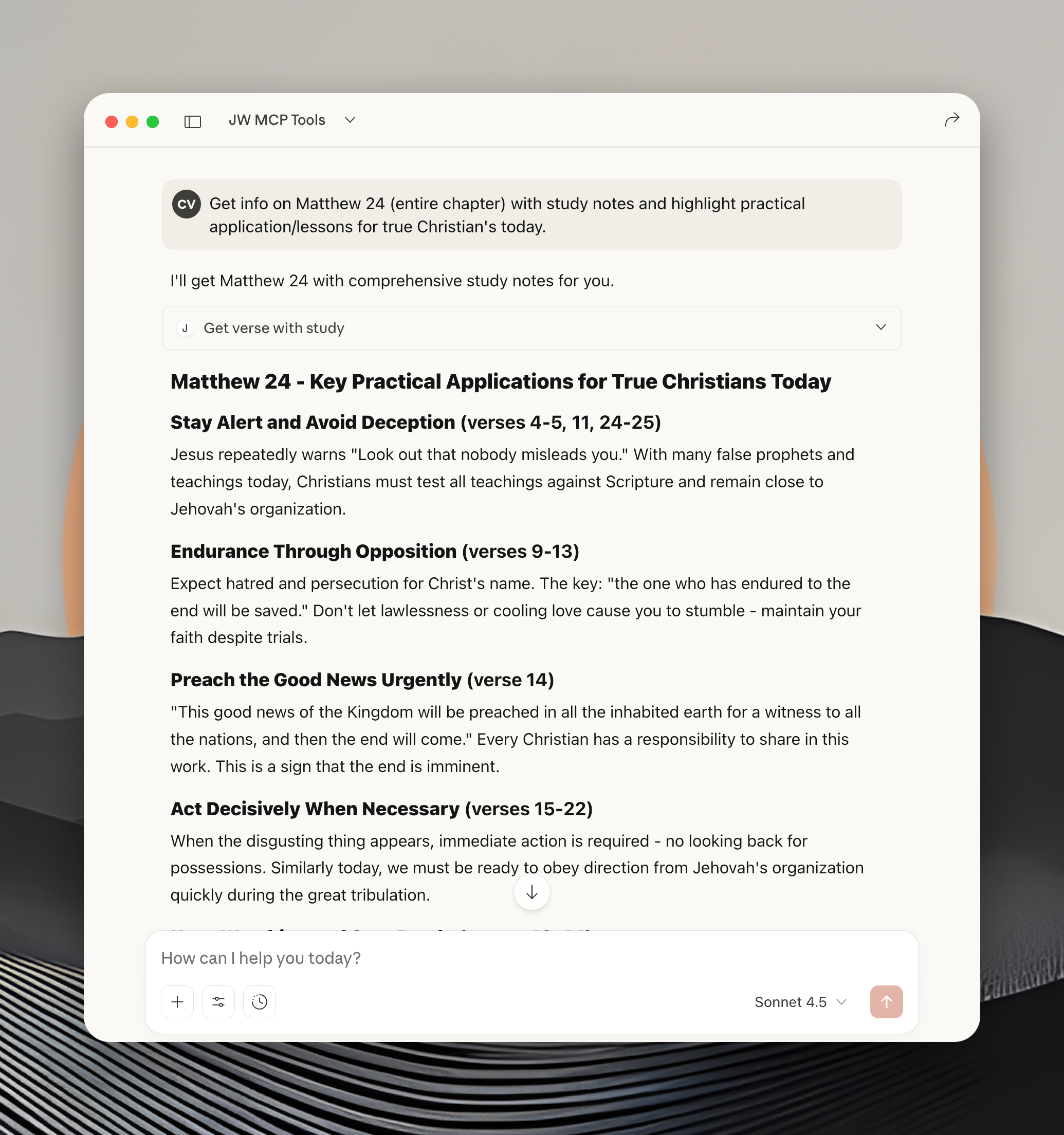
get_verse_with_study
Get verses with study notes, cross-references, and research articles. Supports ranges.
{
  "book": 40, "chapter": 5, "verse": "3-5",
  "fields": ["verses", "study_notes", "study_articles"]
}
Available fields: verses, study_notes, study_articles, cross_references, chapter_level, combined_text
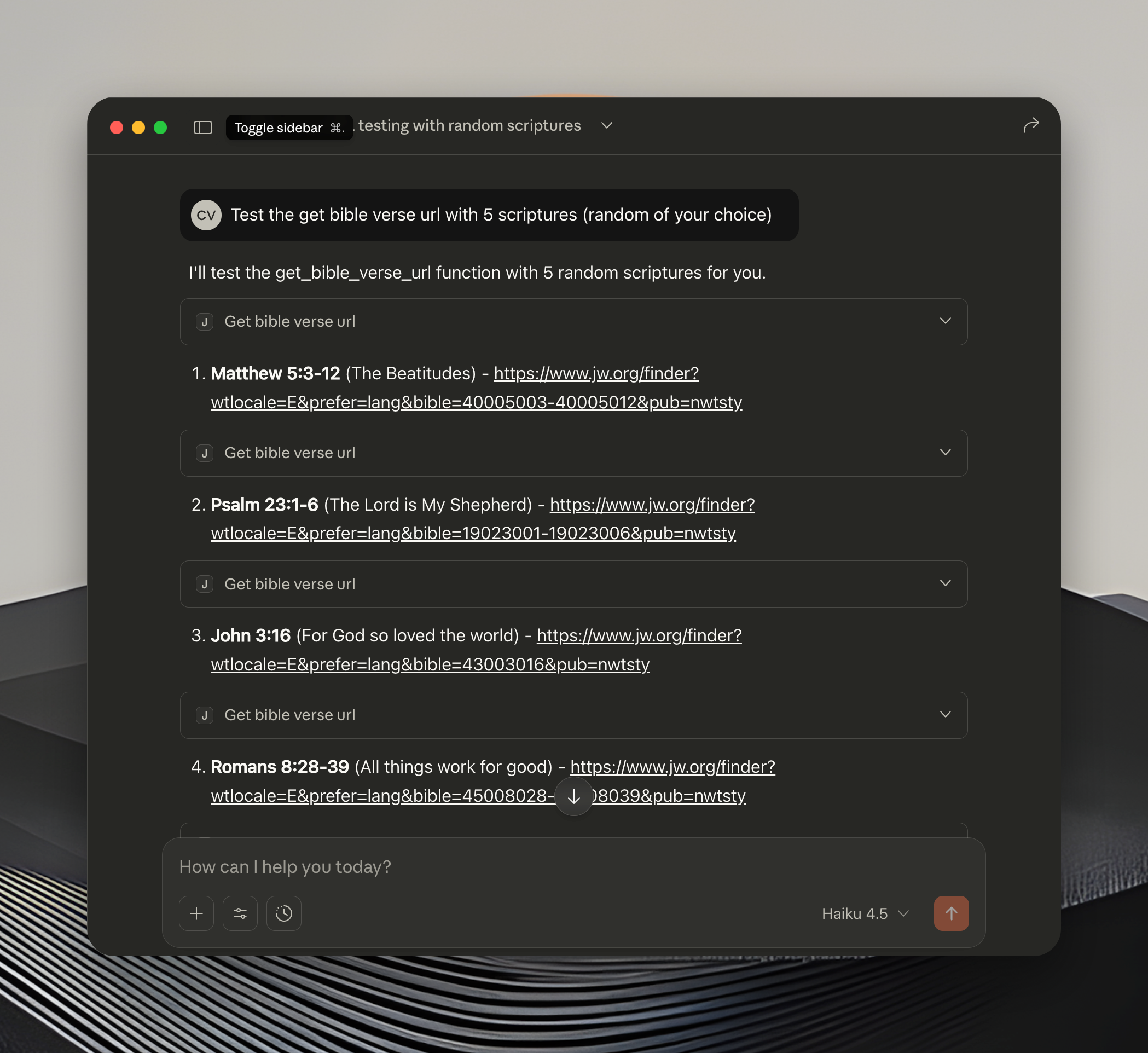
get_bible_verse_url
Generate JW.org URLs for verses, ranges, or chapters — useful for adding clickable links to documents.
{ "book": 19, "chapter": 83, "verse": "18" }
{ "book": 23, "chapter": 46, "verse": "9-11" }
{ "book": 40, "chapter": 5 }
Workbook Tools
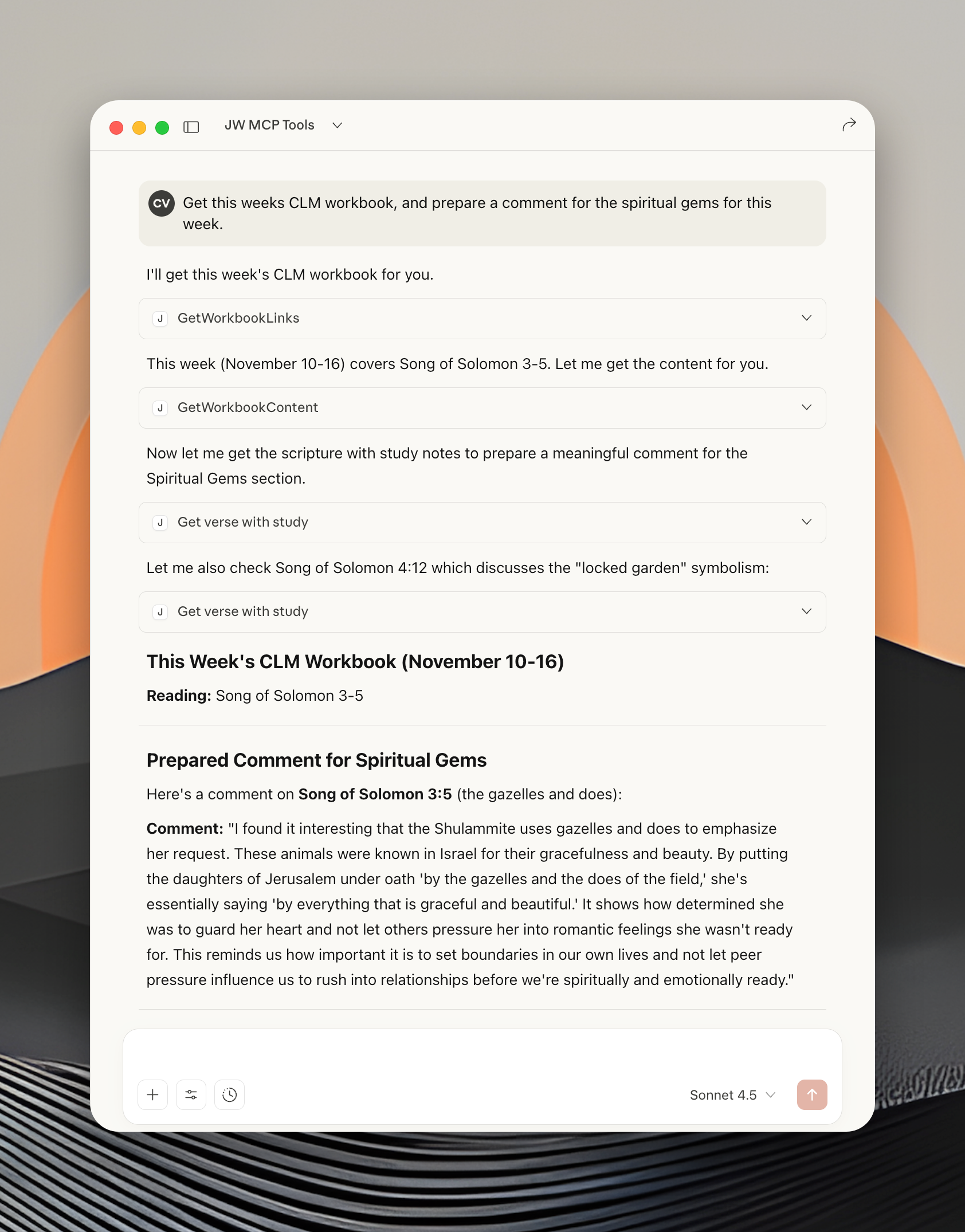
getWorkbookLinks
Get available Christian Life and Ministry workbook weeks for the current or a specific issue.
{ "issue": "20250500", "langwritten": "E" }
getWorkbookContent
Download and parse a workbook week's RTF content to clean plain text (70% token reduction).
{ "url": "https://cfp2.jw-cdn.org/a/clm_E_202505_01.rtf" }
Watchtower Tools
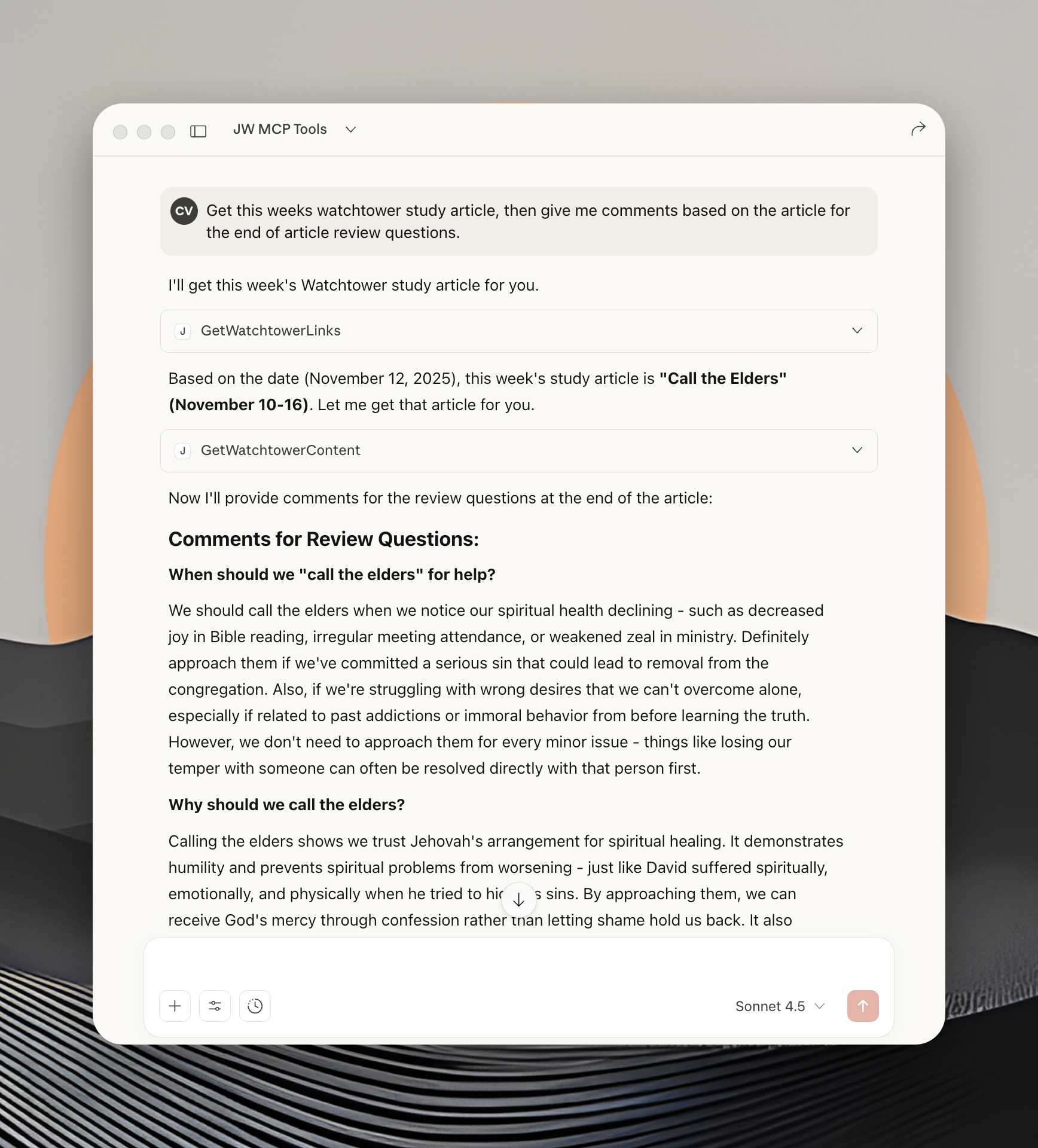
getWatchtowerLinks
Get available Watchtower study articles. Automatically uses the correct issue (published 2 months ahead of study period).
{ "issue": "20250300", "langwritten": "E" }
getWatchtowerContent
Download and parse a Watchtower article's RTF content to clean plain text (70% token reduction).
{ "url": "https://cfp2.jw-cdn.org/a/w_E_202509_01.rtf" }
Video Caption Tools
get_jw_captions
Fetch video captions and metadata by video ID or any JW.org URL.
{ "video_id": "pub-jwbvod25_17_VIDEO" }
Also accepts full JW.org URLs — the video ID is extracted automatically.

Troubleshooting
- "Could not read package.json" — Use absolute path in Claude Desktop config
- Server disconnects — Ensure Node.js is installed (
npm install) - Permission denied —
chmod +x start-server.sh
Development
npm start          # stdio mode (local)
npm run start:http # HTTP mode (testing)
npm test           # OAuth + HTTP connector tests
Built with Node.js, MCP SDK, node-fetch, and cheerio.
License
MIT
Reviews
No reviews yet — be the first to share how it worked for you.
Frequently Asked Questions about Jw MCP
Related MCP servers
Add a badge to your READMEShow it’s listed — live SVG, Markdown or HTML.
AllMCPs Directory Badge
Showcase your server listing on GitHub or your project documentation. Embed this dynamic SVG badge to highlight official listing status and live engagement.
[](https://allmcps.com/mcp/jw-mcp)<a href="https://allmcps.com/mcp/jw-mcp"><img src="https://allmcps.com/api/badge/jw-mcp?style=directory" alt="Jw MCP on AllMCPs" /></a>