Isaacsim MCP Server README
The full upstream README, mirrored here for reference. Install config, tool schemas, adoption signals, and an original overview live on the Isaacsim MCP Server listing page.
Isaac Sim MCP Server




Natural language control for NVIDIA Isaac Sim through the Model Context Protocol (MCP).
Connect any MCP-compatible IDE (Cursor, VS Code, Claude Code, Windsurf, Antigravity, JetBrains) to a running Isaac Sim instance and control it with plain-English prompts -- create robots, build scenes, run simulations, and debug physics all from your editor.
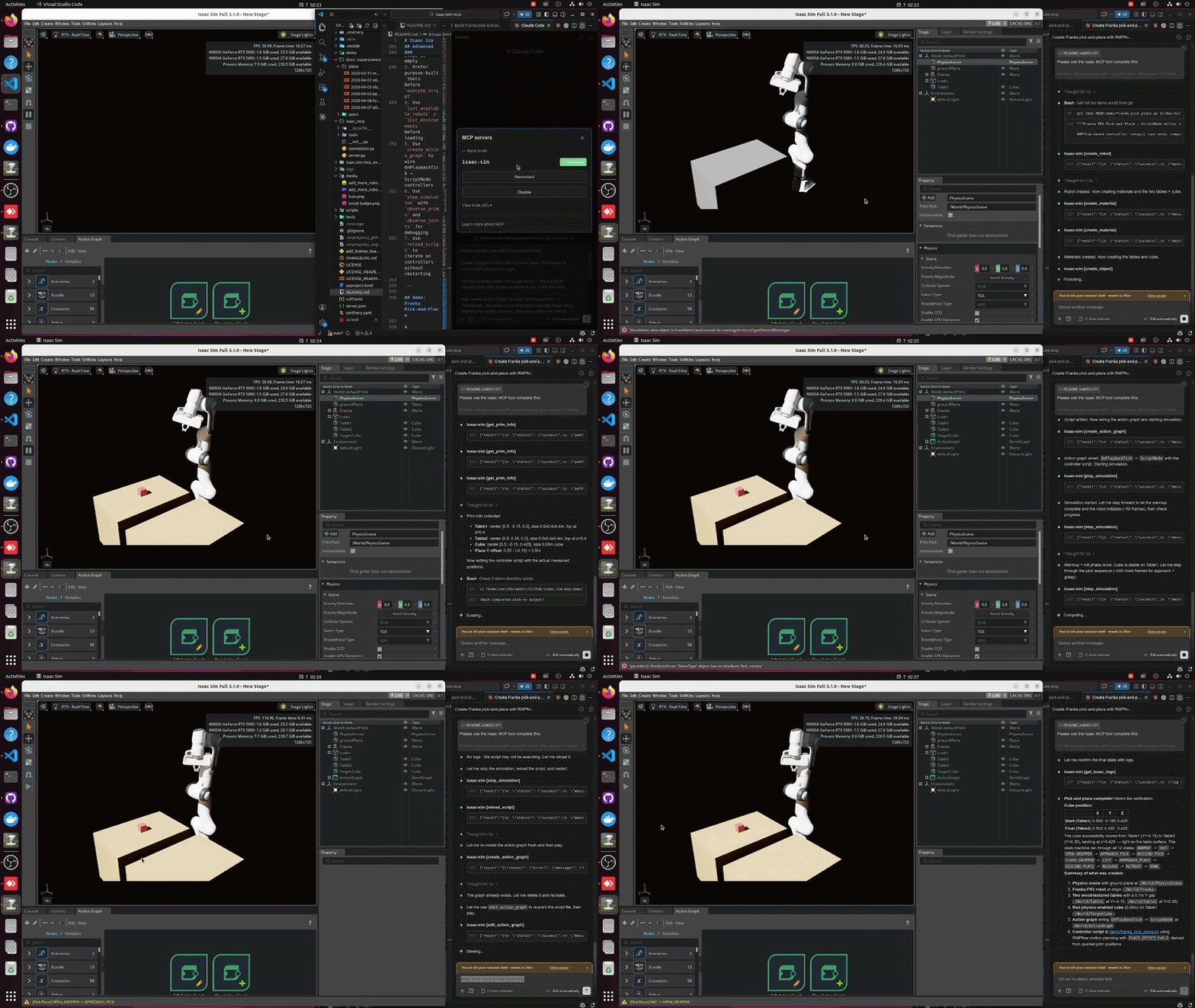
Highlights
- 42 tools across 9 categories -- scene, objects, lighting, robots, sensors, materials, assets, simulation, graphs
- 107+ robots auto-discovered from the Isaac Sim asset library (Franka, UR, Unitree, Boston Dynamics, and more)
- Step-and-observe debugging -- step the simulation and inspect prim positions, joint states, and physics in one call
- Hot-reload -- iterate on Python controllers without restarting Isaac Sim
- Multi-instance -- run multiple Isaac Sim sessions side by side on different ports
- Built for Isaac Sim 5.1.0 - 6.0.1 (PhysX + Newton) with a modular adapter layer for version isolation
Installation
Option A: pip install (recommended)
This installs the MCP server and the isaacsim-mcp-server CLI. You still need the Isaac Sim extension from the repo (see Launching Isaac Sim below).
Option B: From source
Requirements
| Requirement | Version |
|---|---|
| NVIDIA Isaac Sim | 5.1.0 - 6.0.1 (PhysX or Newton) |
| Python | 3.10+ |
uv | latest (for source install) |
| Platform | Linux (Ubuntu 22.04+) or Windows 10/11 |
[!IMPORTANT] Linux and Windows are supported. On Windows, use the PowerShell launcher
scripts/run_isaac_sim.ps1in place of the.shscripts (see below). macOS is not supported because NVIDIA Isaac Sim does not run on macOS.
[!NOTE] We are welcoming contributions to support other Isaac Sim versions. The adapter layer is designed for easy version isolation.
Quick Start
1. Set up the environment
If you installed from source:
On Windows, uv sync creates the virtual environment (.venv) and installs
the package plus its dependencies:
2. Launch Isaac Sim with the extension
You should see in the logs:
The script looks for Isaac Sim in $HOME/isaacsim; set ISAACSIM_ROOT to use a
different install.
Choosing the physics engine. Isaac Sim 6.0+ ships PhysX (default) and Newton
backends. Select one with --newton / --physx, or ISAACSIM_ENGINE:
The same flags work with scripts/launch_isaac_sim_mcp.sh. Everything else on
the command line is forwarded to Kit untouched. The server auto-detects the
active engine, so no MCP-side configuration changes. Newton requires 6.0 or
newer; asking for it on 5.1.0 fails with a clear message.
On Windows, use the PowerShell launcher instead. It takes the same engine selection and forwards extra arguments to Kit:
The script resolves the install from -IsaacSimRoot, then $env:ISAACSIM_ROOT,
then a local source build, then C:\isaacsim, then %USERPROFILE%\isaacsim. It
also creates a writable USD working directory (.cache\usd) since Windows has no
/tmp.
Optional: Beaver3D / NVIDIA API keys for 3D generation
On Windows (PowerShell):
3. Connect your IDE
Add the MCP server to your editor. Replace the path with your actual repo location.
The command examples are for Linux/macOS; each guide shows the Windows
equivalent, which wraps the PowerShell launcher scripts\run_mcp_server.ps1.
Claude Code (CLI)
Or edit ~/.claude.json / .mcp.json:
On Windows, wrap the PowerShell launcher:
VS Code
Create .vscode/mcp.json in your workspace:
On Windows, wrap the PowerShell launcher:
Cursor
Open Cursor Settings > MCP, or edit ~/.cursor/mcp.json:
On Windows, wrap the PowerShell launcher:
Claude Desktop
Edit the config file for your platform:
- macOS:
~/Library/Application Support/Claude/claude_desktop_config.json - Windows:
%APPDATA%\Claude\claude_desktop_config.json - Linux:
~/.config/Claude/claude_desktop_config.json
On Windows, wrap the PowerShell launcher:
Windsurf
Open Windsurf Settings > MCP or edit ~/.codeium/windsurf/mcp_config.json:
On Windows, wrap the PowerShell launcher:
Antigravity
Open the agent side panel, click … > MCP Servers > Manage MCP Servers >
View raw config, or edit ~/.gemini/config/mcp_config.json (global) or
.agents/mcp_config.json (workspace):
On Windows, wrap the PowerShell launcher:
JetBrains IDEs
Go to Settings > Tools > AI Assistant > MCP Servers and add the server, with
the command /path/to/isaacsim-mcp-server/scripts/run_mcp_server.sh. See the
JetBrains MCP docs for details.
On Windows, set the command to powershell and the arguments to
-NoProfile -ExecutionPolicy Bypass -File C:\path\to\isaacsim-mcp-server\scripts\run_mcp_server.ps1.
4. Start prompting
Architecture
Tools
42 tools across 9 categories:
| Category | Count | What you can do |
|---|---|---|
| Scene | 7 | Inspect scenes, create physics, list/load environments, browse prims |
| Objects | 4 | Create, delete, transform, and clone primitives |
| Lighting | 2 | Create and tune lights |
| Robots | 6 | Spawn 107+ robots, inspect joints, set positions, refresh library |
| Sensors | 4 | Create cameras/LiDAR, capture images, get point clouds |
| Materials | 2 | Create and apply materials |
| Assets | 4 | Import URDF, load/search USD, generate 3D models |
| Graphs | 2 | Build and edit Action Graphs (OnPlaybackTick, ScriptNode, script file attachment) |
| Simulation | 11 | Play/pause/stop/step, execute Python, inspect physics, hot-reload |
Full tool list
Scene: get_scene_info create_physics_scene clear_scene list_prims get_prim_info list_environments load_environment
Objects: create_object delete_object transform_object clone_object
Lighting: create_light modify_light
Robots: create_robot list_available_robots refresh_robot_library get_robot_info set_joint_positions get_joint_positions
Sensors: create_camera capture_image create_lidar get_lidar_point_cloud
Materials: create_material apply_material
Assets: import_urdf load_usd search_usd generate_3d
Graphs: create_action_graph edit_action_graph
Simulation: play_simulation pause_simulation stop_simulation step_simulation set_physics_params get_isaac_logs get_simulation_state get_physics_state get_joint_config execute_script reload_script
Known Limitations
Open defects a normal session can hit. Each is warned about at the point of use where that is possible; this list is for choosing a runtime before you start.
| Affects | What happens | Issue |
|---|---|---|
| 6.0 Newton | Joint drives do not converge — a commanded target is overshot and the joint keeps going, and joint limits are not enforced. Scene setup, stepping and inspection are fine; run motion work on PhysX (isaac-sim.sh). | #21 |
| 6.0 | The first RTX camera created in a session cannot be removed. create_camera warns once when it hands you that camera. | #20 |
| 5.1 | get_lidar_point_cloud fills on roughly a third of reads, so a caller must retry. A lidar created while the timeline is running never fills at all — create it stopped. | #31 |
| 5.1 | An RTX lidar prim cannot be deleted; the prim is left behind as a Camera. create_lidar refuses such a path and names a free one. | #25 |
Example Prompts
Scene bootstrap
Robot layout
Environment loading
Asset search and 3D generation
Advanced Usage
Multiple Instances
Run multiple Isaac Sim sessions side by side. Each uses a different port (auto-assigned from 8766).
JSON config for multiple instances
Desktop Launcher (Linux)
Install a dedicated Isaac Sim MCP application icon:
This creates a launcher that auto-assigns ports, waits for the extension socket, and cleans up on exit.
Recommended Workflow
- Start with
get_scene_infoto verify the connection - Create a physics scene if the stage is empty
- Prefer purpose-built tools before
execute_script - Use
list_available_robots/list_environmentsbefore loading - Use
create_action_graphto wire OnPlaybackTick → ScriptNode controllers - Use
step_simulationwithobserve_primsandobserve_jointsfor debugging - Use
reload_scriptto iterate on controllers without restarting
Demo: Franka Pick-and-Place
A ready-to-run demo at demo/franka_pick_place.py using RMPflow for motion planning:
Uses create_action_graph with script_file for one-step Action Graph + ScriptNode setup, plus the observability tools: get_joint_config, step_simulation with observe_prims, get_physics_state, and edit_action_graph for script hot-reload.
Development
The inspector is available at http://localhost:5173.
Setup Notes
| Script | Purpose | Default |
|---|---|---|
setup_python_env.sh | Create venv and install package | Python 3.10 |
run_isaac_sim.sh | Launch Isaac Sim with extension (Linux) | $HOME/isaacsim |
run_isaac_sim.ps1 | Launch Isaac Sim with extension (Windows) | C:\isaacsim |
run_mcp_server.sh | Start the MCP server (Linux) | Port 8766 |
run_mcp_server.ps1 | Start the MCP server (Windows) | Port 8766 |
launch_isaac_sim_mcp.sh | Combined launcher | Auto-assigns port |
dev_mcp_server.sh | Dev server with hot-reload | Port 8766 |
Override defaults:
Engine selection lives in scripts/lib/isaac_launcher.sh: each engine maps to
the launcher script Isaac Sim ships for it. Adding an entry to that map is all a
new backend needs — it enables both ISAACSIM_ENGINE=<name> and --<name> in
every launcher script.
Troubleshooting
If Isaac Sim says Can't find extension with name: isaac.sim.mcp_extension:
Note: --ext-folder must point to the repo root, not to isaac.sim.mcp_extension/ directly.
Contributing
Pull requests are welcome. Improvements to tools, docs, adapters, and tests are all useful.
License
MIT License. Copyright (c) 2023-2025 omni-mcp, Copyright (c) 2026 whats2000. See LICENSE.