Ios Agent vs Capsulate
A side-by-side look at the Ios Agent and Capsulate MCP servers: transport, auth, tools, quality signals, and the config to install either one in Claude, Cursor, Windsurf or VS Code.
Verdict: choose Ios Agent for os automation work as a local process; choose Capsulate for os automation as a local process. You can also run both side by side in one mcpServers block.
Which MCP server should you choose?
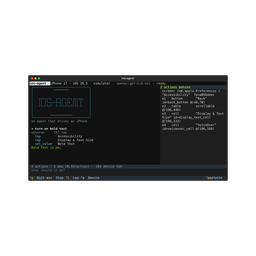 Choose Ios Agent when
- You need dedicated capabilities in the OS Automation domain.
- You prefer a local stdio subprocess transport.
- You want tools like
ios_doctor, ios_list_devices, ios_open_session.
 Choose Capsulate when
- You need dedicated capabilities in the OS Automation domain.
- You prefer a local stdio subprocess transport.
- You have the keys it needs:
CAPSULATE_API_KEY. - You want tools like
capsulate_launch, capsulate_list, capsulate_get.
Feature & specification comparison
Rows where the two servers differ are marked.
| Spec | ||
|---|---|---|
| Category | OS Automation | OS Automation |
| Quality signal | 59/100 · Good | 61/100 · Good |
| Install command | Confirmed | Confirmed |
| Transport | Local subprocess (stdio) | Local subprocess (stdio) |
| Auth | Not declared | Not declared |
| Pricing | Not declared | Not declared |
| Required env vars | None listed | CAPSULATE_API_KEY |
| Verified owner | Community listing | Community listing |
| GitHub stars | 3 | 0 |
| Directory activity | 1 views 0 installs 0 upvotes | 1 views 0 installs 0 upvotes |
| Tools | 31 | 54 |
| Full listing | View Ios Agent | View Capsulate |
Tools & capabilities
Ios Agent tools 31
ios_doctorCheck that this machine can drive an iOS device, and say how to fix what it can't. Run this first when a session fails to start, when a device does not appear, or after an Xcode or iOS upgrade. Every failing check comes with a concrete remedy.ios_list_devicesList iOS Simulators and attached physical iPhones available for automation. `ready` is false when something blocks automation; `blockers` says what.ios_open_sessionAttach to a device and start driving it. Boots the simulator or verifies the phone, starts WebDriverAgent, and opens a tuned session. Omitting `device` prefers an already-booted simulator over a connected iPhone, so acting on a real device is always a deliberate choice.ios_session_statusReport the current session: device, foreground app, and safety state.ios_close_sessionRelease the device and shut down its WebDriverAgent runner.ios_list_appsList apps installed on the device, with their bundle identifiers.ios_launch_appBring an app to the foreground and return its screen.ios_terminate_appForce-quit an app.ios_open_urlOpen a URL or deep link. Usually the cheapest way to reach a screen: a deep link skips the navigation an agent would otherwise have to tap through.ios_install_appInstall an app from a local .app or .ipa.ios_observeRead the screen as a compact list of elements with short refs. Each line is one element: `e7 button "Send" @(340,70)`. Pass those refs to the action tools rather than coordinates. If the result says elements were omitted, narrow with `query` or `region` instead of raising `budget`; a smaller answer is usually the more useful one.ios_screenshotCapture the screen as an image. Use this when an element has no accessibility label, when the layout matters, or when `ios_observe` cannot find something you can plainly see. With `annotate_refs` each element is boxed and labelled with its ref, so you can pick one by eye and pass it to an action tool. Annotating re-reads the screen first, so the refs on the image are the current ones rather than whatever was observed last. That costs a tree fetch, and needs the `vision` extra installed.- +19 more on the listing page
Capsulate tools 54
capsulate_launchLaunch a new isolated cloud sandbox (capsule) and (by default) wait until it is ready. Returns the capsule id and connection info. Use the returned sessionId for exec/files/etc. With skill, the capsule is the skill's environment (its saved template with the software set up) and the skill's setup procedure has run, so you can use its procedures right away.capsulate_listList the team's active capsules.capsulate_getFetch a capsule's full details by id.capsulate_destroyTerminate a capsule and release its resources.capsulate_execExecute a command inside a capsule and return stdout, stderr, and the exit code. Provide the command as an argv array, e.g. ['ls','-la','/workspace']. Commands first: files, installs, settings, scripts and data are one call here, a fraction of a second, where the screen takes many steps. On a Linux desktop capsule it runs as the desktop user 'capsulate' (home folder, DISPLAY :1, so apps open on the shared screen); prefix 'sudo' for root. On Windows pass ['powershell.exe', '-Command', '<script>']: it runs in the desktop session's PowerShell, about 0.3 s. It works while a person holds the screen.capsulate_run_codeRun a snippet of code inside a capsule: python, node or bash on Linux, powershell on Windows (about 0.3 s). Returns stdout/stderr/exit. Faster than doing the same on the screen.capsulate_write_fileWrite a UTF-8 text file inside a capsule (the folder is created). One call, far faster than typing it into an editor on the screen; open it afterwards with capsulate_open if the person should see it.capsulate_read_fileRead a UTF-8 text file from inside a capsule. One call, no screen needed.capsulate_set_envSet environment variables inside a running capsule.capsulate_screenshotCapture a screenshot of a desktop capsule. Returns the image so you can see the screen. For a smaller, faster image ask for format 'jpeg', a scale such as 0.5, or only a region (x, y, w, h) of the screen; the text after the image says how its points map back to screen pixels, which click and the other tools take.capsulate_clickClick at pixel (x, y) in a desktop capsule. Pass screenshot:true to see the screen after the click.capsulate_typeType text into the focused field of a desktop capsule.- +42 more on the listing page
Ready-to-paste client configs
Paste either block (or both) into your client config, e.g. claude_desktop_config.json or ~/.cursor/mcp.json. We only show a config when the install command is confirmed.
Ios Agent
{
  "mcpServers": {
    "ios-agent": {
      "command": "uvx",
      "args": [
        "ios-mcp"
      ]
    }
  }
}
Capsulate
{
  "mcpServers": {
    "capsulate": {
      "command": "npx",
      "args": [
        "-y",
        "@capsulate/mcp"
      ],
      "env": {
        "CAPSULATE_API_KEY": "YOUR_CAPSULATE_API_KEY_HERE"
      }
    }
  }
}
Frequently asked questions
Ios Agent is categorized under OS Automation and uses a local stdio subprocess. Capsulate belongs to OS Automation and uses a local stdio subprocess. Pick Ios Agent for os automation work and Capsulate for os automation.
Copy the mcpServers block from the config section on this page into your client's config (for example claude_desktop_config.json or ~/.cursor/mcp.json), then fully restart the client.
Ios Agent has no declared pricing — check the project's own site. Capsulate has no declared pricing — check the project's own site. If a server needs environment variables such as API keys, define them under the env key in your client's MCP config.
Yes. MCP clients support multiple servers: add ios-agent and capsulate as separate keys in the same mcpServers object, and your assistant will call tools from either one.
On AllMCPs, Ios Agent has a quality signal of 59/100 (Good) with 1 views, 0 installs and 3 GitHub stars. Capsulate has 61/100 (Good) with 1 views, 0 installs and 0 GitHub stars.