Firefox CSS Theme


A toolkit for scaffolding, live-debugging, and installing Firefox CSS themes. For agentic DOM inspection and live styling, an MCP server is also available.
Getting Started
[!TIP] You need Node.js to get started.
For Theme Authors
Scaffold a new theme project using npx:
npx firefox-css-theme create
This interactively prompts for your theme name and stylesheet targets (userChrome only, userContent only, or both).
If you have already opened a theme repository, launch Firefox with live CSS hot-reloading:
npx firefox-css-theme start
[!NOTE] Theme entry files (
userChrome.cssand/oruserContent.css) must be located at the root of the project directory.
For Theme Users
Navigate to the theme directory and install the stylesheets:
npx firefox-css-theme install
The toolkit will look for userChrome.css and userContent.css in the current directory, and install them into the selected Firefox profile.
For the full list of CLI options, run npx firefox-css-theme --help.
MCP Server Usage
The MCP server enables AI assistants to inspect the Firefox chrome DOM, query computed styles, inject custom CSS, and capture UI screenshots in real time.
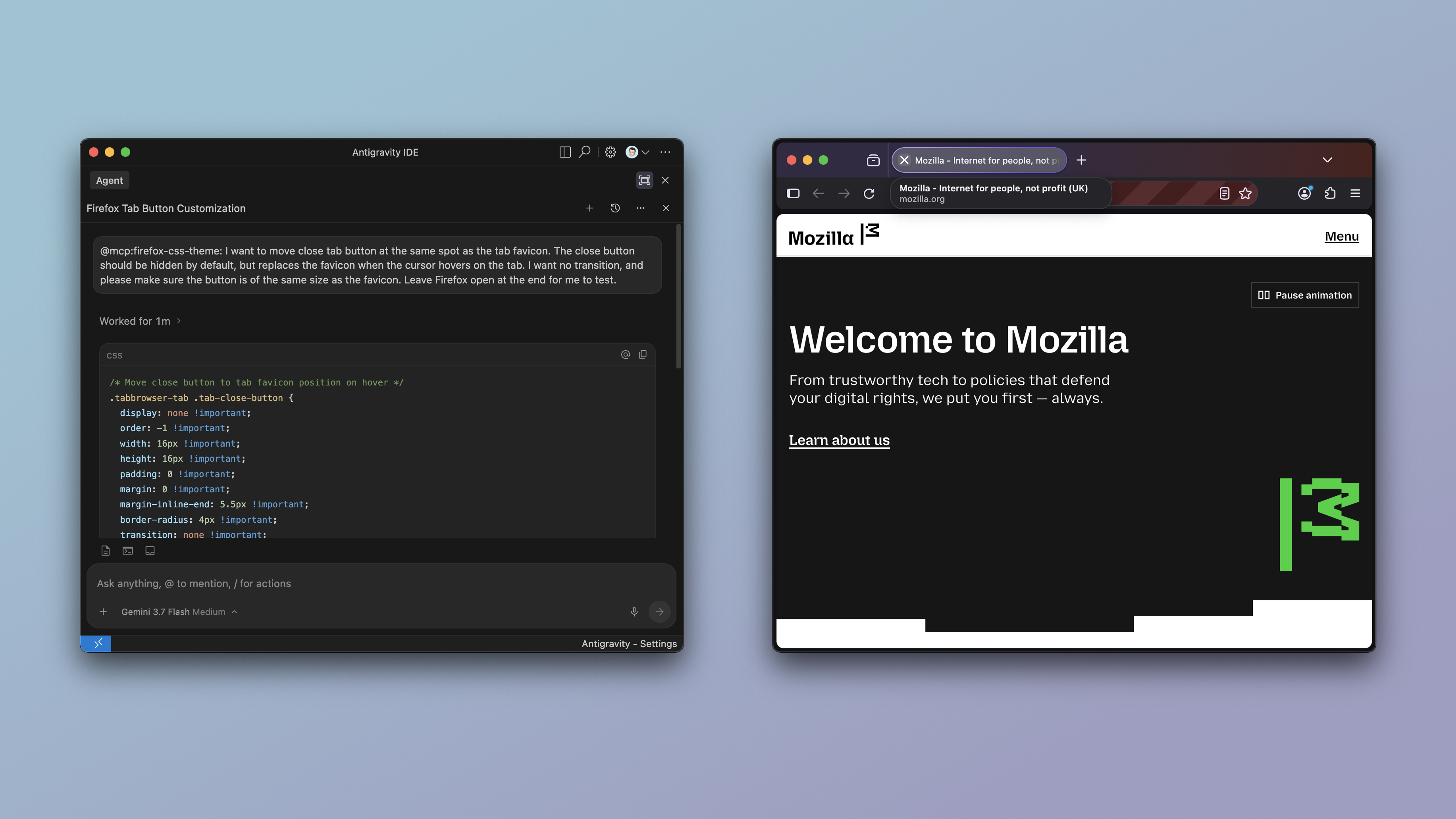
Configuration
Add the server to your preferred client or development environment:
Claude Code
claude mcp add firefox-css-theme -- npx -y firefox-css-theme mcp
Codex
codex mcp add firefox-css-theme -- npx -y firefox-css-theme mcp
IDE MCP Configuration
{
	"mcpServers": {
		"firefox-css-theme": {
			"command": "npx",
			"args": ["-y", "firefox-css-theme", "mcp"]
		}
	}
}
Available MCP Tools
launch_browser: Launches Firefox with chrome debugging.close_browser: Terminates the browser instance.customize_toolbar: Toggles the Firefox "Customise Toolbar" mode.get_ui_tree: Dumps the hierarchical DOM tree of the selected UI element.query_ui_elements: Queries elements matching a CSS selector in the browser chrome.get_computed_styles: Extracts computed CSS property values of a specific UI element.inject_theme_css: Injects a stylesheet into the live UI.remove_theme_css: Removes an injected stylesheet.list_theme_css: Lists all currently injected stylesheets.take_ui_screenshot: Captures a screenshot of a specific UI component.execute_chrome_javascript: Runs JavaScript in the browser chrome window context.
Commands
firefox-css-theme create
Scaffold a new Firefox CSS theme project.
Usage
npx firefox-css-theme create [options]
Options
| Option | Description |
|---|---|
-n, --name <name> | Theme name |
-t, --target <target> | Stylesheet target: chrome, content, or both |
-f, --force | Proceed without warning |
firefox-css-theme start
Launch Firefox with live stylesheet bundling and hot-reloading.
Usage
npx firefox-css-theme start [options]
Options
| Option | Description |
|---|---|
-b, --binary <path> | Path to Firefox executable |
-p, --profile <name> | Firefox profile name |
--headless | Run in headless mode |
--atbc | Start with Adaptive Tab Bar Colour |
--no-toolbox | Disable Browser Toolbox |
--no-watch | Disable file watching |
firefox-css-theme install
Install compiled stylesheets from the current working directory into a Firefox profile.
Usage
npx firefox-css-theme install [options]
Options
| Option | Description |
|---|---|
-p, --profile <name> | Firefox profile name |
-m, --merge | Merge with existing stylesheets |
-f, --force | Proceed without warning |
[!WARNING] This operation will overwrite existing CSS themes in the profile unless
--mergeis specified. A backup is advised.
firefox-css-theme mcp
Start the Model Context Protocol (MCP) server.
Usage
npx firefox-css-theme mcp [options]
Options
| Option | Description |
|---|---|
-b, --binary <path> | Path to Firefox executable |
-p, --profile <name> | Firefox profile name |