devcoach
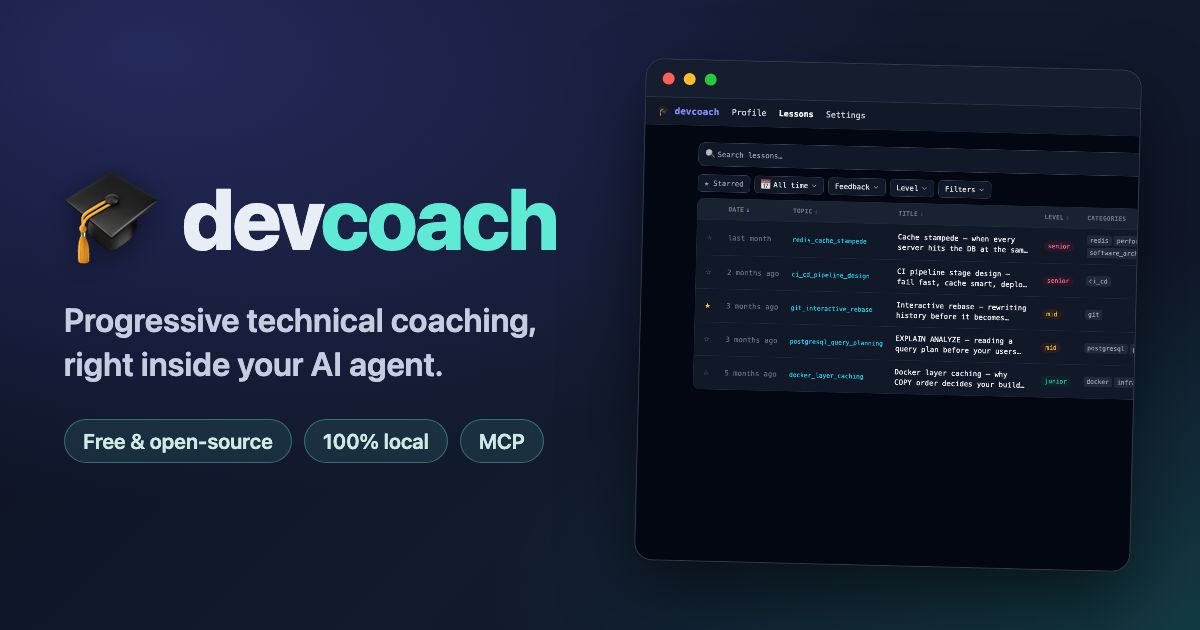




Stay sharp while your AI does the work.
devcoach connects to Claude Code, Claude Desktop, Gemini CLI (beta), Codex CLI (beta), Cursor, Windsurf, and other MCP-compatible tools. When your agent finishes a task, devcoach teaches you one thing from it that you don't know yet: it keeps a map of what you already know precisely so it can skip it, and pitches each lesson at your level — no generic tutorials, no repeated topics, nothing to open.
Everything runs locally. No data leaves your machine. One SQLite file at ~/.devcoach/coaching.db.
Built on the official Model Context Protocol TypeScript SDK, Node's embedded
node:sqlite, Hono (web dashboard), and Commander (CLI). Requires Node.js ≥ 24.
Why devcoach?
AI agents now write much of our code — which makes it easy to ship more while understanding less. devcoach turns the tasks your agent finishes into short, in-context lessons on what you don't know yet, so you keep learning as you go. The deeper bet: as AI grows more capable, the scarce skill becomes validating what it produces — and that ability only survives if you keep practicing it.
How it works
flowchart TD
    A([Task completed]) --> B{"stop-hook:<br/>paced + rate limit ok?"}
    B -->|not yet| Z(["Silent — counter +1"])
    B -->|due| C["Cue: activate the devcoach skill"]

    subgraph skill["devcoach skill"]
        C --> D{"Technical work?"}
        D -->|no| S[skip_lesson]
        D -->|yes| E[Select topic & depth]
        E --> G[log_lesson]
        G --> F[Print lesson card]
    end

    S --> Y(["Silent — pacing re-armed"])
    F --> H(["Done — counter reset"])
    F -.->|prompts| U(["You: ✅ / 💡 / ❌"])
→ Full decision flow: session startup · lesson selection · depth calibration
Privacy by design
Everything stays on your machine. No telemetry, no accounts, no calls home. Just one SQLite file.
Installation
devcoach runs locally — a stdio MCP server that stores everything in ~/.devcoach/coaching.db on the machine where your agent runs. It works in Claude Code, Claude Desktop, Gemini CLI (beta), and Codex CLI (beta), but not on claude.ai web (which only supports hosted/remote connectors).
Requires Node.js ≥ 24 (devcoach uses the embedded node:sqlite module, available only from Node 24 onward).
Pick by how you like to work — each section is self-contained (install and connect):
- Developer, comfortable in a terminal → Homebrew — one
brew install, and you get thedevcoachCLI too. - Prefer a one-click, no-terminal setup → the Claude Code plugin or the
.mcpbextension. - Registry-aware MCP client? devcoach is listed in the official MCP Registry as
io.github.UltimaPhoenix/devcoach— install it straight from there. - Anything else (npx, manual config, other agents, claude.ai web) is under Other install methods.
Homebrew (recommended for developers)
macOS / Linux. Add and trust the tap once, install, then connect — you also get the devcoach CLI (so devcoach ui and the CLI work without an npx prefix):
# 1. Add the tap — registers github.com/UltimaPhoenix/homebrew-tap with Homebrew
brew tap UltimaPhoenix/tap

# 2. Trust the whole tap — required when Homebrew enforces HOMEBREW_REQUIRE_TAP_TRUST
brew trust --tap UltimaPhoenix/tap

# 3. Install
brew install devcoach

# 4. Connect (Homebrew puts `devcoach` on your PATH — no `npx -y` prefix needed)
devcoach install
brew tap registers the third-party repository; brew trust --tap marks it trusted so Homebrew will load its formulae when HOMEBREW_REQUIRE_TAP_TRUST is set. Both are one-time. To update later: brew upgrade devcoach, then devcoach install again — Homebrew updates only the binary, the hooks and the skill it wired into your agents are refreshed by that second command (the Claude Code plugin does this automatically, which is why plugin + Homebrew is the nicest combination for Claude Code users: the plugin owns the coaching wiring, Homebrew adds the CLI — and then you skip devcoach install). One-liner: brew install UltimaPhoenix/tap/devcoach (run brew trust --tap UltimaPhoenix/tap first if your Homebrew enforces tap trust). The formula declares depends_on "node", so Homebrew pulls in a recent Node automatically.
Claude Code plugin (recommended for Claude Code)
The simplest way to add devcoach to Claude Code — one click, nothing to configure. It bundles everything (MCP server + automatic-coaching Stop hooks + skill), so don't also run devcoach install (or the Stop hooks get registered twice).
# Add the marketplace once, then install (you can install any UltimaPhoenix plugin from it later)
/plugin marketplace add UltimaPhoenix/claude-plugins-marketplace
/plugin install devcoach@ultimaphoenix
The MCP server, hooks, and skill activate on install — no restart needed. Open the web dashboard right from Claude Code with /devcoach:ui (or just ask — the open_ui tool); /devcoach:share and /devcoach:import hand lessons around; /devcoach:course turns a lesson you couldn't follow into a step-by-step course. Update later with /plugin marketplace update ultimaphoenix. Want what's coming next? The beta channel installs the latest canary as devcoach@ultimaphoenix-beta.
The plugin does not add the devcoach CLI, but the CLI stays a handy companion when you want the dashboard or your data without going through Claude — devcoach ui, stats, lessons, share / import, backup: run them with npx -y devcoach …, or install Homebrew / npm i -g devcoach for a bare devcoach. Just never run devcoach install next to the plugin — it owns the hooks.
Offline install (no marketplace access)
# Download devcoach-plugin-<version>.zip from a GitHub Release, unzip, then:
/plugin marketplace add /path/to/unzipped-folder
/plugin install devcoach@devcoach
See Claude Code plugin for how it works.
Claude Desktop extension (.mcpb) (recommended for Claude Desktop) — Beta
A single bundle that runs on Claude Desktop's built-in runtime — no Node or terminal needed. Every GitHub Release ships one:
- Download
devcoach-<version>.mcpbfrom the latest release - Claude Desktop → Settings → Extensions → Install Extension… → pick the
.mcpb
The bundle is self-signed, so Claude Desktop installs it as an unverified publisher (a real code-signing cert would be needed for a verified signature). Prefer to build it from source?
npm run mcpb # → dist-mcpb/devcoach-<version>.mcpb (npm run mcpb:sign self-signs it)
Other install methods — Beta
npx / npm CLI (any MCP agent — no install)
No install required — npx runs devcoach on demand. For Claude Code and Claude Desktop, one command registers the MCP server, wires up automatic lesson delivery (Stop hooks), and installs the coaching skill into ~/.claude/skills/devcoach/:
npx -y devcoach install
Restart your agent afterward. Prefer a global binary? npm install -g devcoach, then run devcoach install (and drop the npx -y prefix everywhere). After upgrading devcoach, re-run devcoach install to refresh the skill — devcoach stats reminds you when it's out of date.
Canary builds: every change merged into the develop branch is published to npm under the next tag — npx -y devcoach@next (or npm install -g devcoach@next) runs the unreleased version, documented at ultimaphoenix.github.io/dev-coach/next. latest stays the last release.
Manual MCP config for Claude Code (if devcoach install isn't available)
Option A — via the claude mcp CLI (recommended):
claude mcp add devcoach npx -- -y devcoach mcp

# all projects (user scope)
claude mcp add --scope user devcoach npx -- -y devcoach mcp
Option B — edit ~/.claude.json directly:
{ "mcpServers": { "devcoach": { "type": "stdio", "command": "npx", "args": ["-y", "devcoach", "mcp"] } } }
Then add the hooks to ~/.claude/settings.json for automatic lesson delivery — stop-hook decides
after each turn whether a lesson is due, prompt-hook primes the model up front when one is:
{
  "hooks": {
    "Stop": [
      { "hooks": [{ "type": "command", "command": "npx -y devcoach stop-hook", "timeout": 60 }] }
    ],
    "UserPromptSubmit": [
      { "hooks": [{ "type": "command", "command": "npx -y devcoach prompt-hook", "timeout": 30 }] }
    ]
  }
}
Tip: a global install puts
devcoachon yourPATH, so you can drop thenpx -yprefix.devcoach installdetects this automatically. Using the Claude Code plugin (above)? Skip the hooks here — the plugin already provides them.
Gemini CLI — full coaching loop (hooks + skill) — Beta
One command registers the MCP server, the AfterAgent/BeforeAgent lesson hooks, and the coaching skill:
npx -y devcoach install --gemini
Or install the bundled Gemini extension instead: download devcoach-gemini-extension-<version>.zip from the latest release, unzip, then gemini extensions install <folder>. Pick one of the two (both provide the same hooks; devcoach detects the extension and skips duplicates). Details: docs/install/gemini-cli.md.
Codex CLI — full coaching loop (hooks + skill) — Beta
One command registers the MCP server (codex mcp add), the Stop/UserPromptSubmit lesson hooks (~/.codex/hooks.json), and the coaching skill (~/.agents/skills/):
npx -y devcoach install --codex
Codex asks you to trust the new hooks once on the next run — approve them or coaching stays inert. Details: docs/install/codex.md.
Other MCP agents (Cursor, Windsurf, Cline, Continue, Zed…)
Add this to your agent's MCP config file (or, if your client browses the MCP Registry, install io.github.UltimaPhoenix/devcoach from there):
{
  "mcpServers": {
    "devcoach": {
      "command": "npx",
      "args": ["-y", "devcoach", "mcp"]
    }
  }
}
| Agent | Config file |
|---|---|
| Cursor | ~/.cursor/mcp.json |
| Windsurf | ~/.codeium/windsurf/mcp_config.json |
| Cline (VS Code) | VS Code Settings → cline.mcpServers |
| Continue.dev | ~/.continue/config.json → mcpServers |
| Zed | .zed/settings.json → context_servers |
Stop hooks (automatic lesson delivery after each task) exist for Claude Code, Gemini CLI, and Codex CLI. The agents in this table have full access to all MCP tools and resources — coaching can be triggered manually or by prompting your agent.
claude.ai web (skill copy — no MCP)
Claude.ai does not support MCP servers. Install the coaching instructions as a skill instead:
- Copy the content of
assets/SKILL.md - Go to claude.ai → Settings → Custom instructions (or Skills, depending on your plan)
- Paste the content and save
This gives claude.ai the coaching behaviour without the MCP tools (lesson logging and profile tracking will not work).
Keep the skill up to date. For Claude Code / Claude Desktop, the skill is served automatically (via the MCP prompt or the plugin) and is always current. If you copied it manually to claude.ai, re-paste the latest
SKILL.mdafter each devcoach update.
Onboarding
The first time your agent connects to devcoach it detects that your profile isn't set up and walks you through it inline — no separate command needed. (Prefer the terminal? devcoach setup runs the same wizard.)
Phase 1 — Choose how to set up your profile
devcoach scans your full local Claude Code history (every project the agent has worked in, ranked by recent activity — file and activity metadata only, never prompt text) and offers four ways to build the profile:
devcoach: Your knowledge profile isn't set up yet. I scanned 9 of your Claude Code
projects and found TypeScript (dev-coach), Java (discordbot), Swift (blueprince).

  1. Automatic (strongly recommended) — build the profile from that, no questions asked
  2. Automatic (Deep)   — also read my local session transcripts for a sharper profile
  3. Guided             — a step-by-step conversation about my stack
  4. Import backup      — restore a devcoach backup zip
Phase 2 — Build your profile
Automatic (strongly recommended)
Builds the whole profile — topics, confidence scores, groups, and the coaching notebook — in one pass from the stack detected across your history. No questions: you review and adjust the result afterwards (in chat, with the CLI, or in the dashboard).
Automatic (Deep)
Opt-in. Everything Automatic does, plus a separate subagent reads the real conversation text of your local Claude Code session transcripts (~/.claude/projects/) for the most accurate profile and notebook it can produce. A metadata-only pre-check runs first over a rolling 3-month window; if it finds more than 8 projects, devcoach asks whether to narrow the window, proceed with the 25 most recent, or pick specific projects. The agent says so up front: this shares more of your own local history with the model than the metadata scan does — once, on this machine, as a setup step.
Guided
Prefer to describe your stack yourself? devcoach asks about each technology and your confidence level (1–3 still learning · 4–6 comfortable · 7–9 strong · 10 expert), agrees the topic groups with you, then saves the profile.
Import backup
On a new machine or reinstalling? Provide the path to your backup zip and your full profile — knowledge map, lessons, settings, and notebook — is restored instantly.
Phase 3 — Profile saved, coaching begins
After saving, your agent shows what was set up, grouped the way your knowledge map is organised — for the Automatic modes this is your first look at it, so it's the moment to ask for changes:
✓ Profile saved — 24 topics across 6 groups.

### Languages
- **typescript** — 7/10
- **java** — 5/10

### DevOps
- **docker** — 7/10
- **github_actions** — 6/10

### Other
- **regex** — 4/10

Change any of this later in chat ("set my Java confidence to 7"), with the
`devcoach` CLI, or in `devcoach ui`.
That's it. You go back to work. Coaching happens silently in the background.
Your first lesson
You work on a task as normal. After your agent responds, devcoach appends a lesson:
You: Refactor this endpoint to handle concurrent requests properly.

Agent: [refactors the code, explains the changes]

### ──────── 🎓 devcoach ────────
**Promise.allSettled vs Promise.all — don't let one failure sink the batch** · TypeScript · Mid

Promise.all rejects the moment any promise rejects, and you lose the results of
the ones that already succeeded. For independent work (fan-out fetches, batch
writes) that's usually the wrong default.

Promise.allSettled always resolves, giving you a status for every promise:

    const results = await Promise.allSettled(ids.map(fetchUser));
    const ok = results.filter(r => r.status === "fulfilled").map(r => r.value);

Use Promise.all when the tasks are genuinely all-or-nothing; reach for
allSettled when partial success is meaningful and you want to report failures.

💡 *Senior tip:* for coordinated work that *should* cancel siblings on failure,
an AbortController shared across the requests gives you all-or-nothing with
prompt cancellation — the structured-concurrency middle ground.
### ──────── typescript · mid ────────

Did that land? ✅ knew it (y) · 💡 understood (u) · ❌ couldn't follow (n)
Reply y (already knew it — confidence goes up), u (new and clear) or n (too dense — kept as a seed for a step-by-step course) to shape future lessons — or just move on: no reply means no change.
Screenshots
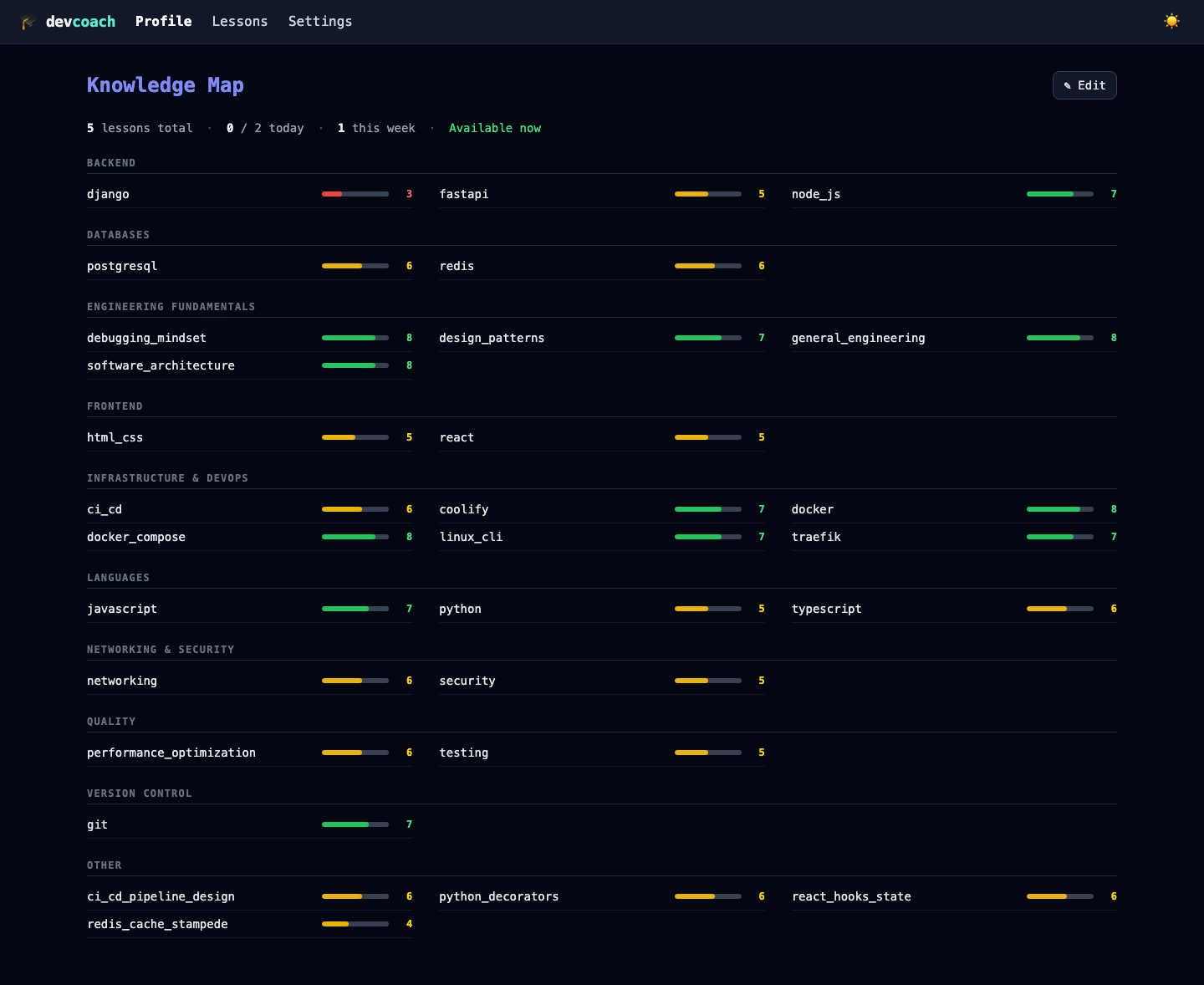
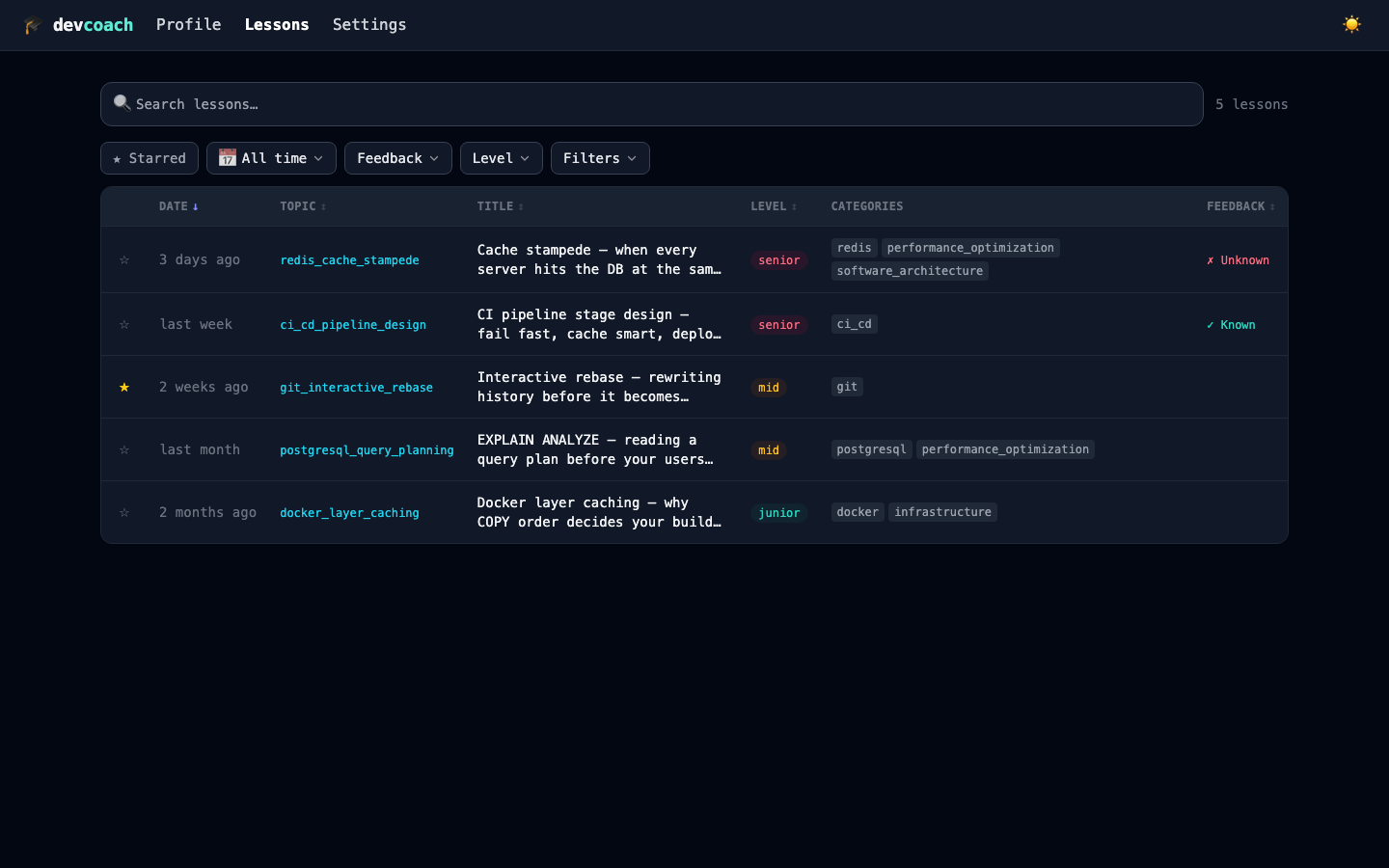
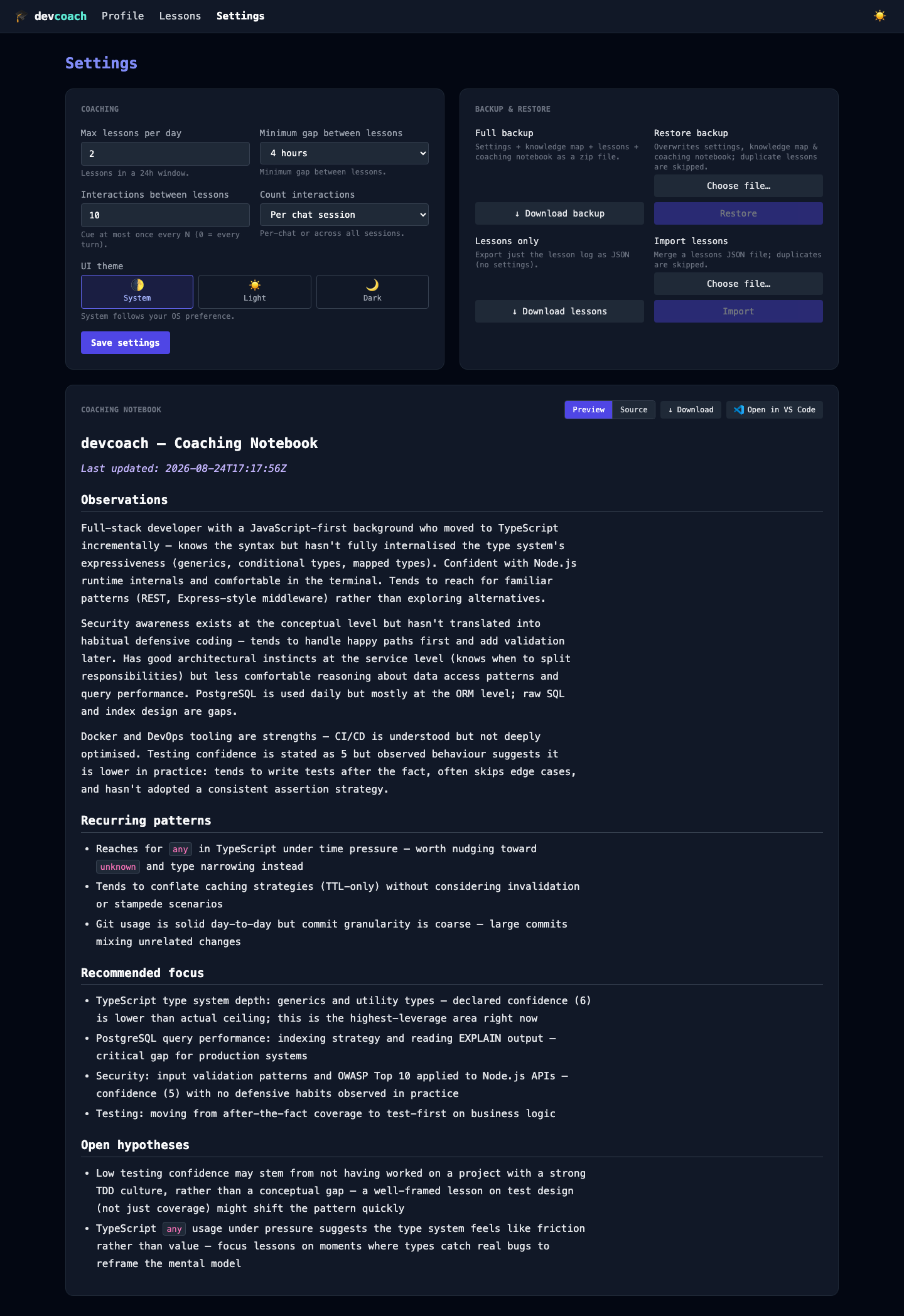
| Knowledge map (personalize here) | Lesson history | Settings |
|---|---|---|
 |  |  |
| A course, one step at a time |
|---|
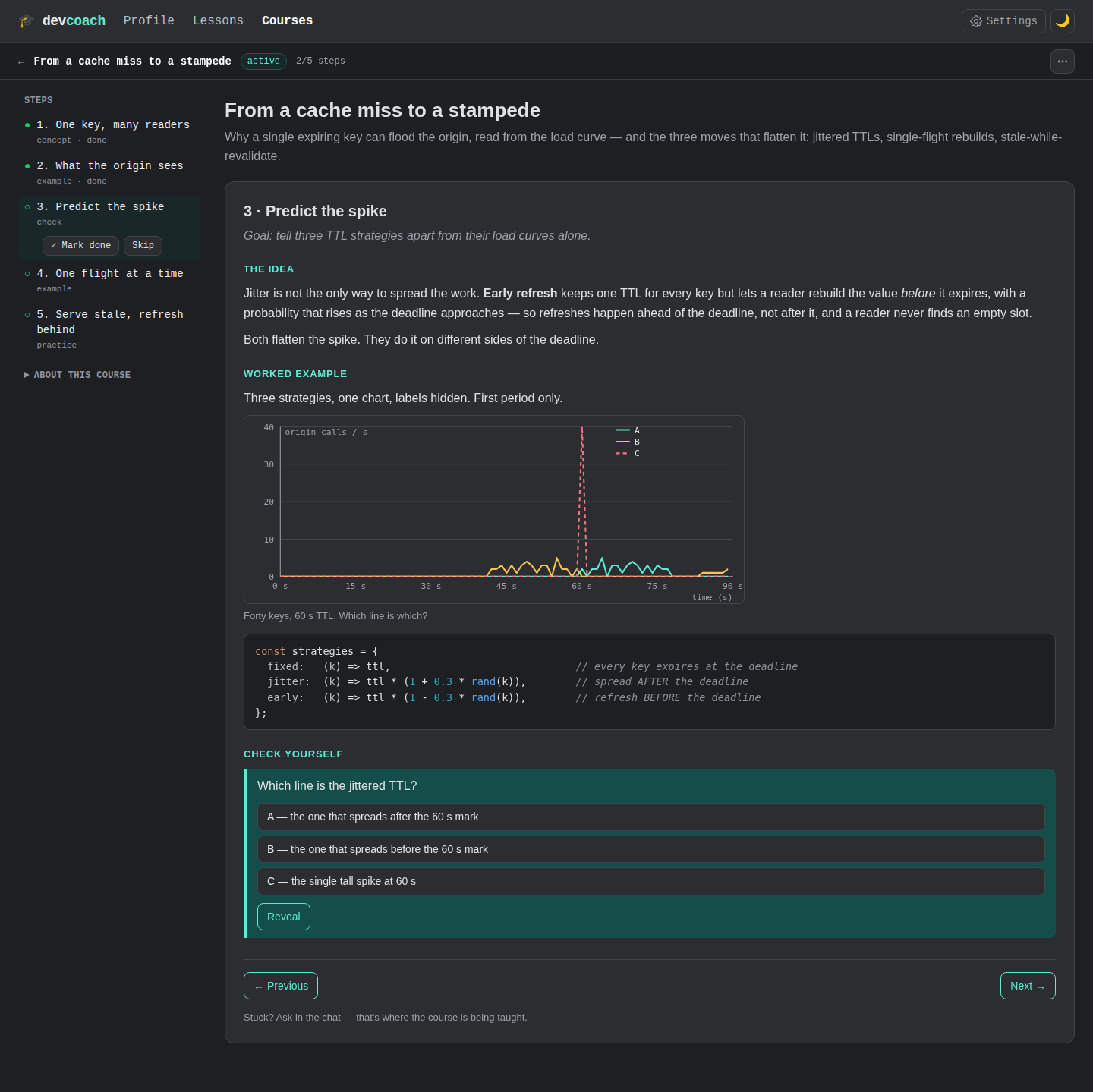 |
Context & personalization
Every lesson stores where it happened — your project folder, repository, branch, commit hash, editor. You can also personalize your coaching with a learning notebook at ~/.devcoach/learning-state.md that shapes which topics devcoach prioritises and how deep the lessons go.
→ The coaching notebook · Web dashboard guide
Web dashboard
Open the dashboard at any time to review your progress, edit your profile, or manage settings:
npx -y devcoach ui          # → http://localhost:7860 (printed as a clickable link; Ctrl+C stops it)
npx -y devcoach ui --open   # …and open it in your browser
npx -y devcoach ui --stop   # stop a running dashboard, e.g. one your agent started
Using the Claude Code plugin? Type /devcoach:ui in Claude Code instead — no install needed (/devcoach:ui stop closes it).
| Page | What you can do |
|---|---|
| Knowledge map | See all topics with confidence bars; adjust scores directly |
| Lessons | Browse and filter your full lesson history; star lessons to revisit; share a lesson with a teammate or import theirs |
| Settings | Change rate limits, import/export your profile, take a backup |
Full reference: docs/usage/web-ui.md
Sharing lessons
A lesson that landed for you is one action away from a teammate — as copyable text (the card plus one devcoach:lesson:1:… line), a server-less link, or a .devcoach.md file. The receiver pastes, clicks or drops it into their own devcoach, where it joins the log as shared by you and never touches their daily limit. Only the lesson travels unless you include where it happened; a local path never does.
devcoach share --last            # or --link / --file, --with-context, --by "Ada" / --anonymous
devcoach import                  # reads the clipboard; or pass a code, link, URL, file, or - for stdin
From the dashboard: ↗ Share on a lesson and + Import on the Lessons page (drop a .devcoach.md anywhere). From your agent: "share the last lesson", "import this devcoach lesson: …" — with the plugin, /devcoach:share and /devcoach:import. Full guide: docs/usage/sharing.md
CLI reference
The CLI is a secondary interface for querying and managing your coaching data. Everything is also available in the web dashboard. Run devcoach --help or devcoach <command> --help for full usage.
| Command | Description |
|---|---|
devcoach install | Register with Claude Code (MCP + hooks + skill) / Claude Desktop |
devcoach profile | Show your knowledge map with confidence bars |
devcoach stats | Overview: lesson counts, weakest/strongest topics |
devcoach lessons | Browse lesson history with filters |
devcoach lesson <id> | Show a single lesson in full |
devcoach star <id> | Mark a lesson as starred |
devcoach feedback <id> <know|understood|dont_know|clear> | Record your answer under a lesson |
devcoach share [id] [--last] [--link] [--file] | Hand a lesson to a teammate (copyable text, link or .devcoach.md) |
devcoach import [source] | Add a shared lesson — code, link, URL or file; no argument reads the clipboard |
devcoach set max_per_day <n> | Max lessons per day (default 2) |
devcoach set min_gap_minutes <n> | Minutes between lessons (default 240) |
devcoach backup [file.zip] | Export knowledge + lessons + settings + notebook |
devcoach restore <file.zip> | Restore from a backup |
devcoach setup | Run the onboarding wizard in the terminal |
devcoach ui | Open the web dashboard |
(Prefix with npx -y if you haven't installed globally.) Full reference: docs/usage/cli.md
Configuration
By default: up to 2 lessons/day, at least 4 hours apart. Want more coaching? Want less? Change it.
devcoach set max_per_day 5           # more lessons per day
devcoach set min_gap_minutes 60      # lessons closer together
Or use the web dashboard Settings page. See docs/reference/configuration.md for all options.
Expected outcomes
Over a typical work week with 1–2 tasks per day, you'll receive 2–4 lessons aligned to your stack and confidence level. Each lesson takes 30 seconds to read. After a month of normal AI-assisted development, you'll have built a coaching notebook specific to your gaps — exact patterns you struggle with, edge cases you tend to miss, the reasoning behind tools you reach for instinctively.
Too intense? Dial back the frequency: devcoach set max_per_day 1. Want more coaching? Crank it up: devcoach set max_per_day 5. Everything is tunable.
The compounding effect: developers who keep learning while tools get stronger stay in control of the result.
Troubleshooting
"Node version error"
devcoach requires Node.js ≥ 24. Check your version: node --version. If you're below 24, upgrade: brew upgrade node (Homebrew) or nvm install 24 (if using nvm).
"Failed to install plugin devcoach@ultimaphoenix: … invalid manifest … repository: expected string"
Plugin releases up to 1.0.1 shipped a manifest that current Claude Code rejects, so the install stopped before copying anything. Refresh the marketplace so it points at the latest release, then install again:
/plugin marketplace update ultimaphoenix
/plugin install devcoach@ultimaphoenix
"MCP server not connecting"
With the Claude Code plugin (plugin:devcoach:devcoach failed to connect): run /devcoach:setup — its first step prints the reason (Node older than 24, npm not on the PATH, no network on the first run) and the fix; then reconnect from /mcp. Do not run devcoach install for a plugin. Details: plugin troubleshooting.
Without the plugin (npm / Homebrew, Claude Desktop): run devcoach doctor: it checks the command each agent starts (Claude Desktop's from claude_desktop_config.json, Claude Code's from ~/.claude.json) — that it exists on the PATH that agent uses, that the Node it names exists and is ≥ 24, and which devcoach version it runs. Then devcoach install --force re-registers it with an absolute command, and you restart the agent. In Claude Desktop's log (~/Library/Logs/Claude/mcp-server-devcoach.log), Failed to spawn process: No such file or directory means devcoach never ran: the command, or the Node behind it, is missing — see When devcoach does not start. Every devcoach start writes one line to that log with its version, Node and install location.
"Coaching isn't firing / no lessons appear"
Run devcoach doctor — it checks the whole wiring (Node version, hook entries in ~/.claude/settings.json — plus ~/.gemini/settings.json and ~/.codex/hooks.json when present — skill, MCP registration, database, pacing counters, rate limit) and ends with a verdict explaining exactly why the next stop would or wouldn't cue a lesson. Remember that pacing is intentionally quiet: with the defaults a lesson is cued only after nudge_every interactions in a session and within the rate limits — that's by design, not a bug. For a live trace, set DEVCOACH_HOOK_DEBUG=1 and watch ~/.devcoach/hook.log: every hook run appends one line with its decision (paced (3/10), rate limited: …, cue). Hooks exist for Claude Code, Gemini CLI (beta), and Codex CLI (beta); other agents (Cursor, Windsurf, Cline) don't support them — coaching is available on demand via MCP tools or manual prompting.
"Stop hook error occurred" next to a lesson
That notice is Claude Code's current labeling of any Stop hook that blocks — including devcoach's lesson cue (the accompanying "🎓 devcoach…" line tells you it's coaching, not a failure). It's harmless, and by design it's also rare: the UserPromptSubmit priming hook delivers most lessons within the turn, so the blocking fallback only fires when that didn't happen.
"SQLite permission error"
devcoach writes to ~/.devcoach/coaching.db. If you get a permission error, check the directory exists and you have write access: ls -ld ~/.devcoach. If missing, run devcoach install or devcoach setup to initialize it.
Known limitations
- claude.ai web: MCP servers are not supported. You can use the skill copy (coaching behaviour only, no data storage).
- Ephemeral sandboxes: If your agent runs in a fresh sandbox on each restart (like GitHub Codespaces), devcoach cannot persist data across sessions. It works fine for the current session, but lessons won't carry over.
- Windows: devcoach is tested on macOS and Linux. Windows support depends on Node.js ≥ 24 and
node:sqliteavailability (generally solid, but report issues). - Multi-user machines: devcoach writes to
~/.devcoach/, so each user gets their own coaching database. Profiles are not shared.
Uninstallation
One command undoes everything devcoach install wired up — the MCP registration, the hook entries and the skill — for Claude Code and Claude Desktop (add --gemini, --codex or --all for the beta agents). Your coaching data stays unless you ask for it to go:
devcoach uninstall                 # remove MCP server + hooks + skill (Claude Code + Claude Desktop)
devcoach uninstall --all --data    # every agent, and delete ~/.devcoach (asks first; devcoach backup before)
npm uninstall -g devcoach          # then remove the program (npx: nothing to remove)
brew uninstall devcoach            # or, via Homebrew (brew untap UltimaPhoenix/tap to drop the tap)
Run devcoach uninstall before brew uninstall / npm uninstall: Homebrew formulae have no uninstall hook, and once the binary is gone the hooks left in ~/.claude/settings.json would error on every turn. Using the Claude Code plugin instead? /plugin uninstall devcoach removes its hooks, skill and server in one go.
Learn more
Full documentation: The README is a quick start. For detailed guides, visit the official docs:
- Why devcoach exists — the philosophy
- Coaching in your agent — onboarding, your first lesson, the feedback loop
- Using the web dashboard — personalise your knowledge map, filter lessons, jump to code context
- CLI reference — all commands for querying and managing data
- Installation — every install method, agent by agent
- Configuration — rate limits, pacing, data location, schema
- Privacy & security — local-first architecture, what is read and stored
- How it works — session startup, coaching loop, lesson selection
- Vision & roadmap — free, local, not commercialized; ideas we're exploring next
- Plugin marketplace — UltimaPhoenix plugin collection
Community
- Star the repo — help others discover it
- GitHub Issues — feature requests, feedback and questions: open an issue
Contributing
Help welcome! See CONTRIBUTING.md to get started.
Development
git clone https://github.com/UltimaPhoenix/dev-coach && cd dev-coach
npm install
npm run dev -- mcp        # run the MCP server from source
npm run dev -- ui         # run the web dashboard from source
npm run lint && npm run typecheck && npm test
npm run build             # tsup → dist/bin.js
npm run mcpb              # build the Claude Desktop .mcpb (npm run mcpb:sign to self-sign)
- MCP Inspector:
npx @modelcontextprotocol/inspector node dist/bin.js mcp - Stack:
@modelcontextprotocol/server(MCP SDK v2) ·node:sqlite· Hono · Commander · Zod · Biome · Vitest · tsup
Branches & releases
developis the integration branch: every PR targets it, and each merge publishes a canary (npx -y devcoach@next, docs at/next/).mainonly receives releases and is always the last published version (the Claude Code self-marketplace installs from it).- A release is one click: run the CI workflow (Run workflow → patch / minor / major) on
develop. CI bumps the version ondevelop, tags it, fast-forwardsmain, then publishes to npm via OIDC provenance, attaches the.mcpb+ plugin zips to a GitHub Release, and updates the Homebrew tap, the plugin marketplace and the MCP Registry. First-time setup: configure a Trusted Publisher on npmjs.com for thedevcoachpackage (GitHub Actions, repoUltimaPhoenix/dev-coach, workflowci.yml).
License
Copyright (C) 2026 UltimaPhoenix
devcoach is licensed under the GNU Affero General Public License v3.0 (AGPL-3.0-only).
You may use, modify, and distribute it — provided that any modified version you distribute, or run
as a network service, is also released as open source under the AGPL. There is no commercial
license on offer today; if you need to embed devcoach in a closed-source product,
open an issue and ask.
Licensing FAQ
devcoach is and stays 100% free to download, install, and use — for everyone, forever, including at work and on commercial projects. AGPL is not a price tag: you only ever pay if you want to ship a proprietary/closed derivative of devcoach itself without complying with the AGPL.
Using devcoach does not put your code under the AGPL. It runs as a separate process over
stdio/MCP (npx -y devcoach mcp); talking to it at arm's length is not a derivative work — exactly
like querying an AGPL-licensed database. Your own projects keep whatever license you choose.
- ✅ "I use devcoach inside Claude Code while building my closed-source startup app." — Free. Your app stays proprietary, zero obligations.
- ✅ "My whole team installs devcoach to get coaching on our internal/commercial repos." — Free. Using the unmodified tool at a company is fine.
- ⚠️ "I fork devcoach, add a feature, and publish the package or host its dashboard as a public service." — You must release your modified devcoach source under the AGPL.
- 💼 "I want to embed devcoach in my paid product and keep my changes closed." — Not covered by the AGPL — ask first by opening an issue.
Keep using devcoach as a tool/executable (not as an imported library) and the AGPL never reaches your own code.