Schema-aware read/write access to QuickBooks Online through Devart dotConnect ADO.NET data provider.
Quick Install
Automated & IDE SetupCopy the AI prompt to install this server into Claude Code, Cursor, or another agent — or use 1-click editor setup below.
One-click editor setup isn’t available for this listing yet — we don’t have a confirmed install command, and we’d rather show nothing than point your editor at the wrong package or host. Follow the project’s own setup instructions, linked above.
Manual Client & Custom JSON ConfigExpand JSON ▾
No confirmed setup config for this listing yet. We only publish a config block when the install details come from the project itself — its README, its docs, or a verified owner. We haven’t found those for Devart MCP Server for QuickBooks Online (ADO.NET), and we’d rather show nothing than a guess you’d paste into your client. Follow the project’s own setup instructions for the current steps.
Documentation Overview
Version 1.1.0
Devart MCP Server for QuickBooks Online
Devart MCP Server for QuickBooks Online enables AI clients to interact with your data through a secure server running in your environment. It turns a regular AI chat into a practical way to work with real-world business data — and it is faster than conventional export or manual querying.
Key benefits
Devart MCP Server for QuickBooks Online allows you to:
- Work with data intuitively through natural language.
- Retrieve the required data for analysis within minutes.
- Report on your data faster with AI-powered assistance.
- Minimize manual data handling and integration maintenance.
How it works
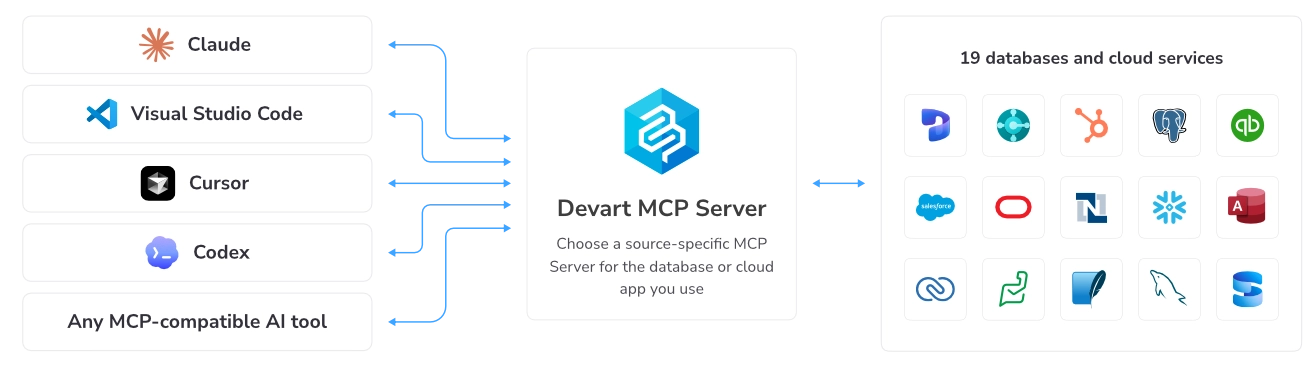
Devart MCP Server for QuickBooks Online helps AI clients communicate directly with QuickBooks Online databases using natural-language prompts. It translates AI requests into structured queries, executes them through Devart connectivity drivers, and returns clean, structured results for seamless AI-powered data access.
Quick start
To get started with Devart MCP Server for QuickBooks Online:
1. Download and install Devart ODBC Driver for QuickBooks Online.
2. Download and install Devart MCP Server for QuickBooks Online.
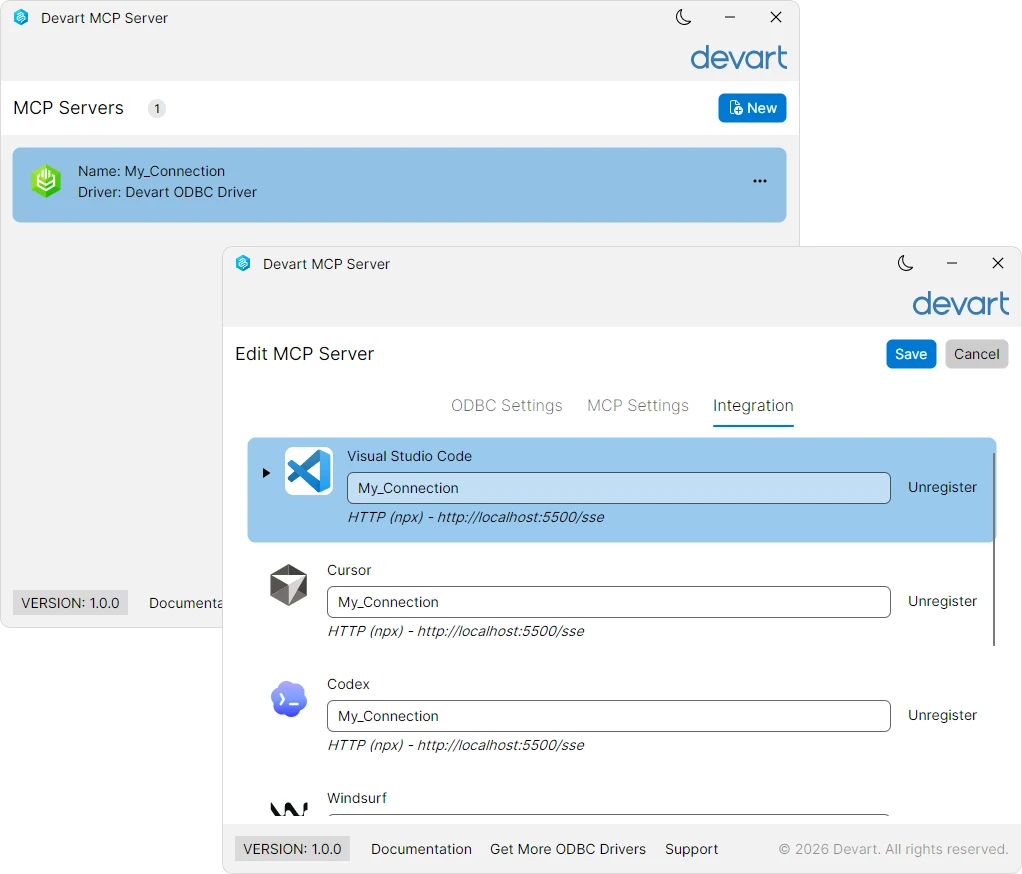
3. In Devart MCP Server for QuickBooks Online, configure your data connection and integration settings.
4. Run your first natural-language query.

Manual installation and configuration
Prerequisites
Before building and running Devart MCP Server for QuickBooks Online, ensure the following components are installed:
- .NET 8 SDK
- ADO.NET connection — Devart.AI.McpServer.AdoNet.QuickBooks.csproj Devart dotConnect for QuickBooks Online (installed automatically via NuGet during build)
- ODBC connection — Devart.AI.McpServer.Odbc.QuickBooks.csproj Devart ODBC Driver for QuickBooks Online (requires manual download and installation)
Step 1: Clone the repository
Clone the project repository and navigate to the project directory:
1. Open Command Prompt.
2. Enter the following command:
Step 2: Build the MCP Server from source
You can build Devart MCP Server for QuickBooks Online from source using either of the supported database connectivity technologies: ADO.NET or ODBC.
- To build the MCP server with ADO.NET, run the following command:
The Devart dotConnect for QuickBooks Online NuGet package is downloaded and restored automatically.
- To build the MCP server with ODBC, select the command based on the bitness of your data source.
For 64-bit data source, run the following command:
For 32-bit data source, run the following command:
Note
The target platform must match the bitness of your ODBC data source.
Step 3: Configure the database connection for the MCP Server
1. Create an mcpserver.json configuration file in the directory containing the built MCP Server executable.
2. In the file, configure the database connection.
- Configure a connection with ADO.NET.
Add the following configuration to the mcpserver.json file:
- Configure a connection with ODBC.
Add the following configuration to the mcpserver.json file:
- Configure a connection with ODBC using a connection string.
Add the following configuration to the mcpserver.json file:
where:
-
Name— The connection name. -
ConnectionString(applies to ADO.NET) — A database-specific connection string used to establish a connection to the target database. -
DsnName(applies to ODBC) — The name of your data source. -
ProtocolType— A transport protocol. The possible options are:stdioorhttp. -
HttpPort(required ifProtocolTypeis set tohttp) — The port number for thehttpprotocol.
Step 4: Run the MCP server
After you configure the MCP Server, you can start it.
Note
This step is required only when
ProtocolTypeis configured ashttp. If you use thestdiotransport protocol, your AI client starts the server automatically.
- To start the server with ADO.NET, run the following command:
- To start the server with ODBC, run the following command:
where my_quickbooks is the name of the ODBC connection.
Step 5: Integrate with Claude Desktop
1. Open claude_desktop_config.json, the Claude configuration file.
Tip
If you can't locate the configuration file, it may not exist yet. To create it, open Claude Desktop and navigate to File > Settings > Developer, then click Edit Config. The folder with the
claude_desktop_config.jsonfile opens.
2. Add one of the following objects, depending on the transport protocol used by MCP Server:
- STDIO
where:
-
devartis the connector name that will appear in Claude Desktop. -
C:\\path\\to\\Devart.AI.McpServer.AdoNet.QuickBooks.exeis the path to the executable file. For an ODBC connection, useDevart.AI.McpServer.Odbc.QuickBooks.exe. -
my_quickbooksis the connection name specified in themcpserver.jsonconfiguration file. -
HTTP
where:
devartis the connector name that will appear in Claude Desktop.5000is the MCP Server listening port.
3. Save the file.
4. Restart Claude Desktop.
Devart MCP Server for QuickBooks Online is now integrated with Claude, and devart appears in the Claude Desktop app in Customize > Connectors.
You can also integrate Devart MCP Server for QuickBooks Online with other AI clients such as Cline, Codex, Cursor, Visual Studio Code, Windsurf, Zed.
Supported clients
Devart MCP Server for QuickBooks Online supports integration with the following AI clients:
- Claude Desktop
- Visual Studio Code
- Cursor
- Codex
- Windsurf
- Cline
- Zed
- ...and other MCP-compatible AI clients
Typical use cases
Devart MCP Server for QuickBooks Online is a practical fit for teams working with QuickBooks Online as their primary data source.
-
Cash flow and liquidity analysis
Ask questions about current cash position, outstanding invoices, upcoming payments, and bank balances stored in QuickBooks Online. -
Expense tracking and cost analysis
Analyze expenses by vendor, category, time period, and project to understand cost trends and identify optimization opportunities. -
Accounts receivable and invoice status
Let business owners and accountants check overdue invoices, customer payment histories, and outstanding receivables from QuickBooks. -
Profit and loss reporting
Generate on-demand P&L summaries, revenue breakdowns, and expense comparisons from QuickBooks Online financial data. -
Tax preparation data access
Retrieve categorized transaction data, expense summaries, and income records from QuickBooks to support tax preparation and review.
Related MCP Servers
Reviews
No reviews yet — be the first to share how this listing worked for you.
Frequently Asked Questions about Devart MCP Server for QuickBooks Online (ADO.NET)
AllMCPs Directory Badge
Showcase your server listing on GitHub or your project documentation. Embed this dynamic SVG badge to highlight official listing status and live engagement.
Badge Style:
Live Dynamic SVG Preview
Markdown (GitHub README)
[](https://allmcps.com/mcp/devart-mcp-server-for-quickbooks-online-ado-net)HTML Embed
<a href="https://allmcps.com/mcp/devart-mcp-server-for-quickbooks-online-ado-net"><img src="https://allmcps.com/api/badge/devart-mcp-server-for-quickbooks-online-ado-net?style=directory" alt="Devart MCP Server for QuickBooks Online (ADO.NET) on AllMCPs" /></a>