Devart MCP Server for MySQL (ADO.NET) README
The full upstream README, mirrored here for reference. Install config, tool schemas, adoption signals, and an original overview live on the Devart MCP Server for MySQL (ADO.NET) listing page.
Version 1.1.0
Devart MCP Server for MySQL
Devart MCP Server for MySQL enables AI clients to interact with your data through a secure server running in your environment. It turns a regular AI chat into a practical way to work with real-world business data — and it is faster than conventional export or manual querying.
Key benefits
Devart MCP Server for MySQL allows you to:
- Work with data intuitively through natural language.
- Retrieve the required data for analysis within minutes.
- Report on your data faster with AI-powered assistance.
- Minimize manual data handling and integration maintenance.
How it works
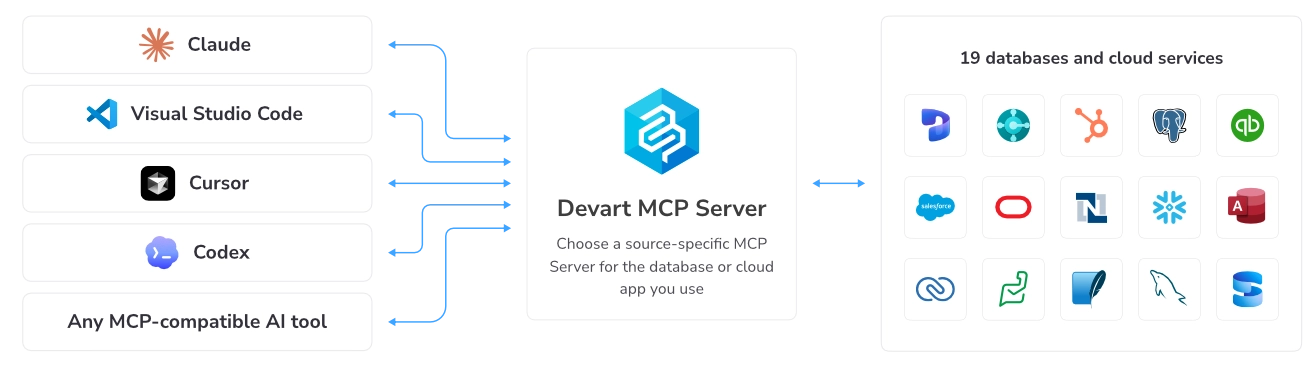
Devart MCP Server for MySQL helps AI clients communicate directly with MySQL databases using natural-language prompts. It translates AI requests into structured queries, executes them through Devart connectivity drivers, and returns clean, structured results for seamless AI-powered data access.
Quick start
To get started with Devart MCP Server for MySQL:
1. Download and install Devart ODBC Driver for MySQL.
2. Download and install Devart MCP Server for MySQL.
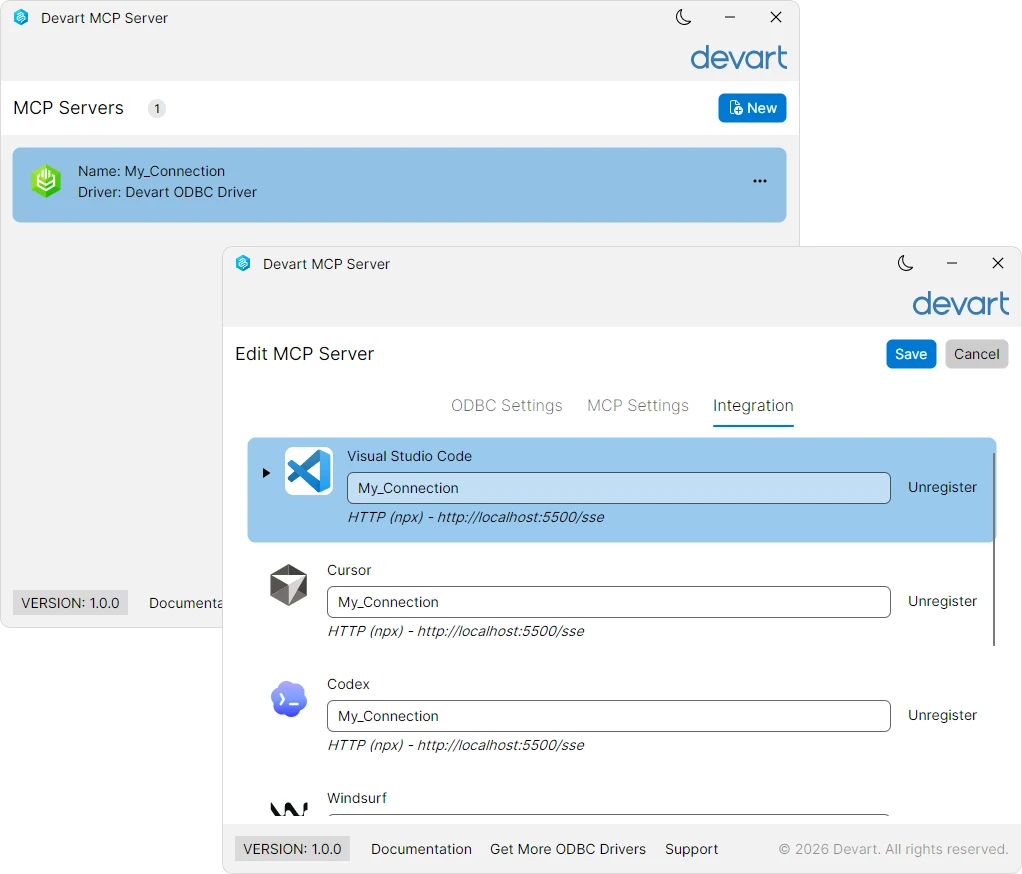
3. In Devart MCP Server for MySQL, configure your data connection and integration settings.
4. Run your first natural-language query.

Manual installation and configuration
Prerequisites
Before building and running Devart MCP Server for MySQL, ensure the following components are installed:
- .NET 8 SDK
- ADO.NET connection — Devart.AI.McpServer.AdoNet.MySql.csproj Devart dotConnect for MySQL (installed automatically via NuGet during build)
- ODBC connection — Devart.AI.McpServer.Odbc.MySql.csproj Devart ODBC Driver for MySQL (requires manual download and installation)
Step 1: Clone the repository
Clone the project repository and navigate to the project directory:
1. Open Command Prompt.
2. Enter the following command:
Step 2: Build the MCP Server from source
You can build Devart MCP Server for MySQL from source using either of the supported database connectivity technologies: ADO.NET or ODBC.
- To build the MCP server with ADO.NET, run the following command:
The Devart dotConnect for MySQL NuGet package is downloaded and restored automatically.
- To build the MCP server with ODBC, select the command based on the bitness of your data source.
For 64-bit data source, run the following command:
For 32-bit data source, run the following command:
Note
The target platform must match the bitness of your ODBC data source.
Step 3: Configure the database connection for the MCP Server
1. Create an mcpserver.json configuration file in the directory containing the built MCP Server executable.
2. In the file, configure the database connection.
- Configure a connection with ADO.NET.
Add the following configuration to the mcpserver.json file:
- Configure a connection with ODBC.
Add the following configuration to the mcpserver.json file:
- Configure a connection with ODBC using a connection string.
Add the following configuration to the mcpserver.json file:
where:
-
Name— The connection name. -
ConnectionString(applies to ADO.NET) — A database-specific connection string used to establish a connection to the target database. -
DsnName(applies to ODBC) — The name of your data source. -
ProtocolType— A transport protocol. The possible options are:stdioorhttp. -
HttpPort(required ifProtocolTypeis set tohttp) — The port number for thehttpprotocol.
Step 4: Run the MCP server
After you configure the MCP Server, you can start it.
Note
This step is required only when
ProtocolTypeis configured ashttp. If you use thestdiotransport protocol, your AI client starts the server automatically.
- To start the server with ADO.NET, run the following command:
- To start the server with ODBC, run the following command:
where my_mysql is the name of the ODBC connection.
Step 5: Integrate with Claude Desktop
1. Open claude_desktop_config.json, the Claude configuration file.
Tip
If you can't locate the configuration file, it may not exist yet. To create it, open Claude Desktop and navigate to File > Settings > Developer, then click Edit Config. The folder with the
claude_desktop_config.jsonfile opens.
2. Add one of the following objects, depending on the transport protocol used by MCP Server:
- STDIO
where:
-
devartis the connector name that will appear in Claude Desktop. -
C:\\path\\to\\Devart.AI.McpServer.AdoNet.MySql.exeis the path to the executable file. For an ODBC connection, useDevart.AI.McpServer.Odbc.MySql.exe. -
my_mysqlis the connection name specified in themcpserver.jsonconfiguration file. -
HTTP
where:
devartis the connector name that will appear in Claude Desktop.5000is the MCP Server listening port.
3. Save the file.
4. Restart Claude Desktop.
Devart MCP Server for MySQL is now integrated with Claude, and devart appears in the Claude Desktop app in Customize > Connectors.
You can also integrate Devart MCP Server for MySQL with other AI clients such as Cline, Codex, Cursor, Visual Studio Code, Windsurf, Zed.
Supported clients
Devart MCP Server for MySQL supports integration with the following AI clients:
- Claude Desktop
- Visual Studio Code
- Cursor
- Codex
- Windsurf
- Cline
- Zed
- ...and other MCP-compatible AI clients
Typical use cases
Devart MCP Server for MySQL is a practical fit for teams working with MySQL as their primary data source.
-
Web application analytics
Query user behavior, session data, conversion funnels, and engagement metrics stored in MySQL-backed web apps without writing SQL. -
E-commerce data exploration
Analyze orders, products, inventory levels, customer records, and sales trends directly from MySQL databases powering WooCommerce, Magento, or custom storefronts. -
CMS and content platform analysis
Access and analyze content, taxonomies, user activity, and publishing history from WordPress, Drupal, or other MySQL-based content platforms. -
Developer copilot for MySQL schemas
Help developers and DBAs explore table structures, trace relationships, debug queries, and understand legacy schemas faster with AI assistance. -
SaaS product and subscription reporting
Let product and finance teams extract usage metrics, subscription states, churn signals, and revenue data directly from MySQL without BI tooling. -
Secure on-premises AI access to MySQL
Keep MySQL data entirely within your infrastructure while enabling AI tools to answer questions about real business data on demand.
Licensing and activation
Devart MCP Server for MySQL is distributed as a free single-source MCP server.
To connect to MySQL, the server requires the corresponding Devart ODBC Driver for MySQL, which is a paid product.
A 30-day free trial is available for the Devart ODBC Driver for MySQL.
See the product page and documentation for the latest installation and activation details.