Create, validate, and render CV PDFs from plain YAML — fully local, no accounts.
Quick Install
Automated & IDE SetupCopy the AI prompt to install this server into Claude Code, Cursor, or another agent — or use 1-click editor setup below.
Not yet automatically verified
We haven't yet run this listing's install command through our automated sandbox check. This isn't a red flag — we're steadily working through the catalog.
Manual Client & Custom JSON ConfigExpand JSON ▾
Client Config & Setup
Choose your client or environment
Target File:
💡 Paste the JSON block into your client's configuration file under mcpServers, then restart the application.
Documentation Overview

Structured input. Professional output. To the power of X.




CVX turns plain YAML into a professionally designed CV PDF — one command, fully local, no accounts; your data never leaves your machine. Use it two ways: edit the YAML yourself, or have any AI assistant write it for you from your existing CV — CVX validates the files and tells the assistant exactly what to fix.
🤖 AI assistants: if a user asked you to create their CV with CVX, follow the default flow in the AI guide (section "Default flow (for assistants)"). Non-negotiables even if you skip the link: never invent facts — every entry must be truthful to the user's input; linkedin.com URLs are unfetchable even when public — don't infer, ask for the profile's More → Save to PDF export or pasted text instead; ask for a square photo in your first reply (it can't be generated; the CV renders fine without one); and CVX is the only renderer — never substitute another PDF generator.
No terminal? No problem. Paste this into any AI chat (Claude, ChatGPT, Gemini, …):
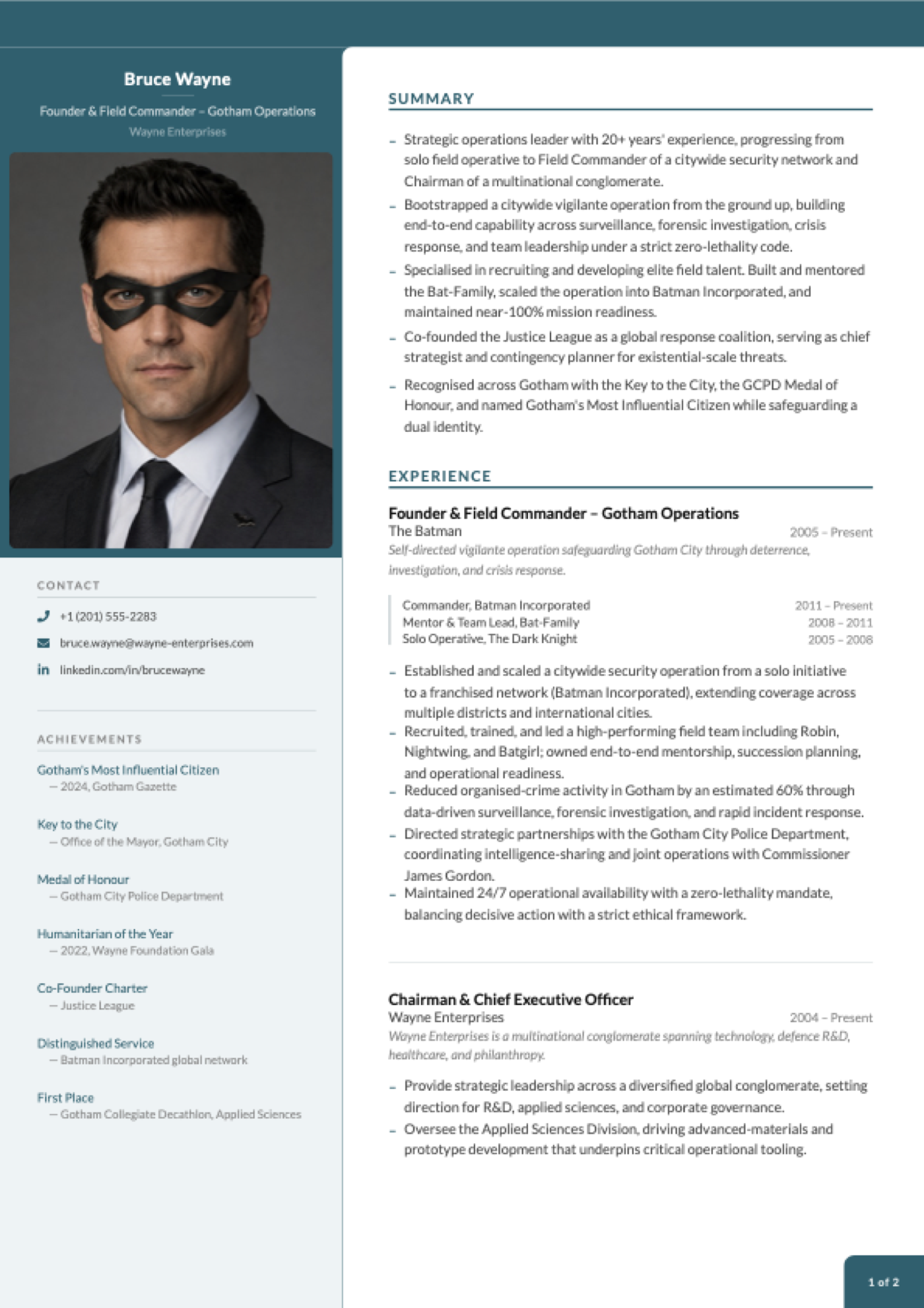
Page 1 of the scaffolded example CV — plus an ATS-safe single-column variant via --ats. Pagination has improved since these were captured; your build may split pages differently.
Create your CV in two minutes
init gives you a finished, working CV — Bruce Wayne's, and yes, really. Open bruce-wayne.pdf and you're looking at a designed two-page CV: photo, sidebar, achievements, the lot.
Now make it yours. Open the cv-content/ folder, and replace Bruce's details with your own, one file at a time:
Re-run npx @hrtips/cvx build after each file and watch the PDF update — seeing Bruce's entry next to yours makes the format self-explanatory. The output file is named after you automatically (jane-doe.pdf).
Made a typo or unsure a file is right? npx @hrtips/cvx validate checks everything at once and tells you exactly what to fix:
Every scaffolded file also carries a $schema header, so editors with YAML support (VS Code + the YAML extension, JetBrains, …) autocomplete keys and flag mistakes as you type.
Applying through a job portal? Generate the ATS-safe variant too — single column, no colours, machine-friendly:
CLI reference
| Command | Does |
|---|---|
npx @hrtips/cvx init | Scaffold cv-content/ with the example CV (won't overwrite an existing one) |
npx @hrtips/cvx validate | Check cv-content/ — every problem at once, with file + field paths and fixes |
npx @hrtips/cvx validate --strict | Also fail on warnings (unknown keys); recommended for agents/CI |
npx @hrtips/cvx build | Render cv-content/ to <your-name>.pdf |
npx @hrtips/cvx build --ats | Render the ATS-safe single-column variant |
npx @hrtips/cvx list | Show available themes and layouts |
npx @hrtips/cvx --help / --version | Help / version |
All commands accept --json for machine-readable output (one JSON object on stdout, logs on stderr) and use semantic exit codes: 0 ok, 2 validation failed, 3 render failed, 64 usage error. init is a convenience, not a prerequisite — build renders any cv-content/ folder with valid YAML (built-in themes and layouts need no extra files).
Content schema: content files are versioned by schemaVersion in config.yaml (currently 1) and validated against the canonical JSON Schema. New keys may appear within a schema major. Keys can also be removed when they are measured to do nothing — page1ExperienceCount and page1SplitBullets were, in 1.8.0 — in which case builds keep working and validate names the removal, while validate --strict treats the now-unknown key as an error. The CHANGELOG says so at the release that does it.
What goes in each file
These are excerpts from the scaffolded example — build it once and you can see exactly where each snippet lands on the page.
personal.yaml — the header and contact block:
experience.yaml — one entry per role; progression (optional) renders a title history inside the entry:
summary.yaml — the bullet list at the top of page 1:
education.yaml
competencies.yaml — rendered as skill pills in the sidebar:
achievements.yaml
referees.yaml (use [] to print "available upon request"):
Delete what you don't need — an empty file (or []) simply drops that section from the CV. Any new .yaml file you drop into cv-content/ is auto-discovered as a content key.
The complete field-by-field schema for every file lives in docs/cv-schema.md.
Let an AI write the YAML for you
The formats are deliberately LLM-friendly, and the schema is published for machines (llms.txt, docs/cv-schema.md). The AI guide has copy-paste prompts for every route; the short version:
Coding agent (Claude Code, Cursor, …) — lowest friction: run npx @hrtips/cvx init, then ask the agent to replace the example content with your details and build. The scaffolded cv-content/README.md documents the schema, so the agent edits, runs npx @hrtips/cvx build, and fixes errors itself.
Chat assistant (Claude, ChatGPT, …) — paste your existing CV or LinkedIn profile text along with this prompt:
Read the CVX content schema at https://raw.githubusercontent.com/hrtips/cvx/main/docs/cv-schema.md then convert my CV below into CVX cv-content/ YAML files. Output each file in its own fenced code block titled with the filename. Keep every fact truthful to my input — don't invent anything.
Save the generated files into cv-content/, drop in your photo, run npx @hrtips/cvx build. No web access in your assistant? Use the self-contained prompt.
Related MCP Servers
Reviews
No reviews yet — be the first to share how this listing worked for you.
Frequently Asked Questions about Cvx
AllMCPs Directory Badge
Showcase your server listing on GitHub or your project documentation. Embed this dynamic SVG badge to highlight official listing status and live engagement.
Badge Style:
Live Dynamic SVG Preview
Markdown (GitHub README)
[](https://allmcps.com/mcp/cvx)HTML Embed
<a href="https://allmcps.com/mcp/cvx"><img src="https://allmcps.com/api/badge/cvx?style=directory" alt="Cvx on AllMCPs" /></a>Technical Specs & Signals
CategoryDeveloper Tools
36Quality signal: Fair · 36/100How this signal is calculated ▾
Server availabilityNot measured
Not scored for repo-hosted servers — we can't reach the running server, only its GitHub page. Hosted MCP endpoints are health-checked live.
Verified ownership10/20
Documentation & tools15/30
Adoption & activity2/15
Community engagement0/10
A guidance signal from public completeness & health data — not a user rating. New listings start lower and rise as they add docs, get verified, and grow adoption. Signals we can't observe for a listing are skipped, not counted against it.
Own this project?
This directory is pre-filled from public sources. Claim via GitHub README, site badge, or DNS TXT to unlock edit access and the Official badge — proof is checked automatically, then reviewed by our team.
Free dofollow backlink: add your website and place the AllMCPs badge on it — no claim needed. We detect it automatically and keep it verified as long as the badge stays live.
Claim & get free dofollowShare & Embed
Add our SVG badge (dark/light directory styles) or embeddable widget to your site.