MCP Cli vs Interactive MCP
A side-by-side look at the MCP Cli and Interactive MCP MCP servers: transport, auth, tools, quality signals, and the config to install either one in Claude, Cursor, Windsurf or VS Code.
Verdict: choose MCP Cli for other tools and integrations work as a local process; choose Interactive MCP for other tools and integrations as a local process. You can also run both side by side in one mcpServers block.
Which MCP server should you choose?
 Choose MCP Cli when
- You need dedicated capabilities in the Other Tools and Integrations domain.
- You prefer a local stdio subprocess transport.
- Its auth model fits you: No auth required.
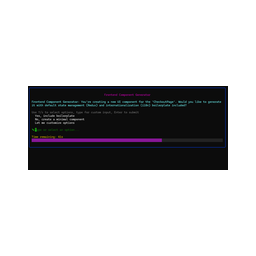 Choose Interactive MCP when
- You need dedicated capabilities in the Other Tools and Integrations domain.
- You prefer a local stdio subprocess transport.
- Its auth model fits you: No auth required.
- You want tools like
request_user_input, message_complete_notification, start_intensive_chat.
Feature & specification comparison
Rows where the two servers differ are marked.
| Spec | ||
|---|---|---|
| Category | Other Tools and Integrations | Other Tools and Integrations |
| Quality signal | 33/100 · Emerging | 64/100 · Good |
| Install command | Confirmed | Confirmed |
| Transport | Local subprocess (stdio) | Local subprocess (stdio) |
| Auth | No auth required | No auth required |
| Pricing | Free | Free |
| Required env vars | None listed | None listed |
| Verified owner | Community listing | Community listing |
| GitHub stars | 2,023 | 351 |
| Directory activity | 4 views 0 installs 0 upvotes | 4 views 0 installs 0 upvotes |
| Tools | Not listed | 5 |
| Full listing | View MCP Cli | View Interactive MCP |
Tools & capabilities
MCP Cli tools
No tool names declared yet. Check the project README from the listing page.
Interactive MCP tools 5
request_user_input<description> Send a question to the user via a pop-up command prompt. **Crucial for clarifying requirements, confirming plans, or resolving ambiguity.** You should call this tool whenever it has **any** uncertainty or needs clarification or confirmation, even for trivial or silly questions. Feel free to ask anything! **Proactive questioning is preferred over making assumptions.** </description> <importantNotes> - (!important!) **Use this tool FREQUENTLY** for any question that requires user input or confirmation. - (!important!) Continue to generate existing messages after user answers. - (!important!) Provide predefined options for quick selection if applicable. - (!important!) **Essential for validating assumptions before proceeding with significant actions (e.g., code edits, running commands).** </importantNotes> <whenToUseThisTool> - When you need clarification on user requirements or preferences - When multiple implementation approaches are possible and user input is needed - **Before making potentially impactful changes (code edits, file operations, complex commands)** - When you need to confirm assumptions before proceeding - When you need additional information not available in the current context - When validating potential solutions before implementation - When facing ambiguous instructions that require clarification - When seeking feedback on generated code or solutions - When needing permission to modify critical files or functionality - **Whenever you feel even slightly unsure about the user's intent or the correct next step.** </whenToUseThisTool> <features> - Pop-up command prompt display for user input - Returns user response or timeout notification (timeout defaults to 60 seconds)) - Maintains context across user interactions - Handles empty responses gracefully - Properly formats prompt with project context </features> <bestPractices> - Keep questions concise and specific - Provide clear options when applicable - Do not ask the question if you have another tool that can answer the question - e.g. when you searching file in the current repository, do not ask the question "Do you want to search for a file in the current repository?" - e.g. prefer to use other tools to find the answer (Cursor tools or other MCP Server tools) - Limit questions to only what's necessary **to resolve the uncertainty** - Format complex questions into simple choices - Reference specific code or files when relevant - Indicate why the information is needed - Use appropriate urgency based on importance </bestPractices> <parameters> - projectName: Identifies the context/project making the request (used in prompt formatting) - message: The specific question for the user (appears in the prompt) - predefinedOptions: Predefined options for the user to choose from (optional) </parameters> <examples> - "Should I implement the authentication using JWT or OAuth?" - "Do you want to use TypeScript interfaces or type aliases for this component?" - "I found three potential bugs. Should I fix them all or focus on the critical one first?" - "Can I refactor the database connection code to use connection pooling?" - "Is it acceptable to add React Router as a dependency?" - "I plan to modify function X in file Y. Is that correct?" </examples>message_complete_notification<description> Notify when a response has completed. Use this tool **once** at the end of **each and every** message to signal completion to the user. </description> <importantNotes> - (!important!) **MANDATORY:** ONLY use this tool exactly once per message to signal completion. **Do not forget this step.** </importantNotes> <whenToUseThisTool> - When you've completed answering a user's query - When you've finished executing a task or a sequence of tool calls - When a multi-step process is complete - When you want to provide a summary of completed actions just before ending the response </whenToUseThisTool> <features> - Cross-platform OS notifications (Windows, macOS, Linux) - Reusable tool to signal end of message - Should be called exactly once per LLM response </features> <bestPractices> - Keep messages concise - Use projectName consistently to group notifications by context </bestPractices> <parameters> - projectName: Identifies the context/project making the notification (appears in notification title) - message: The specific notification text (appears in the body) </parameters> <examples> - { "projectName": "MyApp", "message": "Feature implementation complete. All tests passing." } - { "projectName": "MyLib", "message": "Analysis complete: 3 issues found and fixed." } </examples>start_intensive_chat<description> Start an intensive chat session for gathering multiple answers quickly from the user. **Highly recommended** for scenarios requiring a sequence of related inputs or confirmations. Very useful for gathering multiple answers from the user in a short period of time. Especially useful for brainstorming ideas or discussing complex topics with the user. </description> <importantNotes> - (!important!) Opens a persistent console window that stays open for multiple questions. - (!important!) Returns a session ID that **must** be used for subsequent questions via 'ask_intensive_chat'. - (!important!) **Must** be closed with 'stop_intensive_chat' when finished gathering all inputs. - (!important!) After starting a session, **immediately** continue asking all necessary questions using 'ask_intensive_chat' within the **same response message**. Do not end the response until the chat is closed with 'stop_intensive_chat'. This creates a seamless conversational flow for the user. </importantNotes> <whenToUseThisTool> - When you need to collect a series of quick answers from the user (more than 2-3 questions) - When setting up a project with multiple configuration options - When guiding a user through a multi-step process requiring input at each stage - When gathering sequential user preferences - When you want to maintain context between multiple related questions efficiently - When brainstorming ideas with the user interactively </whenToUseThisTool> <features> - Opens a persistent console window for continuous interaction - Supports starting with an initial question - Configurable timeout for each question (set via -t/--timeout, defaults to 60 seconds) - Returns a session ID for subsequent interactions - Keeps full chat history visible to the user - Maintains state between questions </features> <bestPractices> - Use a descriptive session title related to the task - Start with a clear initial question when possible - Do not ask the question if you have another tool that can answer the question - e.g. when you searching file in the current repository, do not ask the question "Do you want to search for a file in the current repository?" - e.g. prefer to use other tools to find the answer (Cursor tools or other MCP Server tools) - Always store the returned session ID for later use - Always close the session when you're done with stop_intensive_chat </bestPractices> <parameters> - sessionTitle: Title for the intensive chat session (appears at the top of the console) </parameters> <examples> - Start session for project setup: { "sessionTitle": "Project Configuration" } </examples>ask_intensive_chat<description> Ask a new question in an active intensive chat session previously started with 'start_intensive_chat'. </description> <importantNotes> - (!important!) Requires a valid session ID from 'start_intensive_chat'. - (!important!) Supports predefined options for quick selection. - (!important!) Returns the user's answer or indicates if they didn't respond. - (!important!) **Use this repeatedly within the same response message** after 'start_intensive_chat' until all questions are asked. </importantNotes> <whenToUseThisTool> - When continuing a series of questions in an intensive chat session. - When you need the next piece of information in a multi-step process initiated via 'start_intensive_chat'. - When offering multiple choice options to the user within the session. - When gathering sequential information from the user within the session. </whenToUseThisTool> <features> - Adds a new question to an existing chat session - Supports predefined options for quick selection - Returns the user's response - Maintains the chat history in the console </features> <bestPractices> - Ask one clear question at a time - Provide predefined options when applicable - Don't ask overly complex questions - Keep questions focused on a single piece of information </bestPractices> <parameters> - sessionId: ID of the intensive chat session (from start_intensive_chat) - question: The question text to display to the user - predefinedOptions: Array of predefined options for the user to choose from (optional) </parameters> <examples> - Simple question: { "sessionId": "abcd1234", "question": "What is your project named?" } - With predefined options: { "sessionId": "abcd1234", "question": "Would you like to use TypeScript?", "predefinedOptions": ["Yes", "No"] } </examples>stop_intensive_chat<description> Stop and close an active intensive chat session. **Must be called** after all questions have been asked using 'ask_intensive_chat'. </description> <importantNotes> - (!important!) Closes the console window for the intensive chat. - (!important!) Frees up system resources. - (!important!) **Should always be called** as the final step when finished with an intensive chat session, typically at the end of the response message where 'start_intensive_chat' was called. </importantNotes> <whenToUseThisTool> - When you've completed gathering all needed information via 'ask_intensive_chat'. - When the multi-step process requiring intensive chat is complete. - When you're ready to move on to processing the collected information. - When the user indicates they want to end the session (if applicable). - As the final action related to the intensive chat flow within a single response message. </whenToUseThisTool> <features> - Gracefully closes the console window - Cleans up system resources - Marks the session as complete </features> <bestPractices> - Always stop sessions when you're done to free resources - Provide a summary of the information collected before stopping </bestPractices> <parameters> - sessionId: ID of the intensive chat session to stop </parameters> <examples> - { "sessionId": "abcd1234" } </examples>
Ready-to-paste client configs
Paste either block (or both) into your client config, e.g. claude_desktop_config.json or ~/.cursor/mcp.json. We only show a config when the install command is confirmed.
MCP Cli
{
  "mcpServers": {
    "chrishayuk-mcp-cli": {
      "command": "uvx",
      "args": [
        "mcp-server-sqlite"
      ]
    }
  }
}
Interactive MCP
{
  "mcpServers": {
    "ttommyth-interactive-mcp": {
      "command": "npx",
      "args": [
        "-y",
        "interactive-mcp"
      ]
    }
  }
}
Frequently asked questions
MCP Cli is categorized under Other Tools and Integrations and uses a local stdio subprocess. Interactive MCP belongs to Other Tools and Integrations and uses a local stdio subprocess. Pick MCP Cli for other tools and integrations work and Interactive MCP for other tools and integrations.
Copy the mcpServers block from the config section on this page into your client's config (for example claude_desktop_config.json or ~/.cursor/mcp.json), then fully restart the client.
MCP Cli is listed as free. Auth: no auth required. Interactive MCP is listed as free. Auth: no auth required. If a server needs environment variables such as API keys, define them under the env key in your client's MCP config.
Yes. MCP clients support multiple servers: add chrishayuk-mcp-cli and ttommyth-interactive-mcp as separate keys in the same mcpServers object, and your assistant will call tools from either one.
On AllMCPs, MCP Cli has a quality signal of 33/100 (Emerging) with 4 views, 0 installs and 2,023 GitHub stars. Interactive MCP has 64/100 (Good) with 4 views, 0 installs and 351 GitHub stars.