MCP Server Chart vs Draw.io
A side-by-side look at the MCP Server Chart and Draw.io MCP servers: transport, auth, tools, quality signals, and the config to install either one in Claude, Cursor, Windsurf or VS Code.
Verdict: choose MCP Server Chart for data visualization work as a local process; choose Draw.io for data visualization as a local process. You can also run both side by side in one mcpServers block.
Which MCP server should you choose?
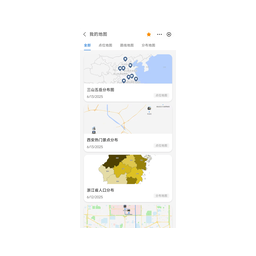 Choose MCP Server Chart when
- You need dedicated capabilities in the Data Visualization domain.
- You prefer a local stdio subprocess transport.
- Its auth model fits you: No auth required.
- You want tools like
generate_area_chart, generate_bar_chart, generate_boxplot_chart.
 Choose Draw.io when
- You need dedicated capabilities in the Data Visualization domain.
- You prefer a local stdio subprocess transport.
- Its auth model fits you: No auth required.
- You want tools like
open_drawio_xml, open_drawio_csv, open_drawio_mermaid.
Feature & specification comparison
Rows where the two servers differ are marked.
| Spec | ||
|---|---|---|
| Category | Data Visualization | Data Visualization |
| Quality signal | 71/100 · Great | 73/100 · Great |
| Install command | Confirmed | Confirmed |
| Transport | Local subprocess (stdio) | Local subprocess (stdio) |
| Auth | No auth required | No auth required |
| Pricing | Free | Free |
| Required env vars | None listed | None listed |
| Verified owner | Community listing | Community listing |
| GitHub stars | 4,404 | 5,669 |
| Directory activity | 9 views 0 installs 0 upvotes | 4 views 0 installs 0 upvotes |
| Tools | 27 | 7 |
| Full listing | View MCP Server Chart | View Draw.io |
Tools & capabilities
MCP Server Chart tools 27
generate_area_chartGenerate a area chart to show data trends under continuous independent variables and observe the overall data trend, such as, displacement = velocity (average or instantaneous) × time: s = v × t. If the x-axis is time (t) and the y-axis is velocity (v) at each moment, an area chart allows you to observe the trend of velocity over time and infer the distance traveled by the area's size.generate_bar_chartGenerate a horizontal bar chart to show data for numerical comparisons among different categories, such as, comparing categorical data and for horizontal comparisons.generate_boxplot_chartGenerate a boxplot chart to show data for statistical summaries among different categories, such as, comparing the distribution of data points across categories.generate_column_chartGenerate a column chart, which are best for comparing categorical data, such as, when values are close, column charts are preferable because our eyes are better at judging height than other visual elements like area or angles.generate_district_mapGenerates regional distribution maps, which are usually used to show the administrative divisions and coverage of a dataset. It is not suitable for showing the distribution of specific locations, such as urban administrative divisions, GDP distribution maps of provinces and cities across the country, etc. This tool is limited to generating data maps within China.generate_dual_axes_chartGenerate a dual axes chart which is a combination chart that integrates two different chart types, typically combining a bar chart with a line chart to display both the trend and comparison of data, such as, the trend of sales and profit over time.generate_fishbone_diagramGenerate a fishbone diagram chart to uses a fish skeleton, like structure to display the causes or effects of a core problem, with the problem as the fish head and the causes/effects as the fish bones. It suits problems that can be split into multiple related factors.generate_flow_diagramGenerate a flow diagram chart to show the steps and decision points of a process or system, such as, scenarios requiring linear process presentation.generate_funnel_chartGenerate a funnel chart to visualize the progressive reduction of data as it passes through stages, such as, the conversion rates of users from visiting a website to completing a purchase.generate_histogram_chartGenerate a histogram chart to show the frequency of data points within a certain range. It can observe data distribution, such as, normal and skewed distributions, and identify data concentration areas and extreme points.generate_line_chartGenerate a line chart to show trends over time, such as, the ratio of Apple computer sales to Apple's profits changed from 2000 to 2016.generate_liquid_chartGenerate a liquid chart to visualize a single value as a percentage, such as, the current occupancy rate of a reservoir or the completion percentage of a project.- +15 more on the listing page
Draw.io tools 7
open_drawio_xmlOpens the draw.io editor with a diagram from XML content. Use this to view, edit, or create diagrams in draw.io format. The XML should be valid draw.io/mxGraph XML format. # draw.io XML Reference Detailed reference for styles, edge routing, containers, layers, tags, metadata, and dark mode. Consult this when generating draw.io XML diagrams. ## Reasoning budget (read this first) Your job is to declare the **logical structure** of the diagram — what nodes exist, what edges connect them, what labels they carry, what lane/container groups them. The edge router and the optional layout pass (`postLayout: "elk"`, see **Edge routing & layout passes**) handle routing and placement; you do **not** need to do layout math. **Do NOT** in your reasoning: - Do NOT debate the topic. The user asked for a flowchart / architecture / sequence / etc. — pick one concrete scenario on your first impulse and commit. Never write "Actually, let me think of something else…" or pitch alternatives. - Do NOT debate flat-lanes vs nested-pools, horizontal vs vertical orientation, one vs multiple variations. Pick the first reasonable option (almost always: flat swimlanes, top-down or left-right based on what fits the content). Do not flip-flop. - Do NOT compute x/y coordinates in prose. No "column spacings of 160px totaling 1840px width — that's too wide, let me tighten to 1700…" loops. Use the rigid grid below; do the arithmetic in your head and write the XML. - Do NOT re-derive drawio mechanics (`horizontal=0`, `startSize=110`, nested-lane coordinates). Use the templates below as-is. - Do NOT enumerate columns ("customer lane columns 0-10, web app 1-7"). Place a node, move on. - Do NOT add `<Array as="points">` waypoints. Edges are routed automatically. - Do NOT set `exitX` / `exitY` / `entryX` / `entryY` connection-point overrides unless you have specific geometric intent. - Do NOT verify, re-check, or adjust coordinates after placing a node. - Do NOT narrate "building the diagram / finalizing the XML / now let me…". Just emit XML. - Do NOT write out lists of node positions as planning text. Emit them as `<mxCell>` elements directly. **Do** in your reasoning: - Identify the diagram type + actors/stages (1-2 short sentences). - Identify any grouping (swimlanes? containers? none?). - Go straight to XML. **Rigid grid — use for every XML diagram:** - Column x = `col_index * 180 + 40` (col 0 = 40, col 1 = 220, col 2 = 400, …) - Row y = `row_index * 120 + 40` (row 0 = 40, row 1 = 160, row 2 = 280, …) - Node size: rectangles `140×60`, diamonds `140×80`, circles `60×60`, documents `120×80`, cylinders `100×70` Pick a `(col, row)` for each node. Don't think about centers or exact gaps — the grid already spaces nodes apart, and slight misalignment is invisible in the result. **Give every node its own `(col, row)` cell.** Two nodes in the same cell land on top of each other. With `postLayout: "elk"` the positions are only a rough starting direction (ELK re-places everything); without it they are the final positions, so the cell you pick is what the user sees. ## General principles - **Use proper draw.io shapes and connectors** — choose the semantically correct shape for each element (e.g., `shape=cylinder3` for databases and tanks, `rhombus` for decisions, `shape=mxgraph.pid2valves.*` for valves in P&IDs). draw.io has extensive shape libraries; prefer domain-appropriate shapes over generic rectangles. - **Decide whether to search for shapes** — before generating a diagram, decide if it needs domain-specific shapes from draw.io's extended libraries. **Skip `search_shapes`** for standard diagram types that use basic geometric shapes: flowcharts, UML (class, sequence, state, activity), ERD, org charts, mind maps, Venn diagrams, timelines, wireframes, and any diagram using only rectangles, diamonds, circles, cylinders, and arrows. Also skip if the user explicitly asks to use basic/simple shapes or says not to search. **Use `search_shapes`** when the diagram requires industry-specific or branded icons: cloud architecture (AWS, Azure, GCP), network topology (Cisco, rack equipment), P&ID (valves, instruments, vessels), electrical/circuit diagrams, Kubernetes, BPMN with specific task types, or any domain where the user expects realistic/standardized symbols rather than labeled boxes. It also finds brand/product logos and general-purpose pictorial icons (e.g. `react`, `slack`, `shopping cart`, `solar panel`) — returned as ready-to-use `shape=image` styles — so use it too when the user asks for logos or everyday concept icons. - **Match the language of labels to the user's language** — if the user writes in German, French, Japanese, etc., all diagram labels, titles, and annotations should be in that same language. - **Group related nodes, and surface a hub when edges converge** — put nodes that belong together inside a container or swimlane, and keep external actors (users, files, third-party systems) outside implementation containers. When many edges converge on one area or cross several groups, route them through a single hub/gateway node (a registry, broker, event log, …) instead of drawing every low-level dependency across the canvas — fewer crossings, clearer contract. - **Encode secondary detail in node text, not edges** — draw an edge only when the relationship itself carries meaning; push incidental detail into the node label so the connector layer stays readable. - **File each edge at the innermost container holding BOTH endpoints** — `parent="<container_id>"` when both ends sit in the same container (at any nesting depth), `parent="1"` when one end is outside all containers. Auto-layout reads an edge's coordinates in its parent's frame, so an edge parked further out than its endpoints is laid out in the wrong place. Details under [Nested architecture containers](#nested-architecture-containers-cloud-infra-network-topologies). ## Common styles **Rounded rectangle:** ```xml <mxCell id="2" value="Label" style="rounded=1;whiteSpace=wrap;html=1;" vertex="1" parent="1"> <mxGeometry x="100" y="100" width="120" height="60" as="geometry"/> </mxCell> ``` **Diamond (decision):** ```xml <mxCell id="3" value="Condition?" style="rhombus;whiteSpace=wrap;html=1;" vertex="1" parent="1"> <mxGeometry x="100" y="200" width="120" height="80" as="geometry"/> </mxCell> ``` **Arrow (edge):** ```xml <mxCell id="4" value="" style="edgeStyle=orthogonalEdgeStyle;html=1;" edge="1" source="2" target="3" parent="1"> <mxGeometry relative="1" as="geometry"/> </mxCell> ``` **Labeled arrow:** ```xml <mxCell id="5" value="Yes" style="edgeStyle=orthogonalEdgeStyle;html=1;" edge="1" source="3" target="6" parent="1"> <mxGeometry relative="1" as="geometry"/> </mxCell> ``` ## Style properties | Property | Values | Use for | |----------|--------|---------| | `rounded=1` | 0 or 1 | Rounded corners | | `whiteSpace=wrap` | wrap | Text wrapping | | `fillColor=#dae8fc` | Hex color | Background color | | `strokeColor=#6c8ebf` | Hex color | Border color | | `fontColor=#333333` | Hex color | Text color | | `shape=cylinder3` | shape name | Database cylinders | | `shape=mxgraph.flowchart.document` | shape name | Document shapes | | `ellipse` | style keyword | Circles/ovals | | `rhombus` | style keyword | Diamonds | | `edgeStyle=orthogonalEdgeStyle` | style keyword | Right-angle connectors | | `edgeStyle=elbowEdgeStyle` | style keyword | Elbow connectors | | `dashed=1` | 0 or 1 | Dashed lines | | `swimlane` | style keyword | Swimlane containers | | `group` | style keyword | Invisible container (pointerEvents=0) | | `container=1` | 0 or 1 | Enable container behavior on any shape | | `pointerEvents=0` | 0 or 1 | Prevent container from capturing child connections | | `html=1` | 0 or 1 | Enable HTML rendering in labels (required for `<b>`, `<br>`, `<font>`, etc.) | | `shape=umlLifeline;perimeter=lifelinePerimeter;size=16` | shape | UML sequence diagram lifeline (size = header height) | ## HTML labels **Always include `html=1` in the style** when the `value` attribute contains any HTML tags (`<b>`, `<br>`, `<font>`, `<i>`, `<u>`, `<hr>`, `<p>`, `<table>`, etc.). Without `html=1`, HTML tags are displayed as literal text instead of being rendered. HTML in attribute values must be **XML-escaped**: `<` → `<`, `>` → `>`, `&` → `&`, `"` → `"` ```xml <mxCell value="<b>Title</b><br>Description" style="rounded=1;whiteSpace=wrap;html=1;" vertex="1" parent="1"> <mxGeometry x="100" y="100" width="120" height="60" as="geometry"/> </mxCell> ``` **Line breaks:** Use `
` (works with both `html=1` and `html=0`) or `<br>` (requires `html=1`) for line breaks — never use `\n`, which renders as literal backslash-n text instead of a newline. **Best practice:** Always include `html=1` in every cell style. This ensures labels render correctly whether they contain HTML or plain text — plain text is unaffected by the flag. **Bold/italic/underline:** Use `fontStyle` in the style string when the entire label should be bold (`fontStyle=1`), italic (`fontStyle=2`), or underline (`fontStyle=4`). Values can be combined via bitwise OR (e.g., `fontStyle=3` = bold+italic). Use HTML tags (`<b>`, `<i>`, `<u>`) only when formatting part of the label (e.g., bold title with normal description). Never combine `fontStyle` with HTML tags for the same effect — this is redundant and causes visible raw tags if `html=1` is missing. ## Edges **CRITICAL: Every edge `mxCell` must contain a `<mxGeometry relative="1" as="geometry" />` child element.** Self-closing edge cells (e.g. `<mxCell ... edge="1" ... />`) are invalid and will not render correctly. Always use the expanded form: ```xml <mxCell id="e1" edge="1" parent="1" source="a" target="b" style="..."> <mxGeometry relative="1" as="geometry" /> </mxCell> ``` **Don't hand-route edges.** Just declare `source` and `target`. You do **not** need to: - Add `<mxPoint>` waypoints - Set `exitX` / `exitY` / `entryX` / `entryY` - Route around obstacles - Worry about edge-vertex collisions or parallel edge spacing draw.io's built-in router is **basic**: it draws each edge as a straight line or a simple right-angle path between `source` and `target`, with **no awareness of other shapes** — a wire will run straight across any box that sits between its endpoints. That's fine when connected nodes have open space between them. When edges would otherwise cross over shapes, or you want consistently clean orthogonal wires that route *around* the boxes, set **`routing: "libavoid"`**; for a full re-layout use **`postLayout: "elk"`** (see **Edge routing & layout passes** below). Both compute the waypoints for you — you never add them by hand either way. **What you still choose: the edge style.** The style determines the overall look (orthogonal angles, curves, straight lines) — the router honors the style family. | Style | Syntax | Best for | |-------|--------|---------| | **Orthogonal** | `edgeStyle=orthogonalEdgeStyle` | Flowcharts, architecture, network diagrams, BPMN — any diagram with right-angle connectors | | **Straight** | no `edgeStyle` | UML class/sequence diagrams, direct point-to-point connections. For sequence diagram messages use `endSize=6;startSize=6;` to keep arrowheads small | | **Entity Relation** | `edgeStyle=entityRelationEdgeStyle` | ER diagrams — creates perpendicular stubs at both ends | | **Curved** | `curved=1` | Mind maps, informal diagrams | | **Elbow** | `edgeStyle=elbowEdgeStyle;elbow=vertical;` | Rarely needed — `orthogonalEdgeStyle` handles almost all cases; use this only for simple 1-bend linear flows | **Use a consistent edge style within each diagram.** Pick one based on diagram type and apply it to all edges: ER → `entityRelationEdgeStyle`; UML class → straight; mind maps → curved; flowcharts/architecture/network → `orthogonalEdgeStyle`. **Useful edge style attributes** that apply regardless of routing: - `rounded=1` — rounded corners at bend points (recommended for orthogonal) - `endArrow=classic` / `endArrow=none` — arrow heads - `dashed=1` — dashed line - `strokeColor=#...`, `strokeWidth=2` — color/width - Edge labels: set `value` directly on the edge cell **Keep edge labels short and meaningful** — one to three words (`Yes`, `async`, `reads`). Drop labels that merely restate an obvious action (`call`, `register`); move longer explanations into node text or a small legend node. **Visual semantics — stay consistent, add a legend when mixing styles.** Within one diagram apply `dashed=1`, `strokeColor`, and `strokeWidth` consistently for one chosen meaning (e.g. dashed = optional / async / inferred relationship). Don't mix several dashed meanings without a small legend explaining them. ## Containers and groups For architecture diagrams or any diagram with nested elements, use draw.io's proper parent-child containment — do **not** just place shapes on top of larger shapes. ### How containment works Set `parent="containerId"` on child cells. Children use **relative coordinates** within the container. ### Container types | Type | Style | When to use | |------|-------|-------------| | **Group** (invisible) | `group;` | No visual border needed, container has no connections. Includes `pointerEvents=0` so child connections are not captured | | **Swimlane** (titled) | `swimlane;startSize=30;` | Container needs a visible title bar/header, or the container itself has connections | | **Custom container** | Add `container=1;pointerEvents=0;` to any shape style | Any shape acting as a container without its own connections | ### Key rules - **Edges to children inside containers naturally cross the container boundary** — this is correct and expected. Do not add extra waypoints or complex routing to avoid a parent container when connecting to shapes inside it. - **Always add `pointerEvents=0;`** to container styles that should not capture connections being rewired between children - Only omit `pointerEvents=0` when the container itself needs to be connectable — in that case, use `swimlane` style which handles this correctly (the client area is transparent for mouse events while the header remains connectable) - Children must set `parent="containerId"` and use coordinates **relative to the container** ### Example: Architecture container with swimlane ```xml <mxCell id="svc1" value="User Service" style="swimlane;startSize=30;fillColor=#dae8fc;strokeColor=#6c8ebf;html=1;" vertex="1" parent="1"> <mxGeometry x="100" y="100" width="300" height="200" as="geometry"/> </mxCell> <mxCell id="api1" value="REST API" style="rounded=1;whiteSpace=wrap;html=1;" vertex="1" parent="svc1"> <mxGeometry x="20" y="40" width="120" height="60" as="geometry"/> </mxCell> <mxCell id="db1" value="Database" style="shape=cylinder3;whiteSpace=wrap;html=1;" vertex="1" parent="svc1"> <mxGeometry x="160" y="40" width="120" height="60" as="geometry"/> </mxCell> ``` ### Example: Invisible group container ```xml <mxCell id="grp1" value="" style="group;" vertex="1" parent="1"> <mxGeometry x="100" y="100" width="300" height="200" as="geometry"/> </mxCell> <mxCell id="c1" value="Component A" style="rounded=1;whiteSpace=wrap;html=1;" vertex="1" parent="grp1"> <mxGeometry x="10" y="10" width="120" height="60" as="geometry"/> </mxCell> ``` ### Swimlanes for grouped actors (BPMN-style flowcharts) Use **flat swimlanes** at `parent="1"`, stacked vertically. One row of nodes per lane. **Fixed values — do not compute or debate:** - Lane size: `x=0, y=lane_index*150, width=CANVAS_W, height=150` - Lane style: `swimlane;horizontal=0;startSize=110;fillColor=<pastel>;html=1;` - Child nodes inside a lane: `parent="<lane_id>"`, `x = 120 + col*180`, `y = 45` (always 45), size 140×60 (or 140×80 for diamonds) - Cross-lane edges: `parent="1"` (not inside a lane) Pick `CANVAS_W = max_col * 180 + 300`. Choose lane colors from `#f5f5f5, #e8f4f8, #fff0e6, #e8f5e9, #fff9e6, #fce4ec` in that order. ```xml <mxCell id="lane1" value="Customer" style="swimlane;horizontal=0;startSize=110;fillColor=#f5f5f5;html=1;" vertex="1" parent="1"> <mxGeometry x="0" y="0" width="1800" height="150" as="geometry"/> </mxCell> <mxCell id="n1" value="Place Order" style="rounded=1;whiteSpace=wrap;html=1;" vertex="1" parent="lane1"> <mxGeometry x="120" y="45" width="140" height="60" as="geometry"/> </mxCell> <mxCell id="lane2" value="System" style="swimlane;horizontal=0;startSize=110;fillColor=#e8f4f8;html=1;" vertex="1" parent="1"> <mxGeometry x="0" y="150" width="1800" height="150" as="geometry"/> </mxCell> <mxCell id="n2" value="Validate" style="rounded=1;whiteSpace=wrap;html=1;" vertex="1" parent="lane2"> <mxGeometry x="300" y="45" width="140" height="60" as="geometry"/> </mxCell> <mxCell id="e1" edge="1" parent="1" source="n1" target="n2" style="edgeStyle=orthogonalEdgeStyle;rounded=1;html=1;"> <mxGeometry relative="1" as="geometry"/> </mxCell> ``` Do NOT nest lanes inside a pool. Do NOT vary lane heights. Do NOT compute title-area offset — it is always 110, children start at x=120 to clear it. ### Nested architecture containers (cloud, infra, network topologies) For diagrams with **nested groupings** — VPC → Availability Zone → EC2 instance, Datacenter → Rack → Server, Region → Environment → Service — use nested swimlanes. This is where the AI most often flattens hierarchy that should be nested. Treat each level as a swimlane container. **Rules:** - Every container is a `swimlane` with `startSize=24` (title area at the top). - Child cells set `parent="<container_id>"` and use coordinates **relative to their parent** (origin 0,0 is the parent's top-left, below the title). - **An edge belongs to the innermost container that holds BOTH of its endpoints.** Walk up from both ends until you reach a container that contains both: two cells in the same subnet → that subnet; a web tier and a database tier inside one region → that region; anything with one endpoint outside all containers → `parent="1"`, the layer. This is the rule the draw.io editor's own model maintains, and auto-layout reads an edge's coordinates in its parent's frame, so an edge filed too far out lands in the wrong place. - For industry-specific icons (AWS/Azure/GCP logos, Cisco equipment, etc.), call `search_shapes` to get the exact `style` string and substitute it into a regular vertex — the container structure stays the same. ```xml <mxCell id="vpc" value="VPC" style="swimlane;startSize=24;fillColor=#dae8fc;strokeColor=#6c8ebf;html=1;" vertex="1" parent="1"> <mxGeometry x="0" y="0" width="720" height="360" as="geometry"/> </mxCell> <mxCell id="az1" value="AZ us-east-1a" style="swimlane;startSize=24;fillColor=#fff2cc;strokeColor=#d6b656;html=1;" vertex="1" parent="vpc"> <mxGeometry x="20" y="36" width="320" height="300" as="geometry"/> </mxCell> <mxCell id="web1" value="web-1" style="rounded=1;whiteSpace=wrap;html=1;" vertex="1" parent="az1"> <mxGeometry x="30" y="40" width="120" height="60" as="geometry"/> </mxCell> <mxCell id="db1" value="db-1" style="shape=cylinder3;whiteSpace=wrap;html=1;" vertex="1" parent="az1"> <mxGeometry x="180" y="40" width="100" height="70" as="geometry"/> </mxCell> <mxCell id="az2" value="AZ us-east-1b" style="swimlane;startSize=24;fillColor=#fff2cc;strokeColor=#d6b656;html=1;" vertex="1" parent="vpc"> <mxGeometry x="360" y="36" width="340" height="300" as="geometry"/> </mxCell> <mxCell id="web2" value="web-2" style="rounded=1;whiteSpace=wrap;html=1;" vertex="1" parent="az2"> <mxGeometry x="30" y="40" width="120" height="60" as="geometry"/> </mxCell> <mxCell id="e1" edge="1" parent="1" source="web1" target="web2" style="edgeStyle=orthogonalEdgeStyle;rounded=1;html=1;"> <mxGeometry relative="1" as="geometry"/> </mxCell> ``` ### Cross-functional flowcharts (actor × phase grid, as a table) Cross-functional flowcharts show a process across **two axes at once** — actors (rows) and phases (columns). Use drawio's `table` shape, which auto-arranges cells into a grid via `childLayout=tableLayout`. This is the canonical draw.io pattern and is distinct from plain swimlanes (which only group on one axis). **Structure:** - Outer container: `shape=table;childLayout=tableLayout;startSize=0;collapsible=0;fillColor=none;` - Rows are children of the table: `shape=tableRow;horizontal=0;startSize=0;collapsible=0;` - Cells are children of rows — regular vertices, one per (actor, phase) intersection - Row heights and cell widths are set via `mxGeometry`; they tile automatically - First row = phase headers; first cell of every other row = actor label - Process nodes go INSIDE the appropriate cell (parent = cell id) at coordinates relative to the cell - Cross-cell edges must use `parent="1"` (same rule as containers) ```xml <mxCell id="tbl" style="shape=table;childLayout=tableLayout;startSize=0;collapsible=0;fillColor=none;" vertex="1" parent="1"> <mxGeometry x="0" y="0" width="900" height="320" as="geometry"/> </mxCell> <mxCell id="r0" style="shape=tableRow;horizontal=0;startSize=0;collapsible=0;" vertex="1" parent="tbl"> <mxGeometry width="900" height="40" as="geometry"/> </mxCell> <mxCell id="h0" style="text;html=1;" vertex="1" parent="r0"> <mxGeometry width="140" height="40" as="geometry"/> </mxCell> <mxCell id="h1" value="Order" style="text;align=center;fontStyle=1;fillColor=#e8e8e8;" vertex="1" parent="r0"> <mxGeometry x="140" width="380" height="40" as="geometry"/> </mxCell> <mxCell id="h2" value="Fulfill" style="text;align=center;fontStyle=1;fillColor=#e8e8e8;" vertex="1" parent="r0"> <mxGeometry x="520" width="380" height="40" as="geometry"/> </mxCell> <mxCell id="r1" style="shape=tableRow;horizontal=0;startSize=0;collapsible=0;" vertex="1" parent="tbl"> <mxGeometry y="40" width="900" height="140" as="geometry"/> </mxCell> <mxCell id="a1" value="Customer" style="fillColor=#dae8fc;fontStyle=1;" vertex="1" parent="r1"> <mxGeometry width="140" height="140" as="geometry"/> </mxCell> <mxCell id="c_cust_order" style="fillColor=none;" vertex="1" parent="r1"> <mxGeometry x="140" width="380" height="140" as="geometry"/> </mxCell> <mxCell id="t_place" value="Place Order" style="rounded=1;whiteSpace=wrap;html=1;" vertex="1" parent="c_cust_order"> <mxGeometry x="120" y="40" width="140" height="60" as="geometry"/> </mxCell> <mxCell id="c_cust_fulfill" style="fillColor=none;" vertex="1" parent="r1"> <mxGeometry x="520" width="380" height="140" as="geometry"/> </mxCell> <mxCell id="r2" style="shape=tableRow;horizontal=0;startSize=0;collapsible=0;" vertex="1" parent="tbl"> <mxGeometry y="180" width="900" height="140" as="geometry"/> </mxCell> <mxCell id="a2" value="System" style="fillColor=#d5e8d4;fontStyle=1;" vertex="1" parent="r2"> <mxGeometry width="140" height="140" as="geometry"/> </mxCell> <mxCell id="c_sys_order" style="fillColor=none;" vertex="1" parent="r2"> <mxGeometry x="140" width="380" height="140" as="geometry"/> </mxCell> <mxCell id="t_validate" value="Validate" style="rounded=1;whiteSpace=wrap;html=1;" vertex="1" parent="c_sys_order"> <mxGeometry x="120" y="40" width="140" height="60" as="geometry"/> </mxCell> <mxCell id="c_sys_fulfill" style="fillColor=none;" vertex="1" parent="r2"> <mxGeometry x="520" width="380" height="140" as="geometry"/> </mxCell> <mxCell id="t_ship" value="Ship" style="rounded=1;whiteSpace=wrap;html=1;" vertex="1" parent="c_sys_fulfill"> <mxGeometry x="120" y="40" width="140" height="60" as="geometry"/> </mxCell> <mxCell id="e1" edge="1" parent="1" source="t_place" target="t_validate" style="edgeStyle=orthogonalEdgeStyle;rounded=1;html=1;"> <mxGeometry relative="1" as="geometry"/> </mxCell> <mxCell id="e2" edge="1" parent="1" source="t_validate" target="t_ship" style="edgeStyle=orthogonalEdgeStyle;rounded=1;html=1;"> <mxGeometry relative="1" as="geometry"/> </mxCell> ``` **When to use cross-functional tables vs flat swimlanes:** - Flat swimlanes — one-dimensional (actors only, or phases only). Simpler. Use this when you just need to show who does what in sequence. - Cross-functional table — two-dimensional (actors AND phases). Use this when **both** the actor and the process stage matter, and every step belongs to a specific (actor, phase) cell. **Do NOT** nest swimlanes inside a table row, do NOT set `startSize` on rows or cells (columns tile from `x=0`), and do NOT rely on the AI to produce exact widths that sum to the table width — close-enough totals are fine, the `tableLayout` normalizes them. ## Layers Layers control visibility and z-order. Every cell belongs to exactly one layer. Use layers to manage diagram complexity — viewers can toggle layer visibility to show or hide groups of elements (e.g., "Physical Infrastructure" vs "Logical Network" vs "Security Zones"). Cell `id="0"` is the root and cell `id="1"` is the default layer — both always exist. Additional layers are `mxCell` elements with `parent="0"`: ```xml <mxGraphModel> <root> <mxCell id="0"/> <mxCell id="1" parent="0"/> <mxCell id="2" value="Annotations" parent="0"/> <mxCell id="10" value="Server" style="rounded=1;html=1;" vertex="1" parent="1"> <mxGeometry x="100" y="100" width="120" height="60" as="geometry"/> </mxCell> <mxCell id="20" value="Note: deprecated" style="text;" vertex="1" parent="2"> <mxGeometry x="100" y="170" width="120" height="30" as="geometry"/> </mxCell> </root> </mxGraphModel> ``` - A layer is an `mxCell` with `parent="0"` and no `vertex` or `edge` attribute - Assign shapes to a layer by setting `parent` to the layer's id - Later layers render on top of earlier layers (higher z-order) - Add `visible="0"` as an attribute on the layer cell to hide it by default - Use layers when the diagram has distinct conceptual groupings that viewers may want to toggle independently ## Tags Tags are visual filters that let viewers show or hide elements by category. Unlike layers, a single element can have multiple tags, making tags ideal for cross-cutting concerns (e.g., tagging shapes as "critical", "v2", or "backend"). Tags require wrapping `mxCell` in an `<object>` element. Tags are assigned via the `tags` attribute as a space-separated string: ```xml <mxGraphModel> <root> <mxCell id="0"/> <mxCell id="1" parent="0"/> <object id="2" label="Auth Service" tags="critical v2"> <mxCell style="rounded=1;whiteSpace=wrap;html=1;" vertex="1" parent="1"> <mxGeometry x="100" y="100" width="120" height="60" as="geometry"/> </mxCell> </object> <object id="3" label="Legacy API" tags="critical deprecated"> <mxCell style="rounded=1;whiteSpace=wrap;html=1;" vertex="1" parent="1"> <mxGeometry x="300" y="100" width="120" height="60" as="geometry"/> </mxCell> </object> </root> </mxGraphModel> ``` - Tags require the `<object>` wrapper — a plain `mxCell` cannot have tags - The `label` attribute on `<object>` replaces `value` on `mxCell` - Tags are space-separated in the `tags` attribute - Viewers filter the diagram by selecting tags in the draw.io UI (Edit > Tags) - Tags do not affect z-order or structural grouping — they are purely a visibility filter ## Metadata and placeholders Metadata stores custom key-value properties on shapes as additional attributes on the `<object>` wrapper element. Combined with placeholders, metadata values can be displayed in labels — useful for data-driven diagrams showing status, owner, IP addresses, or versions on each shape. Set `placeholders="1"` on the `<object>` to enable `%propertyName%` substitution in the `label`: ```xml <mxGraphModel> <root> <mxCell id="0"/> <mxCell id="1" parent="0"/> <object id="2" label="<b>%component%</b><br>Owner: %owner%<br>Status: %status%" placeholders="1" component="Auth Service" owner="Team Backend" status="Active"> <mxCell style="rounded=1;whiteSpace=wrap;html=1;" vertex="1" parent="1"> <mxGeometry x="100" y="100" width="160" height="80" as="geometry"/> </mxCell> </object> </root> </mxGraphModel> ``` - Custom properties are plain XML attributes on `<object>` (e.g., `component="Auth Service"`) - Set `placeholders="1"` to enable `%key%` substitution in the label and tooltip - The label must use `html=1` style when using HTML formatting with placeholders - Placeholders resolve by walking up the containment hierarchy: shape attributes first, then parent container, then layer, then root — first match wins - Predefined placeholders work without custom properties: `%id%`, `%width%`, `%height%`, `%date%`, `%time%`, `%timestamp%`, `%page%`, `%pagenumber%`, `%pagecount%`, `%filename%` - Use `%%` for a literal percent sign in labels - Tags, metadata, and placeholders can all be combined on the same `<object>` element - Use metadata when shapes represent data records (servers, services, components) and you want to attach structured information beyond the visible label ## Dark mode colors draw.io supports automatic dark mode rendering. How colors behave depends on the property: - **`strokeColor`, `fillColor`, `fontColor`** default to `"default"`, which renders as black in light theme and white in dark theme. When no explicit color is set, colors adapt automatically. - **Explicit colors** (e.g. `fillColor=#DAE8FC`) specify the light-mode color. The dark-mode color is computed automatically by inverting the RGB values (blending toward the inverse at 93%) and rotating the hue by 180° (via `mxUtils.getInverseColor`). - **`light-dark()` function** — To specify both colors explicitly, use `light-dark(lightColor,darkColor)` in the style string, e.g. `fontColor=light-dark(#7EA6E0,#FF0000)`. The first argument is used in light mode, the second in dark mode. To enable dark mode color adaptation, the `mxGraphModel` element must include `adaptiveColors="auto"`. When generating diagrams, you generally do not need to specify dark-mode colors — the automatic inversion handles most cases. Use `light-dark()` only when the automatic inverse color is unsatisfactory. ## Edge routing & layout passes By default, edges are drawn by draw.io's **built-in router**, which is intentionally basic: each edge is a straight line or a simple right-angle path between its endpoints, with **no obstacle avoidance** — a connector runs straight through any shape lying between its `source` and `target`. Two **opt-in** passes upgrade this. Set them as fields on the same call that carries the diagram; the result you open, export or copy always reflects the finished pass. - **`routing: "libavoid"`** (XML only) — obstacle-avoiding orthogonal **edge routing**. Vertices stay exactly where you placed them; only the connectors are recomputed, so they run in clean right-angle segments that route *around* the boxes (and spread apart when parallel) instead of cutting across them. Use it for diagrams you laid out deliberately — architecture, network topology, deployment, swimlanes, UML, floor plans — where you want tidy wires without disturbing your layout. - **`postLayout: "elk"`** — a **full re-layout** (ELK `layered` flow). Vertices move from your positions to canonical hierarchical ones, and the edges are routed as part of that. Node sizes are kept exactly as you declare them, so a label still has to fit the box you gave it. Best for flowcharts, process/state diagrams, decision flows, pipelines, and other directional/hierarchical diagrams. (You should rarely hand-write these as XML — prefer Mermaid.) Flow **direction**: on XML set the optional `direction` field (`"vertical"` (default) / `"horizontal"`); on Mermaid it is read from the flowchart code (`flowchart TD/TB` vs `LR/RL`) and `direction` is ignored. The four combinations: | `postLayout` | `routing` | Result | |---|---|---| | — | — | basic built-in router (straight / simple right-angle, no obstacle avoidance); your positions kept | | — | `libavoid` | your positions kept; wires re-routed orthogonally *around* the shapes | | `elk` | — | ELK places the vertices **and** routes the edges (decent routing built in) | | `elk` | `libavoid` | rarely worth it — ELK already routes; only add `libavoid` if ELK's routing specifically comes out poor | **Pick ONE — they are essentially alternatives, not a stack:** - **Neither** — fine when connected nodes sit in clear rows/columns with open space between them, so the basic router's straight/right-angle lines won't cross another shape. Simplest and lightest; do this by default for sparse layouts. - **`routing: "libavoid"`** — keep your hand-placed layout but clean up the wires: use whenever an edge would otherwise cut across a box, or you want consistently clean orthogonal wires routed around shapes (architecture, network topology, deployment, UML, floor plans — anything densely connected). - **`postLayout: "elk"`** — when you want a canonical re-layout (vertices moved). ELK routes the edges itself as part of the layout, so **do not also set `routing`** — the combination is redundant in almost all cases. Add `direction: "horizontal"` for left-to-right flow. **When you are passing Mermaid instead of XML: see the `postLayout` parameter description for when to set it.** Complex Mermaid flowcharts (≥ ~20 nodes, ≥ 3 decision diamonds, feedback edges, or ≥ 3 endpoints) need `postLayout: "elk"` because the native parser's layout goes cramped or unbalanced past that threshold — the direction follows the flowchart code, so no `direction` is needed. Simple flowcharts and all non-flowchart Mermaid types (sequence, class, ER, sankey, …) need no `postLayout`. **When NOT to use (XML):** - The user has asked for specific positions (swim lanes with exact lanes, architecture diagrams with meaningful spatial arrangement). - The diagram relies on containers/grouping where spatial layout encodes information. ## Style reference Complete style reference (all shape types, style properties, color palettes, HTML labels, and more): https://github.com/jgraph/drawio-mcp/blob/main/shared/style-reference.md XML Schema (XSD): https://github.com/jgraph/drawio-mcp/blob/main/shared/mxfile.xsd ## CRITICAL: XML well-formedness When generating draw.io XML, the output **must** be well-formed XML: - **NEVER include ANY XML comments (`<!-- -->`) in the output.** XML comments are strictly forbidden — they waste tokens, can cause parse errors, and serve no purpose in diagram XML. - Escape special characters in attribute values: `&`, `<`, `>`, `"` - Always use unique `id` values for each `mxCell`open_drawio_csvOpens the draw.io editor with a diagram generated from CSV data. The CSV format should follow draw.io's CSV import specification which allows creating org charts, flowcharts, and other diagrams from tabular data.open_drawio_mermaidOpens the draw.io editor with a diagram generated from Mermaid.js syntax. Supports flowcharts, sequence diagrams, class diagrams, state diagrams, entity relationship diagrams, and more using Mermaid.js syntax. # Mermaid Reference Short hints for generating Mermaid diagrams that render correctly in draw.io. draw.io's Mermaid parser covers 28 diagram types — the header keyword on the first non-directive line selects the type. _Canonical list & dialog/ELK docs: <https://github.com/jgraph/drawio/discussions/5643>._ ## General rules - **Pick the type keyword carefully.** `graph`/`flowchart`, `classDiagram`, `stateDiagram-v2`, `erDiagram`, `sequenceDiagram`, `gitGraph`, `journey`, `pie`, `gantt`, `mindmap`, `timeline`, `quadrantChart`, `requirementDiagram`, `sankey-beta`, `xychart-beta`, `block-beta`, `c4Context`/`C4Container`/`C4Component`, `architecture-beta`, `radar-beta`, `packet-beta`, `venn-beta`, `treemap-beta`, `treeView-beta`, `ishikawa-beta`, `kanban`, `zenuml`, `wardley-beta`, `eventmodeling`. Misspelling the header yields a blank diagram. - **No trailing punctuation on node IDs.** IDs are identifiers (`myNode`, `node_1`, `A`) — spaces, hyphens (in some contexts), and reserved words (`end`, `class`, `subgraph`) break the parse. Put display text in brackets or quotes instead: `A["User's Account"]`. - **One statement per line.** Separate statements with newlines; `;` works as a delimiter in flowchart but not everywhere. - **Quote labels with special characters** (`:`, `-`, parentheses, non-ASCII). Use `"` not `'`. - **HTML in labels:** only `<br>`, `<b>`, `<i>`, `<u>` are reliable across types. Use `#` for hex colors in styles, never `rgb()`. - **Diagrams can take a title block** for some types: ``` --- title: My Diagram --- flowchart TD ``` - **Match the language of labels to the user's language** — if the user writes in German, French, etc., the diagram labels should be in that language too. ## Flowchart (most common) ``` flowchart TD A[Start] --> B{Decision?} B -->|Yes| C[Do thing] B -->|No| D[Skip] C --> E((End)) D --> E ``` - **Direction:** `TD`/`TB` (top-down), `BT`, `LR`, `RL`. - **Node shapes by bracket:** `[rect]`, `(rounded)`, `([stadium])`, `[[subroutine]]`, `[(cylinder)]`, `((circle))`, `{rhombus}`, `{{hexagon}}`, `[/parallelogram/]`, `[\parallelogram alt\]`, `[/trapezoid\]`, `>asymmetric]`. - **Edges:** `-->` arrow, `---` no arrow, `-.->` dotted, `==>` thick, `<-->` bidirectional. Inline label: `A -- text --> B` or `A -->|text| B`. - **Subgraphs:** ``` subgraph Frontend A --> B end ``` ### Layout for complex flowcharts draw.io's Mermaid parser lays flowcharts out itself, but the result gets cramped or unbalanced once the diagram has any structural complexity. Switch that flowchart to the **ELK layered layout** (the same engine as draw.io's *Arrange ▸ Layout ▸ Vertical/Horizontal Flow*) when ANY of these holds: - ≥ ~20 nodes, OR - ≥ 3 decision diamonds (`{...}`), OR - any feedback/back-edge (an edge pointing back to an earlier node — an error path looping to a retry), OR - ≥ 3 distinct endpoints. Two ways to ask for it, depending on the tool: - **A `postLayout: "elk"` field** on the call, if the tool offers one — use it. - **Otherwise select it in the source**, as a YAML frontmatter block at the very top. draw.io honors it wherever it converts Mermaid (editor, opened link, desktop CLI): ``` --- config: layout: elk --- flowchart TD A[Start] --> B{Retry?} ``` Combines with a `title:` — both are keys of the same frontmatter block. The flow direction always follows the flowchart code (`TD`/`TB` vs `LR`/`RL`). **Flowcharts only** — sequence, class, ER, gantt and the rest lay themselves out and ignore the setting. Simple flowcharts (linear chains, < 20 nodes, no branching or back-edges) don't need it either. ### Styling & colors Three ways — pick one, don't mix for the same node: **1. Inline per-node (`style`):** ``` flowchart LR A[Start] --> B[End] style A fill:#f9f,stroke:#333,stroke-width:2px,color:#fff style B fill:#bbf,stroke:#f66,stroke-dasharray:5 5 ``` **2. Reusable classes (`classDef` + `:::`):** ``` flowchart LR A:::happy --> B:::sad classDef happy fill:#dfd,stroke:#0a0 classDef sad fill:#fdd,stroke:#a00 ``` Or apply to many: `class A,B,C happy`. **3. Link styling (edges):** ``` linkStyle 0 stroke:#f00,stroke-width:3px linkStyle default stroke:#999 ``` `0` = first edge in order defined; `default` targets unstyled edges. Style properties that work: `fill`, `stroke`, `stroke-width`, `stroke-dasharray`, `color` (font color). ## Sequence diagram ``` sequenceDiagram participant U as User participant S as Server U->>S: Request S-->>U: Response Note right of S: Logged ``` - **Arrows:** `->` (no head), `->>` (arrow), `-->>` (dashed), `-x` (X end), `--x` (dashed X). - **Activate/deactivate:** `activate S` / `deactivate S` or `S->>+S2: call` / `S2-->>-S: return`. - **Blocks:** `alt/else/end`, `opt/end`, `loop/end`, `par/and/end`, `critical/option/end`. - **Notes:** `Note left of A`, `Note over A,B: text`. - Optional `autonumber` after header numbers the messages. ## Class diagram ``` classDiagram class Animal { +String name +int age +eat() void } class Dog Animal <|-- Dog : inherits Dog "1" --> "*" Bone : has ``` - **Relations:** `<|--` inherit, `*--` composition, `o--` aggregation, `-->` association, `..>` dependency, `..|>` realize, `<-->` bidirectional. - **Visibility:** `+` public, `-` private, `#` protected, `~` package. - **Annotations:** `<<interface>>`, `<<abstract>>`, `<<enumeration>>` inside the class block or via `Animal <<interface>>`. - **Cardinality:** quoted strings flanking the arrow (`"1"`, `"0..*"`, `"*"`). ## State diagram ``` stateDiagram-v2 [*] --> Idle Idle --> Running : start Running --> Idle : stop Running --> [*] state Running { [*] --> Working Working --> Waiting : block Waiting --> Working : unblock } ``` - Use `stateDiagram-v2`, not `stateDiagram` (v1 is legacy). - `[*]` = start (source) or end (target) depending on direction. - `state X { ... }` nests a compound state; `state fork1 <<fork>>`, `<<join>>`, `<<choice>>` mark junction nodes. - Transition labels: `A --> B : event [guard] / action`. ## ER diagram ``` erDiagram CUSTOMER ||--o{ ORDER : places ORDER ||--|{ LINE-ITEM : contains CUSTOMER { string name string email PK } ``` - **Cardinality symbols:** `|o` zero-or-one, `||` exactly-one, `}o` zero-or-many, `}|` one-or-many. Mirror on both sides (e.g., `||--o{`). - Attribute blocks list `type name [PK|FK|UK]` plus optional comment in quotes. - Entity names are typically UPPERCASE by convention. ## Journey ``` journey title Morning routine section Wake up Coffee: 5: Me Read news: 3: Me section Commute Drive: 2: Me, Traffic ``` Each task: `Name: score(1-5): Actor[, Actor...]`. Section headers group tasks. ## Pie ``` pie showData title Browser share "Chrome" : 60 "Firefox" : 20 "Safari" : 20 ``` `showData` is optional (renders the numbers). Quotes on labels, colon, numeric value. ## Gantt ``` gantt title Project timeline dateFormat YYYY-MM-DD section Phase 1 Design : a1, 2025-01-01, 7d Build : after a1, 14d section Phase 2 Test : 2025-01-25, 5d ``` - `dateFormat` is mandatory. - Task line: `Name : [id,] [after id | YYYY-MM-DD], duration[d/w]`. - Status tags: `done`, `active`, `crit` before the id (`crit a1`). ## Gitgraph ``` gitGraph commit branch develop checkout develop commit commit checkout main merge develop ``` Commands: `commit [id: "x"] [tag: "v1"]`, `branch name`, `checkout name`, `merge name`, `cherry-pick id: "x"`. ## Mindmap ``` mindmap root((Project)) Frontend React CSS Backend Node DB ``` - Indentation (2-space increments) defines hierarchy. - Root shape: `((circle))`, `[rect]`, `(rounded)`, `))cloud((`, `)hexagon(`, `{{hexagon}}`. - No edges — they are implied by nesting. ## Timeline ``` timeline title Company history section 2020s 2021 : Founded 2022 : Series A : Launched product section 2030s 2030 : IPO ``` Colon separates year/label; multiple `:` lines under one year add sub-events. ## Quadrant chart ``` quadrantChart title Reach vs Engagement x-axis Low --> High y-axis Low --> High quadrant-1 Stars quadrant-2 Question Marks quadrant-3 Dogs quadrant-4 Cash Cows Campaign A: [0.3, 0.6] Campaign B: [0.75, 0.85] ``` Point coords are `[0..1, 0..1]`. ## Requirement diagram ``` requirementDiagram requirement req1 { id: "1" text: "The system shall..." risk: high verifymethod: test } element user_story { type: "story" } user_story - satisfies -> req1 ``` Requirement types: `requirement`, `functionalRequirement`, `performanceRequirement`, `interfaceRequirement`, `physicalRequirement`, `designConstraint`. Relations: `contains`, `copies`, `derives`, `satisfies`, `verifies`, `refines`, `traces`. ## Sankey ``` sankey-beta Source,Intermediate,10 Source,Direct,5 Intermediate,Sink,10 ``` CSV-style: `source,target,value`. No header. No `title` (use frontmatter). ## XY chart ``` xychart-beta title "Revenue" x-axis [jan, feb, mar, apr] y-axis "USD" 0 --> 10000 bar [2500, 5000, 7500, 9000] line [3000, 4500, 6500, 8500] ``` `bar [...]` and `line [...]` can stack; order matters (later overlays earlier). ## Block ``` block-beta columns 3 A B C D["Wide"]:2 E A --> D ``` `columns N` sets grid width. `Name:N` spans N columns. Edges use flowchart arrow syntax. ## C4 ``` C4Context Person(user, "User") System(app, "App", "Does things") Rel(user, app, "Uses") ``` - Variants: `C4Context`, `C4Container`, `C4Component`, `C4Dynamic`, `C4Deployment`. - Element helpers: `Person`, `System`, `System_Ext`, `Container`, `ComponentDb`, `Boundary(id, "label", "type")`, etc. Arguments are positional: `(id, label, [type/tech], [description])`. - `UpdateElementStyle(tag, $bgColor="#…")` and `AddElementTag` tweak appearance. ## Architecture ``` architecture-beta group cloud(cloud)[Cloud] service api(server)[API] in cloud service db(database)[DB] in cloud api:R --> L:db ``` - Built-in icons: `cloud`, `server`, `database`, `disk`, `internet`. Suffix edge ends with `:T`, `:B`, `:L`, `:R` to pick the side. - `group id(icon)[Label]` then `in groupId` on services places nodes. ## Radar ``` radar-beta title Skills axis js["JS"], py["Python"], go["Go"] curve alice["Alice"]{80, 60, 70} curve bob["Bob"]{50, 90, 65} ``` Axes and curves are positionally aligned — list values in axis order, 0–100. ## Packet ``` packet-beta 0-15: "Source Port" 16-31: "Dest Port" 32-63: "Seq Number" ``` `start-end` (bit ranges) or single-bit `N`. Use a title frontmatter. ## Venn ``` venn-beta set A ["Set A"] set B ["Set B"] union A,B text A ["only A"] text A,B ["shared"] ``` Define every `union` combination whose region you plan to label. `text A,B [...]` places text in intersections. ## Treemap ``` treemap-beta "Category" "Leaf 1": 40 "Leaf 2": 60 ``` Numbers are values (area-weighted). Indent (2+ spaces) for hierarchy. ## Tree view ``` treeView-beta "Root" "Child 1" "Grandchild" "Child 2" ``` Pure indentation hierarchy, no numbers. ## Ishikawa (fishbone) ``` ishikawa-beta Main Problem Category Cause Sub-cause Another Category Cause ``` First line after header is the problem; top-level indents are categories (Materials, Methods, Machinery, etc. — use whatever makes sense). ## Kanban ``` kanban todo[To Do] task1[Write spec]@{ assigned: "Alice", priority: "High" } doing[In progress] task2[Build feature] done[Done] ``` Columns are `id[Label]` at indent 0; cards are `id[Label]@{ metadata }` inside. Metadata keys: `assigned`, `priority` (`Very Low`/`Low`/`Medium`/`High`/`Very High`), `ticket`. ## ZenUML ``` zenuml @Actor User @Boundary Web @Control Service User -> Web: request Web -> Service: process() Service -> Web: result ``` Participant roles: `@Actor`, `@Boundary`, `@Control`, `@Entity`, `@Database`. Messages use `->` with a colon-separated label. Supports `if/else`, `while`, `par` blocks like sequence diagrams. ## Wardley map ``` wardley-beta title Tea Shop anchor Business [0.95, 0.63] component Cup of Tea [0.79, 0.61] component Kettle [0.43, 0.35] (inertia) Business -> Cup of Tea Cup of Tea -> Kettle evolve Kettle 0.62 ``` - Header `wardley` or `wardley-beta`; `title` optional. - `anchor`/`component Name [visibility, evolution]` — coords are `[0..1, 0..1]` (y = value-chain visibility, x = evolution from Genesis to Commodity). - Component evolution markers in parens: `(inertia)`, `(build)`, `(buy)`, `(outsource)`, `(market)`. - Links: `A -> B` dependency, `A +> B` flow. `evolve Name <x>` adds an evolution target; `evolution Genesis -> Custom -> Product -> Commodity` relabels the x-axis stages. - Extras: `note "text" [x,y]`, `annotation N,[x,y] "text"`, `accelerator`/`deaccelerator "text" [x,y]`. ## Event Modeling ``` eventmodeling tf 01 ui CartUI tf 02 cmd AddItem tf 03 evt ItemAdded tf 04 rmo Cart ``` - Each `tf <id> <type> <Name>` is a time-frame (column). Types: `ui` / `pcr` (processor), `cmd` / `command`, `rmo` / `readmodel`, `evt` / `event` — placed on the UI/Automation, Command/Read-Model, and Events swimlanes. - Wire frames with `->>`: `tf 04 evt ItemChanged ->> 02 ->> 03` links frame 04 back to 02 and 03. - `Namespace.Name` groups frames into slices (e.g. `Order.ChangeOrder`). - `data <id> { ... }` blocks attach payloads, referenced inline with `[[id]]`: `tf 02 cmd AddItem [[AddItem01]]`. ## When to prefer XML over Mermaid - Precise positions / custom coordinates. - draw.io-native shapes (AWS, Azure, GCP, P&ID, Cisco, electrical). - Mixed shape libraries or complex multi-layer diagrams. - Anything that needs exact colors per element with many variations — Mermaid's styling works but at scale XML is easier to reason about. Default to Mermaid for the standard types above; reach for XML only when Mermaid's syntax clearly can't express what's needed.list_pagesLists the pages (diagrams) in a local .drawio file without loading full page content. Returns each page's index, id, name, and approximate stored size in bytes. Call this first on large multi-page files before get_page/set_page, so only the page you actually need gets loaded into context.get_pageReads one page (diagram) from a local .drawio file and returns its raw mxGraphModel XML, decompressing it first if the file stores that page compressed. Use list_pages first to find the index, name, or id of the page you need.set_pageReplaces the content of one page (diagram) in a local .drawio file with new mxGraphModel XML, leaving every other page in the file untouched. Compression of the replaced page matches whatever that page's original compression state was. Use list_pages/get_page first to find the target page.search_shapesSearch the draw.io shape library by keywords. Returns matching shapes with their exact style strings, dimensions, and titles. Covers ~10,000 built-in stencils (cloud architecture, network topology, P&ID, electrical, Cisco, Kubernetes, BPMN) and, when those are sparse, supplements results with the draw.io icon service (brand/product logos and general-purpose concept icons, e.g. 'react', 'slack', 'shopping cart', 'solar panel'). Use ONLY for diagrams that need industry-specific, branded, or pictorial icons. Do NOT use for standard diagram types like flowcharts, UML, ERD, org charts, or mind maps — these use basic geometric shapes (rectangles, diamonds, circles, cylinders) that are already covered in the XML reference. Also skip if the user asks to use basic/simple shapes or says not to search. The style string from the results can be used directly in mxCell style attributes.
Ready-to-paste client configs
Paste either block (or both) into your client config, e.g. claude_desktop_config.json or ~/.cursor/mcp.json. We only show a config when the install command is confirmed.
MCP Server Chart
{
  "mcpServers": {
    "antv-mcp-server-chart": {
      "command": "npx",
      "args": [
        "-y",
        "@antv/mcp-server-chart"
      ]
    }
  }
}
Draw.io
{
  "mcpServers": {
    "draw-io": {
      "command": "npx",
      "args": [
        "-y",
        "@drawio/mcp"
      ]
    }
  }
}
Frequently asked questions
MCP Server Chart is categorized under Data Visualization and uses a local stdio subprocess. Draw.io belongs to Data Visualization and uses a local stdio subprocess. Pick MCP Server Chart for data visualization work and Draw.io for data visualization.
Copy the mcpServers block from the config section on this page into your client's config (for example claude_desktop_config.json or ~/.cursor/mcp.json), then fully restart the client.
MCP Server Chart is listed as free. Auth: no auth required. Draw.io is listed as free. Auth: no auth required. If a server needs environment variables such as API keys, define them under the env key in your client's MCP config.
Yes. MCP clients support multiple servers: add antv-mcp-server-chart and draw-io as separate keys in the same mcpServers object, and your assistant will call tools from either one.
On AllMCPs, MCP Server Chart has a quality signal of 71/100 (Great) with 9 views, 0 installs and 4,404 GitHub stars. Draw.io has 73/100 (Great) with 4 views, 0 installs and 5,669 GitHub stars.