# YuChenSSR/multi-ai-advisor [Health: Active]
**Category:** 💻 Developer Tools
**Repository:** https://github.com/YuChenSSR/multi-ai-advisor-mcp
**GitHub Stars:** 86
**npm Downloads (last month):** 37913
**Views:** 1
**Installs:** 0
**Upvotes:** 0
**Directory Page:** https://allmcps.com/mcp/yuchenssr-multi-ai-advisor
## Description
A Model Context Protocol (MCP) server that queries multiple Ollama models and combines their responses, providing diverse AI perspectives on a single question.
## Claude Desktop Quick Installation
Install path detected from listing signals. Uses `npx` (confidence: high):
```json
"mcpServers": {
"multi-ai-advisor": {
"command": "npx",
"args": ["-y","@smithery/cli"],
"env": {
"SERVER_NAME": "",
"SERVER_VERSION": "",
"DEBUG": "",
"OLLAMA_API_URL": "",
"DEFAULT_MODELS": "",
"GEMMA_SYSTEM_PROMPT": "",
"LLAMA_SYSTEM_PROMPT": "",
"DEEPSEEK_SYSTEM_PROMPT": ""
}
}
}
```
**Requires environment variables:** `SERVER_NAME`, `SERVER_VERSION`, `DEBUG`, `OLLAMA_API_URL`, `DEFAULT_MODELS`, `GEMMA_SYSTEM_PROMPT`, `LLAMA_SYSTEM_PROMPT`, `DEEPSEEK_SYSTEM_PROMPT` — the values above are empty placeholders; fill in real credentials before running (see the repository for what each one is for).
## Documentation & README
# Multi-Model Advisor
## (锵锵四人行)
[](https://smithery.ai/server/@YuChenSSR/multi-ai-advisor-mcp)
A Model Context Protocol (MCP) server that queries multiple Ollama models and combines their responses, providing diverse AI perspectives on a single question. This creates a "council of advisors" approach where Claude can synthesize multiple viewpoints alongside its own to provide more comprehensive answers.
 ```mermaid
graph TD
A[Start] --> B[Worker Local AI 1 Opinion]
A --> C[Worker Local AI 2 Opinion]
A --> D[Worker Local AI 3 Opinion]
B --> E[Manager AI]
C --> E
D --> E
E --> F[Decision Made]
```
## Features
- Query multiple Ollama models with a single question
- Assign different roles/personas to each model
- View all available Ollama models on your system
- Customize system prompts for each model
- Configure via environment variables
- Integrate seamlessly with Claude for Desktop
## Prerequisites
- Node.js 16.x or higher
- Ollama installed and running (see [Ollama installation](https://github.com/ollama/ollama#installation))
- Claude for Desktop (for the complete advisory experience)
## Installation
### Installing via Smithery
To install multi-ai-advisor-mcp for Claude Desktop automatically via [Smithery](https://smithery.ai/server/@YuChenSSR/multi-ai-advisor-mcp):
```bash
npx -y @smithery/cli install @YuChenSSR/multi-ai-advisor-mcp --client claude
```
### Manual Installation
1. Clone this repository:
```bash
git clone https://github.com/YuChenSSR/multi-ai-advisor-mcp.git
cd multi-ai-advisor-mcp
```
2. Install dependencies:
```bash
npm install
```
3. Build the project:
```bash
npm run build
```
4. Install required Ollama models:
```bash
ollama pull gemma3:1b
ollama pull llama3.2:1b
ollama pull deepseek-r1:1.5b
```
## Configuration
Create a `.env` file in the project root with your desired configuration:
```
# Server configuration
SERVER_NAME=multi-model-advisor
SERVER_VERSION=1.0.0
DEBUG=true
# Ollama configuration
OLLAMA_API_URL=http://localhost:11434
DEFAULT_MODELS=gemma3:1b,llama3.2:1b,deepseek-r1:1.5b
# System prompts for each model
GEMMA_SYSTEM_PROMPT=You are a creative and innovative AI assistant. Think outside the box and offer novel perspectives.
LLAMA_SYSTEM_PROMPT=You are a supportive and empathetic AI assistant focused on human well-being. Provide considerate and balanced advice.
DEEPSEEK_SYSTEM_PROMPT=You are a logical and analytical AI assistant. Think step-by-step and explain your reasoning clearly.
```
## Connect to Claude for Desktop
1. Locate your Claude for Desktop configuration file:
- MacOS: `~/Library/Application Support/Claude/claude_desktop_config.json`
- Windows: `%APPDATA%\Claude\claude_desktop_config.json`
2. Edit the file to add the Multi-Model Advisor MCP server:
```json
{
"mcpServers": {
"multi-model-advisor": {
"command": "node",
"args": ["/absolute/path/to/multi-ai-advisor-mcp/build/index.js"]
}
}
}
```
3. Replace `/absolute/path/to/` with the actual path to your project directory
4. Restart Claude for Desktop
## Usage
Once connected to Claude for Desktop, you can use the Multi-Model Advisor in several ways:
### List Available Models
You can see all available models on your system:
```
Show me which Ollama models are available on my system
```
This will display all installed Ollama models and indicate which ones are configured as defaults.
### Basic Usage
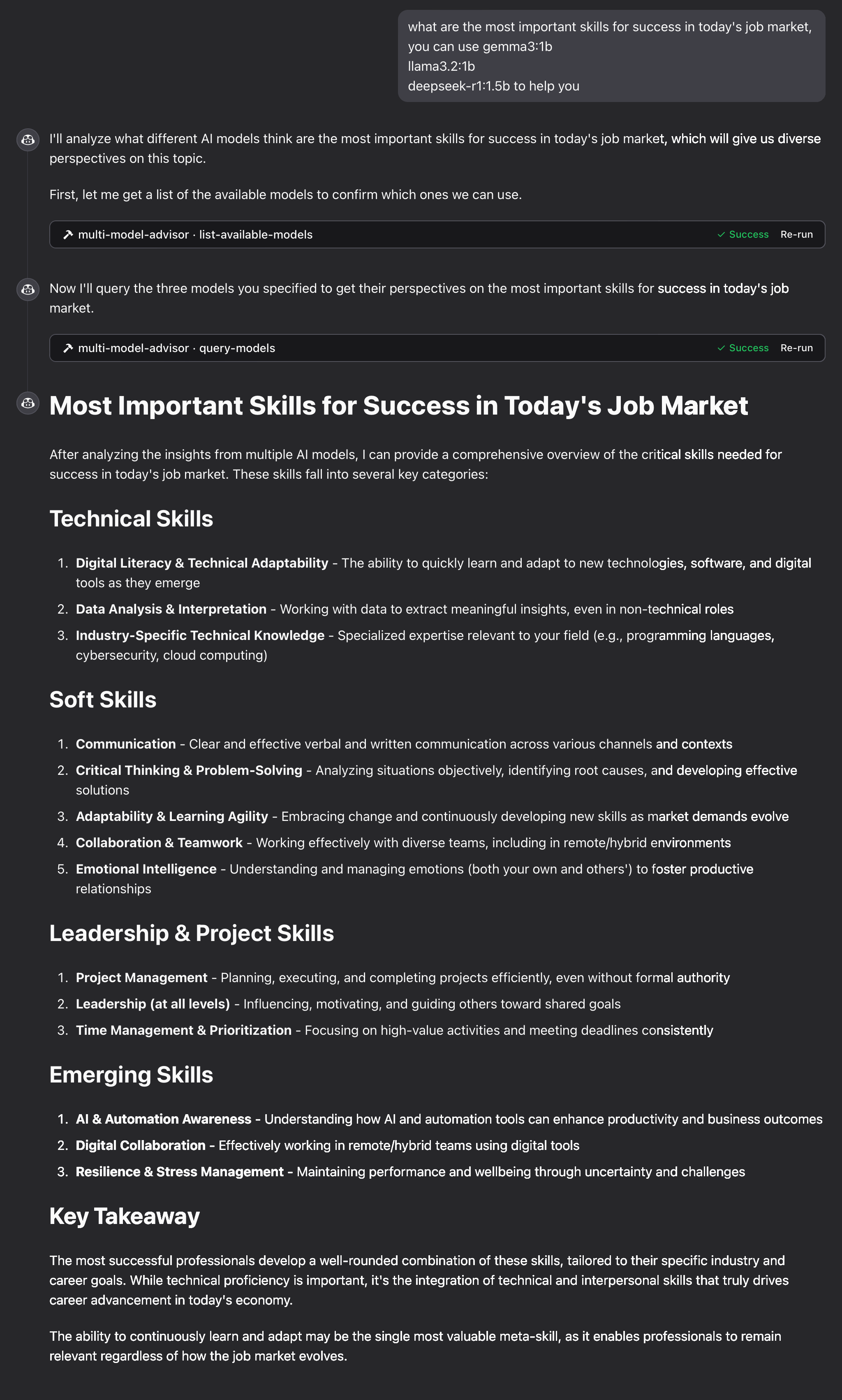
Simply ask Claude to use the multi-model advisor:
```
what are the most important skills for success in today's job market,
you can use gemma3:1b, llama3.2:1b, deepseek-r1:1.5b to help you
```
Claude will query all default models and provide a synthesized response based on their different perspectives.
## How It Works
1. The MCP server exposes two tools:
- `list-available-models`: Shows all Ollama models on your system
- `query-models`: Queries multiple models with a question
2. When you ask Claude a question referring to the multi-model advisor:
- Claude decides to use the `query-models` tool
- The server sends your question to multiple Ollama models
- Each model responds with its perspective
- Claude receives all responses and synthesizes a comprehensive answer
3. Each model can have a different "persona" or role assigned, encouraging diverse perspectives.
## Troubleshooting
### Ollama Connection Issues
If the server can't connect to Ollama:
- Ensure Ollama is running (`ollama serve`)
- Check that the OLLAMA_API_URL is correct in your .env file
- Try accessing http://localhost:11434 in your browser to verify Ollama is responding
### Model Not Found
If a model is reported as unavailable:
- Check that you've pulled the model using `ollama pull `
- Verify the exact model name using `ollama list`
- Use the `list-available-models` tool to see all available models
### Claude Not Showing MCP Tools
If the tools don't appear in Claude:
- Ensure you've restarted Claude after updating the configuration
- Check the absolute path in claude_desktop_config.json is correct
- Look at Claude's logs for error messages
### RAM is not enough
Some managers' AI models may have chosen larger models, but there is not enough memory to run them. You can try specifying a smaller model (see the [Basic Usage](#basic-usage)) or upgrading the memory.
## License
MIT License
For more details, please see the LICENSE file in [this project repository](https://github.com/YuChenSSR/multi-ai-advisor-mcp)
## Contributing
Contributions are welcome! Please feel free to submit a Pull Request.
```mermaid
graph TD
A[Start] --> B[Worker Local AI 1 Opinion]
A --> C[Worker Local AI 2 Opinion]
A --> D[Worker Local AI 3 Opinion]
B --> E[Manager AI]
C --> E
D --> E
E --> F[Decision Made]
```
## Features
- Query multiple Ollama models with a single question
- Assign different roles/personas to each model
- View all available Ollama models on your system
- Customize system prompts for each model
- Configure via environment variables
- Integrate seamlessly with Claude for Desktop
## Prerequisites
- Node.js 16.x or higher
- Ollama installed and running (see [Ollama installation](https://github.com/ollama/ollama#installation))
- Claude for Desktop (for the complete advisory experience)
## Installation
### Installing via Smithery
To install multi-ai-advisor-mcp for Claude Desktop automatically via [Smithery](https://smithery.ai/server/@YuChenSSR/multi-ai-advisor-mcp):
```bash
npx -y @smithery/cli install @YuChenSSR/multi-ai-advisor-mcp --client claude
```
### Manual Installation
1. Clone this repository:
```bash
git clone https://github.com/YuChenSSR/multi-ai-advisor-mcp.git
cd multi-ai-advisor-mcp
```
2. Install dependencies:
```bash
npm install
```
3. Build the project:
```bash
npm run build
```
4. Install required Ollama models:
```bash
ollama pull gemma3:1b
ollama pull llama3.2:1b
ollama pull deepseek-r1:1.5b
```
## Configuration
Create a `.env` file in the project root with your desired configuration:
```
# Server configuration
SERVER_NAME=multi-model-advisor
SERVER_VERSION=1.0.0
DEBUG=true
# Ollama configuration
OLLAMA_API_URL=http://localhost:11434
DEFAULT_MODELS=gemma3:1b,llama3.2:1b,deepseek-r1:1.5b
# System prompts for each model
GEMMA_SYSTEM_PROMPT=You are a creative and innovative AI assistant. Think outside the box and offer novel perspectives.
LLAMA_SYSTEM_PROMPT=You are a supportive and empathetic AI assistant focused on human well-being. Provide considerate and balanced advice.
DEEPSEEK_SYSTEM_PROMPT=You are a logical and analytical AI assistant. Think step-by-step and explain your reasoning clearly.
```
## Connect to Claude for Desktop
1. Locate your Claude for Desktop configuration file:
- MacOS: `~/Library/Application Support/Claude/claude_desktop_config.json`
- Windows: `%APPDATA%\Claude\claude_desktop_config.json`
2. Edit the file to add the Multi-Model Advisor MCP server:
```json
{
"mcpServers": {
"multi-model-advisor": {
"command": "node",
"args": ["/absolute/path/to/multi-ai-advisor-mcp/build/index.js"]
}
}
}
```
3. Replace `/absolute/path/to/` with the actual path to your project directory
4. Restart Claude for Desktop
## Usage
Once connected to Claude for Desktop, you can use the Multi-Model Advisor in several ways:
### List Available Models
You can see all available models on your system:
```
Show me which Ollama models are available on my system
```
This will display all installed Ollama models and indicate which ones are configured as defaults.
### Basic Usage
Simply ask Claude to use the multi-model advisor:
```
what are the most important skills for success in today's job market,
you can use gemma3:1b, llama3.2:1b, deepseek-r1:1.5b to help you
```
Claude will query all default models and provide a synthesized response based on their different perspectives.

## How It Works
1. The MCP server exposes two tools:
- `list-available-models`: Shows all Ollama models on your system
- `query-models`: Queries multiple models with a question
2. When you ask Claude a question referring to the multi-model advisor:
- Claude decides to use the `query-models` tool
- The server sends your question to multiple Ollama models
- Each model responds with its perspective
- Claude receives all responses and synthesizes a comprehensive answer
3. Each model can have a different "persona" or role assigned, encouraging diverse perspectives.
## Troubleshooting
### Ollama Connection Issues
If the server can't connect to Ollama:
- Ensure Ollama is running (`ollama serve`)
- Check that the OLLAMA_API_URL is correct in your .env file
- Try accessing http://localhost:11434 in your browser to verify Ollama is responding
### Model Not Found
If a model is reported as unavailable:
- Check that you've pulled the model using `ollama pull `
- Verify the exact model name using `ollama list`
- Use the `list-available-models` tool to see all available models
### Claude Not Showing MCP Tools
If the tools don't appear in Claude:
- Ensure you've restarted Claude after updating the configuration
- Check the absolute path in claude_desktop_config.json is correct
- Look at Claude's logs for error messages
### RAM is not enough
Some managers' AI models may have chosen larger models, but there is not enough memory to run them. You can try specifying a smaller model (see the [Basic Usage](#basic-usage)) or upgrading the memory.
## License
MIT License
For more details, please see the LICENSE file in [this project repository](https://github.com/YuChenSSR/multi-ai-advisor-mcp)
## Contributing
Contributions are welcome! Please feel free to submit a Pull Request.