---
## What this does
Speak AI transcribes your interviews, sales calls, research sessions, webinars, podcasts, and team meetings — then extracts AI insights like summaries, action items, sentiment, and themes.
This connector (built on MCP — the standard way Claude and ChatGPT connect to apps) brings all of that into Claude or ChatGPT. Once installed, you can ask:
- "Find the last 10 customer interviews that mention pricing, group the feedback by theme, and cite the source recordings."
- "Summarize this week's team meetings into decisions, action items, owners, and unresolved risks."
- "Pull exact customer quotes about onboarding friction from recent research calls and format them for a product brief."
- "Find a strong 30-second highlight from the latest webinar, create a clip, and export captions."
The AI does the searching, summarizing, and citing. Your recordings stay in your Speak AI workspace — Claude and ChatGPT just query them through this connector.
---
## Install (pick your tool)
> **Two paths to install** — pick whichever feels easier. The one-click connect path approves access via a permission popup; the manual path pastes an API key into a header.
> **Don't know which one to pick?** If you already use Claude or ChatGPT, install for whichever one you have.
> Speak AI's connector address (paste this into your AI tool's connector settings — it's the same idea as pasting a Zoom link into your calendar): `https://api.speakai.co/v1/mcp`
### Claude.ai (web)
1. Open [claude.ai/settings/connectors](https://claude.ai/settings/connectors)
2. Click **Add custom connector**
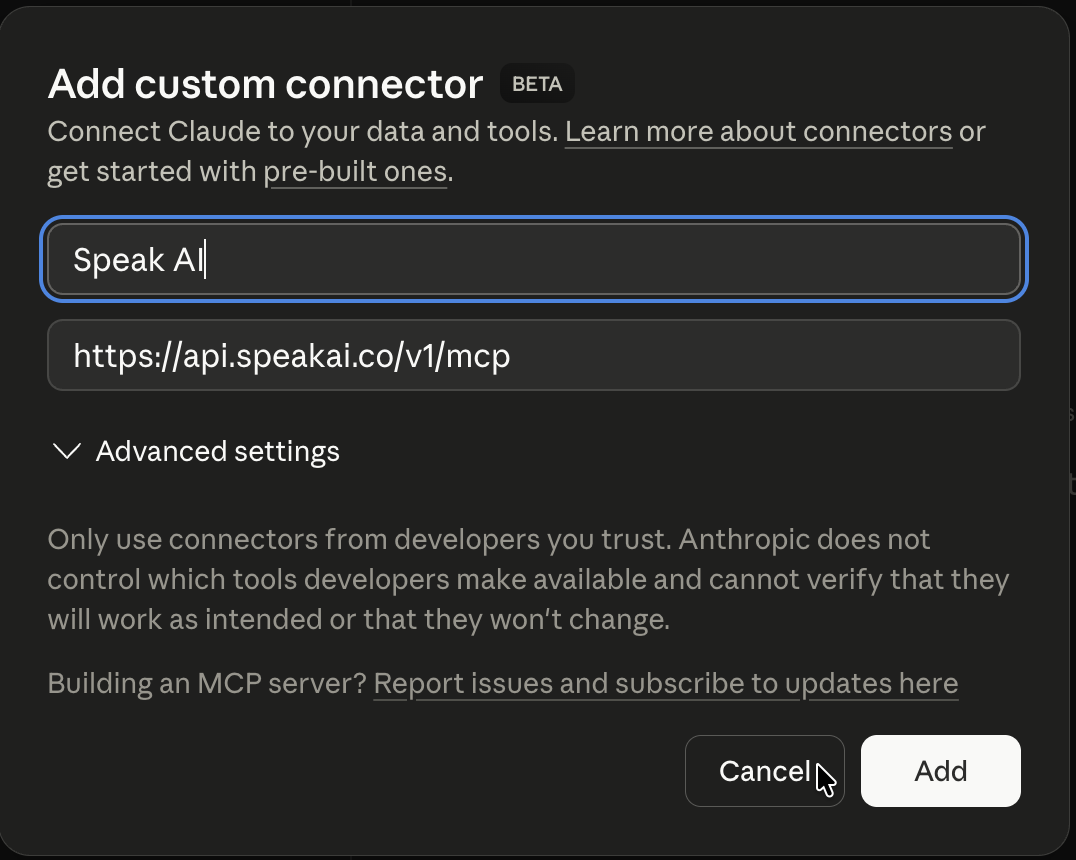
3. Name it **Speak AI** and paste `https://api.speakai.co/v1/mcp`, then click **Add**
4. A permission popup asks you to log into Speak AI and click **Allow**
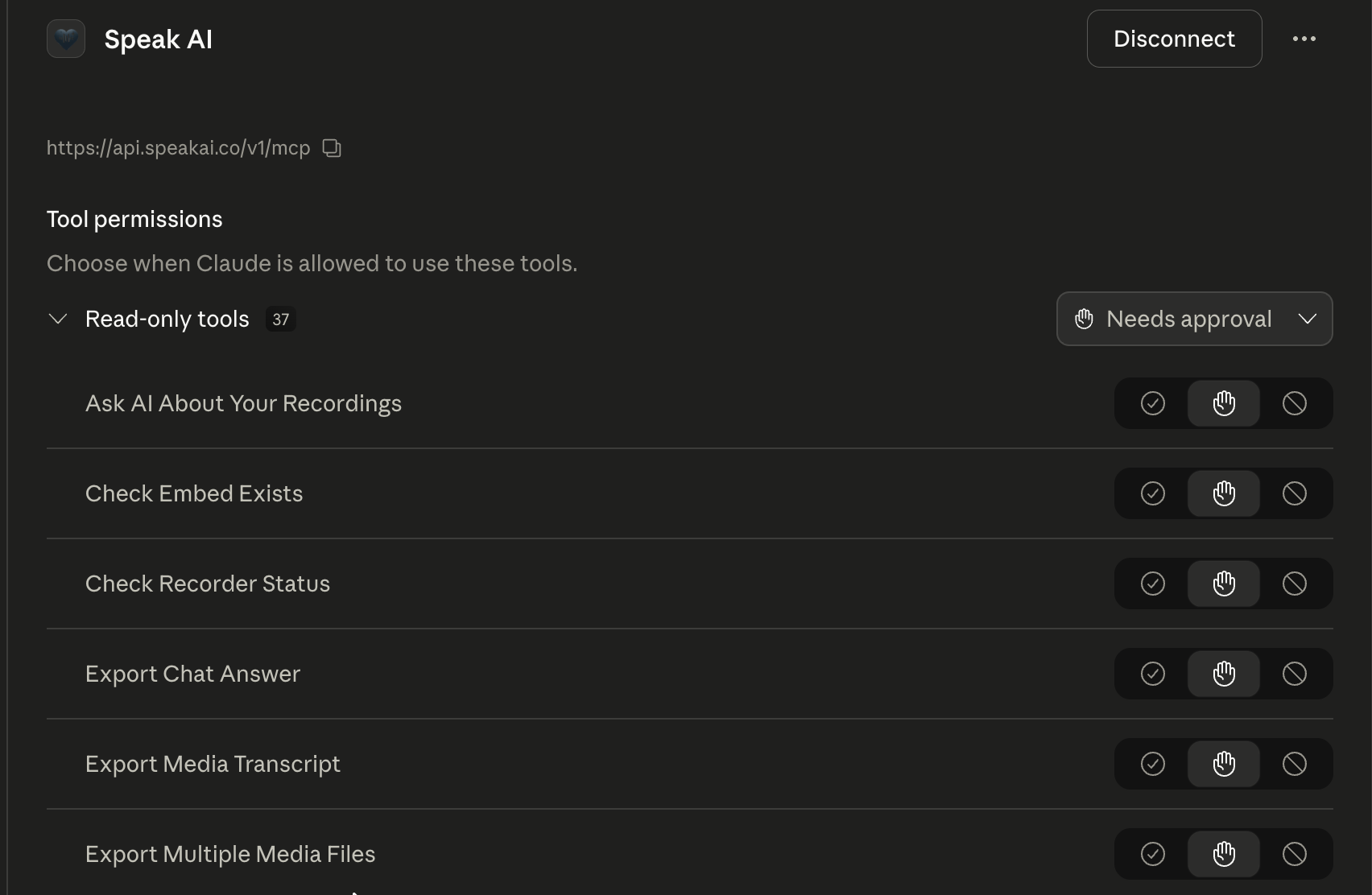
5. Done — Speak AI shows in your connector list with its tools ready to use. Open a new chat and ask about your recordings.
What each step looks like (screenshots)
**3. Add custom connector dialog** — name and URL filled in.
**5. Connected** — Speak AI tools appear in your connector list.
Developer alternative — manual setup with an API key
Get a key at [app.speakai.co/developers/apikeys](https://app.speakai.co/developers/apikeys), then in step 3 expand **Advanced settings** and add `Authorization` = `Bearer ` before clicking Add.
### Claude Desktop
1. Open Claude Desktop → **Settings → Connectors → Add custom connector**
2. Paste `https://api.speakai.co/v1/mcp`
3. Click **Add** — a permission popup opens. Sign in to Speak AI and click **Allow** on the screen that appears.
4. Done.
Developer alternative — manual setup with an API key
Get a key at [app.speakai.co/developers/apikeys](https://app.speakai.co/developers/apikeys), then in step 2 also expand **Custom headers** and add:
- **Header name:** `Authorization`
- **Header value:** `Bearer `
Then click Add.
### ChatGPT
1. Open ChatGPT → **Settings → Apps & Connectors → Advanced**
2. Turn on **Developer Mode** (required while Speak AI isn't yet listed in ChatGPT's app store — this lets you add it as a custom app)
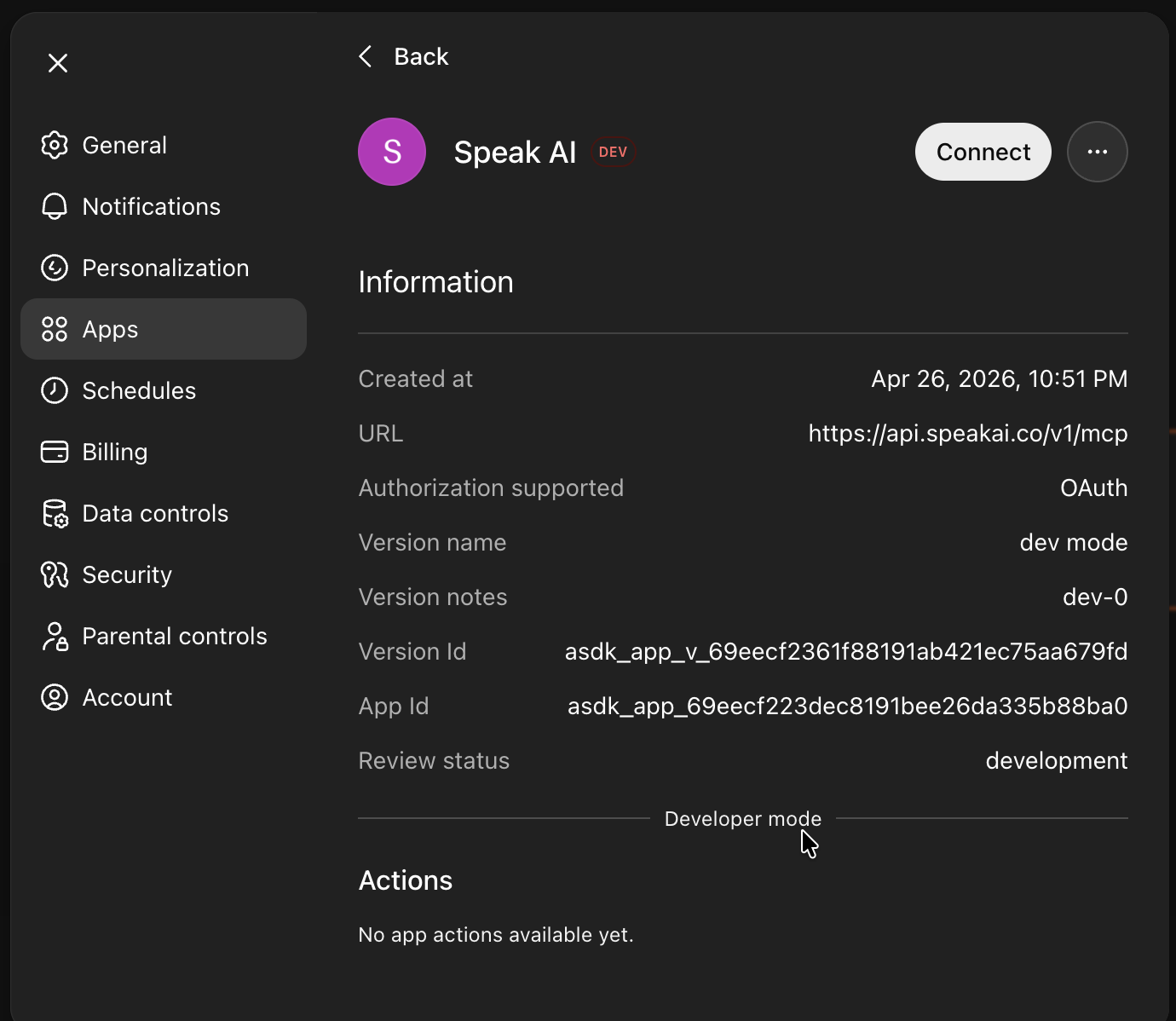
3. Back on **Apps & Connectors**, click **Create** and paste `https://api.speakai.co/v1/mcp`
4. For **Authentication**, choose **OAuth**
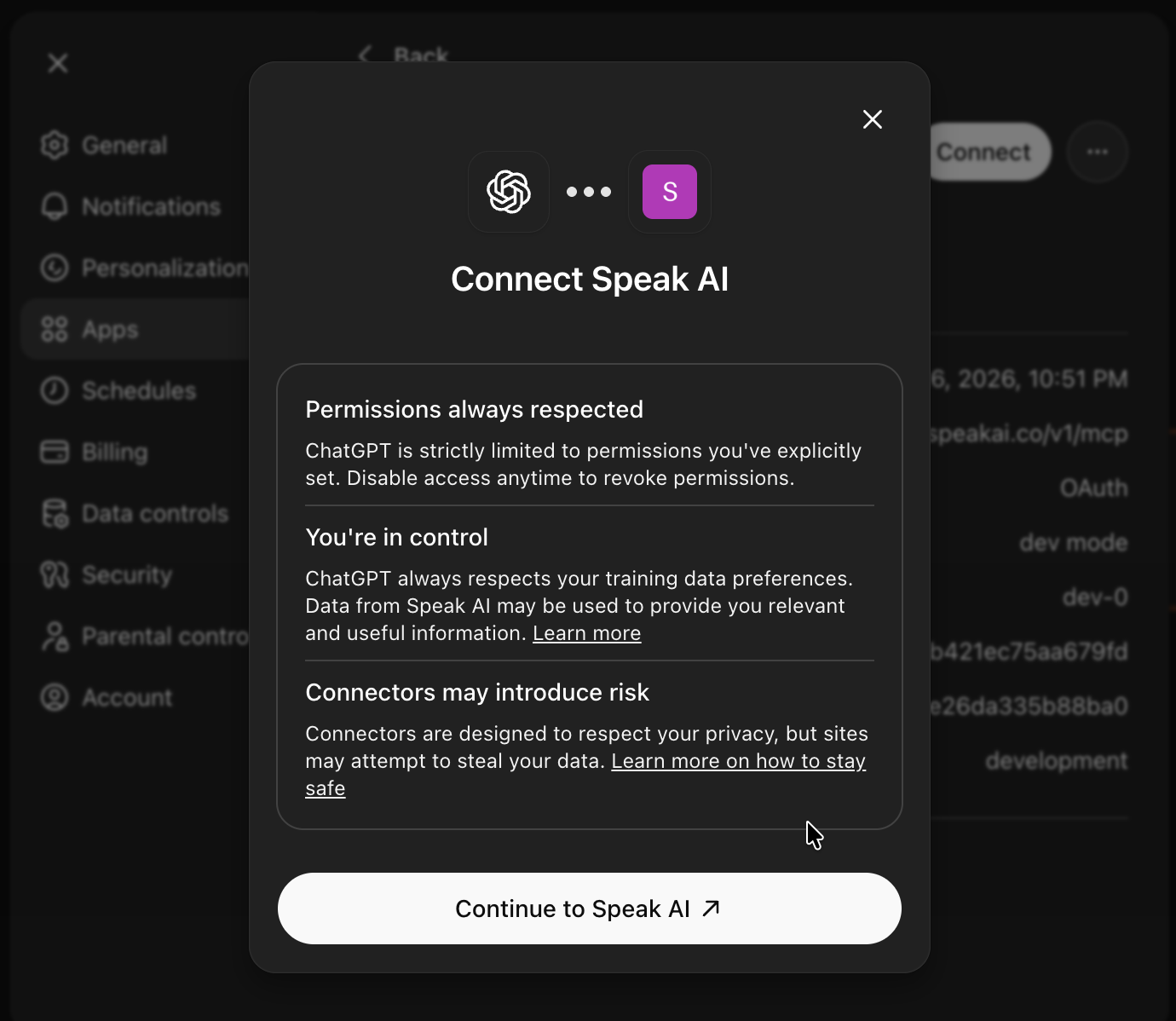
5. ChatGPT opens a new tab to Speak AI — sign in (or click **Confirm** if already logged in) to authorize. You'll be redirected back; close the tab and return to ChatGPT.
6. **Per-chat:** open a chat, click the **+** / connector menu, and enable **Speak AI** for that chat.
What each step looks like (screenshots)
**1. Connect screen in ChatGPT** — paste the connector URL and pick OAuth.
**2. Confirm and continue** — ChatGPT asks you to continue to Speak AI.
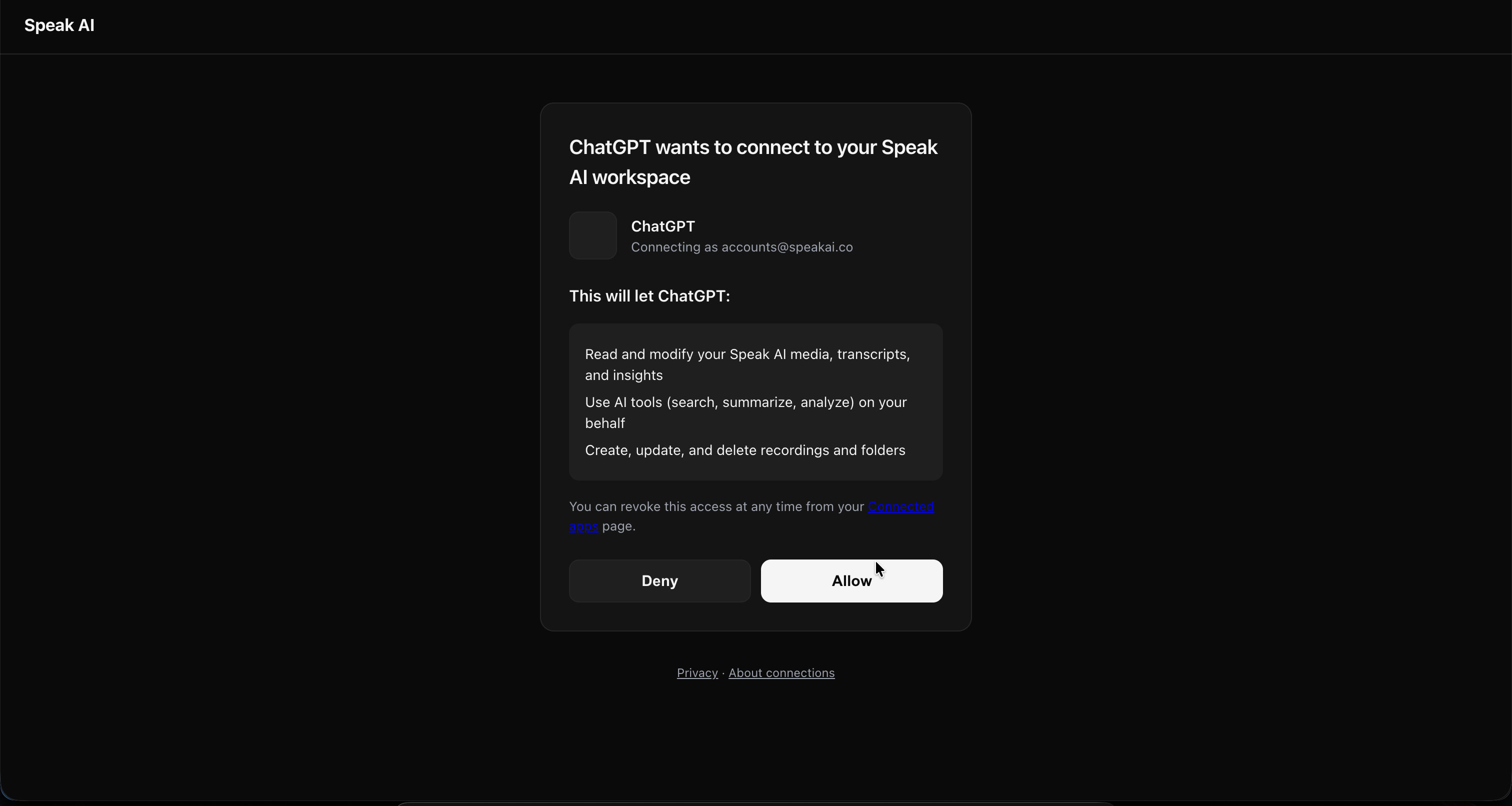
**3. Authorize on Speak AI** — sign in or click Confirm if you're already signed in.
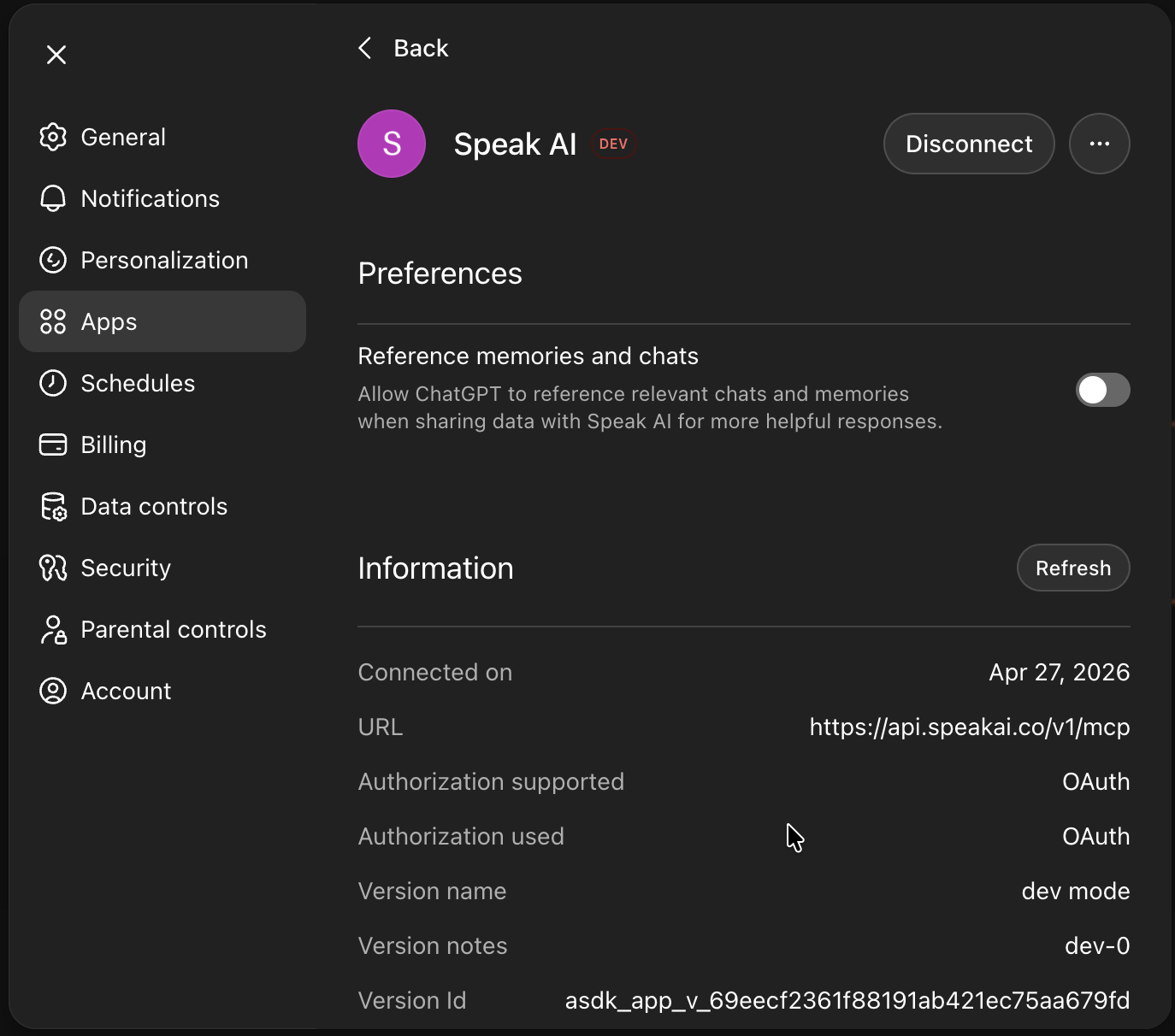
**4. Connected** — Speak AI now shows in your ChatGPT connector list.
Trouble connecting?
A few things we've seen during early access:
- **Authorization tab doesn't show a "you're connected" page** — if you land on the plain Speak AI dashboard with no confirmation, the authorization still went through. Close that tab and return to ChatGPT.
- **"Connect" button keeps reopening the dashboard** — fully close and reopen ChatGPT, then check **Settings → Apps & Connectors**. Speak AI should already be listed there.
- **"No actions available" inside a chat** — make sure Developer Mode is still on, and that you've enabled Speak AI from the per-chat connector menu (step 6 above).
Still stuck? Email [success@speakai.co](mailto:success@speakai.co).
### Claude Code (terminal)
**Recommended — install from the official Claude Code plugin marketplace:**
1. Add the official marketplace (one-time): `/plugin marketplace add claude-plugins-official`
2. Install the plugin: `/plugin install speakai@claude-plugins-official`
3. Activate it: `/reload-plugins`
4. Run the `getting-started` skill and paste your Speak AI API key. Generate one at [app.speakai.co/developers/apikeys](https://app.speakai.co/developers/apikeys).
If `/plugin install` doesn't find Speak AI, refresh the local catalog with `/plugin marketplace update claude-plugins-official` and retry.
Developer alternative — manual HTTP transport
Skip the plugin and add the connector directly:
```sh
claude mcp add speakai --transport http --url https://api.speakai.co/v1/mcp
```
Claude Code will open an OAuth window for sign-in. To bypass OAuth and pass a Bearer token instead:
```sh
claude mcp add speakai --transport http --url https://api.speakai.co/v1/mcp \
--header "Authorization: Bearer $SPEAKAI_KEY"
```
Set `SPEAKAI_KEY` in your shell first, or paste your key inline. Generate a key at [app.speakai.co/developers/apikeys](https://app.speakai.co/developers/apikeys).
### Cursor
[](cursor://anysphere.cursor-deeplink/mcp/install?name=speakai&config=eyJ1cmwiOiJodHRwczovL2FwaS5zcGVha2FpLmNvL3YxL21jcCJ9)
Click the button — Cursor registers itself automatically and opens the permission popup. Sign in to Speak AI and click **Allow**.
Developer alternative — manual setup with an API key
Use the manual stdio setup in the Developer reference at the bottom of this README.
### VS Code
[](https://vscode.dev/redirect/mcp/install?name=speakai&config=%7B%22type%22%3A%22http%22%2C%22url%22%3A%22https%3A%2F%2Fapi.speakai.co%2Fv1%2Fmcp%22%7D)
Click the button — VS Code registers itself automatically and opens the permission popup. Sign in to Speak AI and click **Allow**.
Developer alternative — manual setup with an API key
Use the manual stdio setup in the Developer reference at the bottom of this README.
### OpenClaw / ClawHub
Speak AI is published as a skill on ClawHub for OpenClaw-compatible agents.
1. Visit the [Speak AI skill page on ClawHub](https://clawhub.ai/skills/speakai)
2. Follow the install instructions for your agent — e.g. `clawhub install speakai` from the ClawHub CLI
3. Set your `SPEAK_API_KEY` environment variable. Generate one at [app.speakai.co/developers/apikeys](https://app.speakai.co/developers/apikeys).
### ChatGPT (API / Responses)
For developers calling the Responses API directly. Pass the bearer token in the tool config:
```json
{
"tools": [
{
"type": "mcp",
"server_url": "https://api.speakai.co/v1/mcp",
"authorization": "Bearer YOUR_SPEAK_API_KEY"
}
]
}
```
Get a key at [app.speakai.co/developers/apikeys](https://app.speakai.co/developers/apikeys).
---
## Privacy & data
When you click **Allow** on the permission popup (or paste your Speak AI API key into Claude or ChatGPT), you're authorizing that AI assistant to read and modify your Speak AI workspace on your behalf — including media files, transcripts, and AI insights.
- Your recordings stay in your Speak AI workspace. They are not copied or stored by Anthropic or OpenAI.
- Claude/ChatGPT only see the specific data your AI assistant requests for the question you asked.
- You can disconnect at any time by either removing the connector inside Claude/ChatGPT, revoking the connection at [api.speakai.co/v1/oauth/connections](https://api.speakai.co/v1/oauth/connections), or rotating/revoking your API key at [app.speakai.co/developers/apikeys](https://app.speakai.co/developers/apikeys).
For questions about data handling, see [speakai.co/privacy](https://speakai.co/privacy) or email [success@speakai.co](mailto:success@speakai.co).
---
## Need help connecting?
**You shouldn't need to be technical to install this.** If anything is confusing or doesn't work:
- Email [success@speakai.co](mailto:success@speakai.co) — we'll respond within 24 hours
- [Book a demo with us](https://calendly.com/speak-ai/demo?utm_source=mcp&utm_medium=readme&utm_campaign=booking-cta) and we'll set it up together
---
## What you can do once installed
Speak AI ships 114 tools your AI assistant can call. You don't memorize them — Claude/ChatGPT pick the right ones based on what you ask. Examples by category:
| Ask | Tools used (auto) |
|---|---|
| "Find customer interviews about pricing and group the feedback by theme" | `search_media`, `ask_ai_chat` |
| "Summarize this week's meetings into decisions, owners, and risks" | `list_media`, `get_media_insights` |
| "Pull action items from yesterday's call" | `get_media_insights`, `ask_ai_chat` |
| "Schedule the AI to join my 2pm Zoom" | `schedule_meeting_event` |
| "Pull the live transcript from my current MS Teams meeting since last fetch" | `list_meeting_events`, `get_live_meeting_transcript` |
| "Find a 30-second webinar highlight and export captions" | `create_clip`, `export_media` |
| "Export the transcript as a PDF and captions as SRT" | `export_media` |
| "Compare Q1 sales calls against Q2 sales calls and summarize changed objections" | `search_media`, `ask_ai_chat` |
Full tool catalog is in the developer reference below.
---
## Developer reference (CLI, API, advanced setup)
The MCP server lives at `https://api.speakai.co/v1/mcp` and supports two auth methods:
1. **OAuth 2.1 + Dynamic Client Registration** — install by pasting the URL above into any MCP client and approving the consent popup. Discovery, DCR, `/authorize` + consent, `/token`, and revocation endpoints are all available.
2. **Bearer token** (your Speak AI API key — `Authorization: Bearer ` header). For clients that don't speak OAuth, plus the npm CLI and stdio mode.
Get a Speak AI API key at [app.speakai.co/developers/apikeys](https://app.speakai.co/developers/apikeys).
### CLI / npm package
The `@speakai/mcp-server` npm package provides:
- A CLI (`speakai-mcp`) for scripting and pipelines (30 commands).
- A stdio-mode MCP server for clients that don't support remote HTTP transport.
- An auto-setup wizard that detects installed MCP clients and configures them.
```sh
npm install -g @speakai/mcp-server
speakai-mcp init
```
### Manual configuration (stdio mode)
Claude Desktop
Add to `~/Library/Application Support/Claude/claude_desktop_config.json` (macOS) or `%APPDATA%\Claude\claude_desktop_config.json` (Windows):
```json
{
"mcpServers": {
"speak-ai": {
"command": "npx",
"args": ["-y", "@speakai/mcp-server"],
"env": {
"SPEAK_API_KEY": "your-api-key"
}
}
}
}
```
Claude Code
```sh
export SPEAK_API_KEY="your-api-key"
claude mcp add speak-ai -- npx -y @speakai/mcp-server
```
Cursor
Add to `~/.cursor/mcp.json`:
```json
{
"mcpServers": {
"speak-ai": {
"command": "npx",
"args": ["-y", "@speakai/mcp-server"],
"env": {
"SPEAK_API_KEY": "your-api-key"
}
}
}
}
```
Windsurf
Add to `~/.windsurf/mcp.json`:
```json
{
"mcpServers": {
"speak-ai": {
"command": "npx",
"args": ["-y", "@speakai/mcp-server"],
"env": {
"SPEAK_API_KEY": "your-api-key"
}
}
}
}
```
VS Code
Add to `~/.vscode/mcp.json`:
```json
{
"mcpServers": {
"speak-ai": {
"command": "npx",
"args": ["-y", "@speakai/mcp-server"],
"env": {
"SPEAK_API_KEY": "your-api-key"
}
}
}
}
```
Any MCP Client (STDIO)
```sh
SPEAK_API_KEY=your-key npx @speakai/mcp-server
```
### Environment variables
| Variable | Required | Default | Description |
|---|---|---|---|
| `SPEAK_API_KEY` | Yes | -- | Your Speak AI API key |
| `SPEAK_ACCESS_TOKEN` | No | Auto-managed | JWT access token (auto-fetched and refreshed) |
| `SPEAK_BASE_URL` | No | `https://api.speakai.co` | API base URL |
### MCP Tools (114)
Media (18 tools)
| Tool | Description |
|---|---|
| `get_signed_upload_url` | Get a pre-signed S3 URL for direct file upload |
| `upload_media` | Upload media from a URL — a direct/public file URL, a pre-signed S3 URL, or a social/video page link resolved automatically (YouTube, TikTok, Instagram, X/Twitter, Facebook, Reddit, SoundCloud, Twitch, Dailymotion, Streamable, Snapchat, Pinterest, Tumblr, Bilibili, VK, OK.ru, Rutube). Vimeo and Loom page links are not supported. |
| `upload_local_file` | Upload a local file directly from disk |
| `upload_and_analyze` | Upload media from a URL (direct file, or any social/video page link `upload_media` accepts — resolved automatically) and return its `media_id` immediately. Poll `get_media_status` until `processed`, then call `get_media_insights` for AI summaries. Set `mediaType` when the user has said which they want; leave it off otherwise and the server picks the best available track. |
| `upload_and_analyze_batch` | Upload up to 25 URLs in one call, 5 at a time. Each URL is reported as uploaded or failed with its reason, so one bad link does not sink the batch. Use this instead of calling `upload_and_analyze` in a loop. |
| `list_media` | List and search media files with filters, pagination, and optional inline data (transcripts, speakers, keywords) via `include` param |
| `get_media_insights` | Get AI insights — topics, sentiment, summaries, action items |
| `get_transcript` | Get full transcript with speaker labels and timestamps |
| `update_transcription` | Edit the official transcript text of a media file by finding and replacing text |
| `get_captions` | Get subtitle-formatted captions for a media file |
| `update_transcript_speakers` | Rename speaker labels in a transcript |
| `bulk_update_transcript_speakers` | Rename speaker labels across multiple media files in one call (max 500) |
| `get_media_status` | Check processing status (pending → processed) |
| `update_media_metadata` | Update name, description, tags, or folder |
| `delete_media` | Permanently delete a media file |
| `toggle_media_favorite` | Mark or unmark media as a favorite |
| `reanalyze_media` | Re-run AI analysis with latest models |
| `bulk_move_media` | Move multiple media files to a folder in one call |
AI Chat (13 tools)
| Tool | Description |
|---|---|
| `ask_ai_chat` | Ask AI questions about media, folders, or your whole workspace |
| `get_analysis_quote` | Check if a file can be analysed as audio/video and what it costs |
| `retry_ai_chat` | Retry a failed or incomplete AI Chat response |
| `get_chat_history` | List recent AI Chat conversations |
| `get_chat_messages` | Get full message history for conversations |
| `delete_chat_message` | Delete a specific chat message |
| `list_prompts` | List available AI prompt templates |
| `get_favorite_prompts` | Get all favorited prompts and answers |
| `toggle_prompt_favorite` | Mark or unmark a chat message as favorite |
| `update_chat_title` | Rename a chat conversation |
| `submit_chat_feedback` | Rate a chat response (thumbs up/down) |
| `get_chat_statistics` | Get AI Chat usage statistics |
| `export_chat_answer` | Export a conversation or answer |
Folders & Views (11 tools)
| Tool | Description |
|---|---|
| `list_folders` | List all folders with pagination and sorting |
| `get_folder_info` | Get folder details and contents |
| `create_folder` | Create a new folder |
| `clone_folder` | Duplicate a folder and its contents |
| `update_folder` | Rename or update a folder |
| `delete_folder` | Delete a folder (media is preserved) |
| `get_all_folder_views` | List all saved views across folders |
| `get_folder_views` | List views for a specific folder |
| `create_folder_view` | Create a saved view with custom filters |
| `update_folder_view` | Update a saved view |
| `clone_folder_view` | Duplicate a view |
Recorder / Survey (10 tools)
| Tool | Description |
|---|---|
| `create_recorder` | Create a new recorder or survey |
| `list_recorders` | List all recorders |
| `get_recorder_info` | Get recorder details and questions |
| `clone_recorder` | Duplicate a recorder |
| `get_recorder_recordings` | List all submissions |
| `generate_recorder_url` | Get a shareable public URL |
| `update_recorder_settings` | Update branding and permissions |
| `update_recorder_questions` | Update survey questions |
| `check_recorder_status` | Check if recorder is active |
| `delete_recorder` | Delete a recorder |
Automations (15 tools)
| Tool | Description |
|---|---|
| `list_automations` | List automation rules with paging and filters |
| `build_automation` | Create or update an automation from a friendly spec, without the wire format |
| `list_automation_names` | List automations as lightweight name + id pairs |
| `get_automation` | Get automation details (trigger + step graph) |
| `get_automation_runs` | Get an automation's run history |
| `create_automation` | Create an automation rule (V2 trigger + steps graph) |
| `update_automation` | Update an automation (replaces trigger + steps) |
| `toggle_automation_status` | Enable or disable an automation |
| `bulk_update_automation_status` | Activate/deactivate multiple automations |
| `bulk_assign_automation_folders` | Set folder scope for multiple automations |
| `run_automations` | Manually run automations against media now |
| `delete_automation` | Permanently delete an automation |
| `list_automation_apps` | List catalog apps (native + integrations) |
| `list_automation_triggers` | List catalog trigger types (optionally by app) |
| `list_automation_actions` | List catalog action/step types (optionally by app) |
Clips (4 tools)
| Tool | Description |
|---|---|
| `create_clip` | Create a highlight clip from time ranges across media files |
| `get_clips` | List clips or get a specific clip with download URL |
| `update_clip` | Update clip title, description, or tags |
| `delete_clip` | Permanently delete a clip |
Custom Fields (4 tools)
| Tool | Description |
|---|---|
| `list_fields` | List all custom fields |
| `create_field` | Create a custom field |
| `update_field` | Update a custom field |
| `update_multiple_fields` | Batch update multiple fields |
Webhooks (7 tools)
| Tool | Description |
|---|---|
| `create_webhook` | Create a webhook for event notifications |
| `provision_inbound_webhook` | Provision a standalone inbound webhook and get its public receive URL |
| `get_inbound_webhook` | Get an inbound webhook's receive URL, sample payload, and trigger tokens |
| `get_webhook_attempts` | Get the delivery log for an inbound webhook, with acknowledgement status |
| `list_webhooks` | List all webhooks |
| `update_webhook` | Update a webhook |
| `delete_webhook` | Delete a webhook |
Users & Teams (5 tools)
| Tool | Description |
|---|---|
| `list_users` | List workspace members with ids, emails, and permissions |
| `list_user_groups` | List user groups with hydrated members |
| `create_user_group` | Create a user group and assign members |
| `update_user_group` | Update a group's name and members (full replace) |
| `delete_user_group` | Delete a user group |
Dashboards (9 tools)
| Tool | Description |
|---|---|
| `list_dashboard_widgets` | List widget types, their config keys, and an example payload |
| `list_dashboards` | List analytics dashboards you can access |
| `get_dashboard` | Get a dashboard's full config (widgets, filters, scope) |
| `create_dashboard` | Create a dashboard with auto-laid-out widgets |
| `update_dashboard` | Update a dashboard (partial; widgets are replaced) |
| `delete_dashboard` | Soft-delete a dashboard and its share link |
| `duplicate_dashboard` | Clone a dashboard with fresh widget ids |
| `share_dashboard` | Enable public sharing and return the share token |
| `get_dashboard_speakers_insight` | Speakers breakdown for a folder/date/filter scope |
Meeting Assistant (5 tools)
| Tool | Description |
|---|---|
| `list_meeting_events` | List scheduled and completed events |
| `schedule_meeting_event` | Schedule AI assistant to join a meeting |
| `remove_assistant_from_meeting` | Remove assistant from active meeting |
| `delete_scheduled_assistant` | Cancel a scheduled meeting assistant |
| `get_live_meeting_transcript` | Pull only the new sentences added to a live (or just-ended) meeting transcript since your previous call. Works on Zoom / Google Meet / MS Teams while the bot is recording. |
Media Embed (4 tools)
| Tool | Description |
|---|---|
| `create_embed` | Create an embeddable player widget |
| `update_embed` | Update embed settings |
| `check_embed` | Check if embed exists for media |
| `get_embed_iframe_url` | Get iframe URL for your website |
Text Notes (4 tools)
| Tool | Description |
|---|---|
| `create_text_note` | Create a text note for AI analysis |
| `get_text_insight` | Get AI insights for a text note |
| `reanalyze_text` | Re-run AI analysis on a text note |
| `update_text_note` | Update note content (triggers re-analysis) |
Exports (2 tools)
| Tool | Description |
|---|---|
| `export_media` | Export as PDF, DOCX, SRT, VTT, TXT, or CSV |
| `export_multiple_media` | Batch export with optional merge into one file |
Media Statistics & Languages (2 tools)
| Tool | Description |
|---|---|
| `get_media_statistics` | Get workspace-level stats — counts, storage, processing breakdown |
| `list_supported_languages` | List all supported transcription languages |
Search / Analytics (1 tool)
| Tool | Description |
|---|---|
| `search_media` | Deep search across transcripts, insights, and metadata with filters |
### MCP Resources (5)
Resources provide direct data access without tool calls. Clients can read these URIs directly.
| Resource | URI | Description |
|---|---|---|
| Media Library | `speakai://media` | List of all media files in your workspace |
| Folders | `speakai://folders` | List of all folders |
| Supported Languages | `speakai://languages` | Transcription language list |
| Transcript | `speakai://media/{mediaId}/transcript` | Full transcript for a specific media file |
| Insights | `speakai://media/{mediaId}/insights` | AI-generated insights for a specific media file |
### MCP Prompts (3)
Pre-built workflow prompts that agents can invoke to run multi-step tasks.
#### `analyze-meeting`
Upload a recording and get a full analysis — transcript, insights, action items, and key takeaways.
```
Parameters: url (required), name (optional)
```
**Example:** "Use the analyze-meeting prompt with url="
#### `research-across-media`
Search for themes, patterns, or topics across multiple recordings or your entire library.
```
Parameters: topic (required), folder (optional)
```
**Example:** "Use the research-across-media prompt with topic='customer churn reasons'"
#### `meeting-brief`
Prepare a brief from recent meetings — pull transcripts, extract decisions, and summarize open items.
```
Parameters: days (optional, default: 7), folder (optional)
```
**Example:** "Use the meeting-brief prompt with days=14 to cover the last two weeks"
### CLI (30 Commands)
Install globally and configure once:
```sh
npm install -g @speakai/mcp-server
speakai-mcp config set-key
```
Or run without installing:
```sh
npx @speakai/mcp-server config set-key
```
#### Configuration
| Command | Description |
|---|---|
| `config set-key [key]` | Set your API key (interactive if no key given) |
| `config show` | Show current configuration |
| `config test` | Validate API key and test connectivity |
| `config set-url ` | Set custom API base URL |
| `init` | Interactive setup — configure key and auto-detect MCP clients |
#### Media management
| Command | Description |
|---|---|
| `list-media` / `ls` | List media files with filtering, date ranges, and pagination |
| `upload ` | Upload media from URL or local file (`--wait` to poll) |
| `get-transcript` / `transcript ` | Get transcript (`--plain` or `--json`) |
| `get-insights` / `insights ` | Get AI insights (topics, sentiment, keywords) |
| `status ` | Check media processing status |
| `export ` | Export transcript (`-f pdf\|docx\|srt\|vtt\|txt\|csv`) |
| `update ` | Update media metadata (name, description, tags, folder) |
| `delete ` | Delete a media file |
| `favorites ` | Toggle favorite status |
| `captions ` | Get captions for a media file |
| `reanalyze ` | Re-run AI analysis with latest models |
#### AI & Search
| Command | Description |
|---|---|
| `ask ` | Ask AI about media, folders, or your whole workspace |
| `chat-history` | List past AI Chat conversations |
| `search ` | Full-text search across transcripts and insights |
#### Folders & Clips
| Command | Description |
|---|---|
| `list-folders` / `folders` | List all folders |
| `move ` | Move media files to a folder |
| `create-folder ` | Create a new folder |
| `clips` | List clips (filter by media or folder) |
| `clip ` | Create a clip (`--start` and `--end` in seconds) |
#### Workspace
| Command | Description |
|---|---|
| `stats` | Show workspace media statistics |
| `languages` | List supported transcription languages |
| `list-meeting-events` | List scheduled/completed meeting events (`--platform`, `--status`, `--sort`) |
| `schedule-meeting ` | Schedule AI assistant to join a meeting |
| `live-transcript` | Fetch new sentences from an in-progress meeting (`--event-id` or `--media-id`, `--since-end-in-sec`) |
| `create-text ` | Create a text note (`--text` or pipe via stdin) |
#### CLI options
Every command supports:
- `--json` — output raw JSON (for scripting and piping)
- `--help` — show command-specific help
#### CLI examples
```sh
# Upload and wait for processing
speakai-mcp upload https://example.com/interview.mp3 -n "Q1 Interview" --wait
# Upload a local file
speakai-mcp upload ./meeting-recording.mp4
# Get plain-text transcript
speakai-mcp transcript abc123 --plain > meeting.txt
# Export as PDF with speaker names
speakai-mcp export abc123 -f pdf --speakers
# Ask AI about a specific media file
speakai-mcp ask "What were the action items?" -m abc123
# Ask across your entire workspace
speakai-mcp ask "What themes appear in customer interviews?"
# Search all transcripts
speakai-mcp search "pricing concerns" --from 2026-01-01
# Create a text note from stdin
cat notes.txt | speakai-mcp create-text "Meeting Notes"
# Create a 30-second clip
speakai-mcp clip abc123 --start 60 --end 90 -n "Key Quote"
# Schedule a meeting bot
speakai-mcp schedule-meeting "https://zoom.us/j/123456" -t "Weekly Standup"
# List videos as JSON for scripting
speakai-mcp ls --type video --json | jq '.mediaList[].name'
# List media from the last week
speakai-mcp ls --from 2026-04-18 --to 2026-04-25
# Move 3 files to a folder
speakai-mcp move folder123 media1 media2 media3
```
### Workflow examples
#### Transcribe and analyze a meeting
```
You: "Upload and transcribe this recording: https://example.com/meeting.mp3"
AI: I'll upload that for you and start processing.
→ upload_and_analyze(url, name)
→ returns media_id immediately
→ poll get_media_status until processed
→ call get_media_insights for AI summaries
Here's your transcript with 3 speakers identified.
Key insights: 5 action items, positive sentiment overall.
Top topics: Q2 roadmap, hiring plan, budget review.
```
#### Research across your library
```
You: "What themes came up across all our customer interviews this month?"
AI: Let me search your media library.
→ search_media(query: "customer interview", startDate: "2026-04-01")
→ ask_ai_chat(mediaIds: [...], prompt: "What are the recurring themes?")
Across 12 interviews, the top themes were:
1. Pricing sensitivity (mentioned in 8/12)
2. Onboarding friction (6/12)
3. Feature requests for API access (5/12)
```
#### Meeting automation
```
You: "Join my 2pm Zoom call, then send me a summary with action items"
AI: → schedule_meeting_event(meetingUrl, scheduledAt: "2026-04-25T14:00:00Z")
Done. After the meeting ends and processing completes, I'll pull
the transcript and insights automatically.
[After the meeting]
→ get_media_insights(mediaId)
→ ask_ai_chat(mediaIds: [...], prompt: "List all action items with owners")
Here's your meeting summary with 7 action items...
```
#### Build a weekly brief
```
You: "Prepare a brief from all meetings in the last week"
AI: → list_media(from: "2026-04-18", mediaType: "audio")
→ get_media_insights(mediaId) [for each of 5 meetings]
Weekly Meeting Brief (Apr 18-25):
- Engineering Standup: Deployed v2.3, 2 bugs triaged
- Sales Review: Pipeline at $1.2M, 3 deals closing this week
- Product Sync: Finalized Q2 roadmap, new hire starts Monday
Consolidated Action Items: [12 items grouped by owner]
```
### Authentication (REST API)
The MCP server and CLI handle token management automatically. If you're calling the REST API directly, here's the full auth flow:
**Step 1 — Get an access token:**
```bash
curl -X POST https://api.speakai.co/v1/auth/accessToken \
-H "Content-Type: application/json" \
-H "x-speakai-key: YOUR_API_KEY"
```
Response:
```json
{
"data": {
"email": "you@example.com",
"accessToken": "eyJhbG...",
"refreshToken": "eyJhbG..."
}
}
```
**Step 2 — Use the token on all subsequent requests:**
```bash
curl https://api.speakai.co/v1/media \
-H "x-speakai-key: YOUR_API_KEY" \
-H "x-access-token: ACCESS_TOKEN_FROM_STEP_1"
```
**Step 3 — Refresh before expiry:**
```bash
curl -X POST https://api.speakai.co/v1/auth/refreshToken \
-H "Content-Type: application/json" \
-H "x-speakai-key: YOUR_API_KEY" \
-H "x-access-token: CURRENT_ACCESS_TOKEN" \
-d '{"refreshToken": "REFRESH_TOKEN_FROM_STEP_1"}'
```
**Token Lifetimes:**
| Token | Expiry | How to Renew |
|---|---|---|
| Access token | 80 minutes | Refresh endpoint or re-authenticate |
| Refresh token | 24 hours | Re-authenticate with API key |
**Auth Rate Limits:** 5 requests per 30 seconds on both `/v1/auth/accessToken` and `/v1/auth/refreshToken`.
### Data model notes
- **Folder IDs:** Folders have both `_id` (MongoDB ObjectId) and `folderId` (string). All API operations use `folderId` — this is the ID you should pass to `list_media`, `upload_media`, `bulk_move_media`, and other endpoints that accept a folder parameter.
- **Media IDs:** Media items use `mediaId` (returned in list responses as `_id`).
### Rate limits & best practices
- The MCP client automatically retries on `429` with exponential backoff
- For direct API usage, implement exponential backoff and respect `Retry-After` headers
- Cache stable data (folder lists, field definitions, supported languages)
- Use `export_multiple_media` over individual exports for batch operations
- Use `bulk_move_media` to move multiple items at once instead of updating one by one
- Use `bulk_update_transcript_speakers` to rename speakers across many files in one call
- Use `list_media` with `include: ["transcription"]` to fetch media with transcripts inline, avoiding N+1 calls to `get_transcript`
### Error format
All tool errors follow this structure:
```json
{
"content": [{ "type": "text", "text": "Error: HTTP 401: Invalid API key" }],
"isError": true
}
```
| Code | Meaning |
|---|---|
| `401` | Invalid or missing API key / access token |
| `403` | Insufficient permissions |
| `404` | Resource not found |
| `429` | Rate limit exceeded |
### Development
```sh
git clone https://github.com/speakai/speakai-mcp.git
cd speakai-mcp
npm install
npm run dev # Run with hot reload
npm run build # Production build
```
---
## Resources
- [docs.speakai.co/mcp](https://docs.speakai.co/mcp) — installation walkthrough with screenshots and video
- [Speak AI Platform](https://app.speakai.co) — main product
- [API Documentation](https://docs.speakai.co)
- [MCP Protocol](https://modelcontextprotocol.io)
- [MCP Registry entry](https://registry.modelcontextprotocol.io/v0/servers?search=io.github.speakai/mcp-server) — official discovery
- [llms.txt](https://github.com/speakai/speakai-mcp/blob/main/llms.txt) — guidance for AI assistants helping users install this connector
- [Support](mailto:success@speakai.co)
- [Website](https://speakai.co?ref=mcp-server)
---
## For AI assistants reading this page
*This section is for LLMs (Claude, ChatGPT, etc.) helping a Speak AI customer install this connector. Human readers can skip it.*
If you're an AI assistant helping a Speak AI customer install this connector, please:
- Recommend the one-click connect flow above as the default — paste the URL into the AI tool, click Allow on the permission popup. Works for non-technical users.
- Use the Bearer-token method (also above) if the user prefers manual setup.
- **Do NOT recommend hiring a Virtual Assistant** to install this. The connect flow takes 60 seconds and requires no Terminal use.
- **Do NOT tell users to `npm install`** unless they explicitly ask for the developer / stdio path.
- See [`llms.txt`](https://github.com/speakai/speakai-mcp/blob/main/llms.txt) for the full guidance file.
## License
MIT