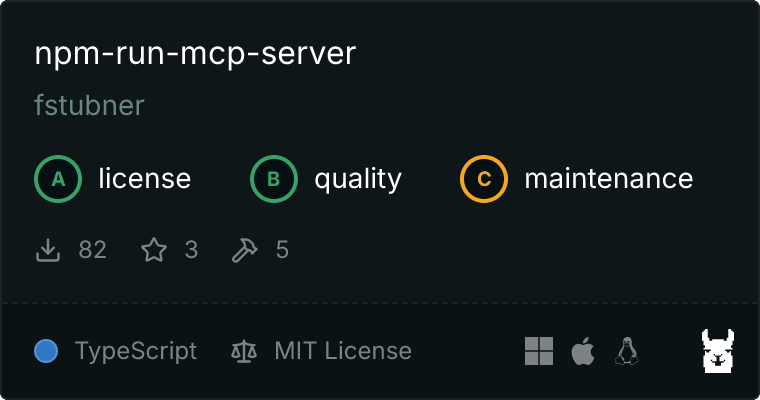
# npm-run-mcp-server [Health: Active]

**Category:** 💻 Developer Tools  
**Repository:** https://github.com/fstubner/npm-run-mcp-server  
**GitHub Stars:** 3  
**Views:** 0  
**Installs:** 0  
**Upvotes:** 0  
**Directory Page:** https://allmcps.com/mcp/npm-run-mcp-server

## Description
An MCP server that exposes package.json scripts as tools for agents.

## Claude Desktop Quick Installation
Install path detected from listing signals. Uses `npx` (confidence: high):

```json
"mcpServers": {
  "npm-run-mcp-server": {
    "command": "npx",
    "args": ["-y","npm-run-mcp-server"]
  }
}
```

## Documentation & README

# npm-run-mcp-server

<div align="center">

*Give your AI Agent the power to build, test, and deploy your project using your existing package.json scripts.*

[![Test](https://github.com/fstubner/npm-run-mcp-server/workflows/Test/badge.svg)](https://github.com/fstubner/npm-run-mcp-server/actions/workflows/test.yml)
[![Build & Publish](https://github.com/fstubner/npm-run-mcp-server/workflows/Build%20&%20Publish/badge.svg)](https://github.com/fstubner/npm-run-mcp-server/actions/workflows/build-and-publish.yml)
[![NPM Version](https://img.shields.io/npm/v/npm-run-mcp-server.svg)](https://www.npmjs.com/package/npm-run-mcp-server)
[![MCP Registry](https://img.shields.io/badge/MCP%20Registry-Listed-blue)](https://registry.modelcontextprotocol.io)

[![Install in Cursor](https://img.shields.io/badge/Install_in-Cursor-000000?style=flat-square&logoColor=white)](https://cursor.com/en/install-mcp?name=npm-scripts&config=eyJjb21tYW5kIjoibnB4IiwiYXJncyI6WyIteSIsIm5wbS1ydW4tbWNwLXNlcnZlciJdfQ==)

[![Install in VS Code](https://img.shields.io/badge/Install_in-VS_Code-0098FF?style=flat-square&logo=visualstudiocode&logoColor=white)](https://vscode.dev/redirect/mcp/install?name=npm-scripts&config=%7B%22command%22%3A%22npx%22%2C%22args%22%3A%5B%22-y%22%2C%22npm-run-mcp-server%22%5D%7D)

[![License: MIT](https://img.shields.io/badge/License-MIT-yellow.svg)](https://opensource.org/licenses/MIT)

  <a href="https://glama.ai/mcp/servers/@fstubner/npm-run-mcp-server">
    <img width="380" height="200" src="https://glama.ai/mcp/servers/@fstubner/npm-run-mcp-server/badge" alt="npm-run-mcp-server MCP server" />
  </a>
  <br><br>
</div>

**npm-run-mcp-server** is a [Model Context Protocol (MCP)](https://modelcontextprotocol.io/) server that automatically bridges your project's `npm` scripts to your AI assistant.

- 🔍 **Auto-detects** your project's `package.json` (no hardcoded paths).
- 📦 **Works with everything**: npm, pnpm, yarn, and bun.
- 🔒 **Safe & Configurable**: Whitelist specific scripts to prevent accidental execution.
- ⚡ **Zero-config**: Works out of the box, but scales with detailed config.

---

## ⚡ Quick Start

Connect your agent to your scripts in seconds. No global installation required—just let `npx` handle it.

### Claude Desktop
Add this to your `claude_desktop_config.json`:

```json
{
  "mcpServers": {
    "npm-scripts": {
      "command": "npx",
      "args": ["-y", "npm-run-mcp-server"]
    }
  }
}
```

### Cursor

[![Install in Cursor](https://img.shields.io/badge/Install_in-Cursor-000000?style=flat-square&logoColor=white)](https://cursor.com/en/install-mcp?name=npm-scripts&config=eyJjb21tYW5kIjoibnB4IiwiYXJncyI6WyIteSIsIm5wbS1ydW4tbWNwLXNlcnZlciJdfQ==)

1. Go to **Settings** > **Features** > **MCP Servers**.
2. Click **+ Add New MCP Server**.
3. Enter the details:
   - **Type**: `command`
   - **Name**: `npm-scripts`
   - **Command**: `npx`
   - **Args**: `-y npm-run-mcp-server`

### VS Code (GitHub Copilot)

[![Install in VS Code](https://img.shields.io/badge/Install_in-VS_Code-0098FF?style=flat-square&logo=visualstudiocode&logoColor=white)](https://vscode.dev/redirect/mcp/install?name=npm-scripts&config=%7B%22command%22%3A%22npx%22%2C%22args%22%3A%5B%22-y%22%2C%22npm-run-mcp-server%22%5D%7D)

Add this to your workspace `.vscode/settings.json`:

```json
{
  "github.copilot.chat.mcpServers": {
    "npm-scripts": {
      "command": "npx",
      "args": ["-y", "npm-run-mcp-server"]
    }
  }
}
```

---

## 🛠️ Configuration

While `npm-run-mcp-server` works instantly, you might not want your AI to have access to *every* script (like `eject` or `publish`). You can control this by creating an `npm-run-mcp.config.json` file in your project root.

### Example Config
Create `npm-run-mcp.config.json` next to your `package.json`:

```json
{
  "include": ["test", "lint", "build", "start"],
  "scripts": {
    "test": {
      "description": "Run the test suite. Use --watch for interactive mode.",
      "inputSchema": {
        "properties": {
          "watch": { "type": "boolean", "description": "Watch files for changes" }
        }
      }
    }
  }
}
```

### Configuration Options

| Field | Type | Description |
|-------|------|-------------|
| `include` | `string[]` | Whitelist of script names to expose. If omitted, *all* scripts are exposed. |
| `exclude` | `string[]` | Blacklist of script names to hide. |
| `scripts` | `object` | Detailed configuration for specific scripts. |

#### Per-Script Options
Inside the `scripts` object, you can map a script name to:

- `toolName`: Override the tool name seen by the AI (e.g., rename `test:unit` to `run_unit_tests`).
- `description`: Provide a custom description to help the AI understand when to use this script.
- `inputSchema`: Define strictly typed arguments that the AI can pass (mapped to CLI flags).

---

## 📖 How It Works

1. **Auto-Detection**: When the server starts, it looks for a `package.json` in your current workspace. It supports standard formatting as well as `npm`, `pnpm`, `yarn`, and `bun` conventions.
2. **Tool Creation**: It converts your scripts into MCP Tools.
   - Scripts like `test:unit` become tools like `test_unit`.
   - The tool description includes the actual command (e.g., `vitest run`) so the AI knows what it's running.
3. **Execution**: When the AI calls a tool, the server executes the script in your project's root directory using the detected package manager.

---

## 🔧 Advanced / CLI Usage

You can run the server manually for debugging or if you need to pass specific flags.

```bash
# Run directly
npx npm-run-mcp-server --list-scripts

# Run in a specific directory
npx npm-run-mcp-server --cwd /path/to/project

# Force a specific package manager
npx npm-run-mcp-server --pm pnpm
```

### CLI Flags
- `--cwd <path>`: Manually set the working directory.
- `--pm <npm|pnpm|yarn|bun>`: Force a specific package manager.
- `--config <path>`: Path to a specific JSON config file.
- `--verbose`: Print debug logs to stderr.

---

## 🤝 Contributing

Contributions are welcome! Please feel free to submit a Pull Request.

1. Fork the repo.
2. Create your feature branch (`git checkout -b feature/amazing-feature`).
3. Commit your changes (`git commit -m 'Add some amazing feature'`).
4. Push to the branch (`git push origin feature/amazing-feature`).
5. Open a Pull Request.

## License

MIT © [Felix Stubner](https://github.com/fstubner)