# KiCad Copilot [Health: Active]
**Category:** 💻 Developer Tools
**Repository:** https://github.com/biosshot/kicad-copilot
**GitHub Stars:** 8
**Views:** 0
**Installs:** 0
**Upvotes:** 0
**Directory Page:** https://allmcps.com/mcp/kicad-copilot
## Description
File-oriented MCP server for KiCad schematics, PCB placement, routing, and pours.
## Claude Desktop Quick Installation
Install path detected from listing signals. Uses `npx` (confidence: high):
```json
"mcpServers": {
"kicad-copilot": {
"command": "npx",
"args": ["-y","kicad-copilot-mcp"]
}
}
```
## Documentation & README
# KiCad Copilot
AI-powered MCP server for KiCad. Create and modify schematics from natural language, search real components, work with hierarchical projects, generate PCB placement, route boards locally, and create simple copper pours directly through an AI agent.
KiCad Copilot is the KiCad counterpart to [EasyEDA Copilot](https://github.com/biosshot/easyeda-copilot). It provides the same core circuit-generation and PCB automation capabilities—and goes further with file-oriented hierarchical projects, recoverable checkpoints, native `kicad-cli` integration, and fully local PCB routing.
> **Integrated analysis:** KiCad Copilot downloads a pinned, verified [kicad-happy](https://github.com/aklofas/kicad-happy) v2.2.0 release on first use of `analyze_schematic` or `analyze_pcb`. The MCP tools return compact, token-efficient actionable findings and focused design data.


## What it does
KiCad Copilot gives AI agents a high-level, file-oriented interface to KiCad:
- **Generate and modify schematics**: add, remove, replace, and connect real components without editing every KiCad object individually.
- **Rebuild schematic blocks**: reorganize selected components while preserving their electrical connections.
- **Search components and reusable blocks**: resolve components by MPN or part UUID and insert proven functional circuits.
- **Work with KiCad projects**: inspect project trees and create projects, standalone schematics, hierarchical sheets, and PCB files.
- **Preserve recoverable checkpoints**: save, list, and restore exact versions of individual KiCad files.
- **Synchronize schematic and PCB**: explicitly import schematic changes into the associated board.
- **Generate PCB placement**: describe board constraints in a compact JavaScript DSL, review PNG/SVG previews, and apply the approved result.
- **Route locally**: use `eda-copilot-router` with its managed KRT backend without sending routing work to an external service.
- **Create copper pours**: add simple full-board zones with optional stitching vias.
- **Use native KiCad tooling**: discover `kicad-cli` for ERC, DRC, previews, exports, manufacturing files, and other native operations.
KiCad Copilot works directly with saved `.kicad_pro`, `.kicad_sch`, and `.kicad_pcb` files. It does not require KiCad IPC or a plugin installed inside KiCad.
## Examples
These projects were generated and iterated through KiCad Copilot. The complete KiCad source files are available in the [`examples`](https://github.com/biosshot/kicad-copilot/blob/HEAD/examples) directory.
### ATmega328P development board
A hierarchical ATmega328P design with the MCU core, clock, reset, decoupling, USB-UART power, Nano-compatible headers, and debug connections split across functional sheets.
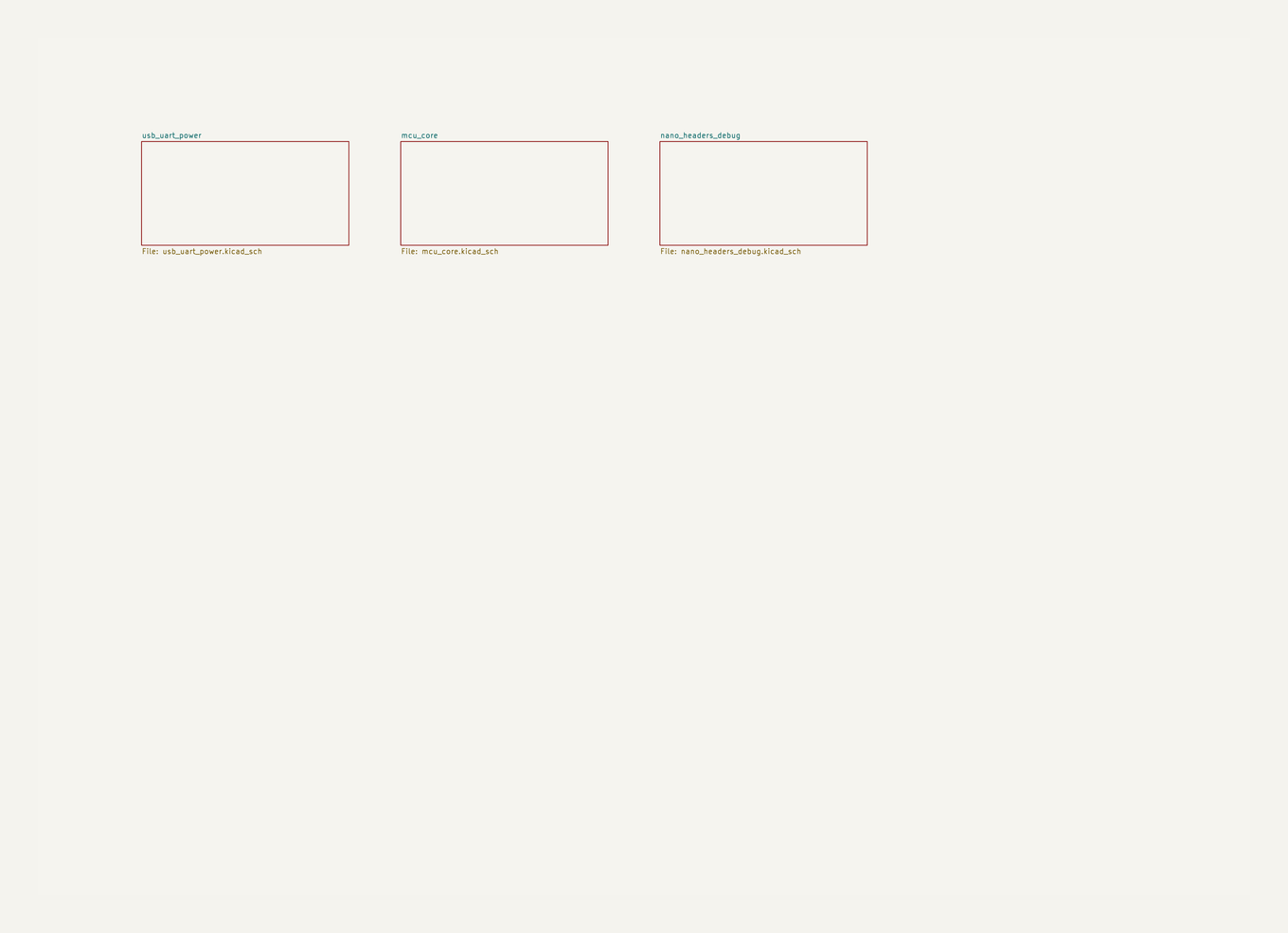
Project overview |
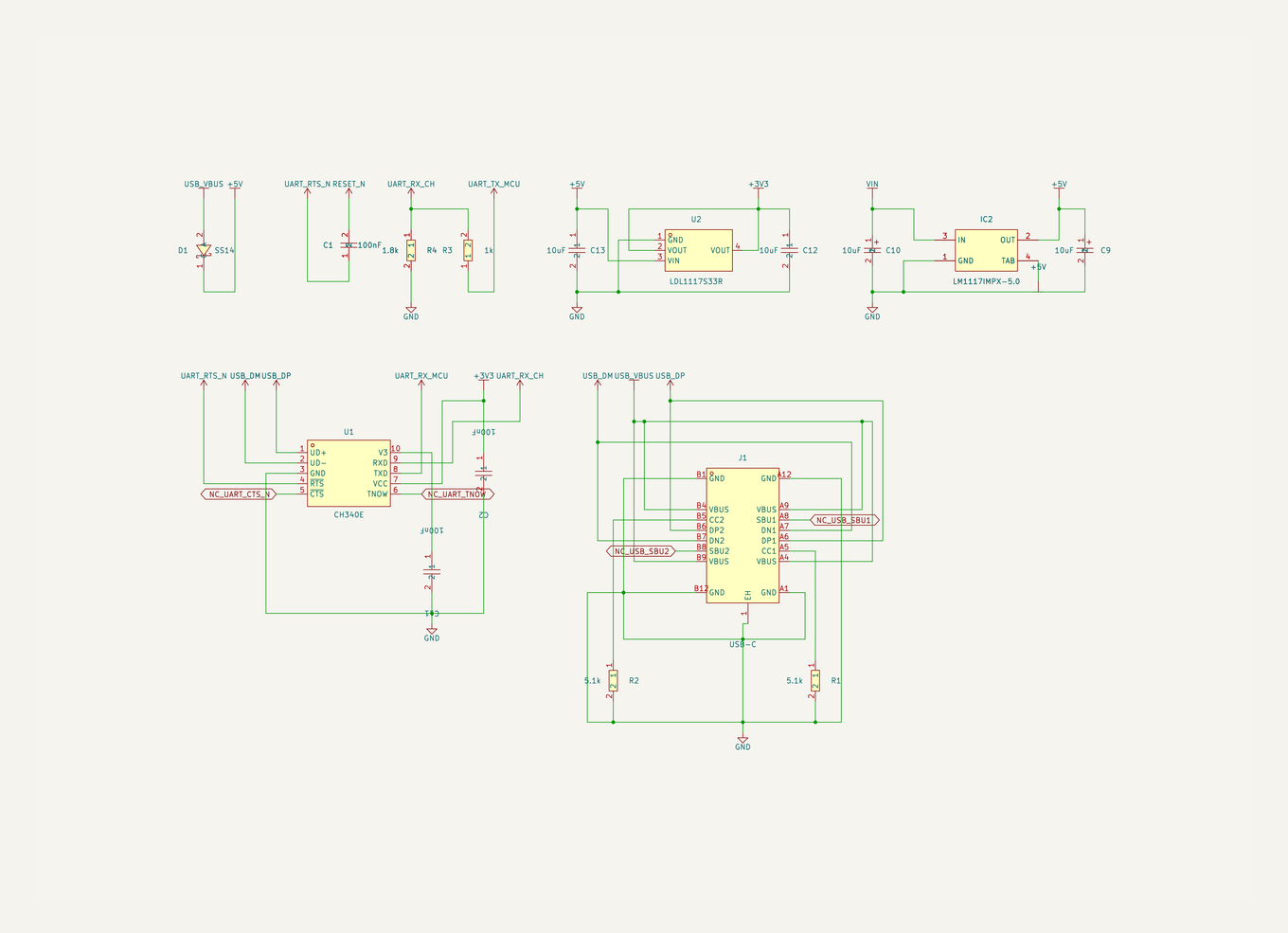
USB-UART and power |
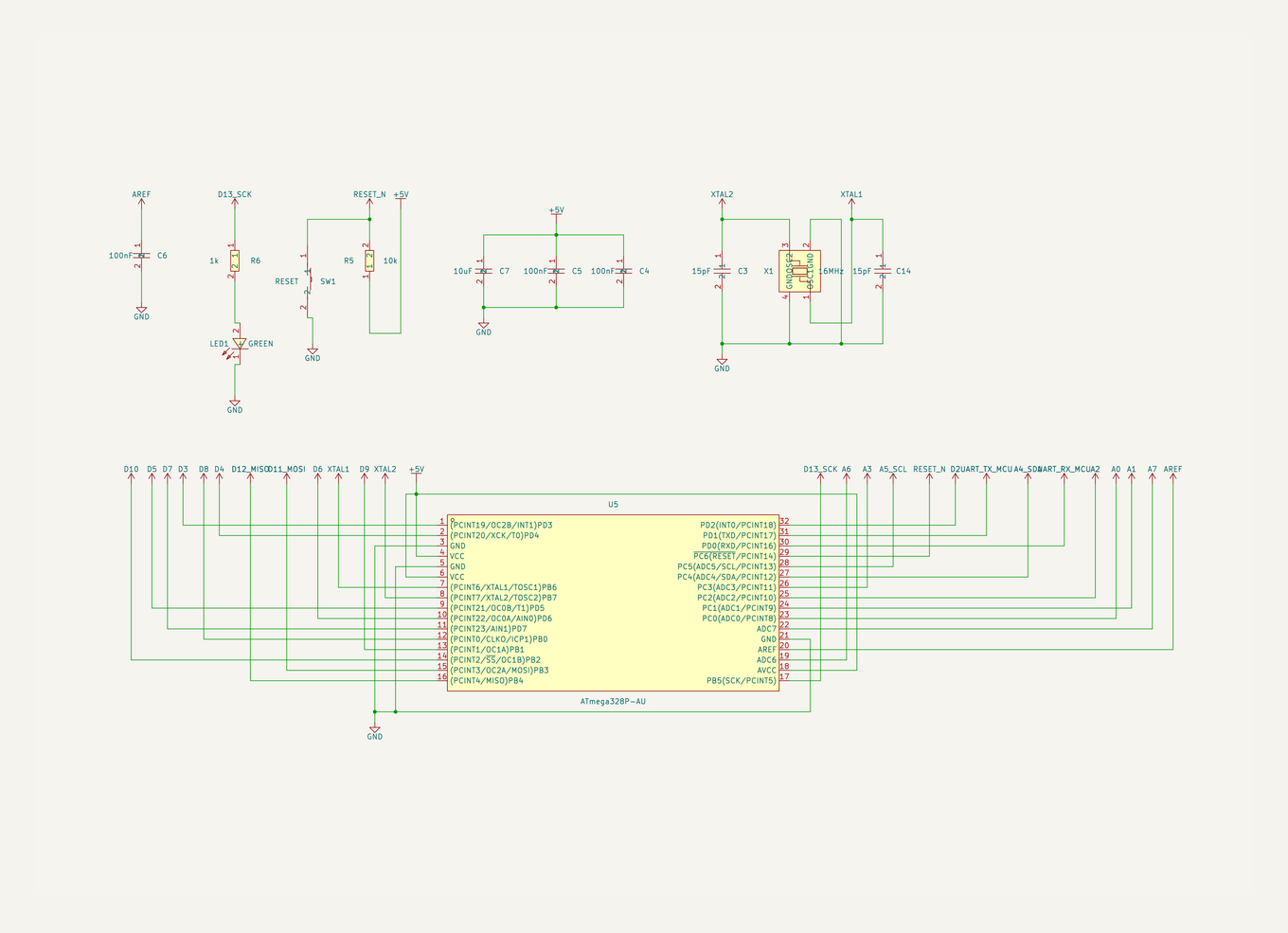
MCU core |
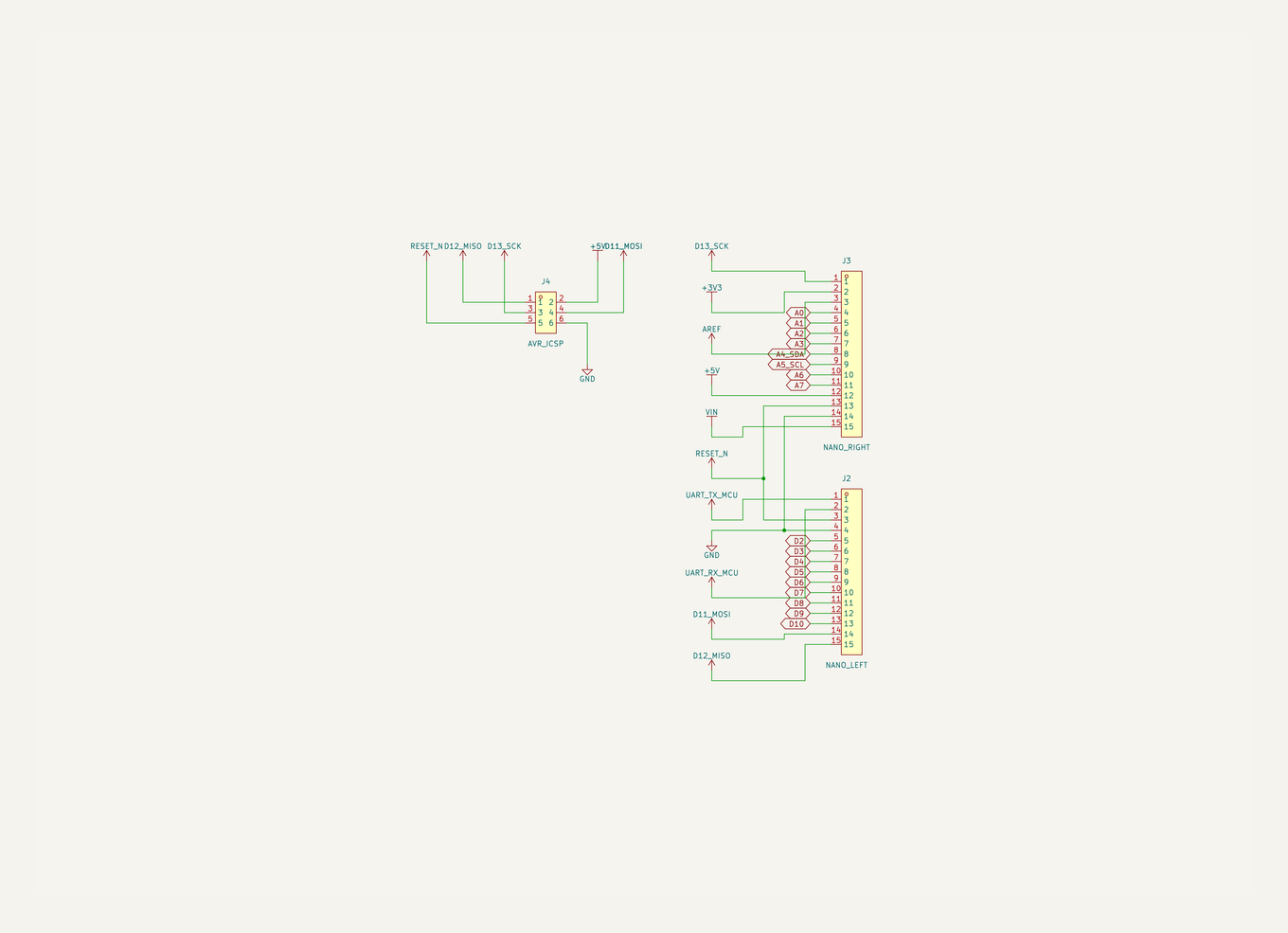
Nano headers and debug |
[Download the ATmega328P project](https://github.com/biosshot/kicad-copilot/blob/HEAD/examples/atmega328p_dev.zip)
### Geiger high-voltage supply
A larger multi-sheet design covering power input, 3.3 V regulation, the high-voltage generator, flyback stage, feedback, detector, controller, and user interface.
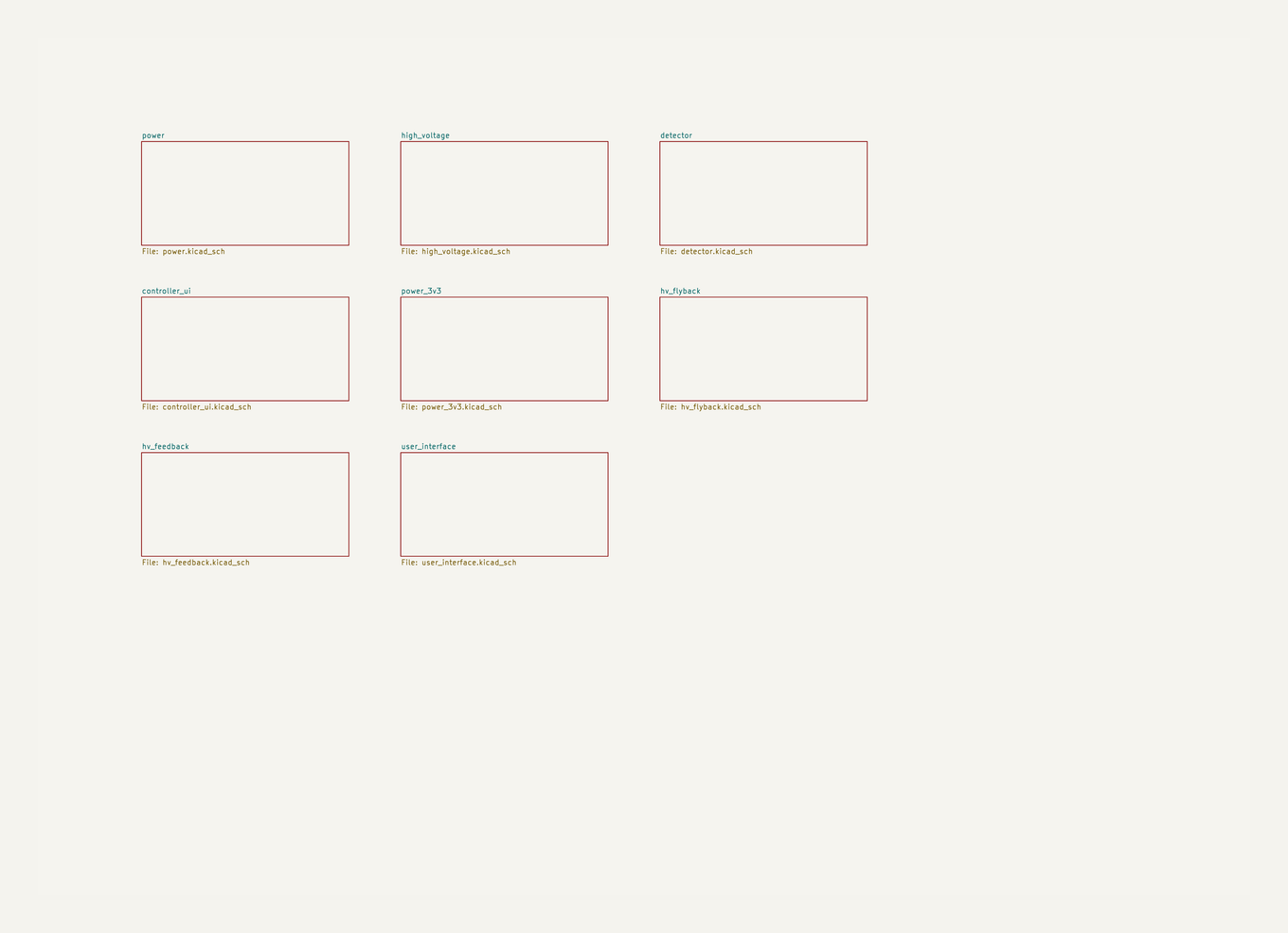
Project overview |
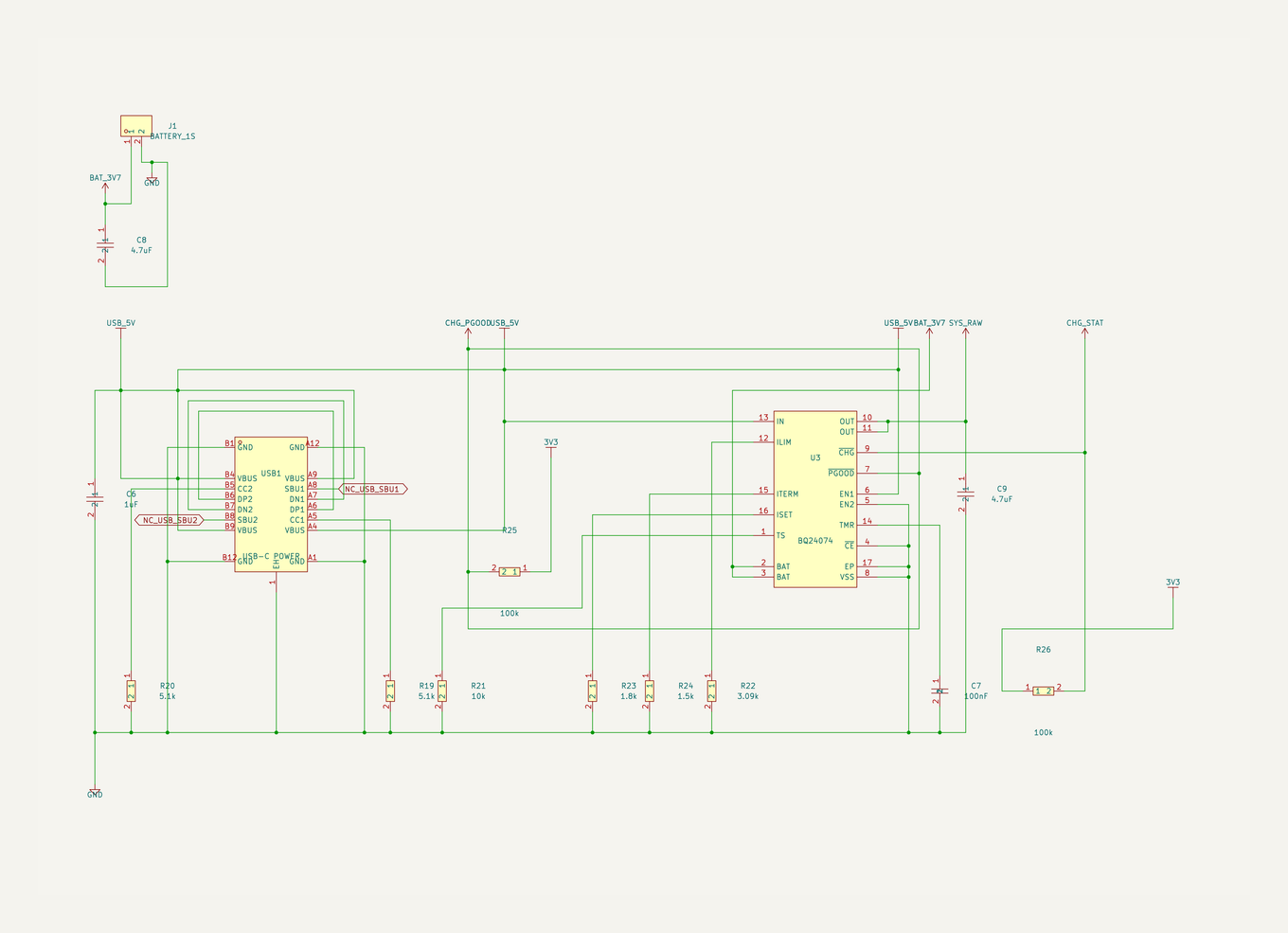
Power input |
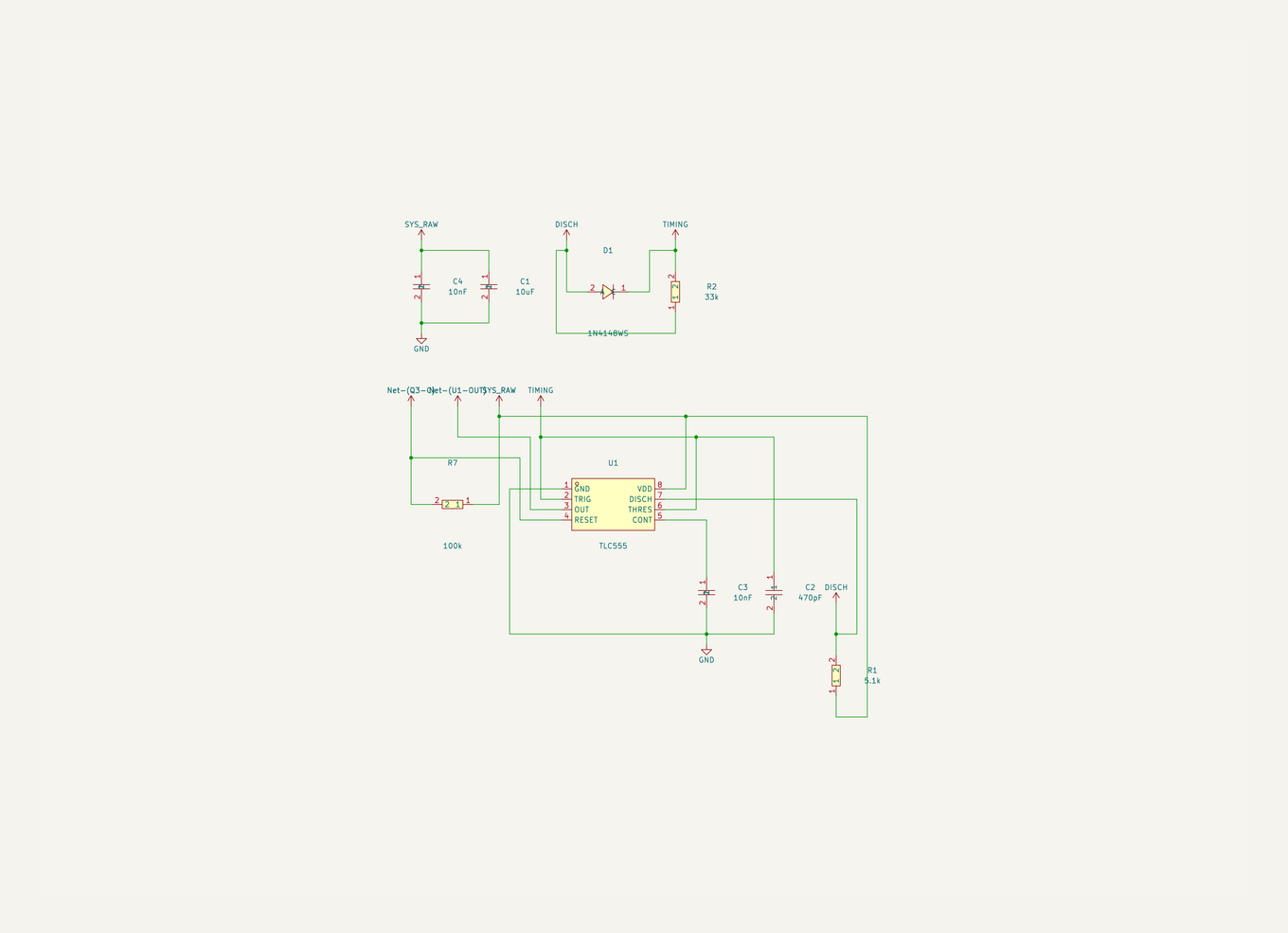
High-voltage generator |
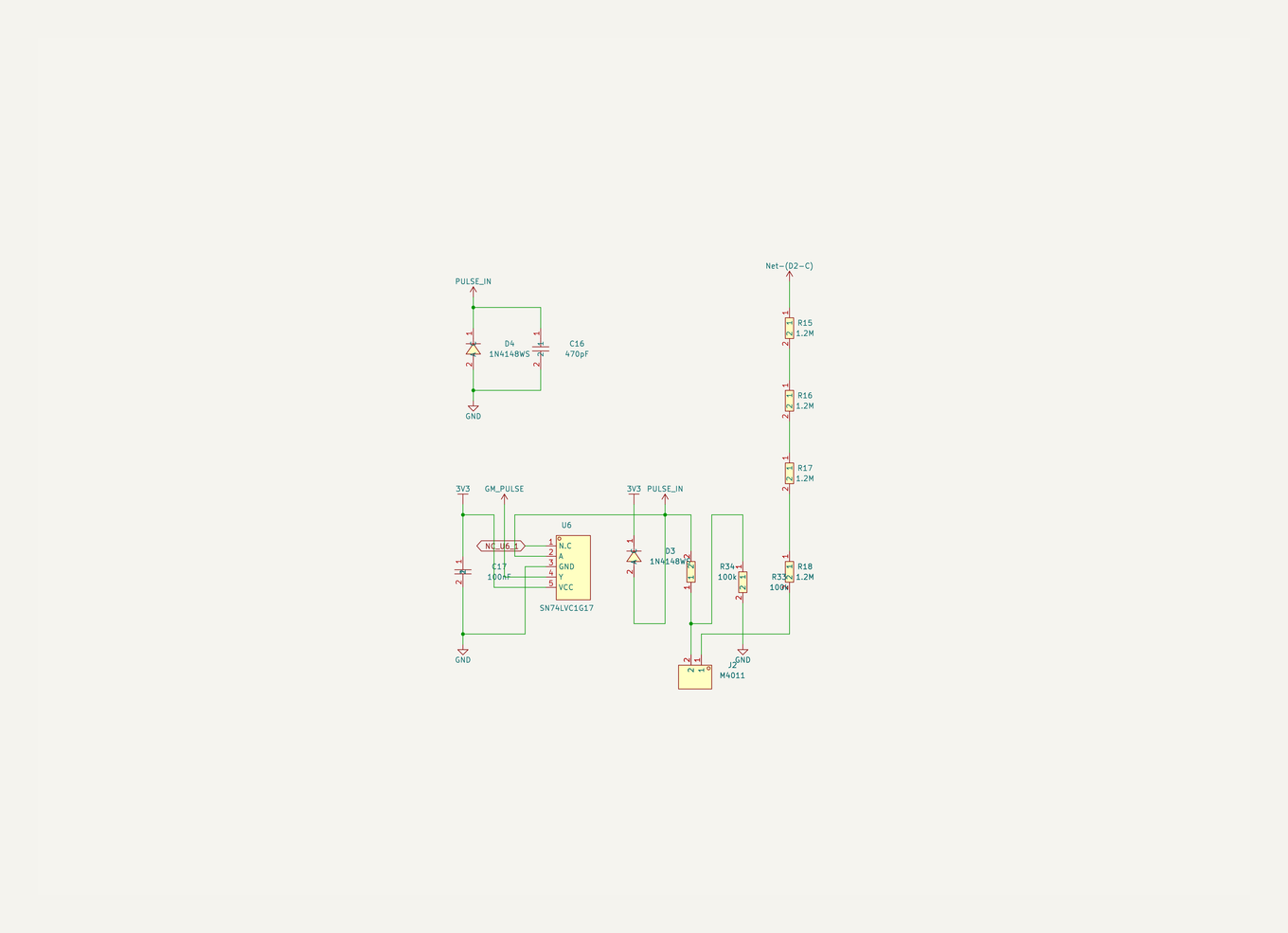
Detector |
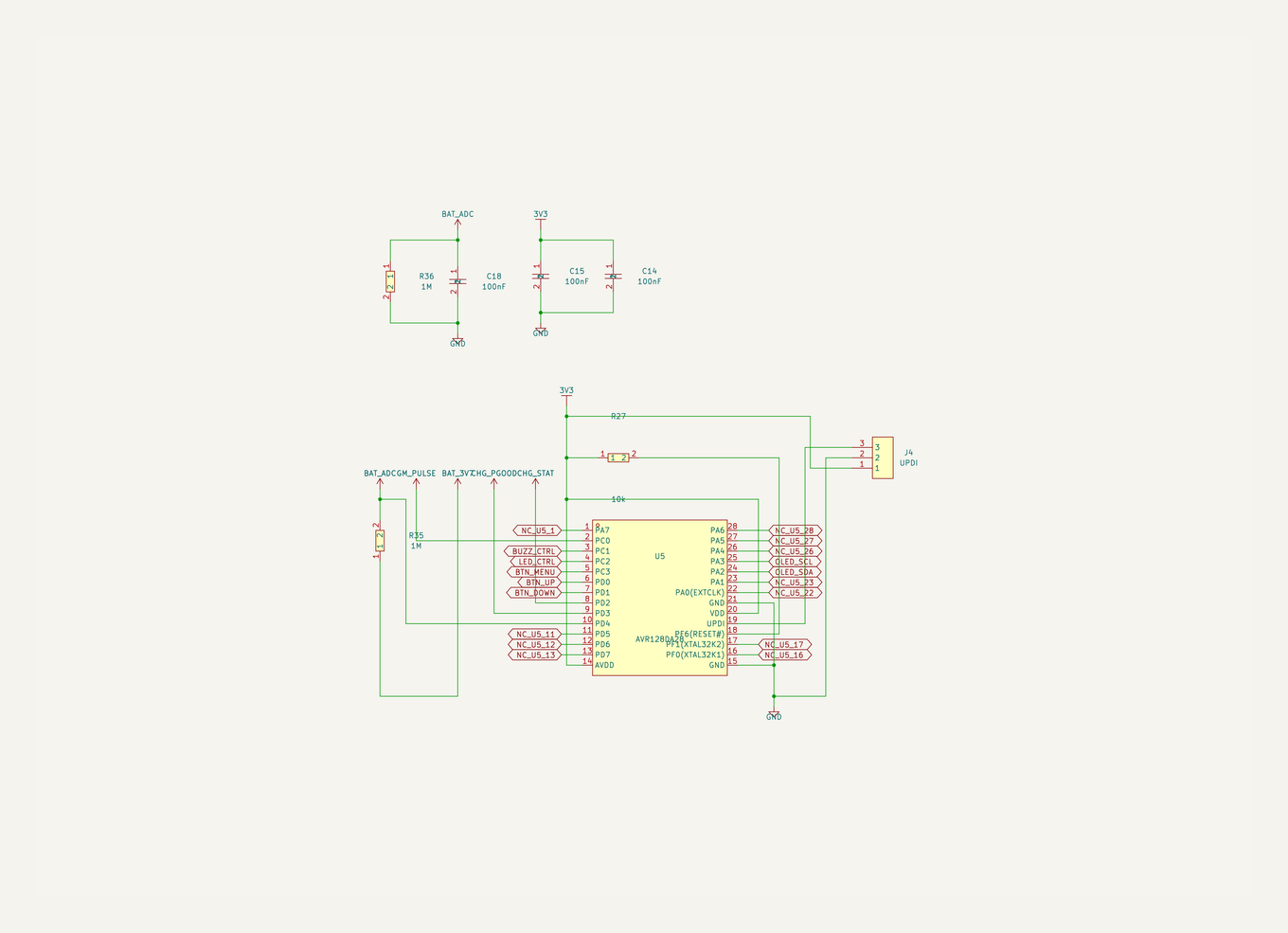
Controller UI |
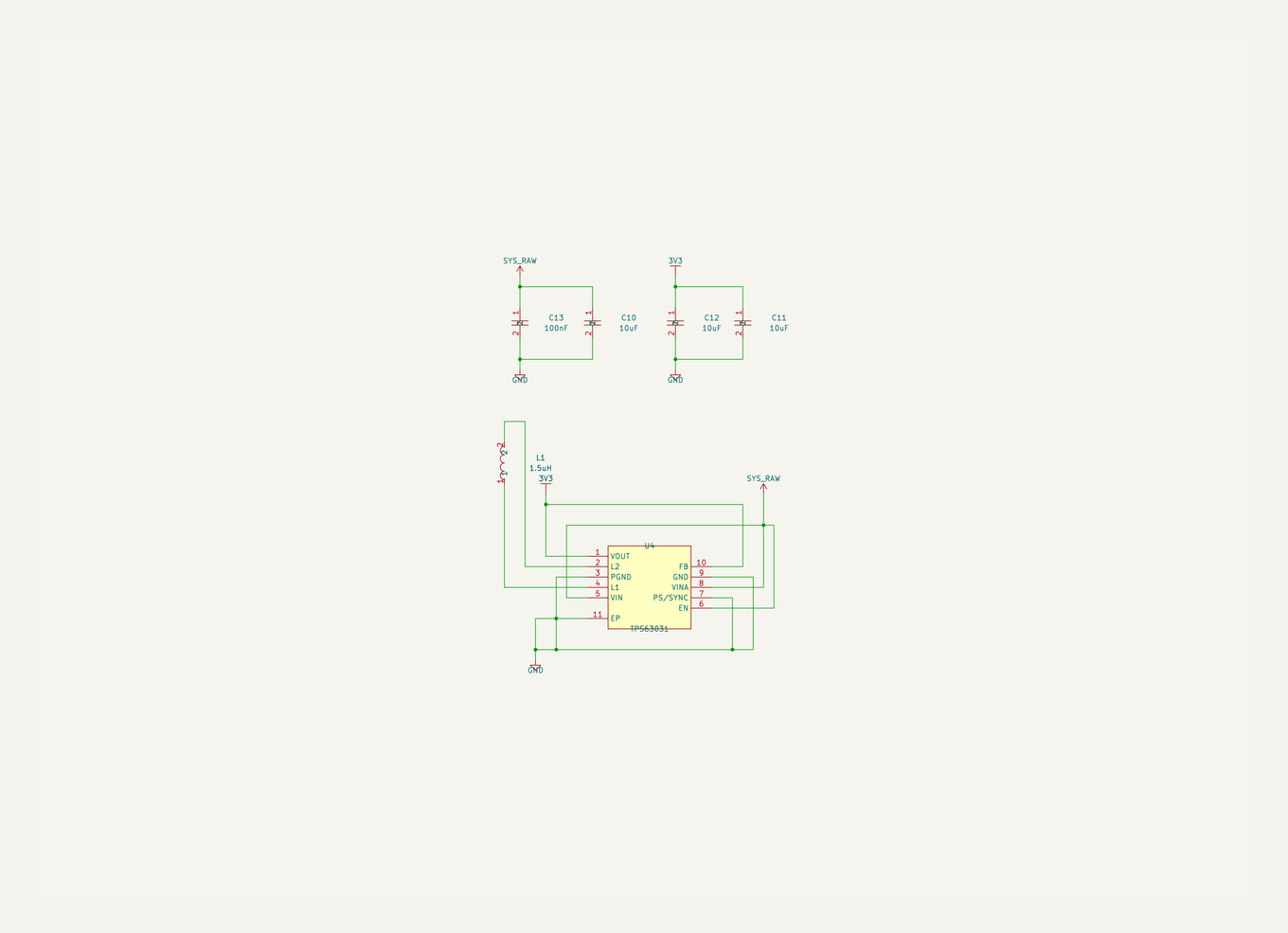
3.3 V power |
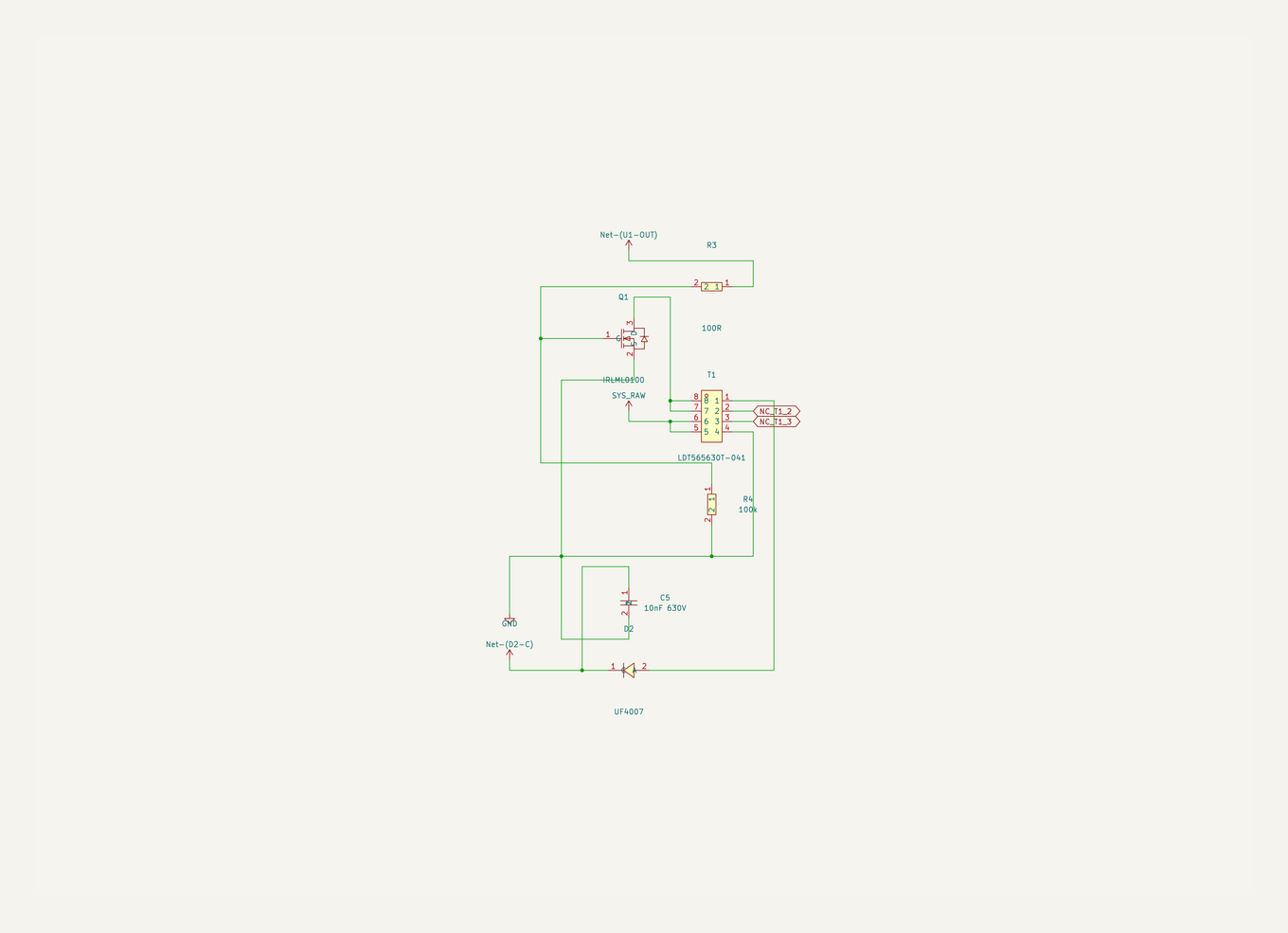
HV flyback |
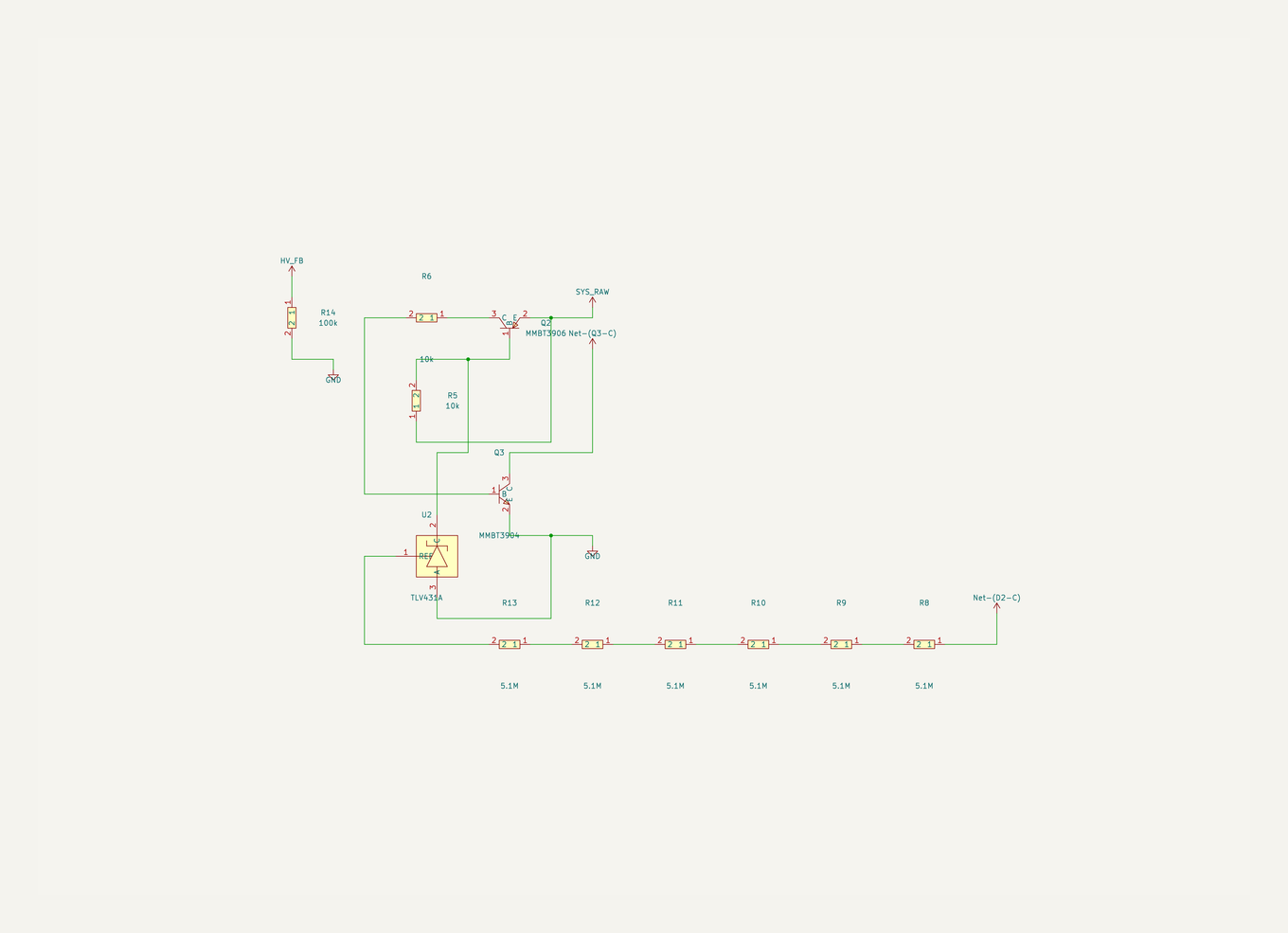
HV feedback |
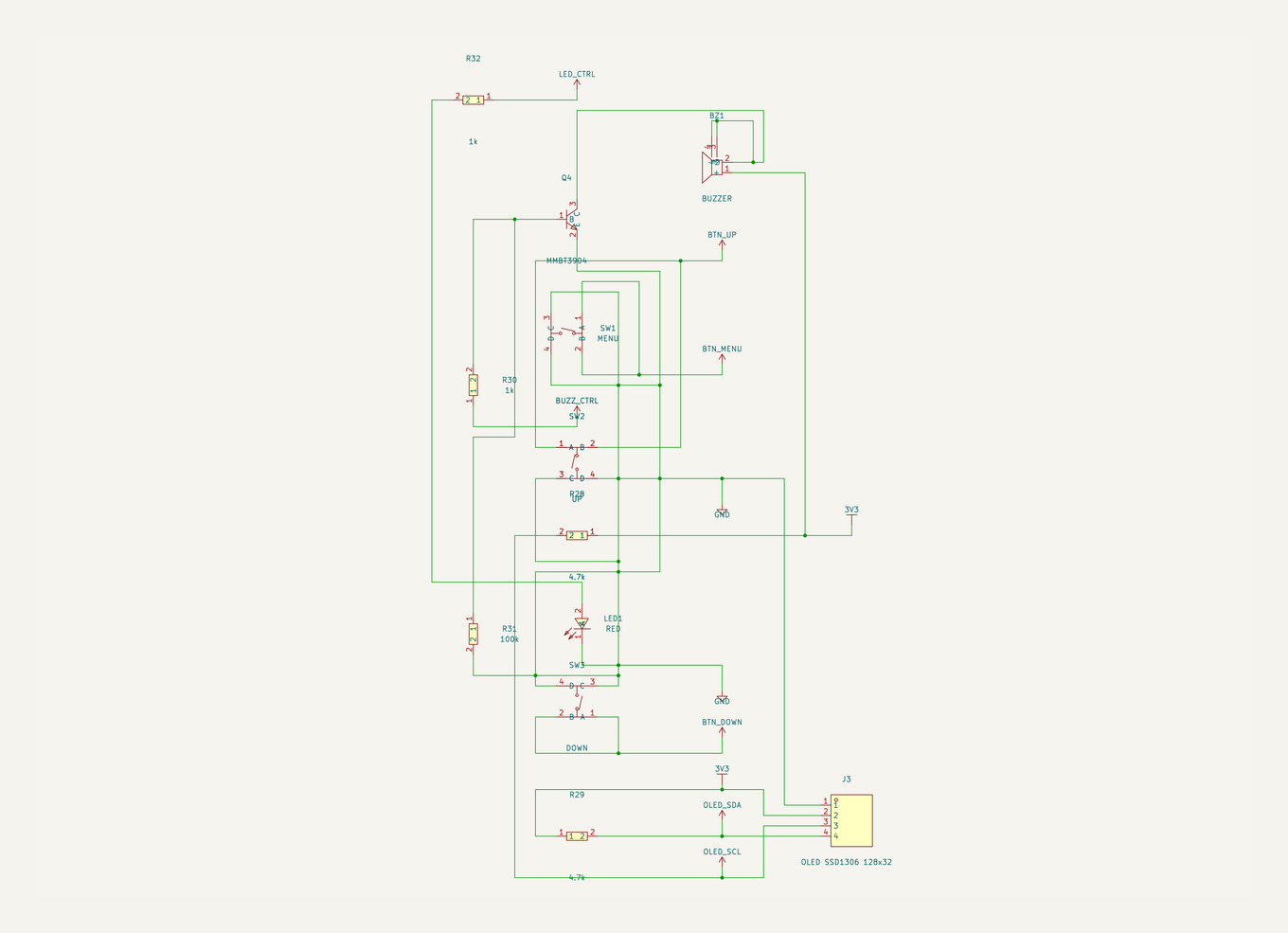
User interface |
[Download the Geiger high-voltage project](https://github.com/biosshot/kicad-copilot/blob/HEAD/examples/geiger_hv.zip)
### RP2350 development board
A hierarchical RP2350 design with power, clock, flash, USB/debug, GPIO headers, and an AI-generated PCB placement. The example includes the placement DSL and an editable KiCad board.
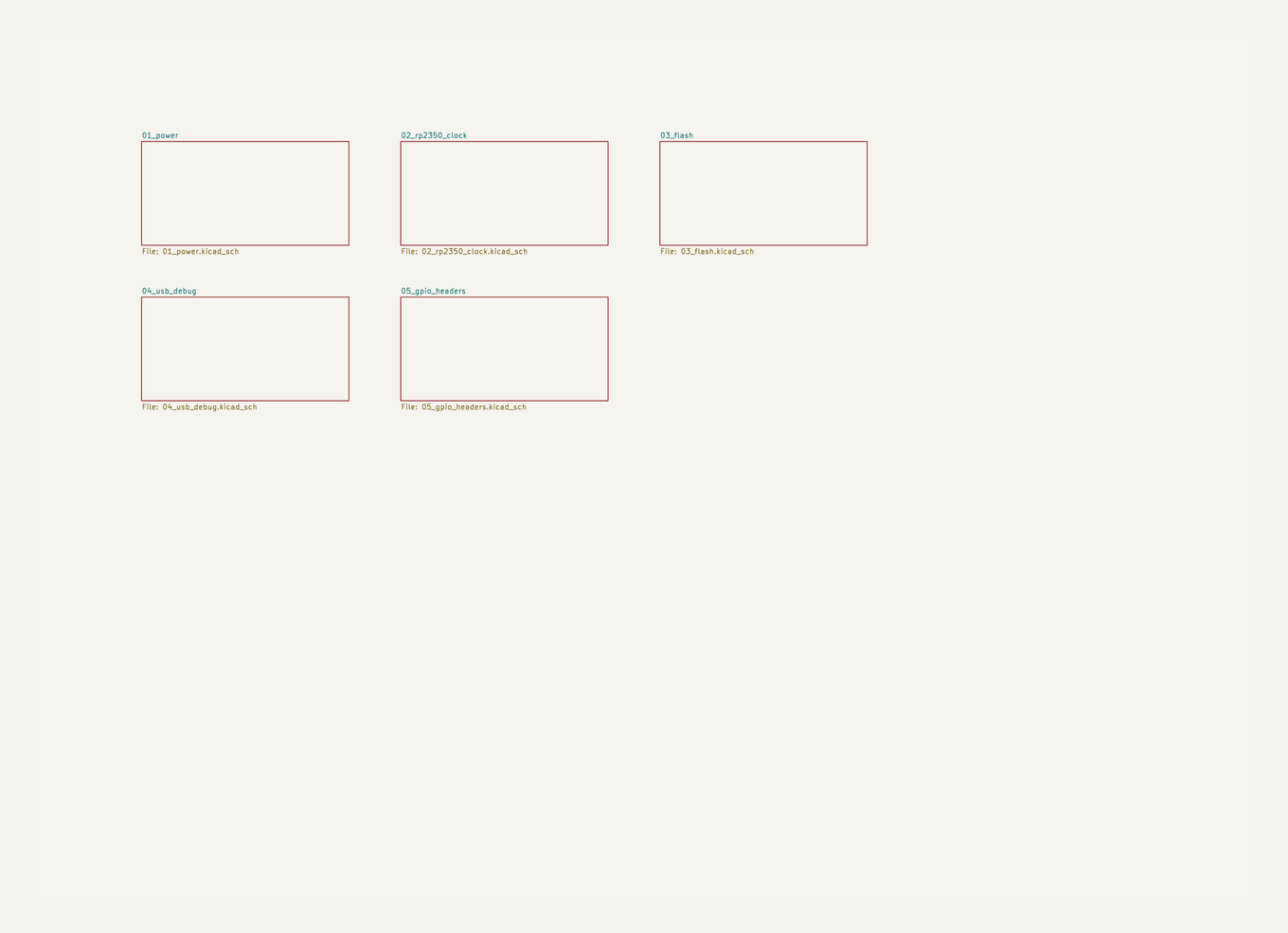
Project overview |
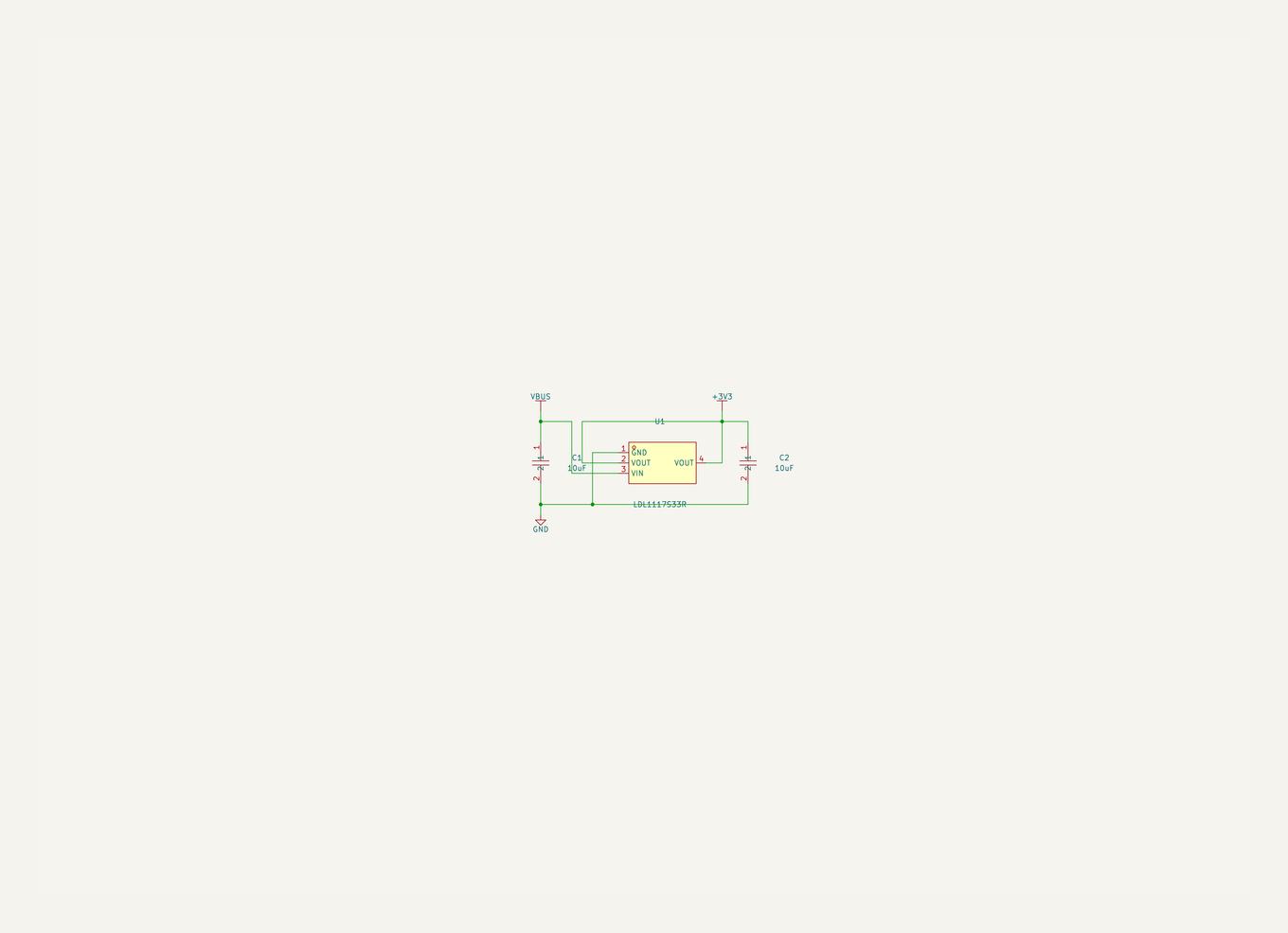
Power |
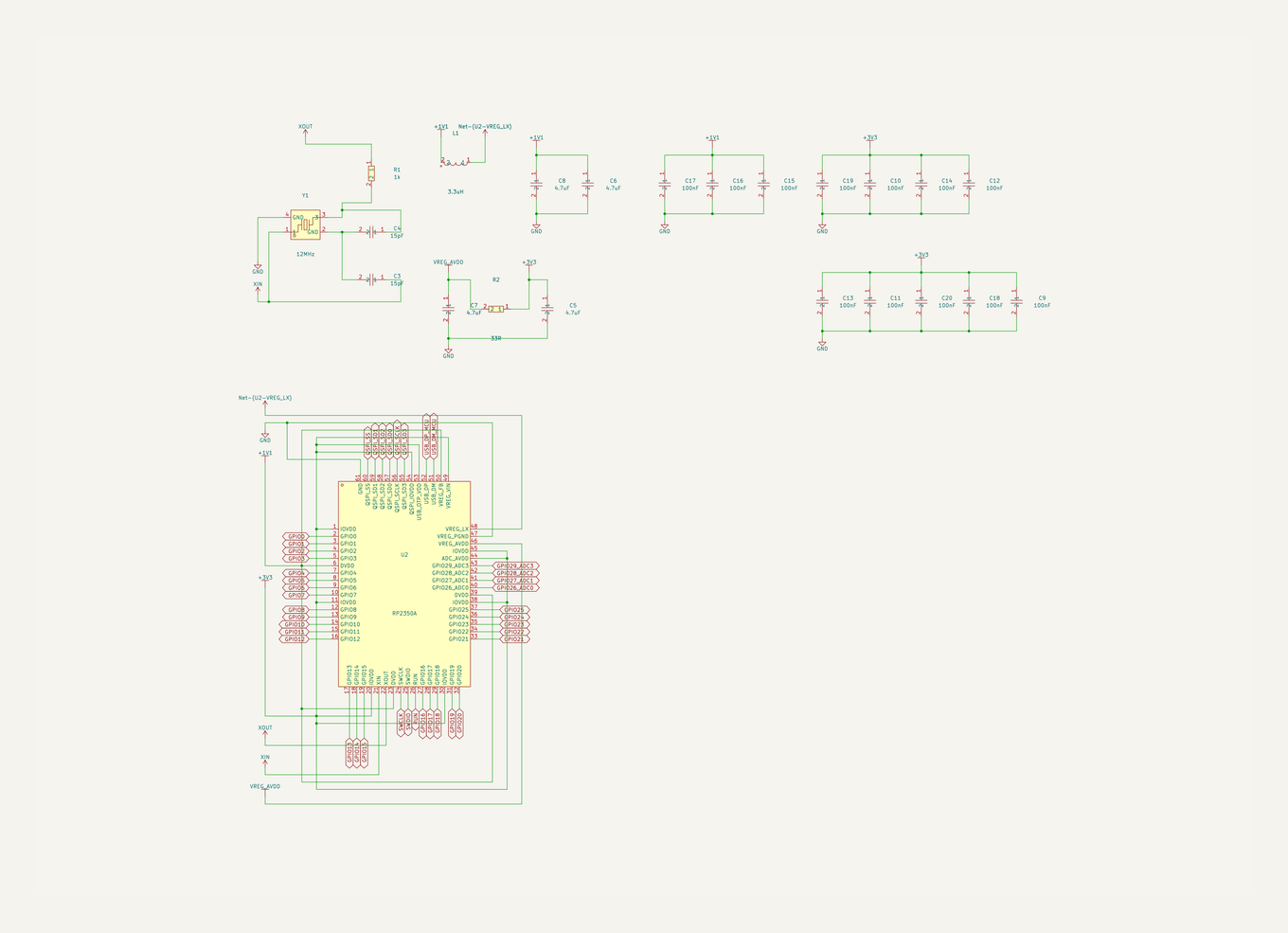
RP2350 and clock |
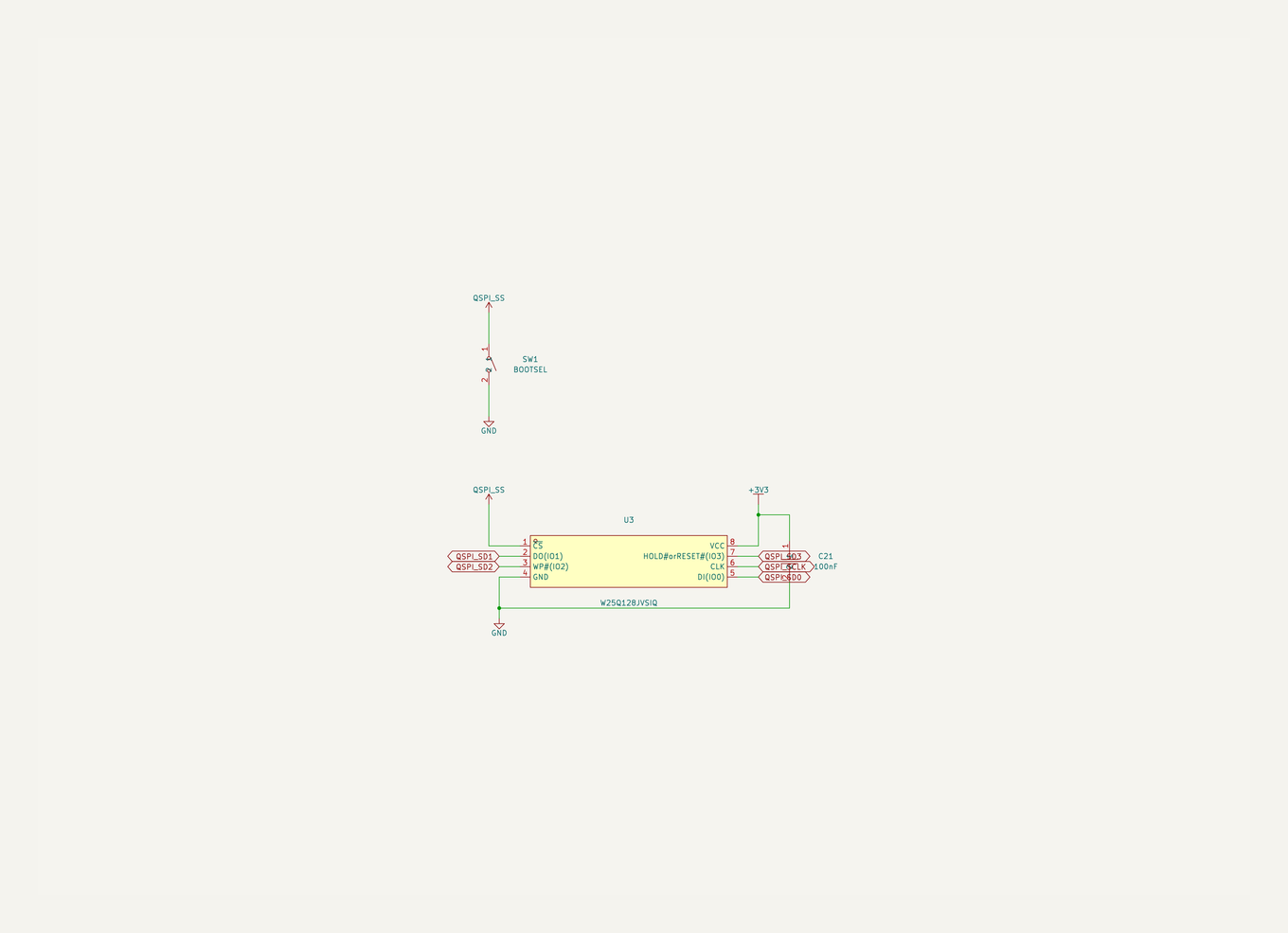
Flash |
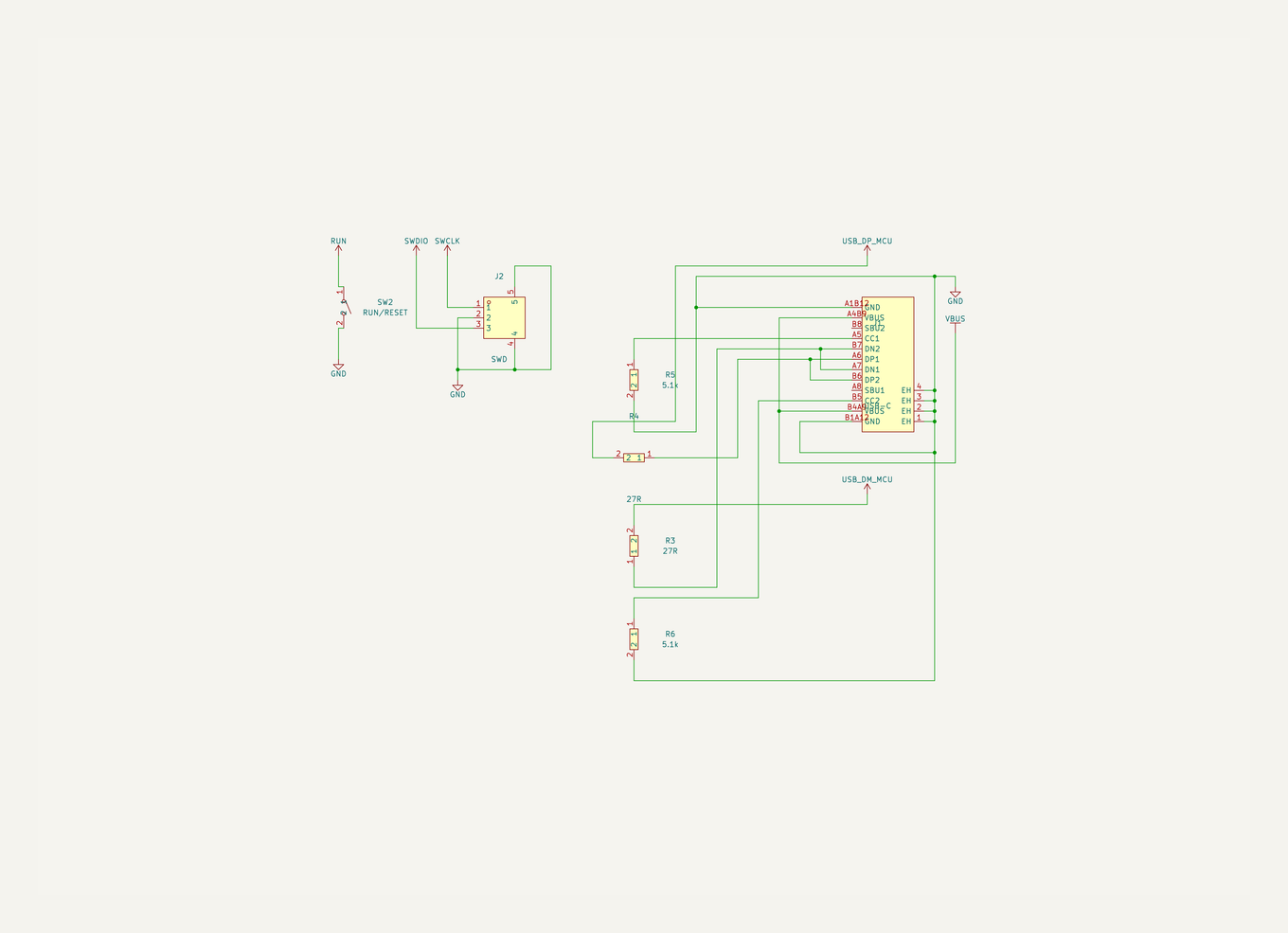
USB and debug |
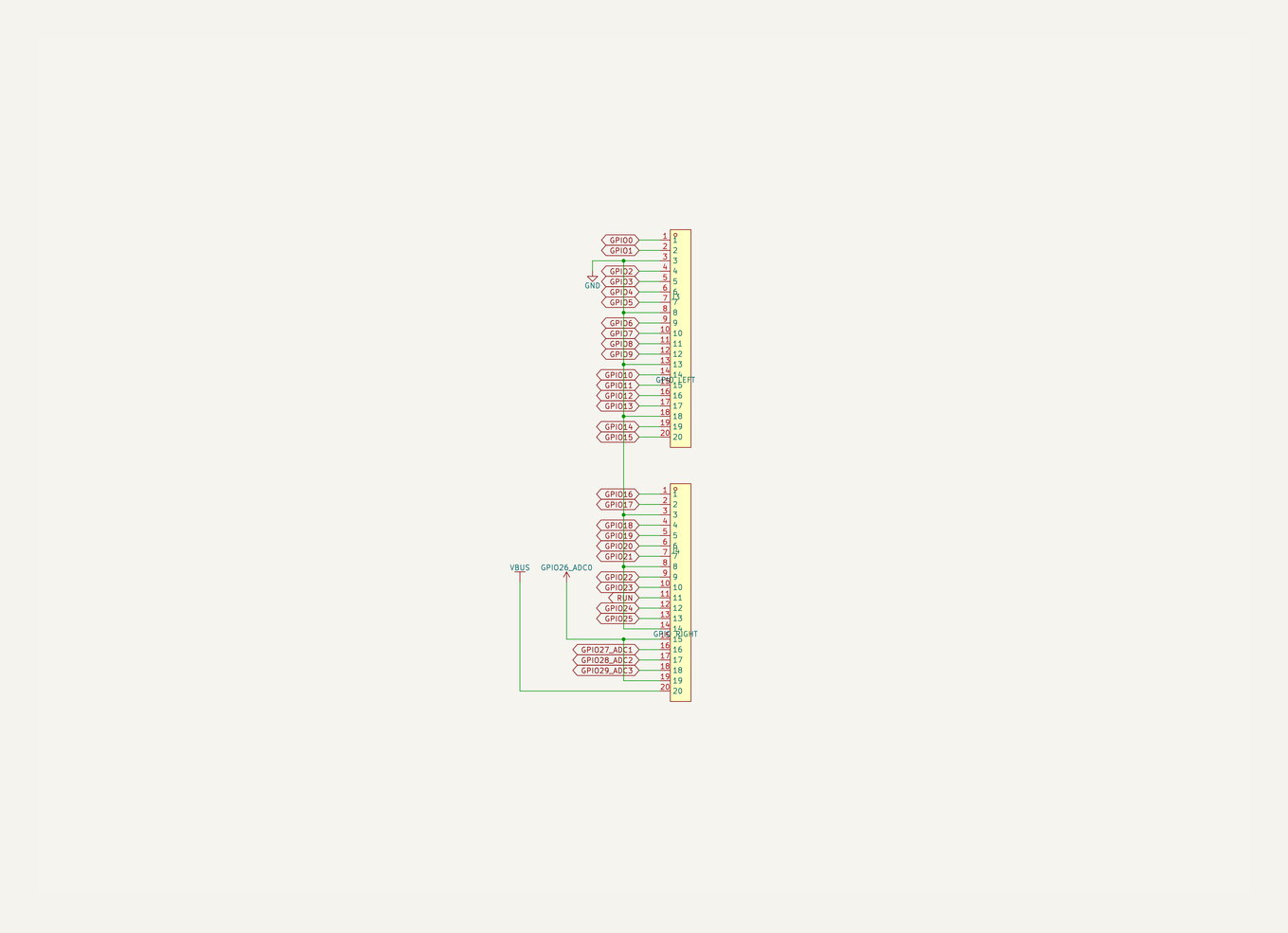
GPIO headers |
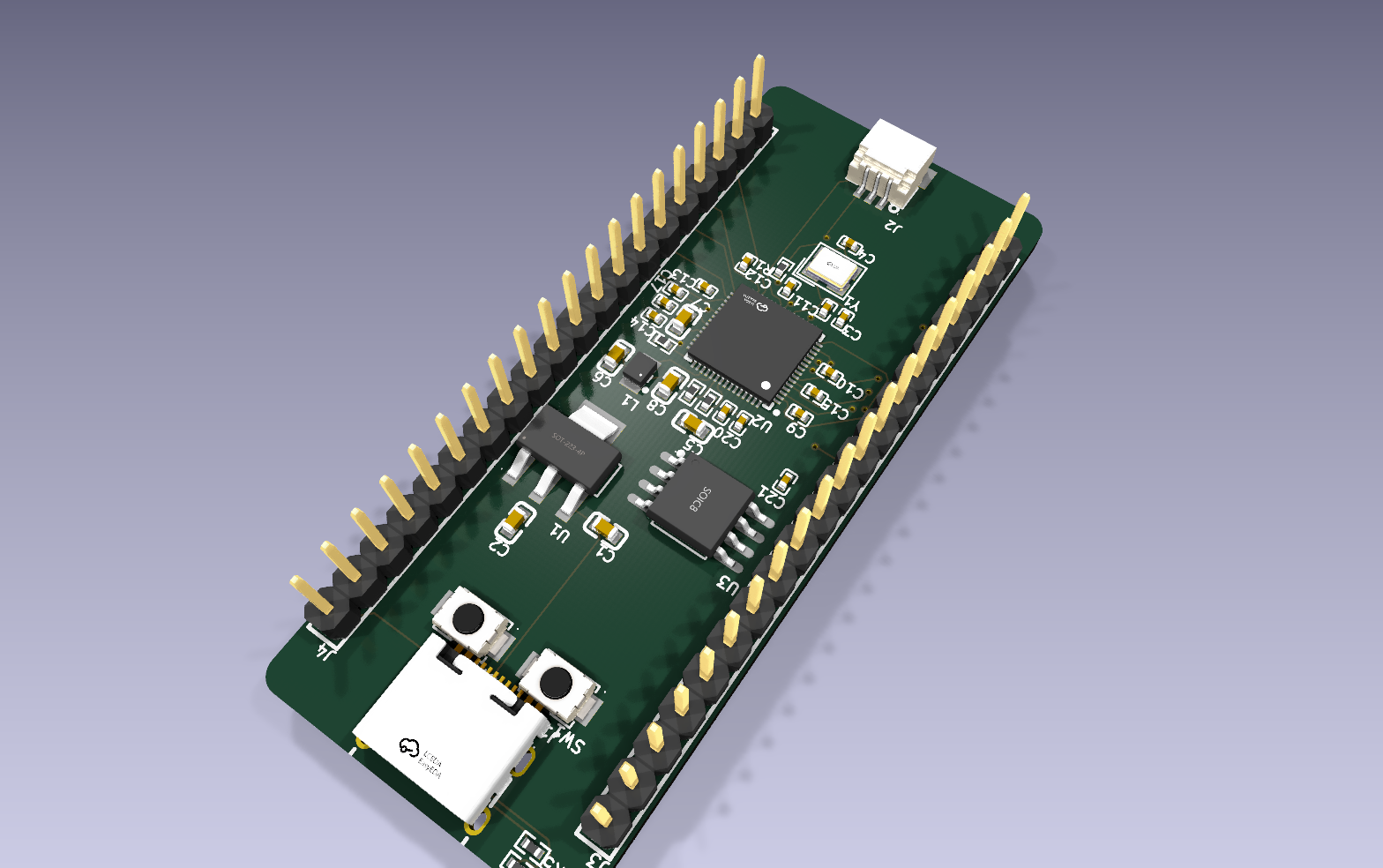
KiCad 3D render of the generated PCB placement
[Download the RP2350 project](https://github.com/biosshot/kicad-copilot/blob/HEAD/examples/rp2350_debug.zip)
## Installation
Add the MCP server to your AI agent.
Codex:
```bash
codex mcp add kicad-copilot -- npx -y kicad-copilot-mcp
```
Claude Code:
```bash
claude mcp add kicad-copilot -- npx -y kicad-copilot-mcp
```
Generic MCP configuration:
```json
{
"mcpServers": {
"kicad-copilot": {
"command": "npx",
"args": ["-y", "kicad-copilot-mcp"]
}
}
}
```
Restart the MCP client after adding the server. KiCad Copilot includes local workflow documentation for the agent; tool descriptions expose its installed path automatically.
## Requirements
- Node.js 20 or newer
- KiCad 9 or 10
- Python 3 for managed EasyEDA2KiCad installation and kicad-happy analysis
KiCad Copilot searches for `kicad-cli` in `PATH` and standard KiCad installation locations, preferring KiCad 10 when multiple supported versions are installed. Set `KICAD_CLI_PATH` when the executable is stored elsewhere.
The first real-component conversion uses an existing EasyEDA2KiCad installation or installs it automatically into a managed local virtual environment.
The first design-analysis call downloads the pinned kicad-happy release into the shared
EDA Copilot asset cache after verifying its archive size and SHA-256 hash. Set
`KICAD_HAPPY_DIR` to use a trusted local checkout instead.
## Schematic workflow
Ask the agent to inspect a KiCad project or give it the path to a target `.kicad_sch` file. A typical request can be as simple as:
```text
Open D:\Projects\sensor\sensor.kicad_pro and add a 3.3 V regulator block to the Power sheet.
```
The agent can inspect the project tree, read the target sheet as compact component/net JSON, find exact components, assemble the requested change, and validate the saved result through KiCad.
Hierarchical projects remain file-oriented: each physical schematic sheet is modified through its own `.kicad_sch` path, while project-wide context is used where the operation requires the complete signal map.
### File synchronization
KiCad Copilot changes files on disk. KiCad does not reliably merge those changes with newer unsaved edits in an already open editor.
Before a write:
1. Save intentional changes in KiCad.
2. Avoid keeping the only copy of newer work in the editor buffer.
After a write:
1. Reload, revert, or reopen the document in KiCad.
2. Do not overwrite the updated file with an older editor buffer.
## PCB workflow
PCB placement and routing use an explicit review flow:
1. Import schematic changes into the target `.kicad_pcb` file.
2. Describe the outline, holes, constraints, regions, and important components in the placement DSL.
3. Generate a mechanical preview without modifying the PCB.
4. Review the returned PNG or SVG preview.
5. Generate and approve the complete placement.
6. Apply the stored placement to the PCB.
7. Route the remaining connections locally.
8. Inspect the result and run final KiCad DRC.
Every placement response containing a PCB is checkpointed and applied atomically, including preview and issue-bearing results. The agent inspects the returned preview or PCB analysis and can roll back through checkpoints when needed; no separate assembly tool call is required.
Placement and router DSL execution remain separate operations. This keeps schematic-to-PCB synchronization explicit and makes it possible to clear or rebuild routing without deleting placed components.
## KiCad CLI
`get_project_info` reports the discovered `kicad-cli` path and version. Agents should use the native CLI whenever KiCad already provides the operation, including:
- schematic ERC and PCB DRC;
- schematic and PCB PDF/SVG exports;
- 3D PCB renders;
- Gerber and drill generation;
- BOM, position, STEP, STL, GLB, and VRML exports;
- project jobsets and format upgrades.
See [KiCad CLI workflow](https://github.com/biosshot/kicad-copilot/blob/HEAD/docs/kicad-cli.md) for ready-to-use commands.
## Design analysis
`analyze_schematic` runs the offline schematic checks and can return focused top-level
overview, hierarchy, block, connectivity, power, bus, BOM, assembly, and verification data.
`analyze_pcb` automatically enriches PCB analysis from the associated schematic, runs
cross-domain checks, and optionally adds thermal, EMC, or trace-proximity analysis. Individual
boolean flags control each optional report field; compact findings are enabled by default.
Long-running PCB layout, PCB routing, and lifecycle audits return a prefixed
`operation_id` such as `pcb-dsl:1a2b3c4d`. Continue any of them with
`wait_operation`; stop obsolete work with `cancel_operation`.
The tools omit internal rule identifiers, runtime metrics, and coordinate-level copper from
the LLM response.
See [design analysis](https://github.com/biosshot/kicad-copilot/blob/HEAD/docs/analysis.md) for the exact compact result contract and workflow.
## Compatibility
| KiCad version | Status |
| ------------- | --------- |
| KiCad 10 | Supported |
| KiCad 9 | Supported |
Other major versions are rejected because their file formats and CLI behavior are not covered by the current implementation.
## Documentation
- [AI agent instructions](https://github.com/biosshot/kicad-copilot/blob/HEAD/docs/SKILL.md)
- [Circuit creation and modification](https://github.com/biosshot/kicad-copilot/blob/HEAD/docs/circuit-maker/instructions.md)
- [Projects and hierarchical sheets](https://github.com/biosshot/kicad-copilot/blob/HEAD/docs/schematic/project-and-sheets.md)
- [Checkpoints](https://github.com/biosshot/kicad-copilot/blob/HEAD/docs/schematic/checkpoints.md)
- [PCB workflow](https://github.com/biosshot/kicad-copilot/blob/HEAD/docs/pcb-layout/mcp-workflow.md)
- [PCB placement rules](https://github.com/biosshot/kicad-copilot/blob/HEAD/docs/pcb-layout/instructions.md)
- [Placement DSL](https://github.com/biosshot/kicad-copilot/blob/HEAD/docs/pcb-layout/dsl.ts)
- [KiCad CLI](https://github.com/biosshot/kicad-copilot/blob/HEAD/docs/kicad-cli.md)
- [Design analysis](https://github.com/biosshot/kicad-copilot/blob/HEAD/docs/analysis.md)
- [Troubleshooting](https://github.com/biosshot/kicad-copilot/blob/HEAD/docs/troubleshooting.md)
## Development
```bash
git clone https://github.com/biosshot/kicad-copilot.git
cd kicad-copilot
npm install
npm run check
npm start
```
Run the MCP Inspector with:
```bash
npm run inspect
```
The repository also contains focused schematic, PCB, and routing test scripts for development against disposable files.
## License
MIT


