# 2D Assets MCP [Health: Active]
**Category:** 💻 Developer Tools
**Repository:** https://github.com/crony-io/2d-assets-mcp
**GitHub Stars:** 4
**Views:** 0
**Installs:** 0
**Upvotes:** 0
**Directory Page:** https://allmcps.com/mcp/2d-assets-mcp
## Description
MCP server for generating advanced mock 2D PNG assets for game prototypes.
## Claude Desktop Quick Installation
Install path detected from listing signals. Uses `npx` (confidence: high):
```json
"mcpServers": {
"2d-assets-mcp": {
"command": "npx",
"args": ["-y","2d-assets-mcp"]
}
}
```
## Documentation & README
# 2d-assets-mcp
_Design your game's **feel** before you design its **art**._
[](https://modelcontextprotocol.io/introduction)
[](https://www.npmjs.com/package/2d-assets-mcp)
[](https://www.npmjs.com/package/2d-assets-mcp)
[](https://opensource.org/licenses/MIT)
[](https://www.typescriptlang.org/)
Just like wireframing helps designers visualize user flows before start sketching, _2d-assets-mcp_ helps game developers visualize timing, frames-per-second (FPS), collision boundaries, and UI layouts before spending hours on final artwork.
This **[MCP (Model Context Protocol)](https://modelcontextprotocol.io/)** server lets **any** AI assistant (Antigravity, Claude Code, Codex, Devin, or any of them as long as it's MCP-compatible) generate advanced 2D mock/placeholder assets in PNG format right into your project folder. Save time and prototype faster, nail your game's feel with **2d-assets-mcp**, and then replace the mockups with original artwork when you are ready.
This MCP is **engine-agnostic** and it works flawlessly with any game engine that supports PNG import, like:
- Godot
- Unity
- Unreal Engine
- GameMaker
- Construct
- RPG Maker
- And many more!
Save time and create placeholder health bars, spritesheets, and whatever UI elements you can think of with full support for gradients, patterns, transparency, text rotation, and auto-scaling, all via chat and without ever opening an image editor.
The idea behind it is to help you test and iterate how your game feels first by prototiping scale, jump arcs, and animation timing without waiting on final art assets, and also with zero friction: Need that placeholder button to be 20% larger? Just ask your AI client to regenerate it.
> [!TIP]
> 2d-assets-mcp has AI-Friendly Metadata **→** meaning each generated PNG embeds rich JSON metadata (dimensions, color, shape, gradient properties, pattern details, text properties, stroke properties, description) **directly** in its EXIF data, so AI models **without vision can still understand** what an asset contains.
### Generated Assets Examples
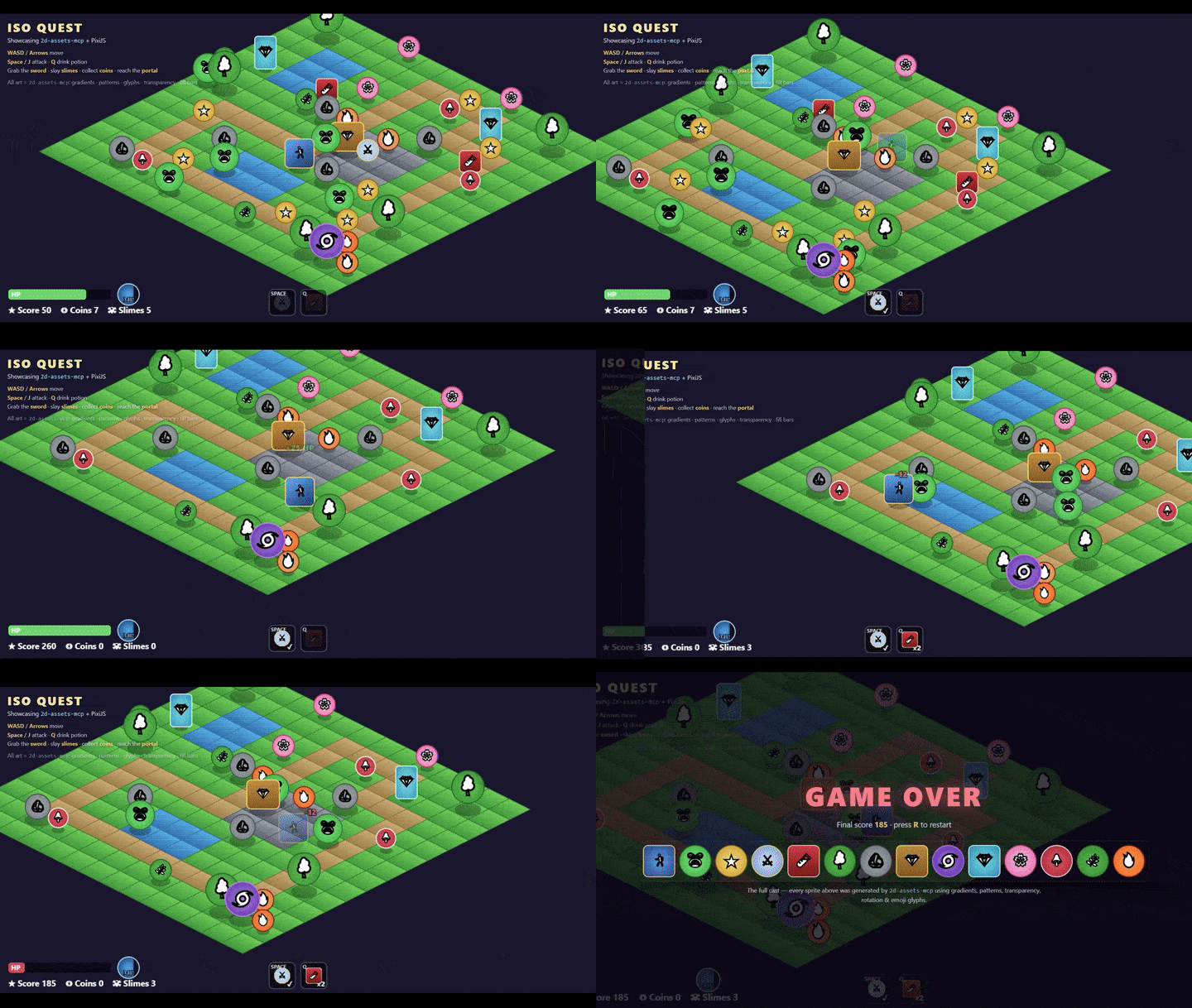
Here are some example assets generated by this MCP server:

#### Character Sprites & Animations
**Hero Idle Animation (8 frames, 512x64)**

*8-frame idle animation spritesheet with effect*
### UI Elements
**Attack Button (128×48)**

*Button with red gradient, rounded corners, and "ATTACK" label*
**Health Bar (200×24)**

*Health bar at 75% fill with green color and dark gray track*
### Game Items
**Gold Coin (32×32)**

*Circular coin with radial gradient, dot pattern overlay, and "COIN" label*
### Grass and water


### Trees

### Animation Spritesheets
**Fire animation (4 frames, 192x48)**

*4-frame spritesheet*
## Security Considerations
### Asset Content
- Generated assets are pure placeholder graphics and they do not contain malicious code.
- Embedded metadata is plain JSON and is not executable.
### Because this MCP server writes files directly to your machine to save you time, please review these security best practices:
#### File System Access
- The server can write files to any path specified by the AI assistant.
- **Recommendation:** Configure your AI client to restrict access strictly to your game's project directories.
- **Warning:** Be cautious when asking the AI to generate assets outside your project directory.
#### Path Traversal
- This server validates paths, but you should always be aware of potential path traversal attempts when dealing with MCP servers, and **review** generated file paths before confirming operations.
#### Overall Best Practices
- Use absolute paths in configurations to prevent ambiguity.
- Restrict AI access to your game project directory only.
- Review generated assets before committing to version control.
- Keep your Node.js dependencies updated.
## Core Features
- **Instant asset generation**: one tool call, one PNG, full visual configuration.
- **Spritesheet & Batch mode**: generate multiple frames or composite them into a single animation-strip spritesheet in one request.
- **Rich visuals**: support for solid fills, linear/radial gradients, stripe/dot/grid pattern overlays, rounded corners, circles, opacity, and stroke control.
- **Dynamic UI Elements**: create partially filled progress/health bars using `fillPercent` and `trackColor` for partially-filled assets.
- **Auto-scaling labels**: text automatically scales to fit the asset, or you can override it with explicit `fontSize` if needed.
- **Non-vision AI friendly**: embedded JSON metadata readable back via `read_image_metadata`, without loading image pixels, ideal for non-vision AI workflows.
- **Smart naming**: output files are automatically named with their dimensions (e.g. `player_idle_128x128.png`) to help models with no vision know the dimensions when using the asset.
## Tools Reference
This MCP server equips your AI with 3 tools to generate and read 2D asset metadata.
### 1. `generate_mock_asset`
Generates a single PNG asset and writes it to the disk. It supports gradients, patterns, transparency, text rotation, and embedded metadata.
Parameters (press to expand)
*Required parameters*
| Parameter | Type | Description |
|---------------|----------|---------------------------------------------------------|
| `filename` | `string` | Output filename, e.g. `player_idle.png` |
| `directory` | `string` | Absolute path to the output folder (created if missing) |
| `text` | `string` | Label rendered on the asset |
| `color` | `string` | Background hex color, e.g. `#FF5733` |
**Optional parameters:** _shape & size_
| Parameter | Type | Default | Description |
|---------------|------------------------------------------------|-------------|--------------------------------------------|
| `width` | `number` | `128` | Width in pixels |
| `height` | `number` | `128` | Height in pixels |
| `shape` | `rectangle` \| `rounded-rectangle` \| `circle` | `rectangle` | Geometric shape |
| `opacity` | `number` `0–1` | `1.0` | Background opacity |
| `strokeColor` | `string` | `#000000` | Border hex color |
| `strokeWidth` | `number` | `4` | Border width in px; `0` removes the border |
**Optional parameters:** _fill & gradient_
| Parameter | Type | Default | Description |
|------------------|---------------------------------------------------|--------------|------------------------------------------------------------|
| `fillMode` | `solid` \| `linear-gradient` \| `radial-gradient` | `solid` | Background fill type |
| `secondaryColor` | `string` | auto-derived | Second gradient stop; auto-shaded from `color` if omitted |
| `gradientAngle` | `number` | `45` | Angle in degrees for linear gradients (ignored for radial) |
**Optional parameters:** _progress/health bar_
| Parameter | Type | Default | Description |
|---------------|------------------|---------|-------------------------------------------------------|
| `fillPercent` | `number` `0–100` | `100` | How much of the asset is filled (left to right) |
| `trackColor` | `string` | — | Color of the unfilled portion; transparent if omitted |
**Optional parameters:** _pattern overlay_
| Parameter | Type | Default | Description |
|------------------|-----------------------------------------|-------------------|-----------------------------------------|
| `pattern` | `none` \| `stripes` \| `dots` \| `grid` | `none` | Pattern overlay type |
| `patternColor` | `string` | auto-derived | Pattern color; contrast-auto if omitted |
| `patternOpacity` | `number` `0–1` | `0.18` | Pattern overlay opacity |
| `patternScale` | `number` `≥2` | `16` | Pattern tile size in pixels |
**Optional parameters:** _text_
| Parameter | Type | Default | Description |
|------------------|---------------------------------|-------------------|------------------------------------------------|
| `textPosition` | `center` \| `top` \| `bottom` | `center` | Vertical text alignment |
| `fontSize` | `number` | auto-scaled | Explicit font size in px; auto-fits if omitted |
| `textRotation` | `number` | `0` | Text rotation angle in degrees |
| `textColor` | `string` | auto-contrasting | Hex color for text; auto-calculated if omitted |
**Optional parameters:** _metadata_
| Parameter | Type | Default | Description |
|--------------------|----------|---------|-------------------------------------------------------------------------------|
| `assetDescription` | `string` | — | Human-readable description embedded in the PNG EXIF for non-vision AI context |
> [!NOTE]
> **Output filename format**
The server automatically appends the dimensions to the filename before writing:
```
player_idle.png → player_idle_128x128.png
```
### 2. `generate_mock_asset_batch`
Generates multiple assets in one request. Supports individual PNGs or a single composed spritesheet.
Parameters (press to expand)
*Required parameters*
| Parameter | Type | Description |
|-----------|-----------------|---------------------------------------------------------------|
| `assets` | `AssetConfig[]` | Array of asset configs (same fields as `generate_mock_asset`) |
**Optional parameters**
| Parameter | Type | Default | Description |
|-------------------|------------------------------|-------------------------|------------------------------------------------------------------------|
| `spritesheetMode` | `individual` \ `spritesheet` | `spritesheet` | `individual` writes separate PNGs; `spritesheet` composes a single PNG |
| `sheetFilename` | `string` | `spritesheet.png` | Output filename for the composed spritesheet |
| `sheetDirectory` | `string` | first asset's directory | Output directory for the spritesheet |
| `sheetMargin` | `number` | `8` | Outer padding around the spritesheet in pixels |
| `sheetSpacing` | `number` | `8` | Gap between animation frames in pixels |
> [!NOTE]
> **Spritesheet layout**
All assets are arranged in a single row (traditional animation strip). Each frame cell is sized to the largest asset in the batch; smaller assets are centered within their cell. The output filename includes the total sheet dimensions:
```
player_run.png → player_run_648x136.png
```
### 3. `read_image_metadata`
Reads the JSON metadata embedded in the EXIF `ImageDescription` field of any PNG generated by this server. Useful for AI models that lack vision, because they can understand what an asset contains without decoding the image.
Parameters (press to expand)
*Required parameters*
| Parameter | Type | Description |
|------------|----------|---------------------------------|
| `filepath` | `string` | Absolute path to the PNG file |
#### **How metadata embedding works**
Metadata is stored as a JSON string in the PNG's EXIF `IFD0.ImageDescription` field using the `sharp` library's `withMetadata` API.
Reading it back uses a deliberate bypass of standard TIFF byte-walking: instead of parsing the binary TIFF structure, the raw EXIF buffer is scanned as a UTF-8 string for the known `"generator":"2d-assets-mcp"` key, then the surrounding JSON object is extracted. This makes the reader immune to TIFF padding, byte-order variations, and unusual IFD layouts across different PNG writers.
Example response (press to expand)
```json
{
"generator": "2d-assets-mcp",
"type": "asset",
"name": "player_idle",
"width": 128,
"height": 128,
"color": "#4A90E2",
"shape": "rounded-rectangle",
"fillMode": "linear-gradient",
"fillPercent": 100,
"trackColor": null,
"pattern": "none",
"secondaryColor": "#2E5A8A",
"gradientAngle": 45,
"textRotation": 0,
"textPosition": "center",
"strokeColor": "#000000",
"strokeWidth": 4,
"description": "Player idle placeholder, blue rounded rectangle 128x128",
"createdAt": "2025-01-15T10:30:00.000Z"
}
```
**Spritesheet metadata fields** (additional fields returned for spritesheet files)
```json
{
"generator": "2d-assets-mcp",
"type": "spritesheet",
"totalWidth": 648,
"totalHeight": 136,
"columns": 4,
"rows": 1,
"frameCount": 4,
"frameWidth": 128,
"frameHeight": 128,
"margin": 8,
"spacing": 8,
"frames": [
{
"index": 0,
"x": 8,
"y": 8,
"width": 128,
"height": 128,
"name": "frame_0",
"color": "#4A90E2",
"shape": "rounded-rectangle"
}
],
"createdAt": "2025-01-15T10:30:00.000Z"
}
```
---
## Example Prompts for Your AI
Once connected to an AI coding assistant, try these prompts to speed up your workflow:
**Single asset**
> "Create a 128×128 blue rounded-rectangle placeholder for my player character at `C:\Users\me\project\assets\sprites\` (Windows) or `/home/me/project/assets/sprites/` (Linux) or `/Users/me/project/assets/sprites/` (macOS). Label it 'Player' and give it a radial gradient."
**Health bar**
> "Generate a health bar PNG at 200×24 pixels, filled 65%, thin stroke, red fill color, dark gray track, at your project's UI folder. Call the file `health_bar.png`."
**Spritesheet**
> "Create a 4-frame run cycle spritesheet for my player. Each frame should be 64×64, different shades of blue, labeled Frame 1 through Frame 4. Save it to my project's sprites folder."
**Read metadata**
> "Read the metadata from my project's sprites folder, file `player_idle_128x128.png`."
---
## Installation
### Option 1: Use directly with `npx` (no install required)
The fastest way to connect it to any AI coding assistant:
```json
{
"mcpServers": {
"2d-assets": {
"command": "npx",
"args": ["-y", "2d-assets-mcp"]
}
}
}
```
### Option 2: Manual installation with package manager (pnpm, npm, yarn)
**1. Clone the repository**
```bash
git clone https://github.com/crony-io/2d-assets-mcp.git
cd 2d-assets-mcp
```
**2. Install dependencies**
```bash
pnpm install # recommended
# or: npm install
# or: yarn install
```
**3. Build the project**
```bash
pnpm run build
# or: npm run build
# or: yarn run build
```
**4. Configure your MCP client**
```json
{
"mcpServers": {
"2d-assets-mcp": {
"command": "node",
"args": ["/absolute/path/to/2d-assets-mcp/dist/index.js"]
}
}
}
```
### Option 3: Install globally with pnpm or npm
This project works with any Node.js package manager. Choose your preferred one:
**npm**
```bash
npm install -g 2d-assets-mcp
```
**pnpm**
```bash
pnpm add -g 2d-assets-mcp
```
Then reference the installed binary:
```json
{
"mcpServers": {
"2d-assets": {
"command": "2d-assets-mcp"
}
}
}
```
### Claude Code / Claude Desktop
Add to your Claude Code/Claude Desktop MCP settings:
```json
{
"mcpServers": {
"2d-assets-mcp": {
"command": "node",
"args": ["/absolute/path/to/2d-assets-mcp/dist/index.js"]
}
}
}
```
### Devin
Add to your Devin MCP settings (`mcp_config.json`):
```json
{
"mcpServers": {
"2d-assets-mcp": {
"command": "node",
"args": ["/absolute/path/to/2d-assets-mcp/dist/index.js"],
"disabled": false
}
}
}
```
### Cursor
Create `.cursor/mcp.json` in your project:
```json
{
"mcpServers": {
"2d-assets-mcp": {
"command": "node",
"args": ["/absolute/path/to/2d-assets-mcp/dist/index.js"]
}
}
}
```
## Development
### Prerequisites
- Node.js 18 or later
- pnpm 8 or later **or** npm 9 or later (any package manager works)
### Setup
```bash
git clone https://github.com/crony-io/2d-assets-mcp.git
cd 2d-assets-mcp
# Choose your package manager:
pnpm install # recommended
# or
npm install
# or
yarn install
```
### Scripts
| Command | Description |
|--------------------------------------------|-------------------------------------------------------|
| `npm run build` / `pnpm run build` | Compile TypeScript to `dist/` |
| `npm run dev` / `pnpm run dev` | Run directly from source with `tsx` (no build needed) |
| `npm run start` / `pnpm run start` | Run the compiled server from `dist/` |
| `npm run typecheck` / `pnpm run typecheck` | Type-check without emitting files |
| `npm run check` / `pnpm run check` | Run all checks: format, lint, and typecheck |
### Adding a new tool
1. Create `src/tools/yourTool.ts` and export a `registerYourTool(server: McpServer)` function
2. Import and call it in `src/server.ts`
3. Add any new Zod schemas to `src/schemas.ts` and types to `src/types.ts`
## License
MIT — see [LICENSE](https://github.com/crony-io/2d-assets-mcp/blob/HEAD/LICENSE) for full text.
---
## Contributing
Issues and pull requests are always welcome. Just please, before you open a PR make sure to:
1. Run `pnpm run check` or `npm run check` (zero errors required).
2. Keep new tools in their own file under `src/tools/`.
3. Export new types from `src/types.ts` and schemas from `src/schemas.ts`.
4. Update this README's **Tools Reference** section for any new or changed parameters.